LiteFinance 계정
작성자

온라인 거래 플랫폼 연구원 및 가이드 작가
브로커 플랫폼과 거래 계좌 시스템을 연구합니다.
올바른 문서를 수집하고 초기 설정을 미리 완료하면 계좌 개설이 더 빨라지고 액세스 지연이 줄어듭니다. 귀하의 성명, 주소 증명, 근무 이메일 및 전화번호와 일치하는 유효한 신분증을 준비하고 원하는 계정 유형과 기본 통화를 선택하십시오. 최소 입금액과 일반적인 결제 방법을 미리 알면 신청서를 제출할 때 반복적인 업로드와 확인 보류를 방지할 수 있습니다.
등록 후 안전하게 로그인하려면 이메일을 확인하고, 생성한 자격 증명을 사용하고, 2단계 인증과 같은 사용 가능한 보호 기능을 활성화해야 합니다. 실시간 거래를 하기 전에 계정 상태와 자금 청산을 확인하거나 데모 세션을 사용하여 주문 배치 및 플랫폼 도구를 테스트하십시오. 세션 복구 세부 정보를 안전하게 유지하고 로그인으로 인해 보안 보류가 발생하는 경우 즉시 지원팀에 문의하세요. 그러면 LiteFinance에 대한 중단을 최소화하면서 액세스를 다시 얻을 수 있습니다.
등록 후 안전하게 로그인하려면 이메일을 확인하고, 생성한 자격 증명을 사용하고, 2단계 인증과 같은 사용 가능한 보호 기능을 활성화해야 합니다. 실시간 거래를 하기 전에 계정 상태와 자금 청산을 확인하거나 데모 세션을 사용하여 주문 배치 및 플랫폼 도구를 테스트하십시오. 세션 복구 세부 정보를 안전하게 유지하고 로그인으로 인해 보안 보류가 발생하는 경우 즉시 지원팀에 문의하세요. 그러면 LiteFinance에 대한 중단을 최소화하면서 액세스를 다시 얻을 수 있습니다.

How to Open an Account on LiteFinance
How to Open LiteFinance Account on the Web app
How to Open an Account
First, you’ll need toenter the LiteFinancehomepage. After that, on the homepage, click the"Registration"button in the upper right corner of the screen.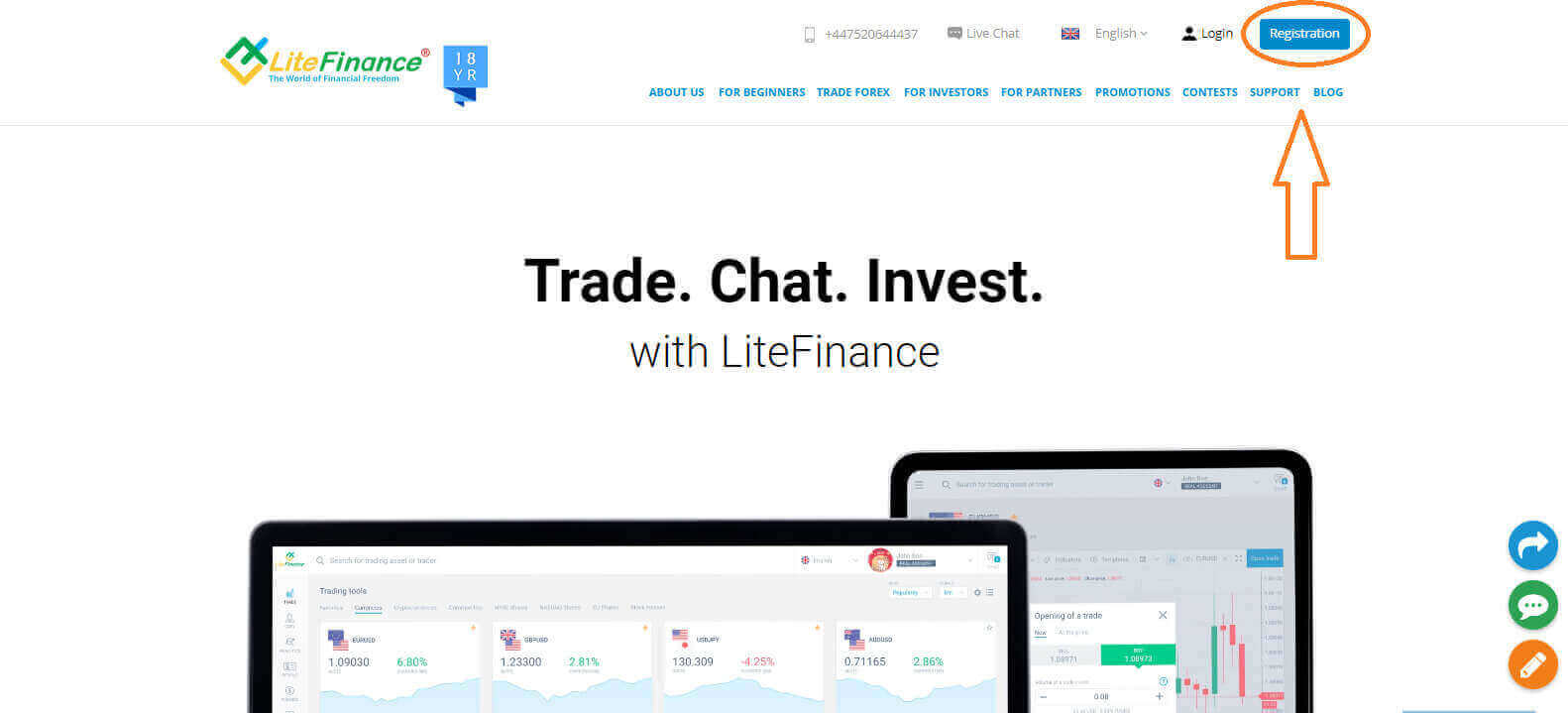
At the registration page, please complete the following actions:
- Choose your residence nation.
- Enter youremail address or phone number.
- Create a strong and secure password.
- Please select the checkbox indicating that you have read and agreed to LiteFinance’s Clients Agreement.
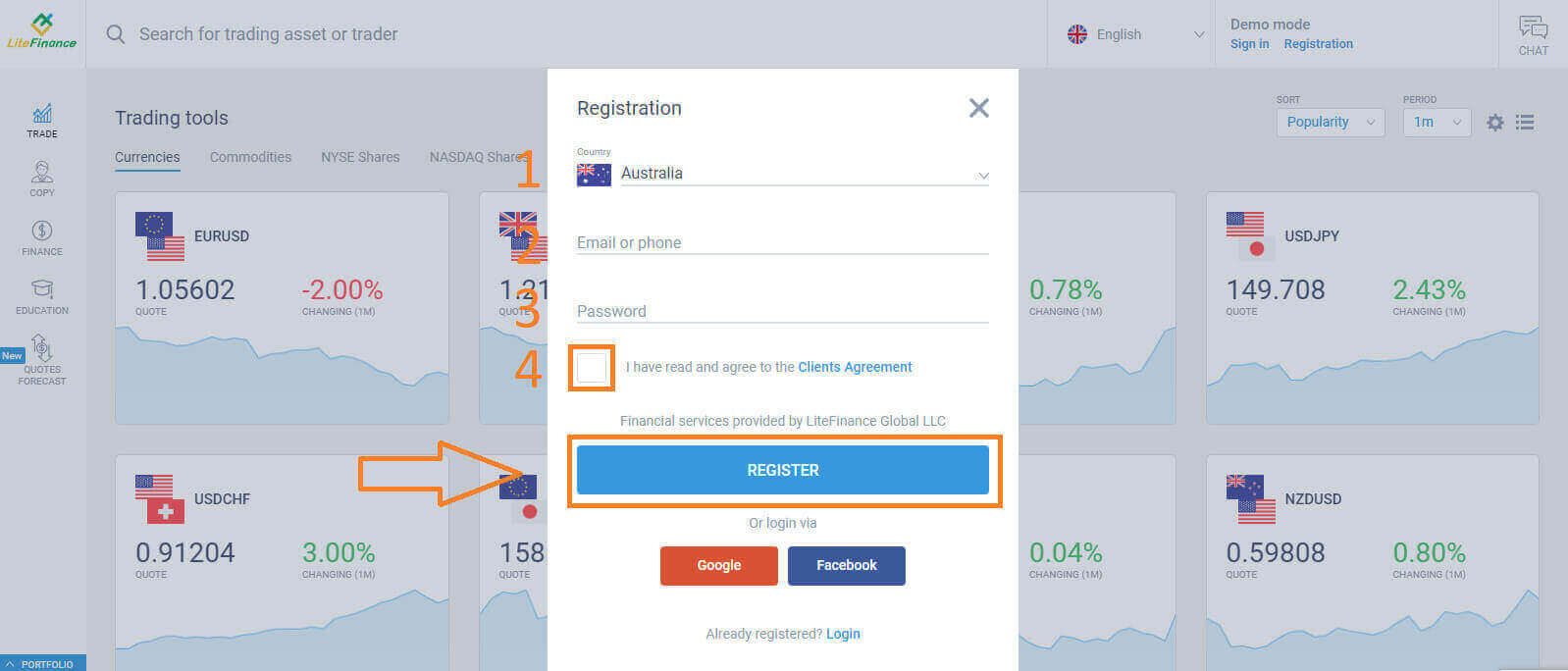
Within a minute, you will receive a verification code, please check your email/ phone number. Then fill in the "Enter code" form and click the "CONFIRM" button.
You can request a new code every 2 minutes if you haven’t received it.
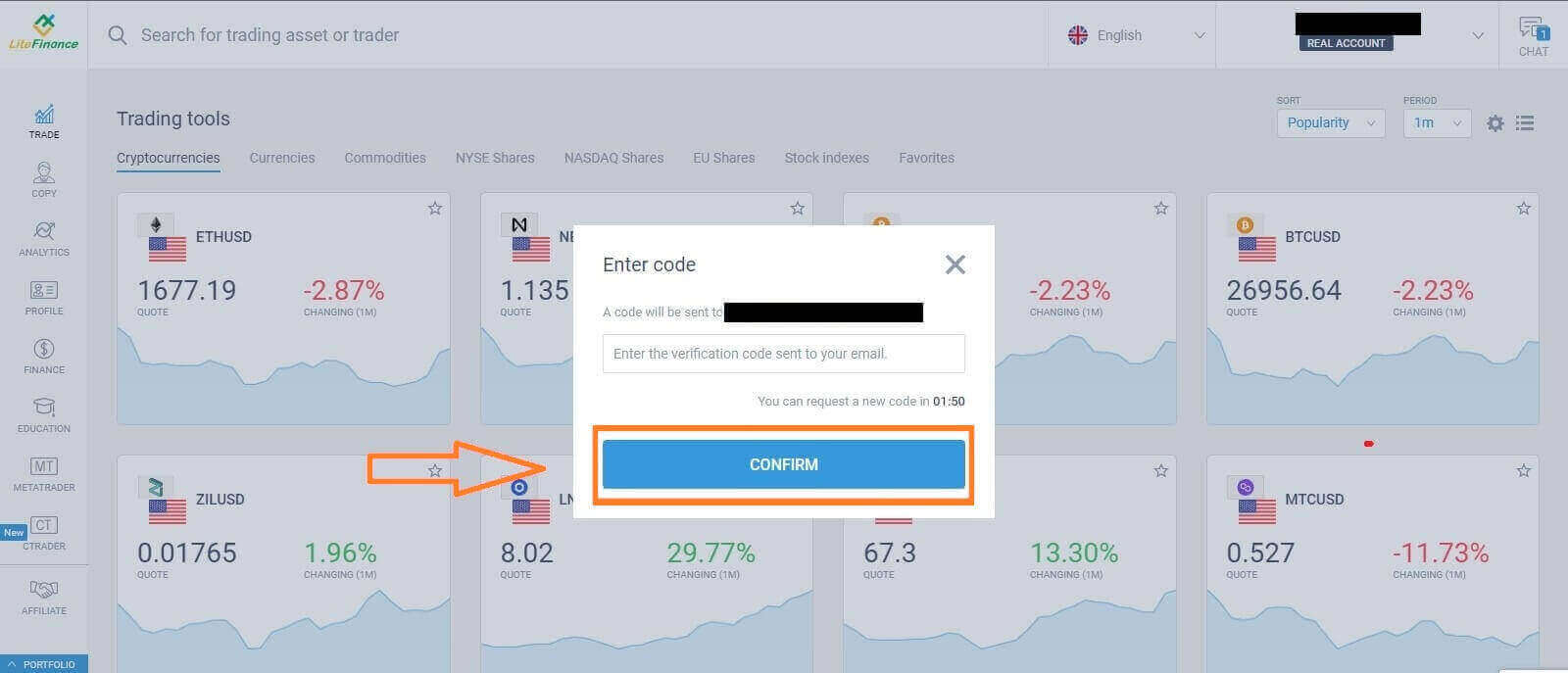
Congratulations! You have successfully opened a new LiteFinance Account. You will now be directed to the LiteFinance Terminal.
LiteFinance profile verification
When you create a LiteFinance account, the user interface appears next to the chat box in the upper right corner. Move your mouse to "My profile" and click on it.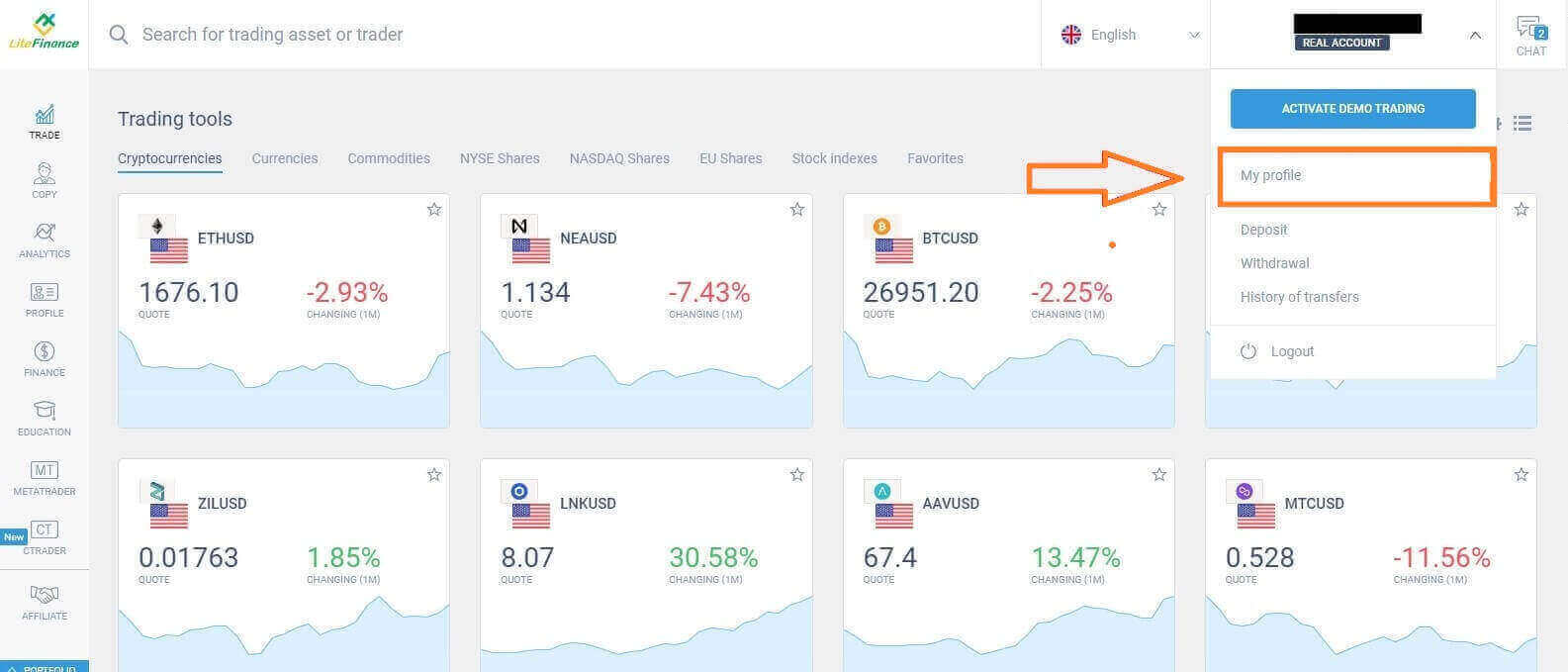 On the next page, click "Verification".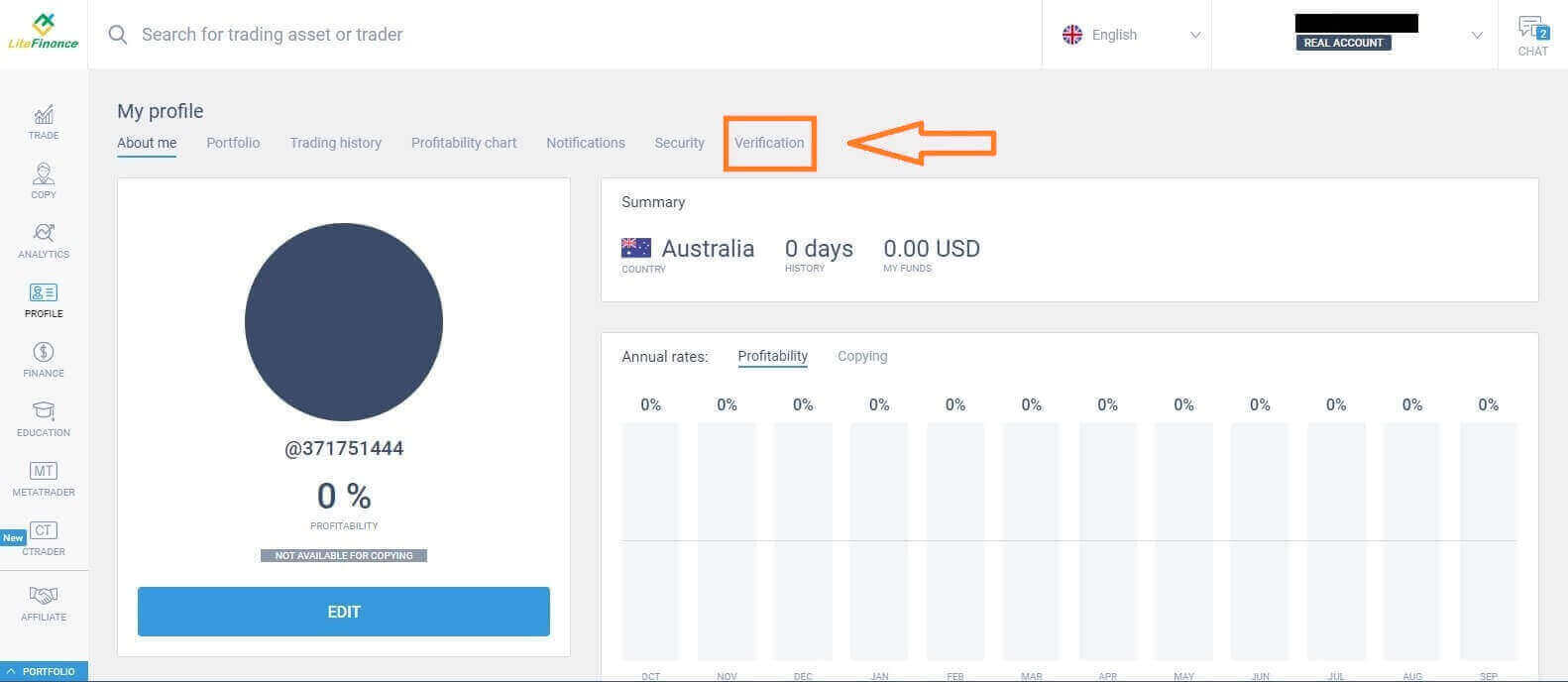
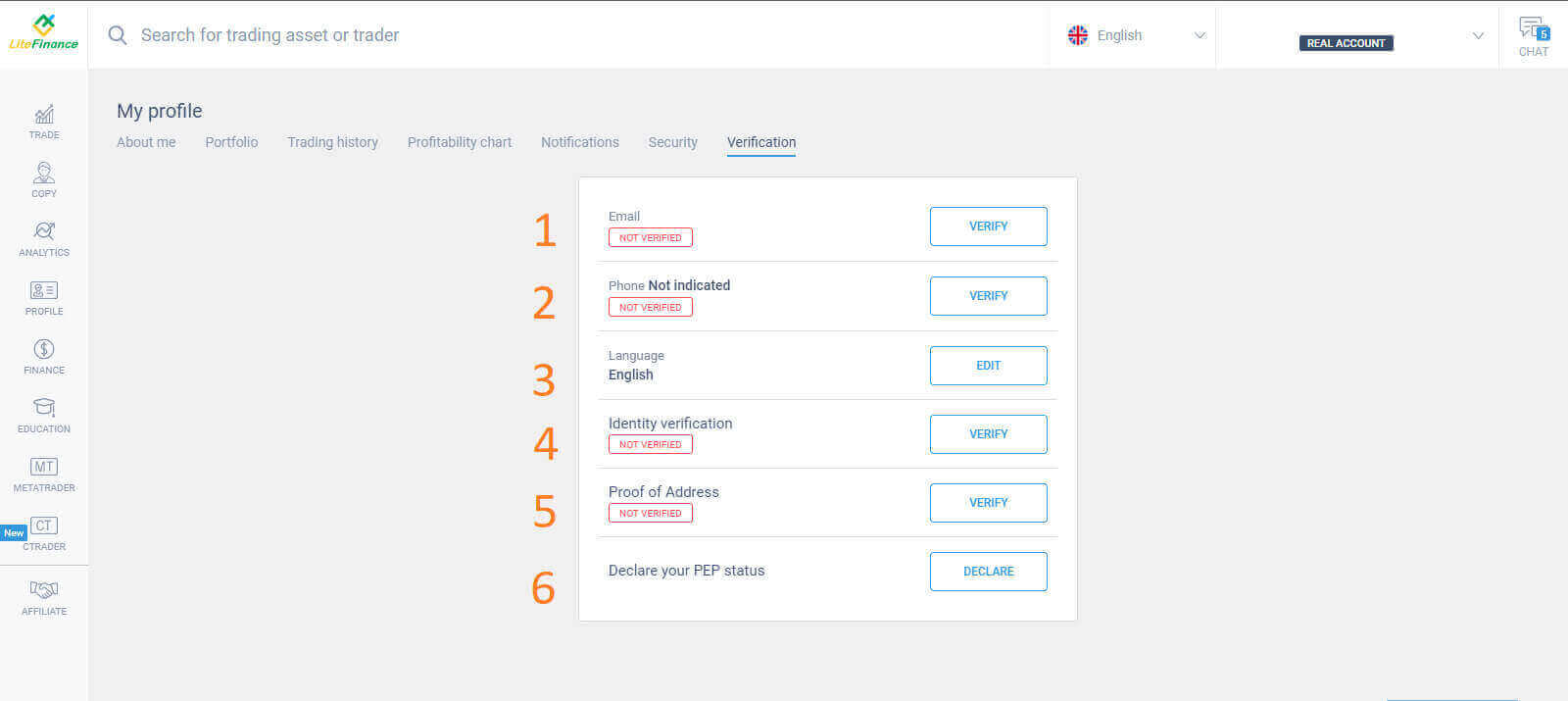
There will be a form on the screen for you to fill out to verify your information, such as:
- Email.
- Phone number.
- Language.
- Name, gender, and date of birth verification.
- Proof of Address (Country, region, city, address, and postcode).
- Your PEP status ( you just need to tick the box declaring youa PEP - Politically Exposed Person).
How to create a trading account
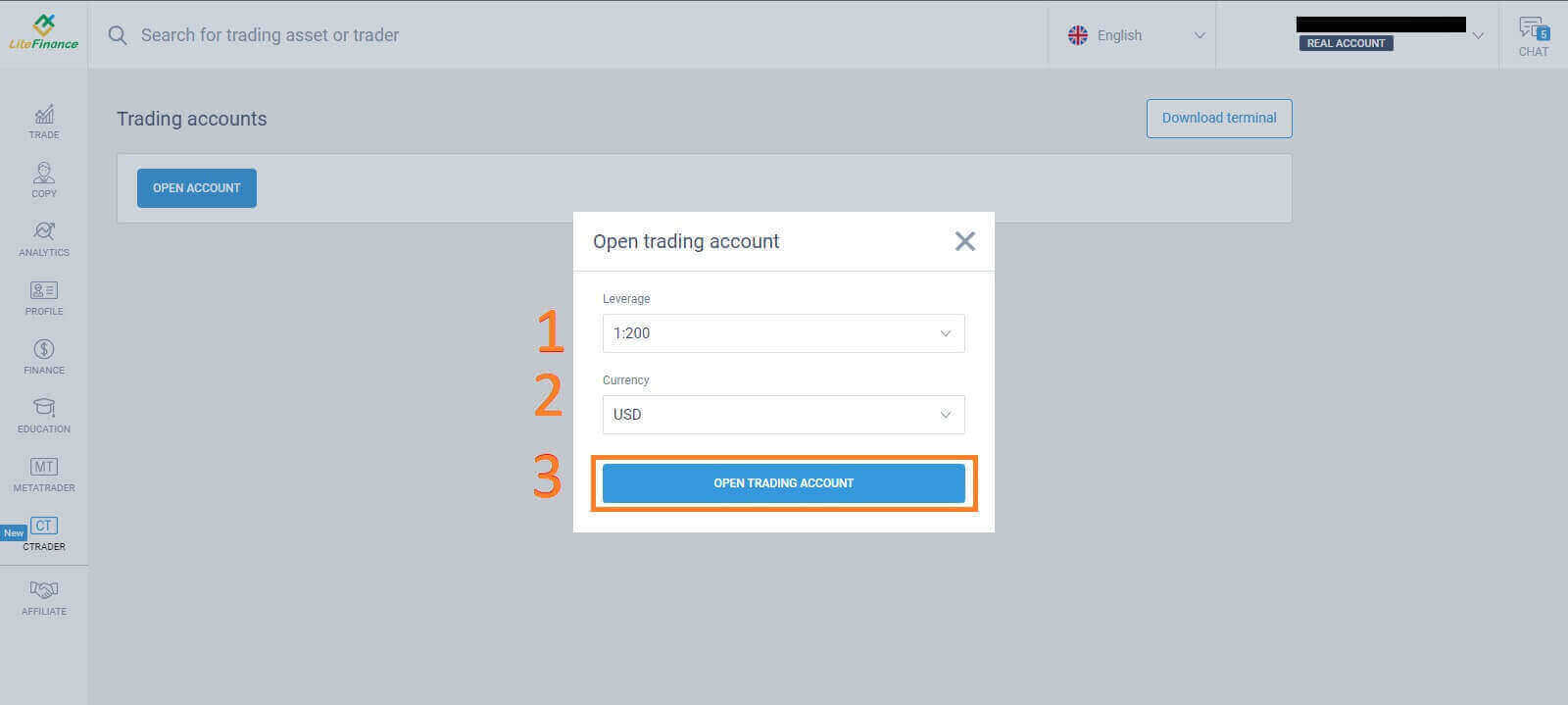
Please choose the "CTRADER" icon on the left side of the screen.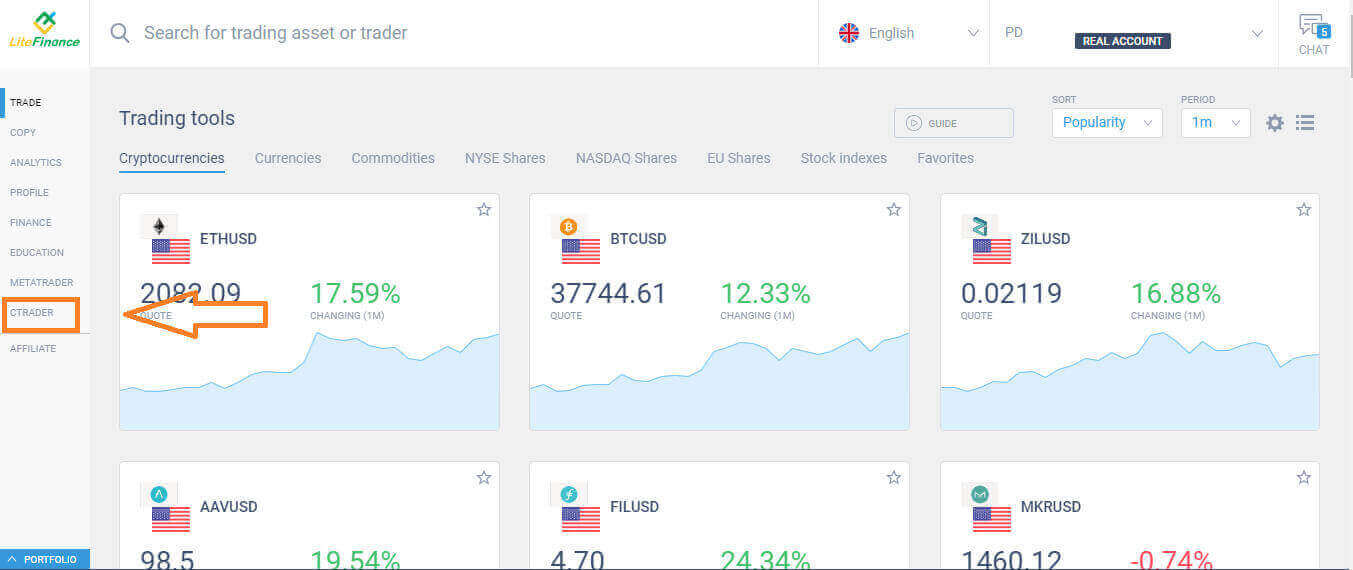 To proceed, please choose "OPEN ACCOUNT".
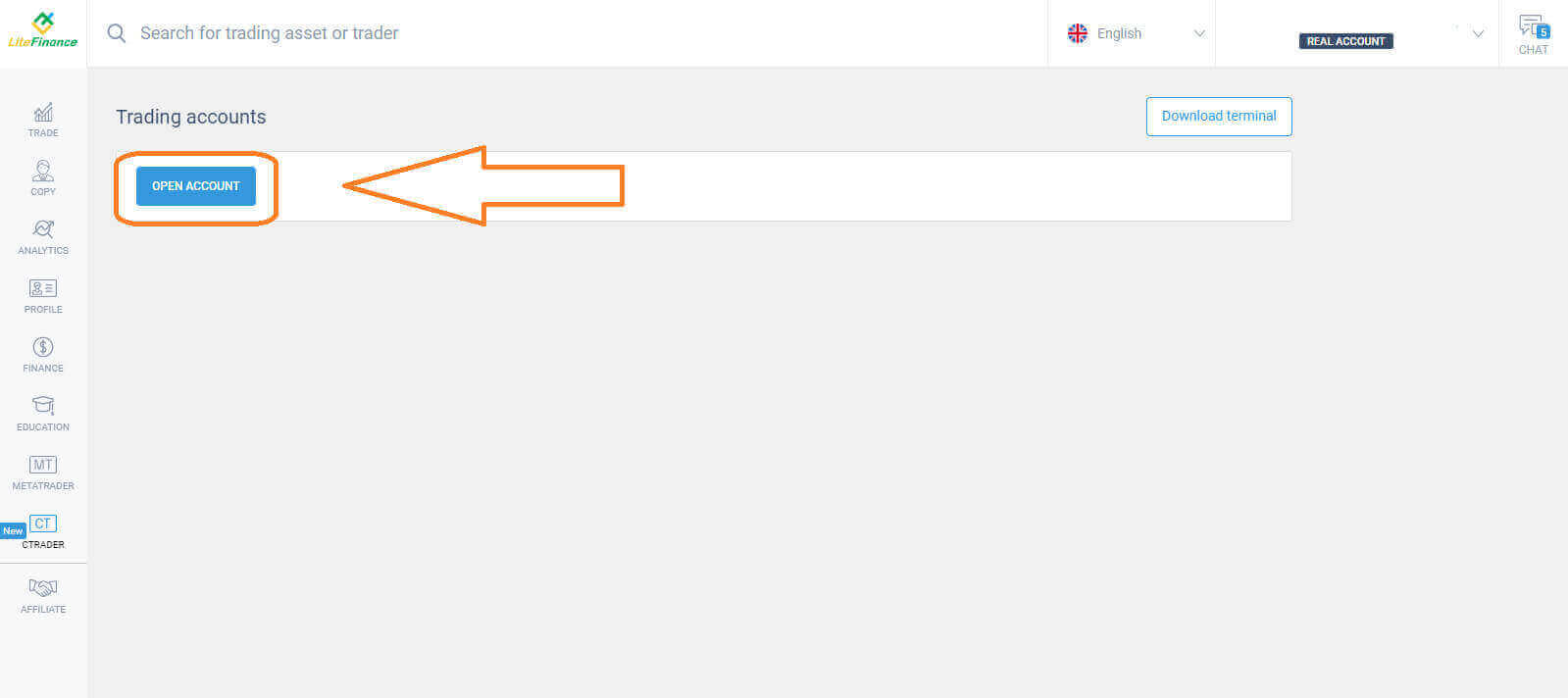 On the "Open Trading Account" form, select your leverage and currency, then choose "OPEN TRADING ACCOUNT".
 Congratulations! Your trading account has been created successfully.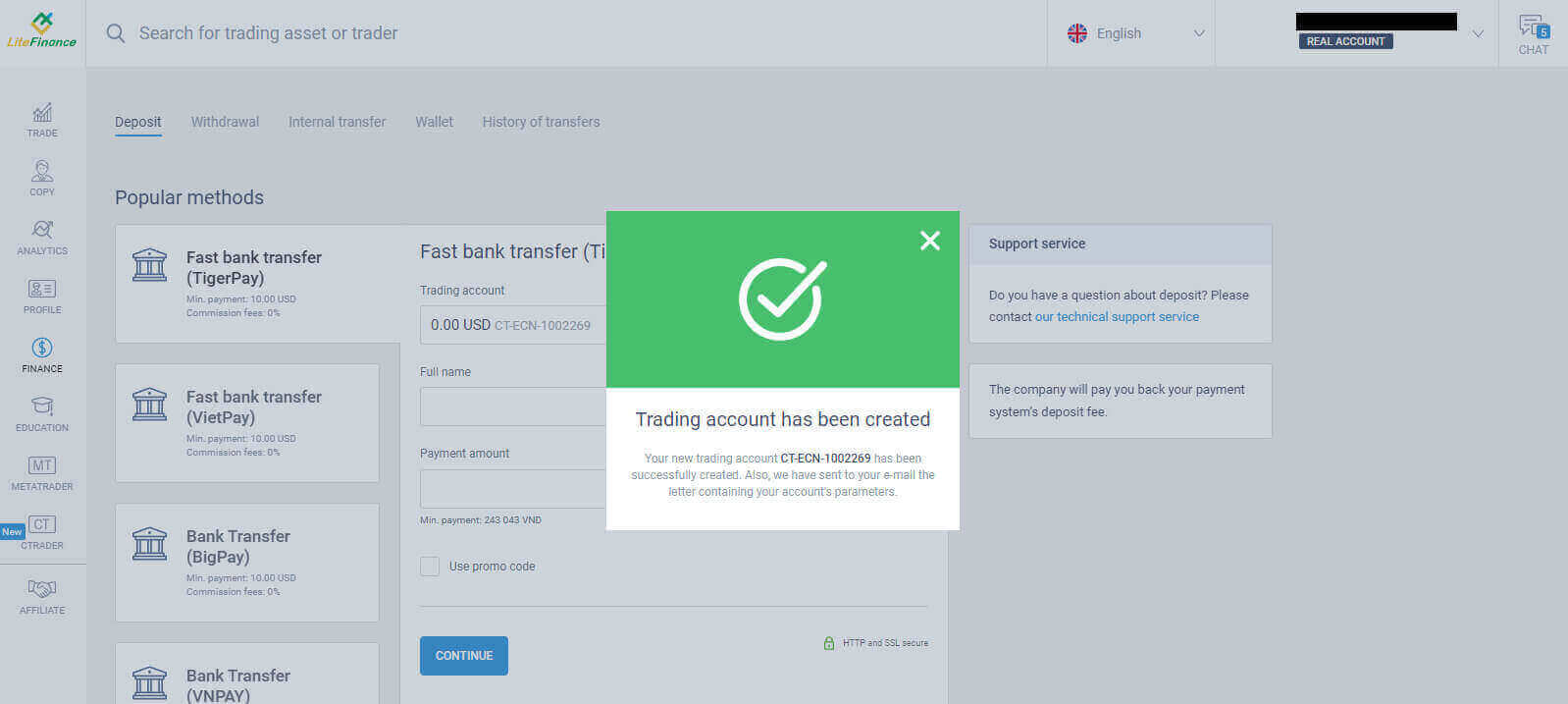
How to Open LiteFinance Account on the Mobile app
Set up and Open an Account
Install the LiteFinance Mobile Trading App from theApp Store as well as Google Play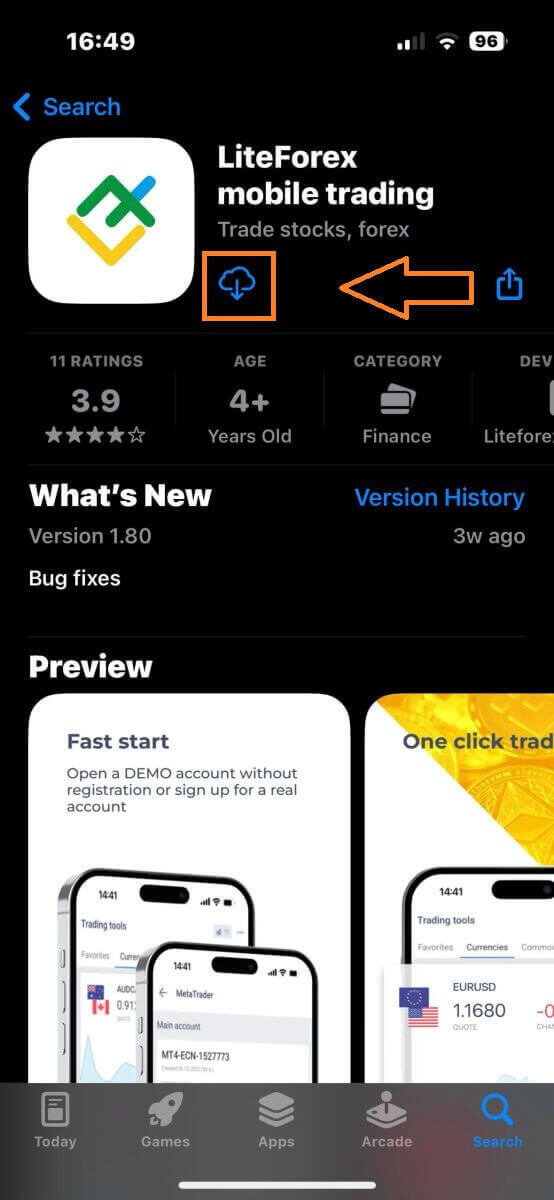
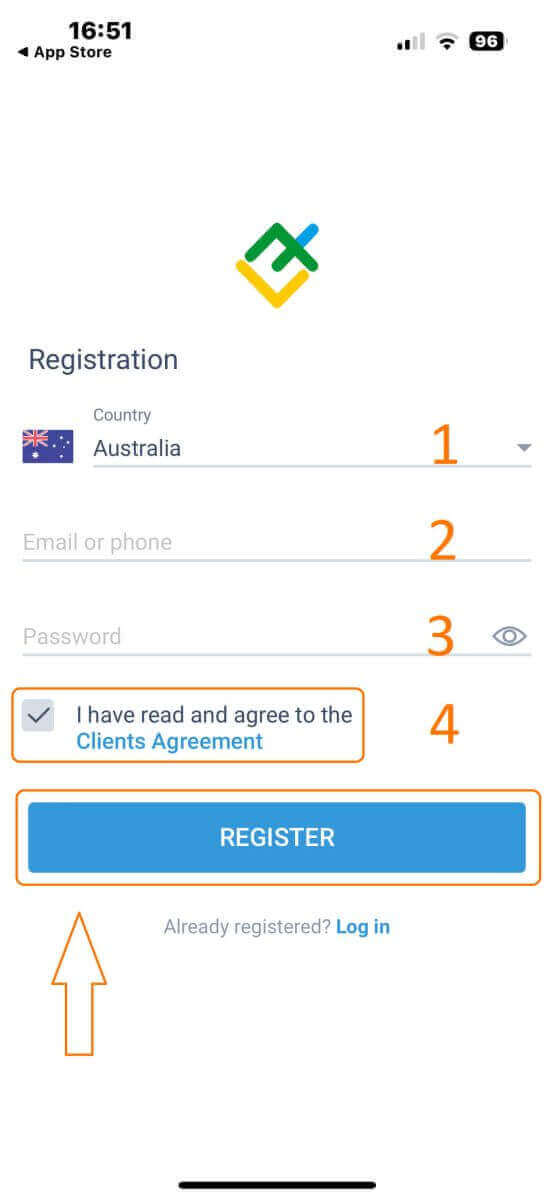
Run the LiteFinance Trading App on your mobile device, then select "Registration".
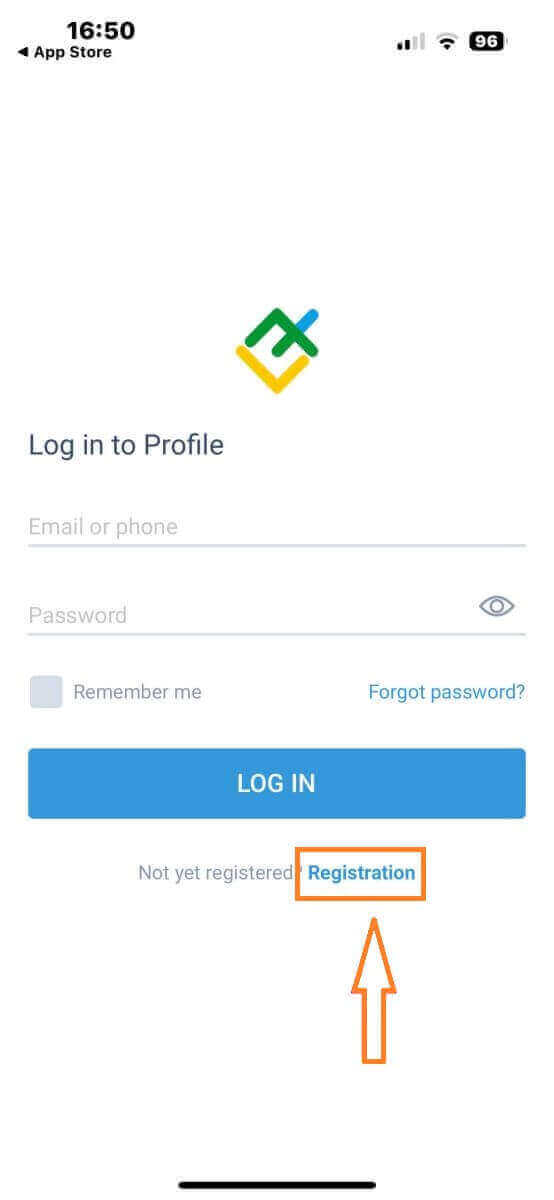
To proceed, you’ll need to complete the registration form by providing specific information:
- Select your country of residence.
- Provide your email address or phone number.
- Establish a secure password.
- Tick the box declaring youhave read and agree to theLiteFinance’s Clients Agreement.
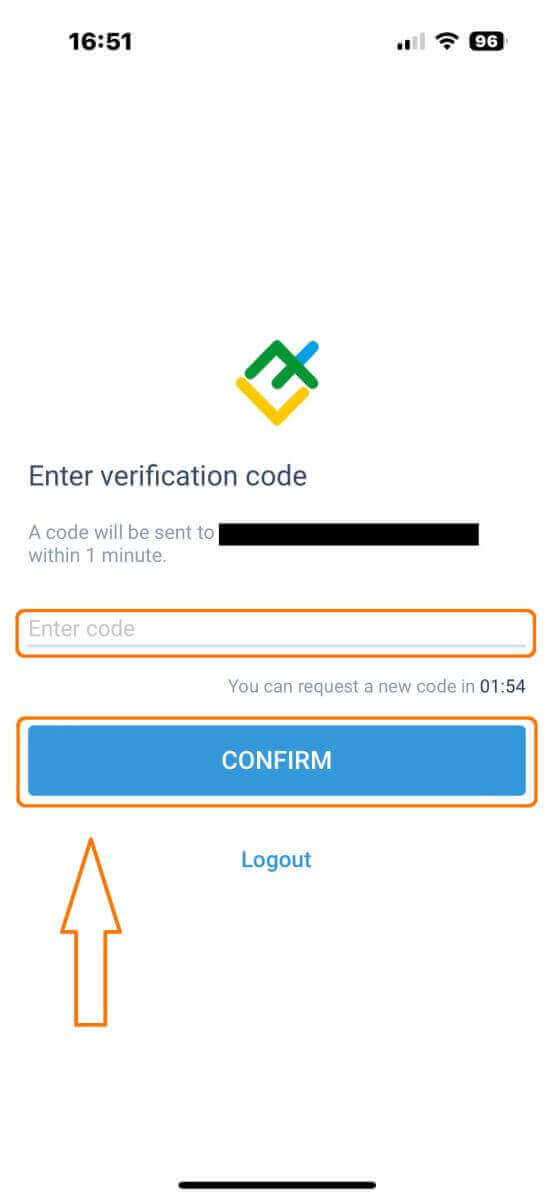
After one minute, you will receive a 6-digit verification code via phone or email. Check your inbox and input the code.
In addition, if you have not received the code within two minutes, touch "RESEND". Otherwise, choose "CONFIRM".
You can construct your own PIN number, which is a 6-digit code.This step is optional; however, you must complete it before accessing the trading interface.
Congratulations! You have successfully set up and are now ready to use the LiteFinance Mobile Trading App.
LiteFinance profile verification
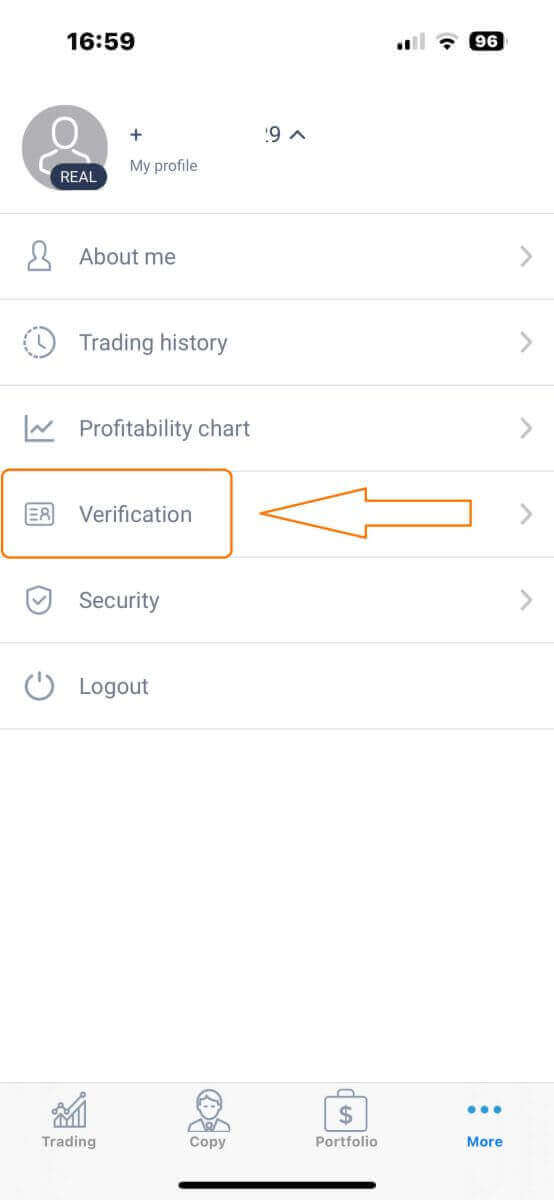
Tap "More" in the bottom right corner of the homepage.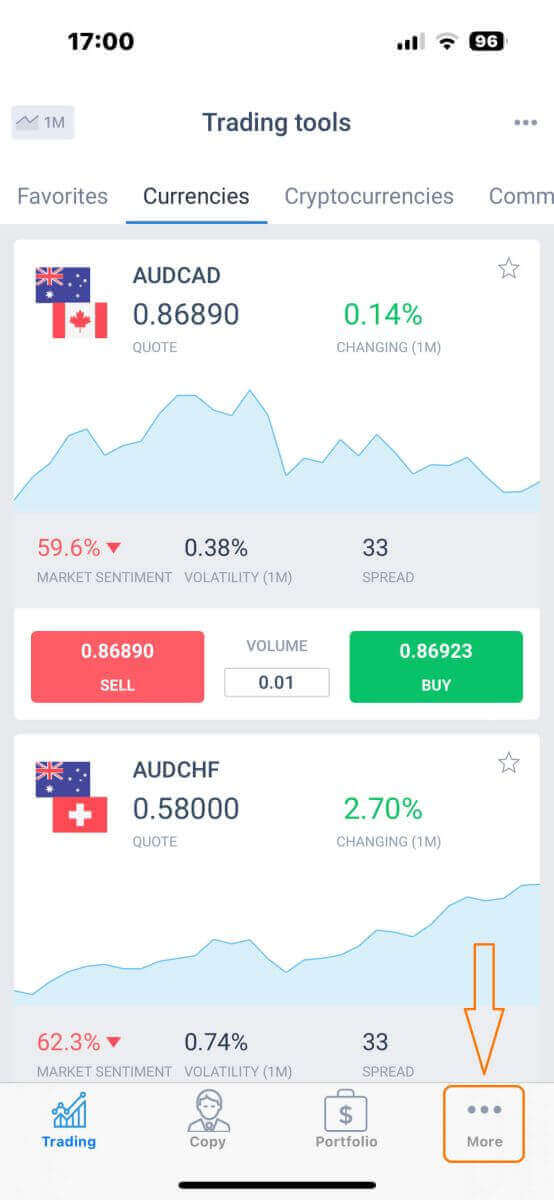
On the first tab, look next to your phone number/ email addressand click the dropdown arrow.
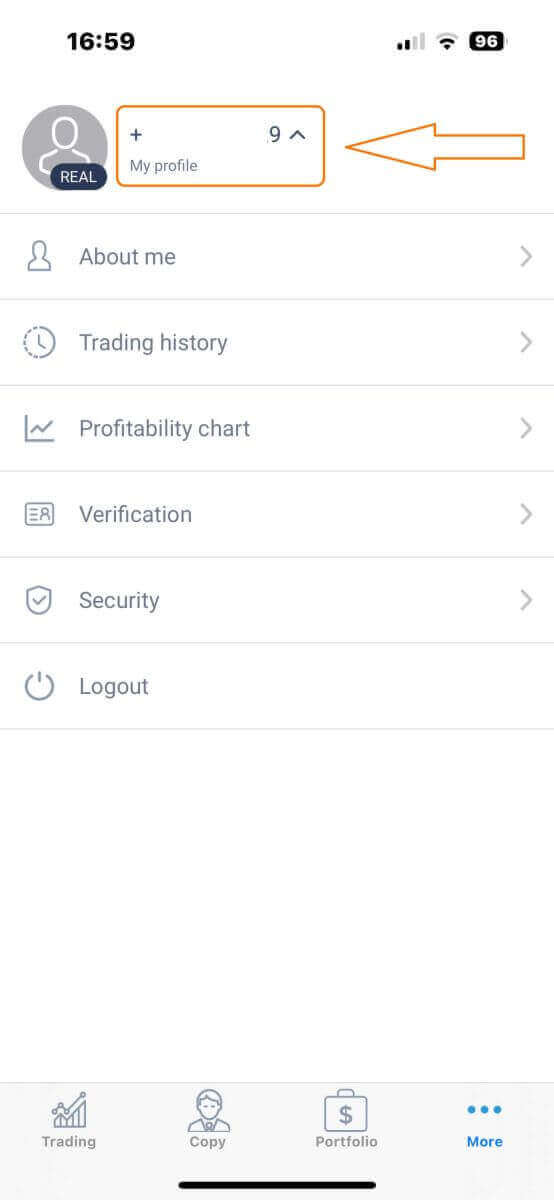
Choose "Verification".
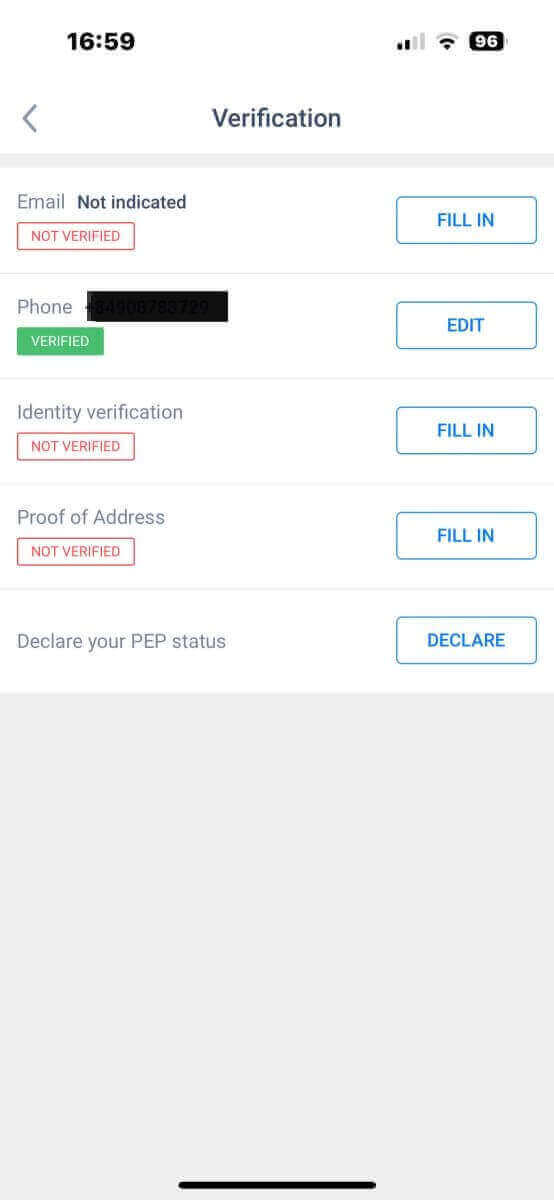
Please ensure that you fill out and authenticate all required details on the verification page:
- Email address.
- Phone number.
- Identity verification.
- Proof of Address.
- Declare your PEP status.
How to create a new trading account
To access MetaTrader, return to the "More" screen and select its corresponding icon.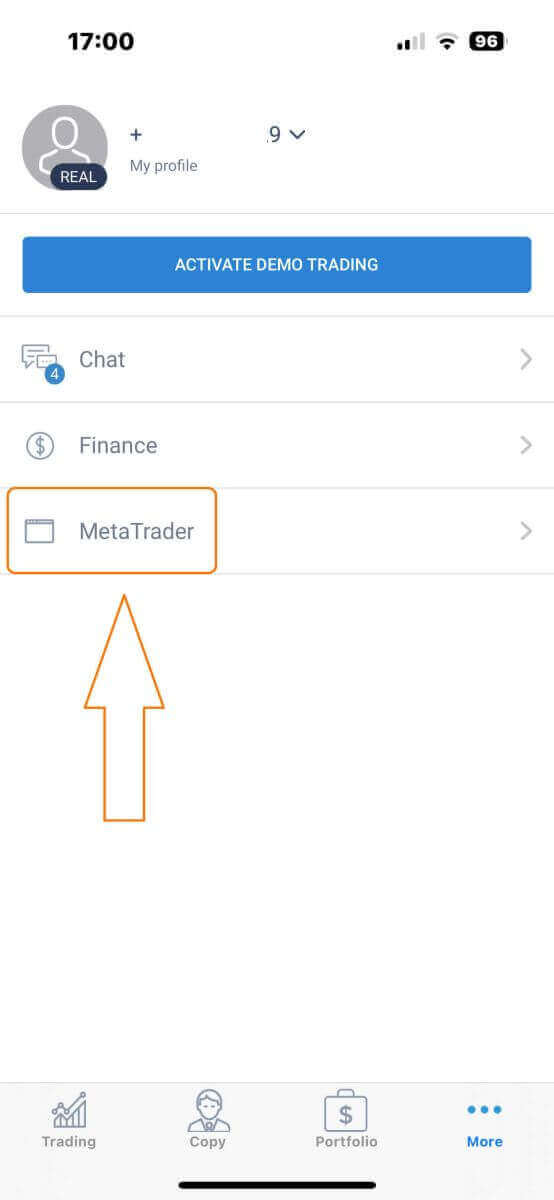
Please scroll down until you locate the "OPEN ACCOUNT" button, and then tap on it.
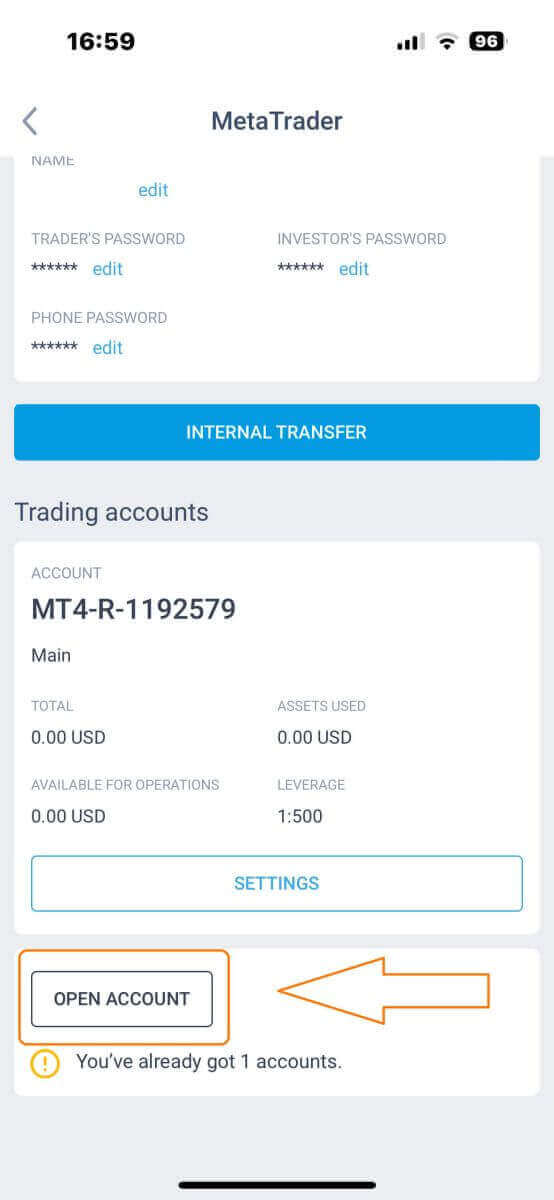
Please enter your account type, leverage, and currency in the "Open Trading Account"box and click "OPEN TRADING ACCOUNT" to complete.
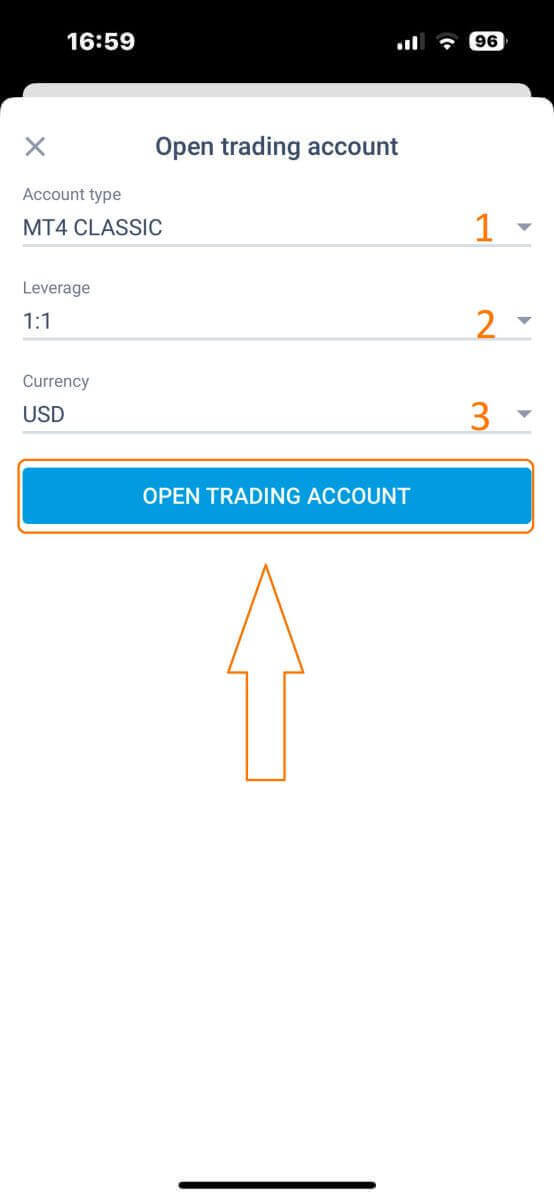
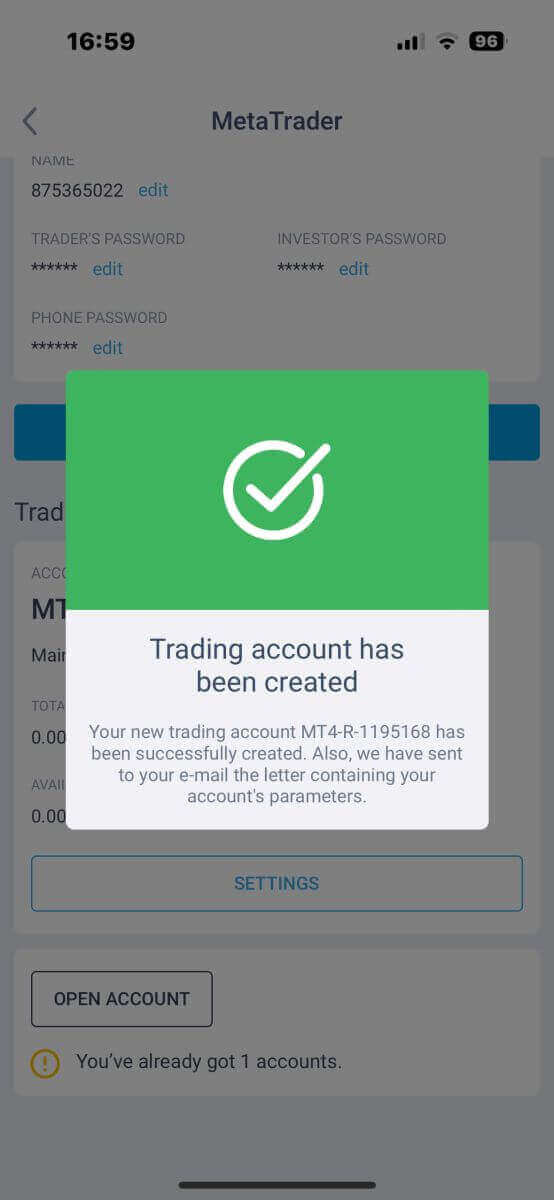
You have successfully created a trading account! Your new trading account will show up below and remember to set one of them to be your main account.
How to Sign in to LiteFinance
How to Sign in to LiteFinance on the Web app
How to Sign in to LiteFinance witha Registered Account
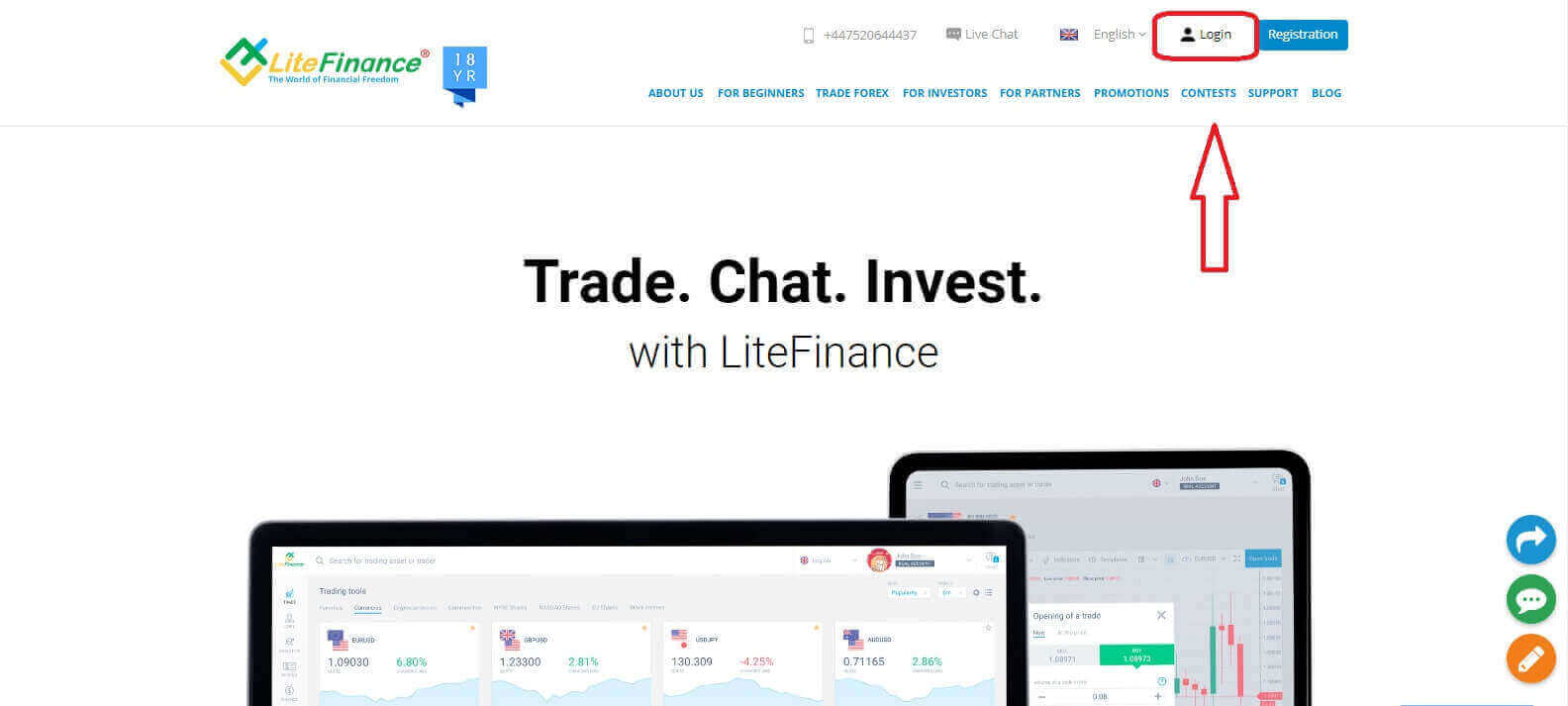
If you don’t have a registered account, watch this post:How to Register Account on LiteFinance.Visit the LiteFinance homepageand click onthe "Login" button.
Click "SIGN IN" after entering your registered email address and password to access your account.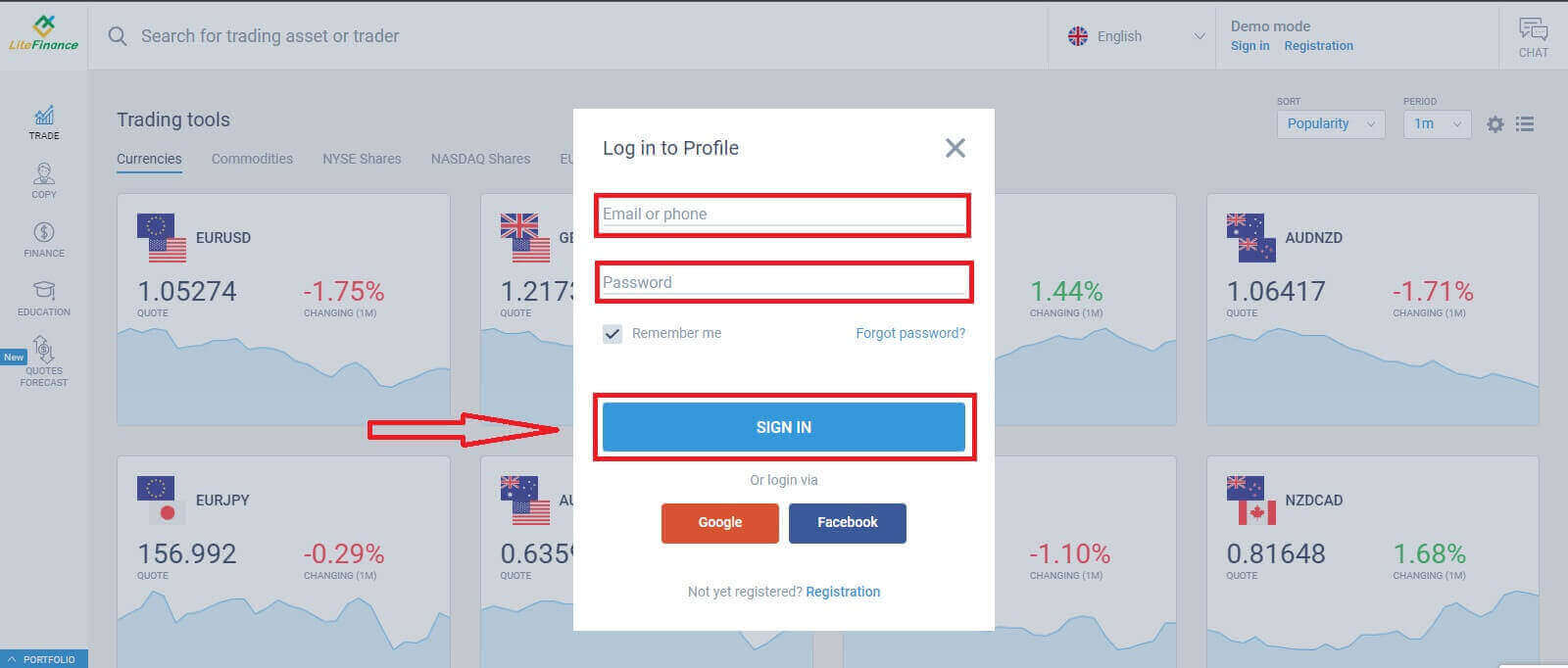
Sign into LiteFinancevia Google
On the registration page, in the "Log in to Profile" form, choose the Google button.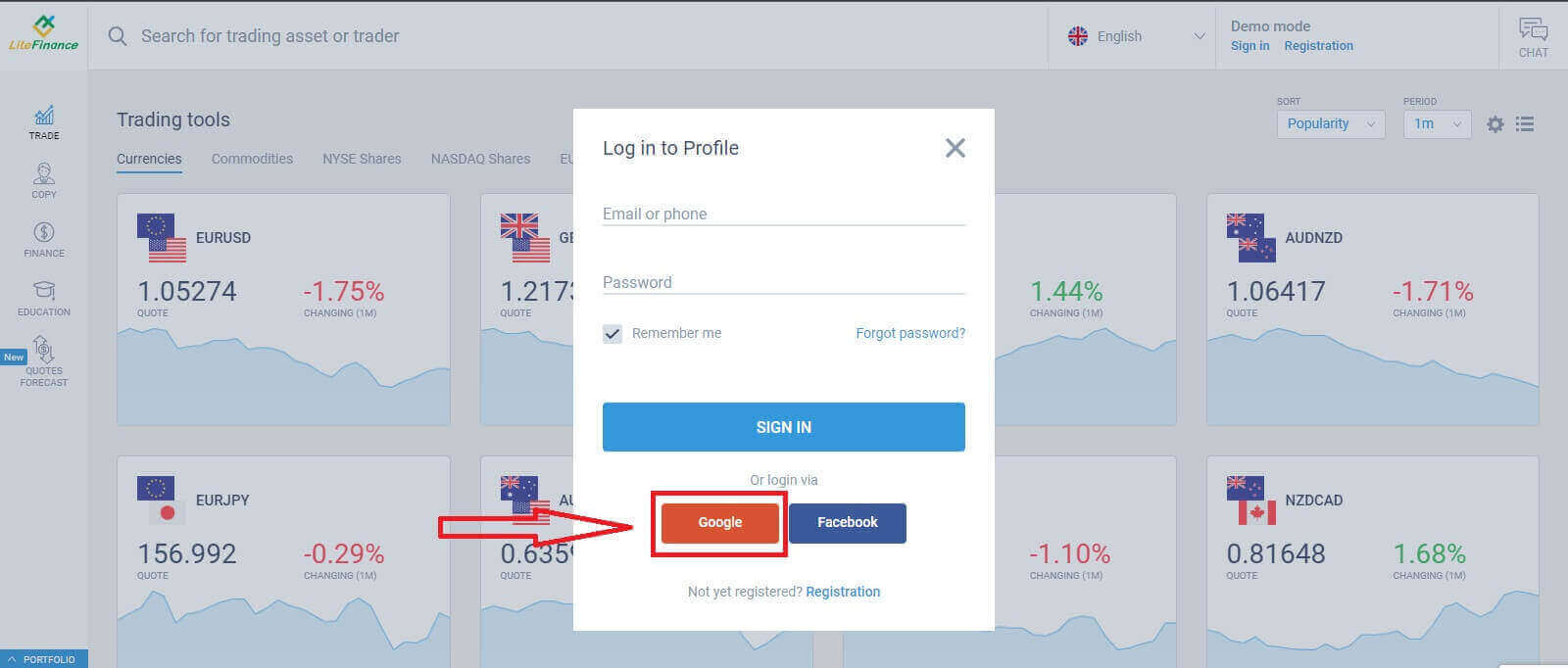
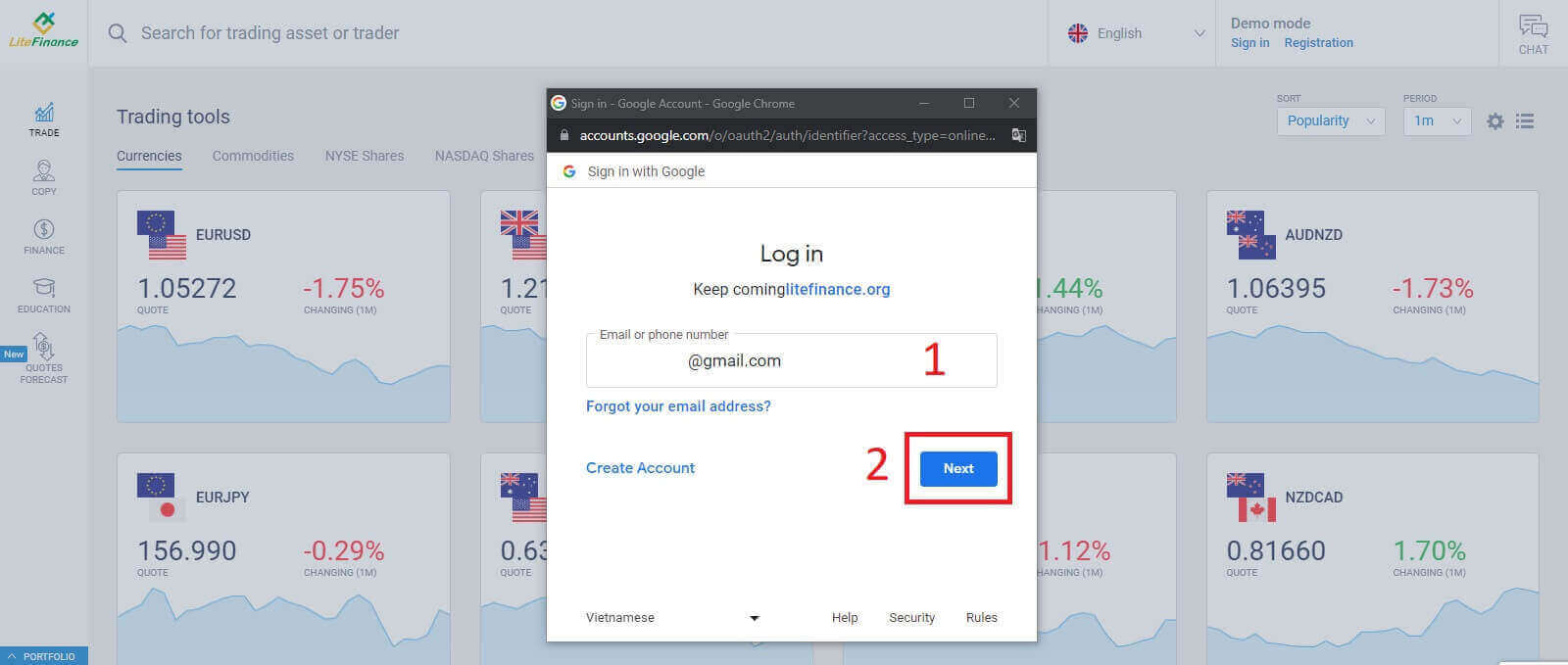
A new pop-up window will appear. On the first page, you need to enter your email address/ phone number then click "Next"
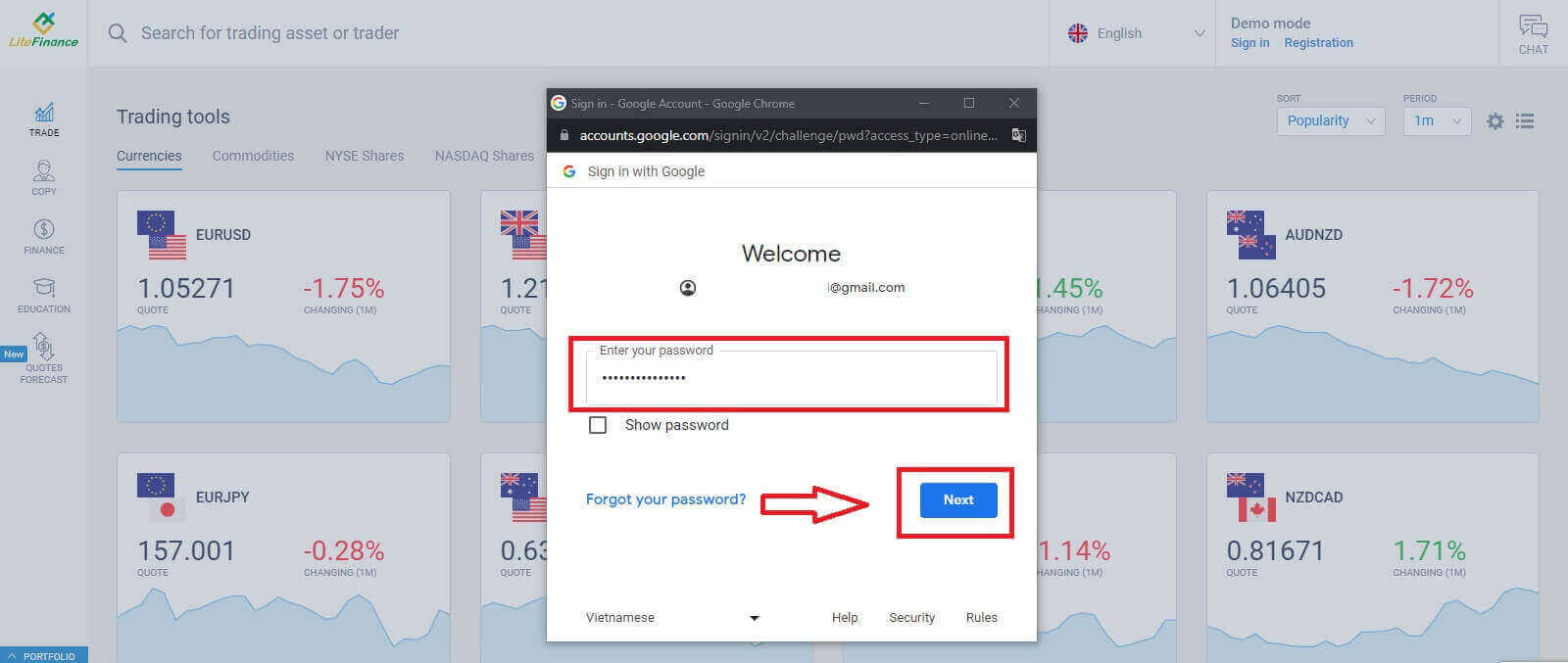
Enter your Google account’s password on the next page and click "Next".
Sign in to LiteFinance withFacebook
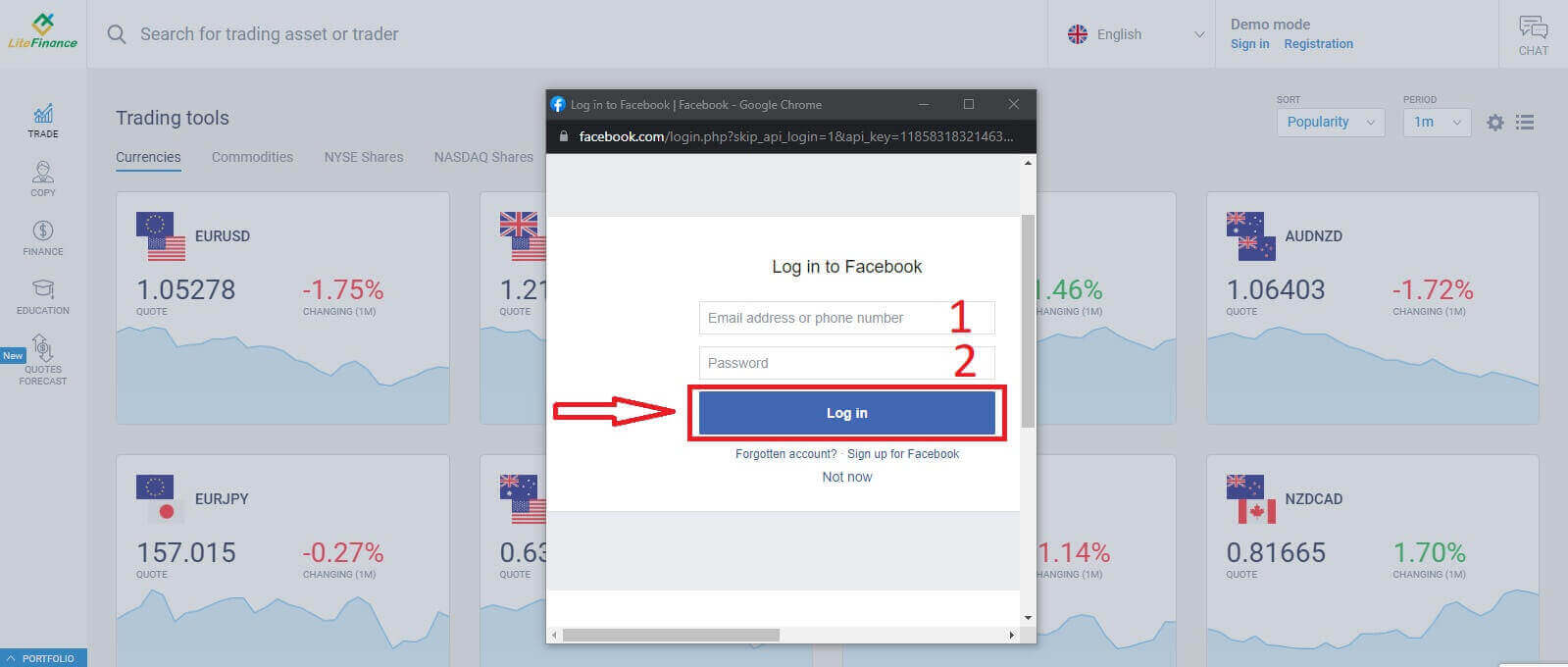
Select the Facebook button on the registration page’s "Log in to Profile" form.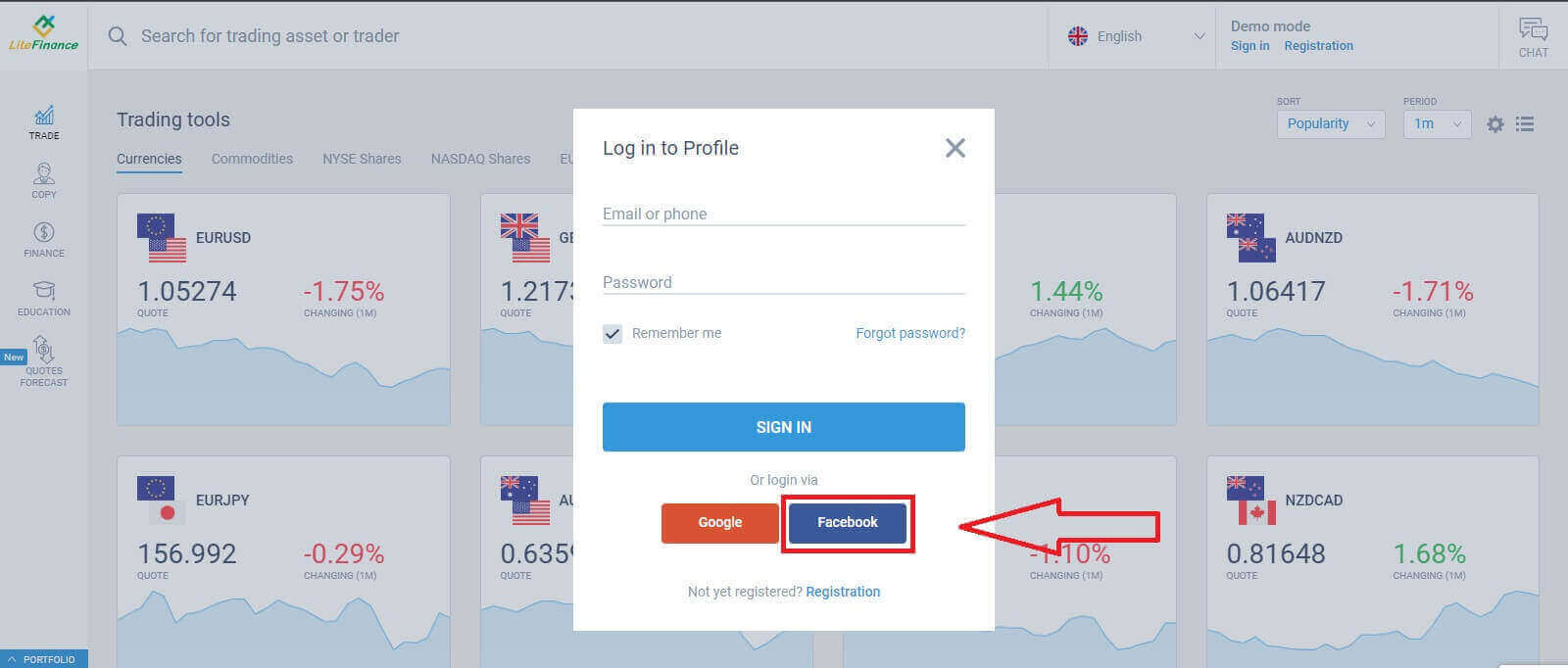
At the first pop-up window, enter your Facebook’s email address/ phone number and password. After that, click "Log in".
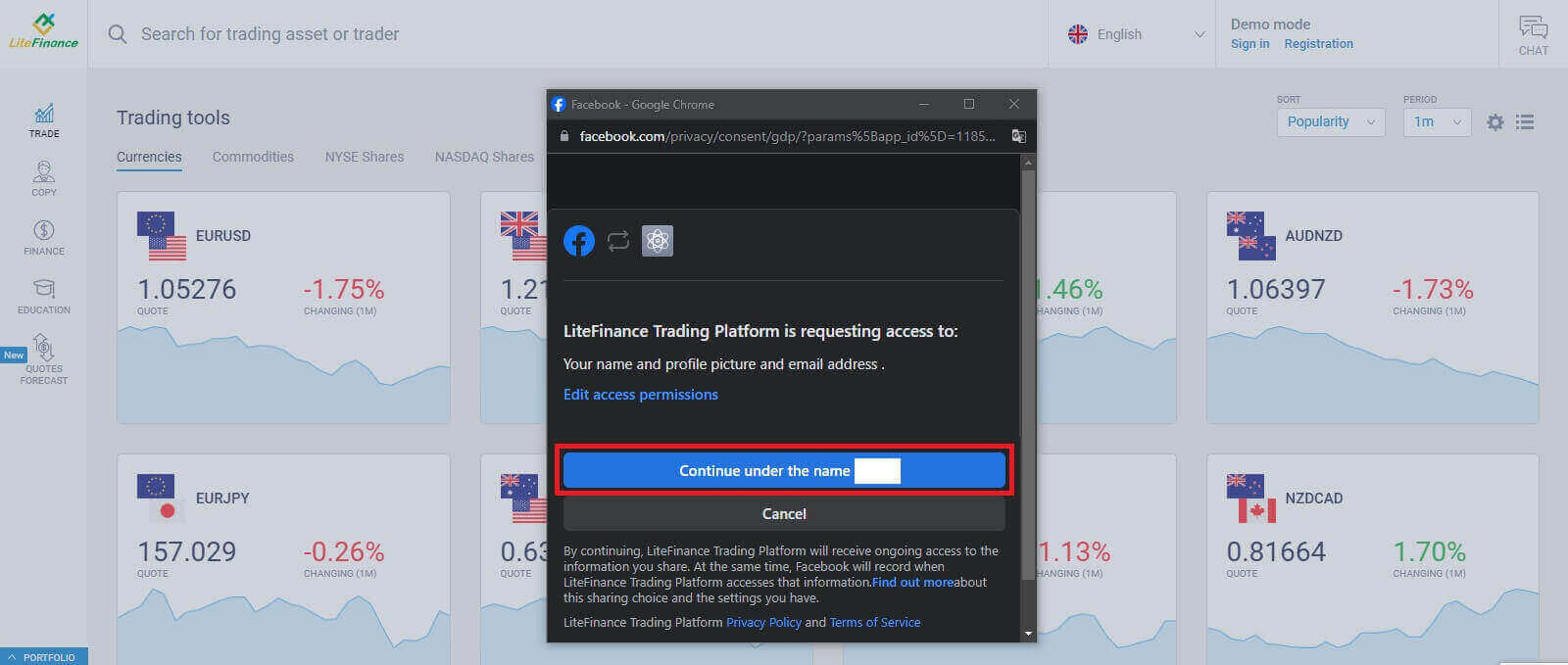
Choose the "Continue under the name..." button on the second one.
How to Recover your LiteFinancepassword
Accessthe LiteFinance homepageand click onthe "Login" button.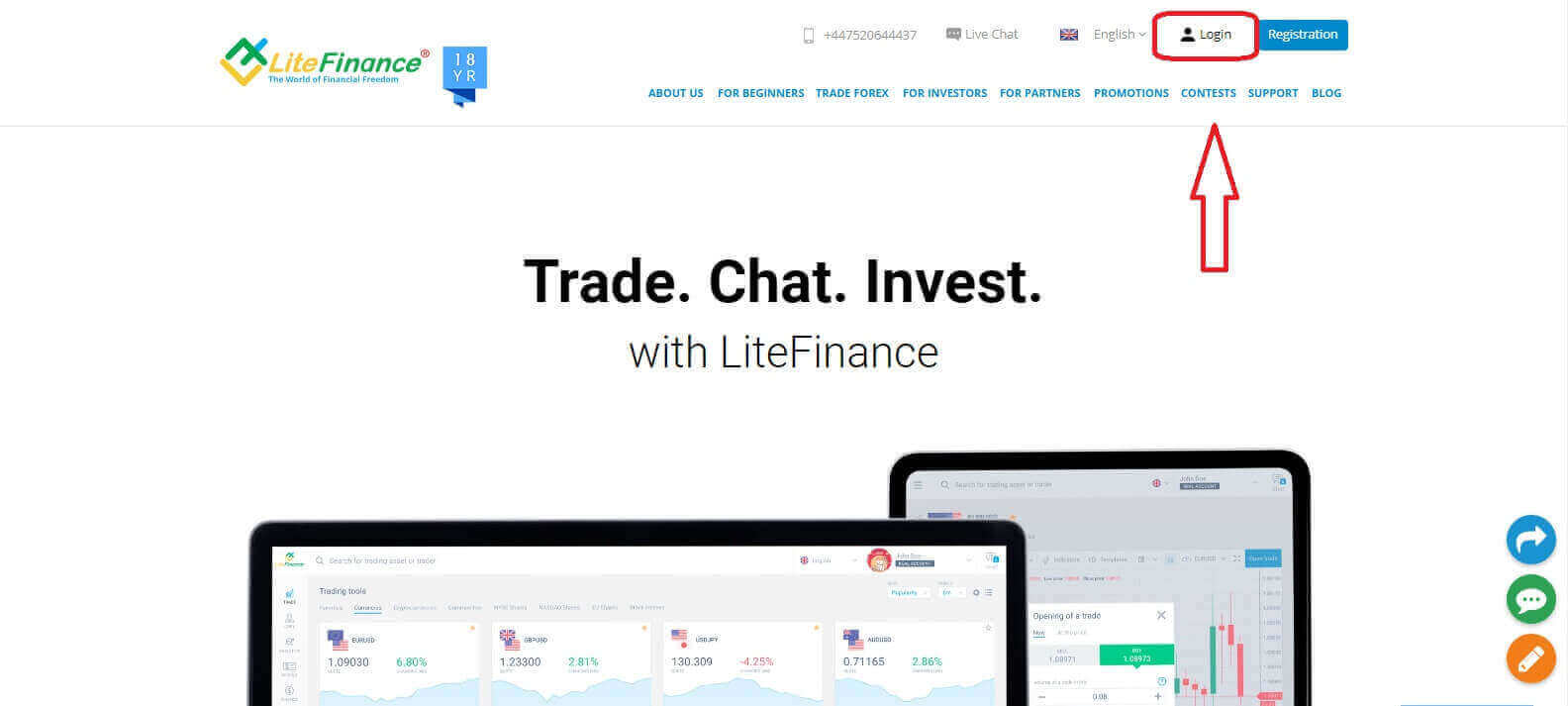
At the sign-in page, choose "Forgot password".
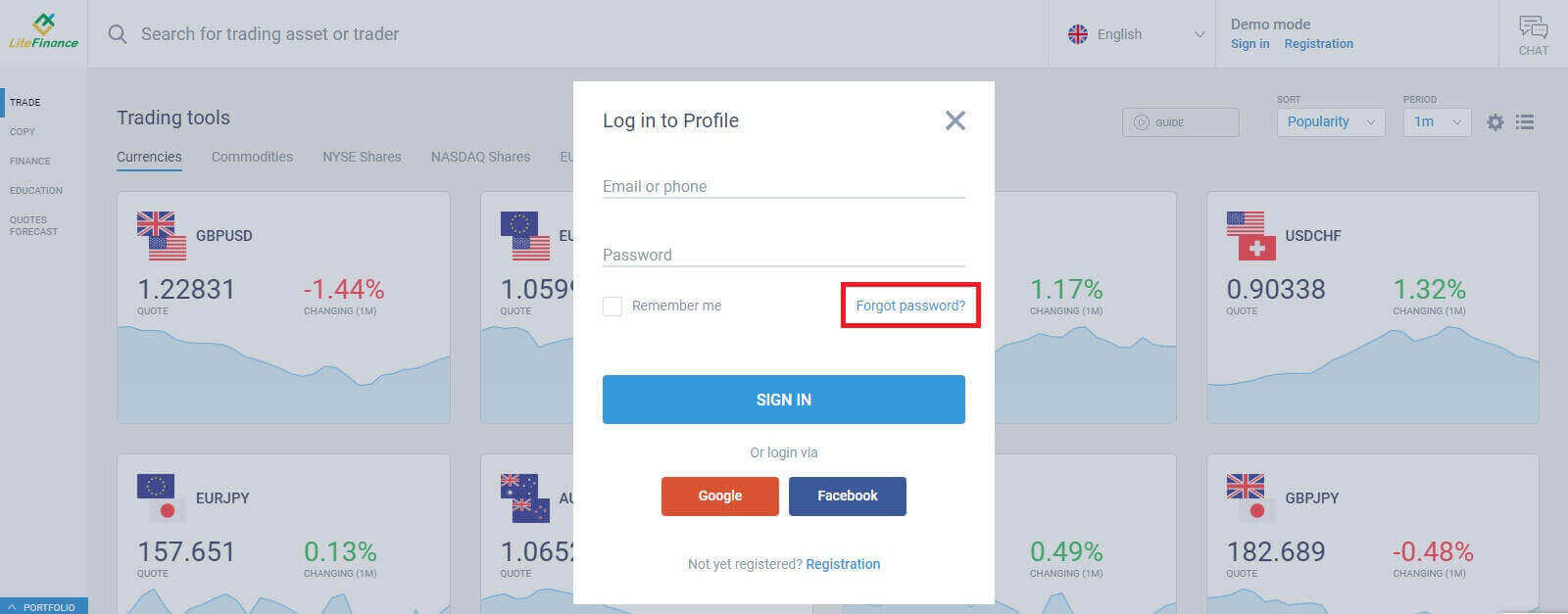
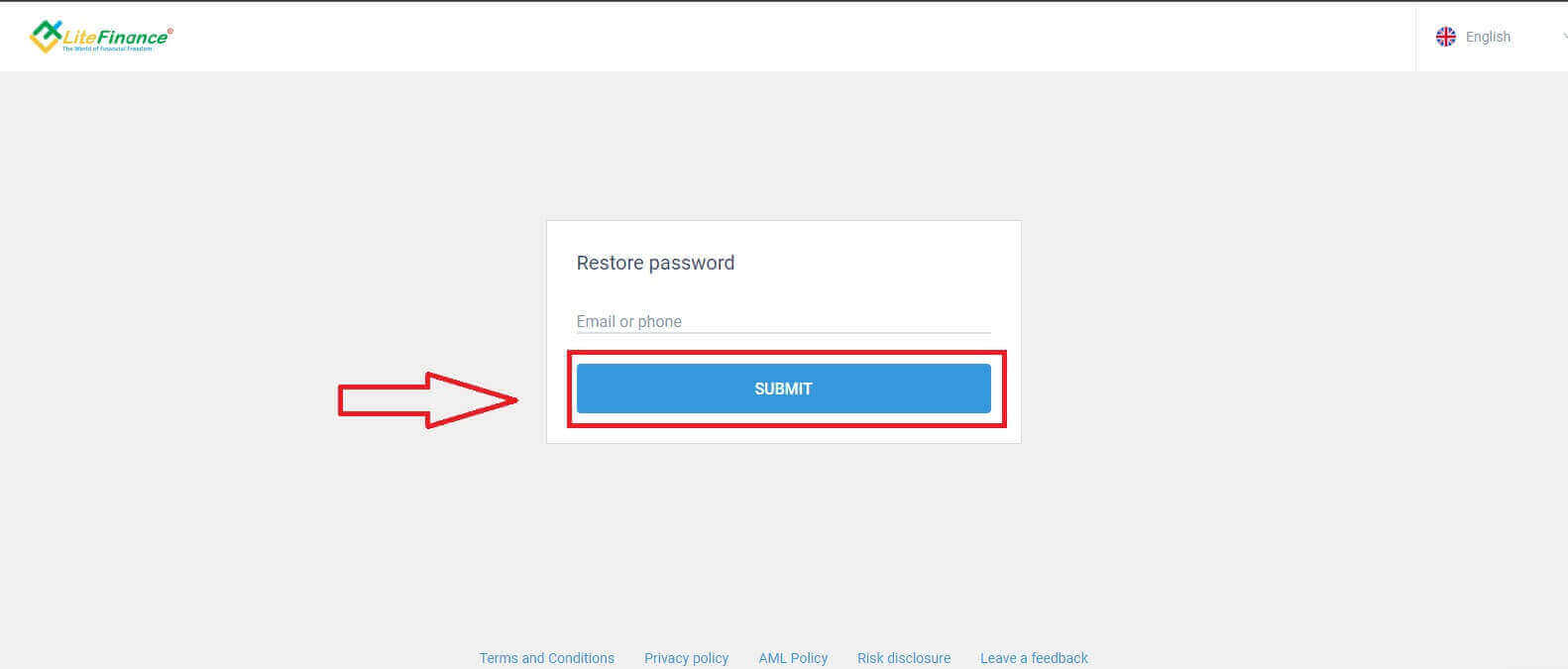
Enter the email/ phone number of the account that you want to reset the password in the form, then click "SUBMIT". You will receive an 8-digit verification code within a minute, so please check your inboxcarefully.
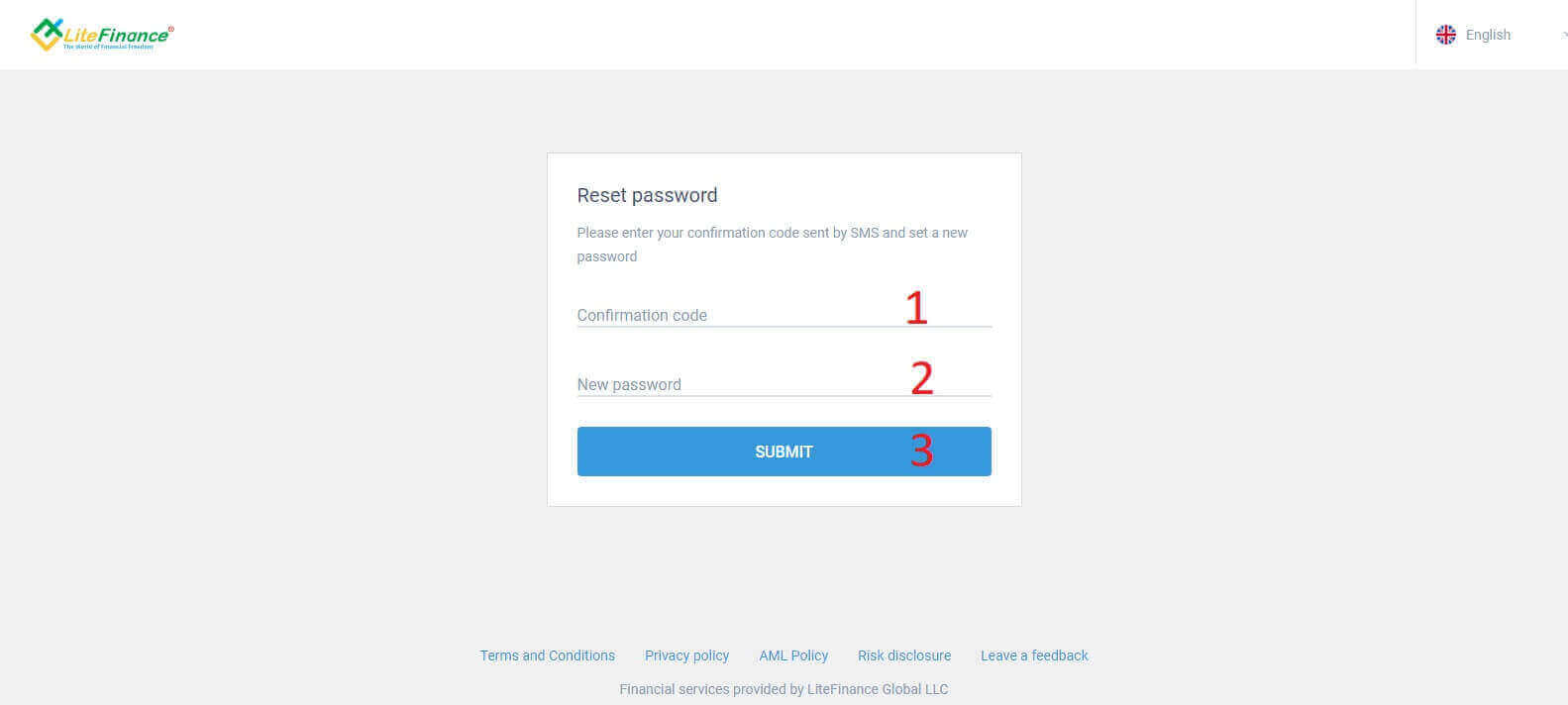
Finally, in the next form, you will need to fill in your verification code into the form and create a new password. To finish resetting your password, click "SUBMIT".
How to Sign in to LiteFinance on the Mobile app
Sign into LiteFinance Usinga Registered Account
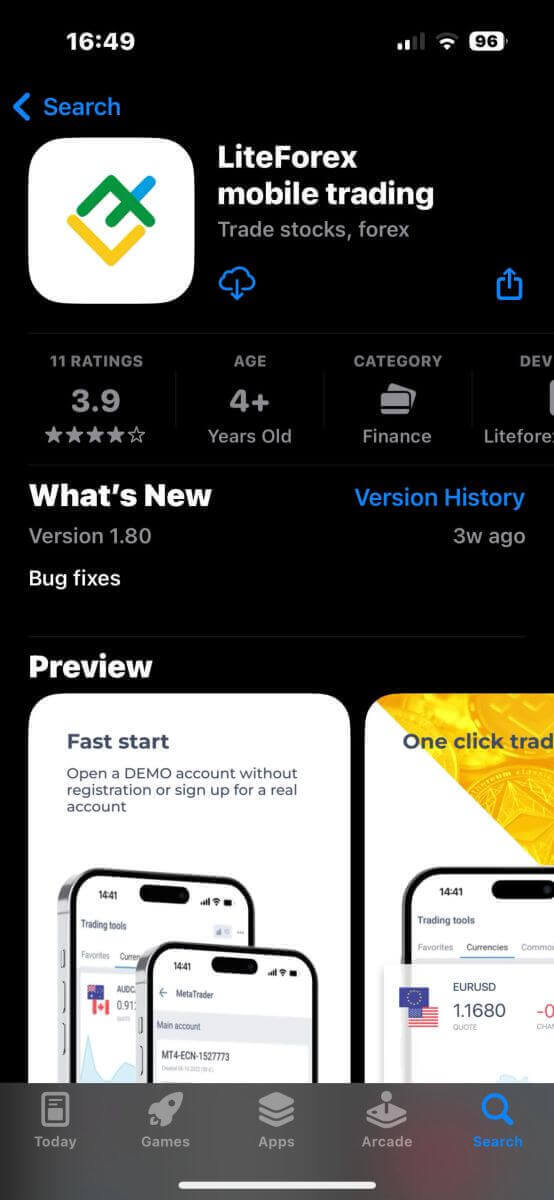
Currently, neither sign-in via Google nor Facebook is available on the LiteFinancemobile trading app. If you don’t have a registered account, watch this post:How to Register Account on LiteFinance.Install the LiteFinance mobile trading app on your phone.
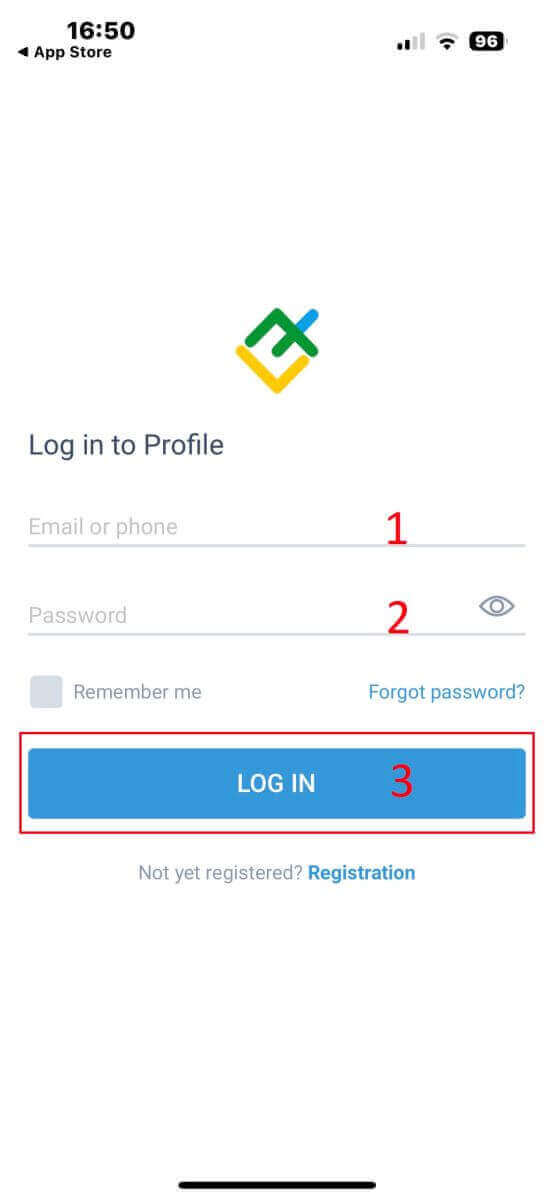
Open the LiteFinance mobile trading app, enter your registered account details, and click "LOG IN" to continue.
How to Resetyour Lifinance password
At the sign-in interface of the app, choose "Forgot password".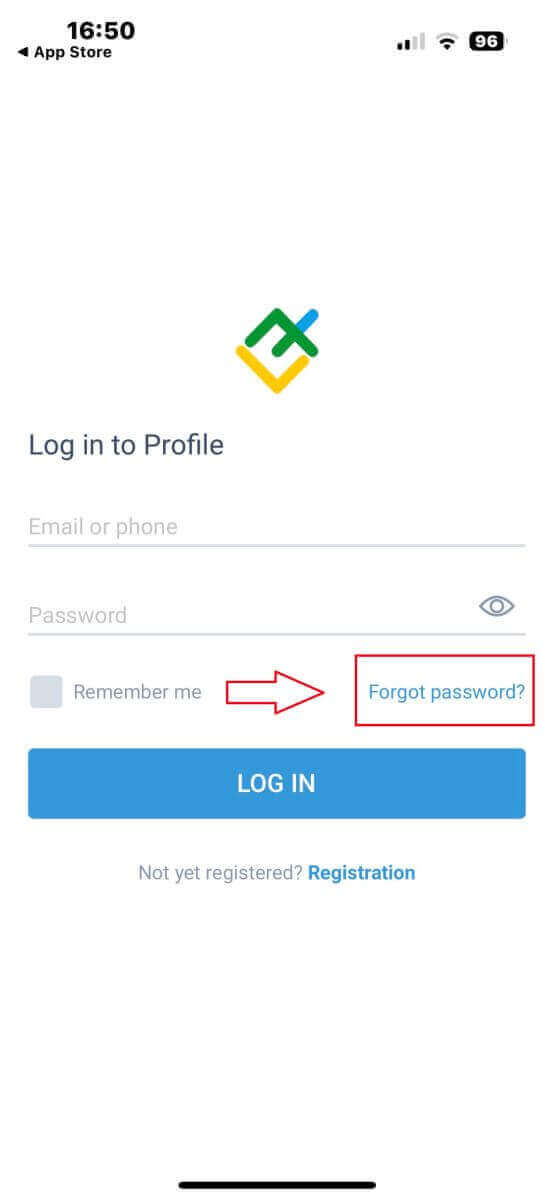
Enter the email address/ phone number of the account that you would like to reset the password to and tap "SEND".
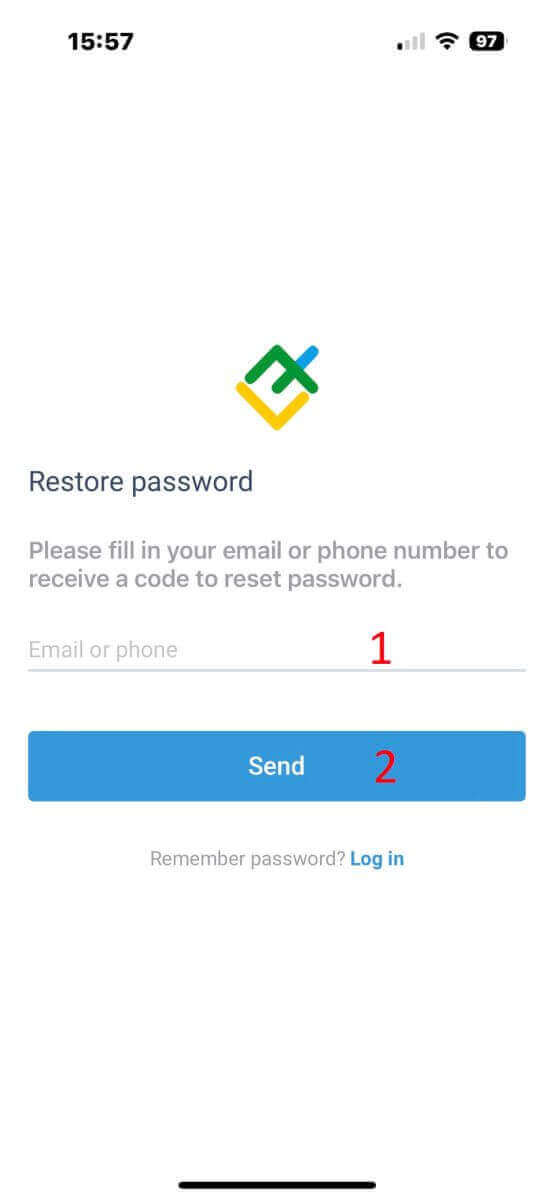
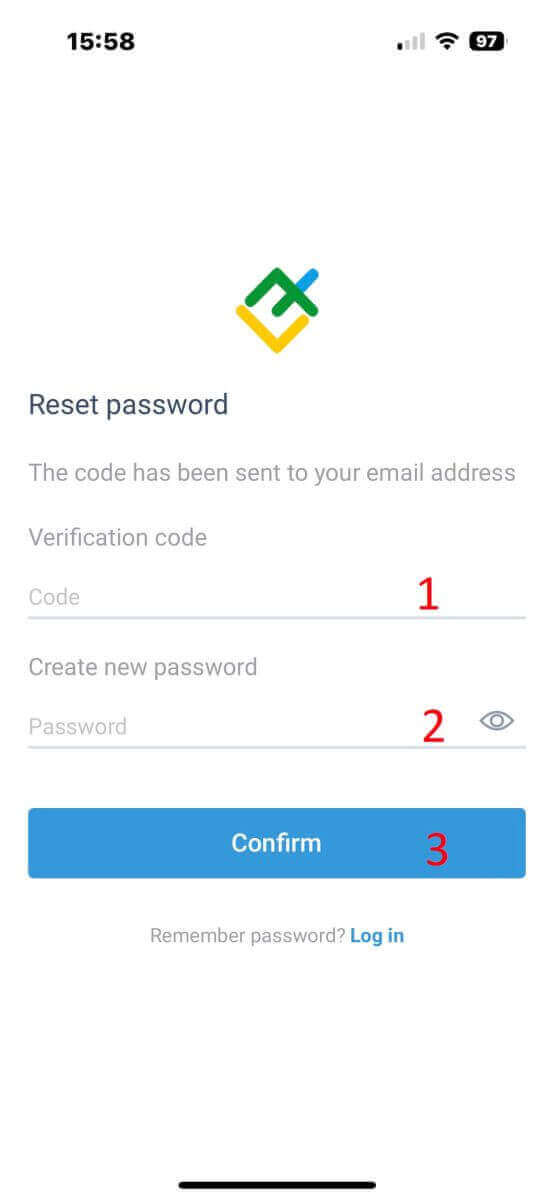
Within 1 minute, you will receive an 8-digit verification code. After that, enter the verification code, and your new password.
Click "Confirm" and you’ll successfully reset your password.
LiteFinance: Your Gateway to Financial Prosperity – Open, Sign In, Thrive!
Navigating the process of opening an account and signing in to LiteFinance has revealed the platform’s commitment to providing a streamlined and secure trading environment. From seamless account creation to user-friendly sign-in procedures, LiteFinance empowers individuals to engage in the world of financial markets with confidence. The platform’s emphasis on user education, combined with robust security measures, ensures a trustworthy trading experience. As you embark on your financial journey, LiteFinance stands as a reliable partner, offering you the tools and support needed to thrive in the dynamic world of online trading. Join LiteFinance today and enter a realm where your financial goals become achievable realities. 자주 묻는 질문
일반적으로 사진이 부착된 정부 발행 신분증(여권, 주민등록증, 운전면허증)과 최근 주소 증명서(공과금 청구서 또는 은행 명세서)가 필요합니다. 서류상의 이름은 등록 정보와 일치해야 합니다. 추가 검사에서는 얼굴 확인을 위해 셀카를 요청할 수도 있습니다. 처리 시간은 다양하며 불완전한 업로드로 인해 계정 활성화 및 로그인이 차단됩니다.
이메일과 전화로 등록하고, 계정 유형을 선택하고, 개인 정보 양식을 작성하고, 신원 및 주소 문서를 업로드하고, 이메일을 확인하고, KYC 승인을 기다립니다. 확인되면 지원되는 결제 방법을 사용하여 계정에 자금을 조달한 다음 자격 증명으로 로그인하세요. 즉시 거래할 계획이라면 청산입금 상태를 확인하거나 데모계좌를 먼저 이용해 보세요.
일반적인 원인으로는 확인되지 않은 이메일, 확인 보류, 비밀번호 잘못 입력, 의심스러운 활동 후 보안 유지 등이 있습니다. 먼저 계정 복구 링크를 사용하여 비밀번호를 재설정하고 이메일을 확인하세요. 이중 인증이 활성화된 경우 장치 시간 동기화 또는 백업 코드를 확인하세요. 문제가 지속되면 등록된 세부정보와 오류 스크린샷을 가지고 지원팀에 문의하세요. 임시 잠금을 피하기 위해 반복적으로 로그인을 시도하지 마십시오.
최소 입금액과 사용 가능한 계좌 유형은 선택한 계좌 등급과 결제 방법에 따라 다릅니다. 일부 계정 유형이나 도구에는 더 높은 초기 자금이나 추가 확인이 필요할 수 있습니다. 등록하는 동안 계정별 조건을 확인하고 라이브 포지션을 개설하기 전에 예금이 지워졌는지 확인하세요.
강력하고 고유한 비밀번호를 설정하고, 제공되는 경우 2단계 인증을 활성화하고, 복구 옵션을 안전한 곳에 기록하세요. 귀하의 이메일과 전화가 최신인지 확인하고 거래에 공용 Wi-Fi를 사용하지 마십시오. 정기적으로 계정 활동을 검토하고 로그인 및 출금에 대한 알림 기본 설정을 지정하세요. 손상이 의심되는 경우 즉시 자격 증명을 변경하고 지원팀에 알리십시오.