LiteFinance Open Account ug Withdraw: Mga Lakang ug Mga Kinahanglanon

Kini nga artikulo naglatid sa praktikal nga mga lakang sa paghimo ug pagpaaktibo sa usa ka LiteFinance nga account, pagpondo niini, ug paghangyo og mga withdrawal. Mahibal-an nimo kung unsang mga dokumento sa pag-verify ang makapahimo sa mga pagbayad, kung giunsa ang mga riles sa pagbayad ug mga pagbag-o sa salapi nag-impluwensya sa mga oras sa pagproseso ug bayad, kasagarang mga hinungdan sa mga pagpugong o pagsalikway, ug yano nga mga pagsusi sa seguridad aron makunhuran ang panagbingkil sa panahon sa mga cashout.

How to Open an Account on LiteFinance
How to Open LiteFinance Account on the Web app
How to Open an Account
First, you’ll need toenter the LiteFinancehomepage. After that, on the homepage, click the"Registration"button in the upper right corner of the screen.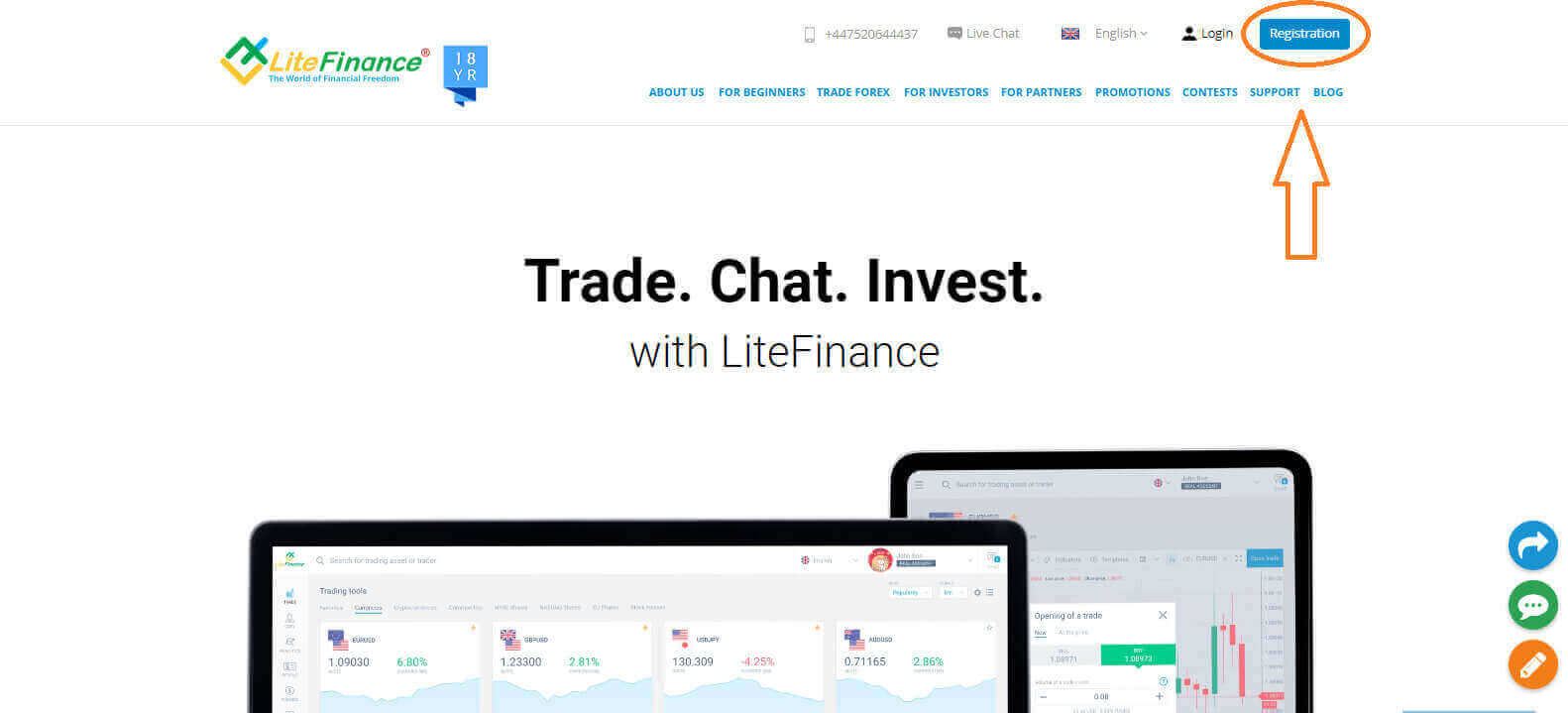
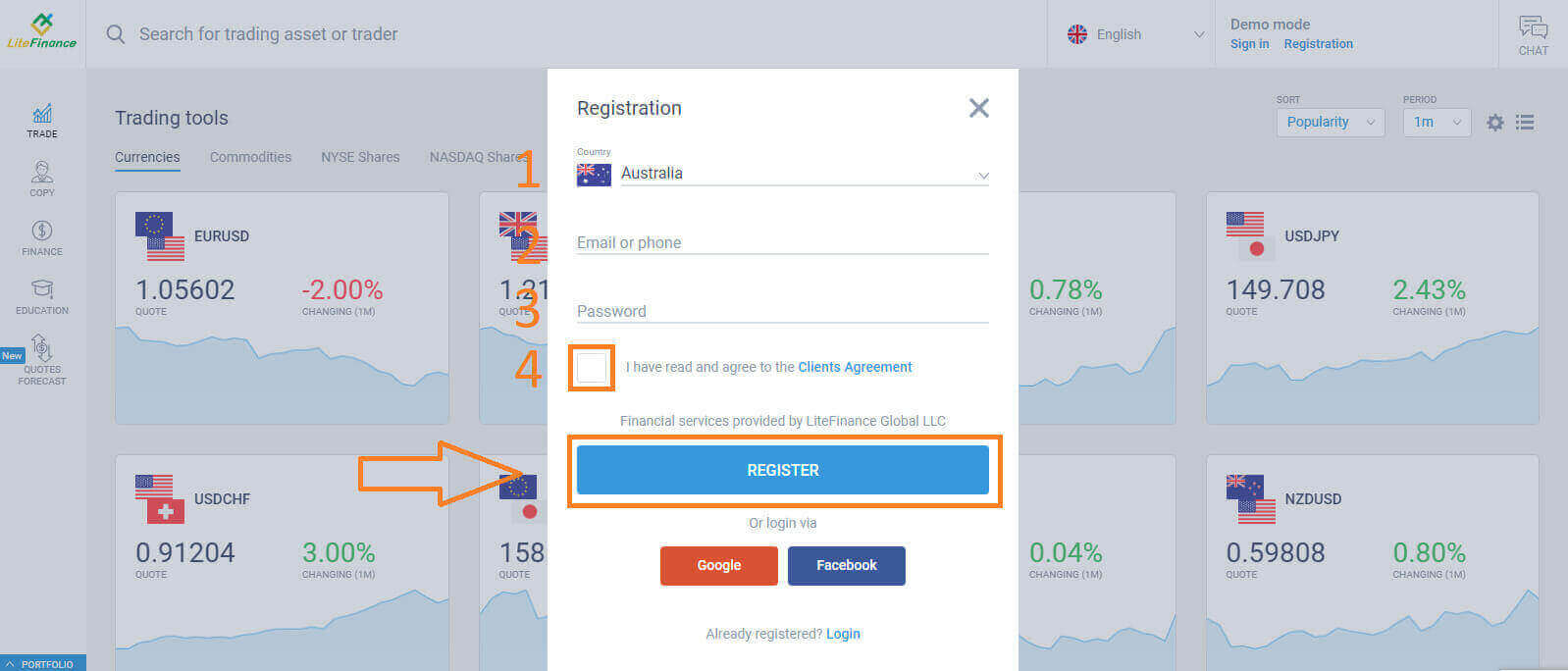
At the registration page, please complete the following actions:
- Choose your residence nation.
- Enter youremail address or phone number.
- Create a strong and secure password.
- Please select the checkbox indicating that you have read and agreed to LiteFinance’s Clients Agreement.
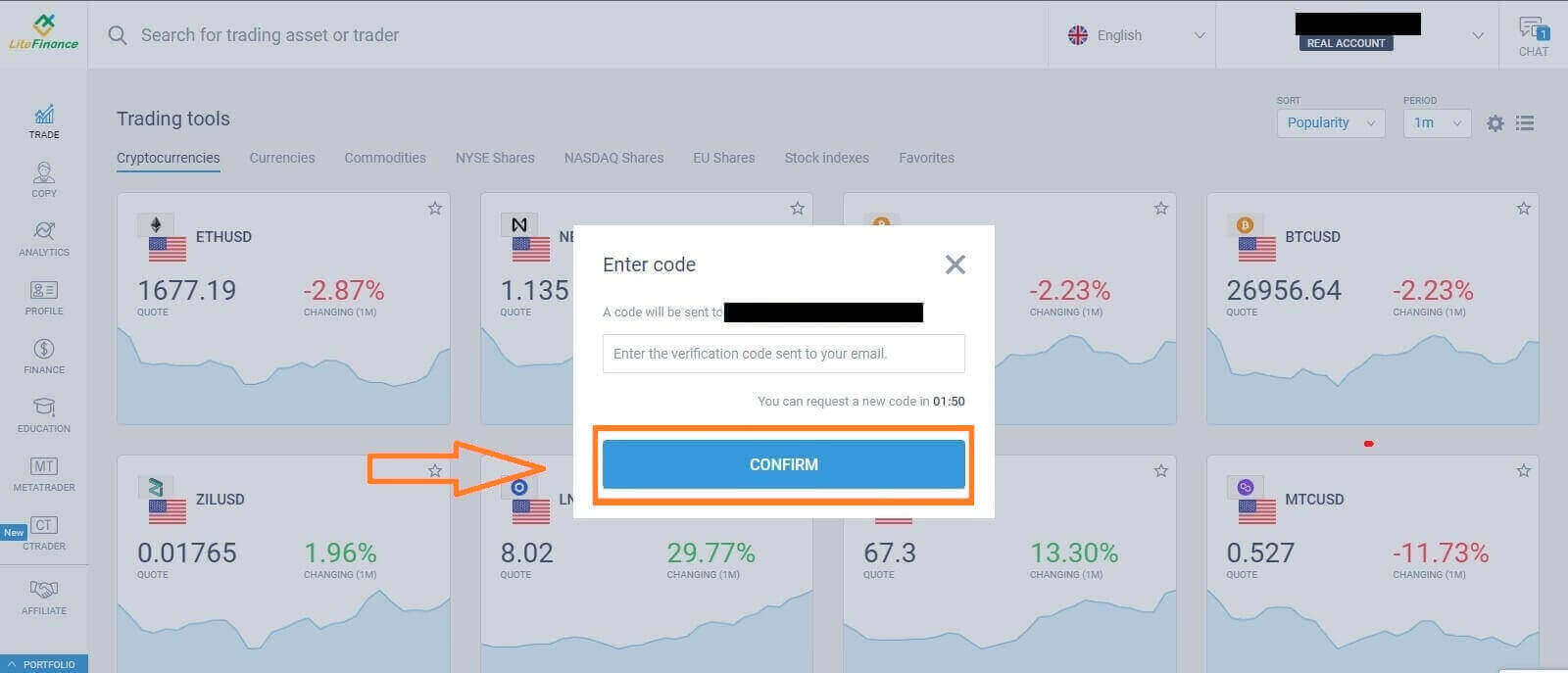
Within a minute, you will receive a verification code, please check your email/ phone number. Then fill in the "Enter code" form and click the "CONFIRM" button.
You can request a new code every 2 minutes if you haven’t received it.
Congratulations! You have successfully opened a new LiteFinance Account. You will now be directed to the LiteFinance Terminal.
LiteFinance profile verification
When you create a LiteFinance account, the user interface appears next to the chat box in the upper right corner. Move your mouse to "My profile" and click on it.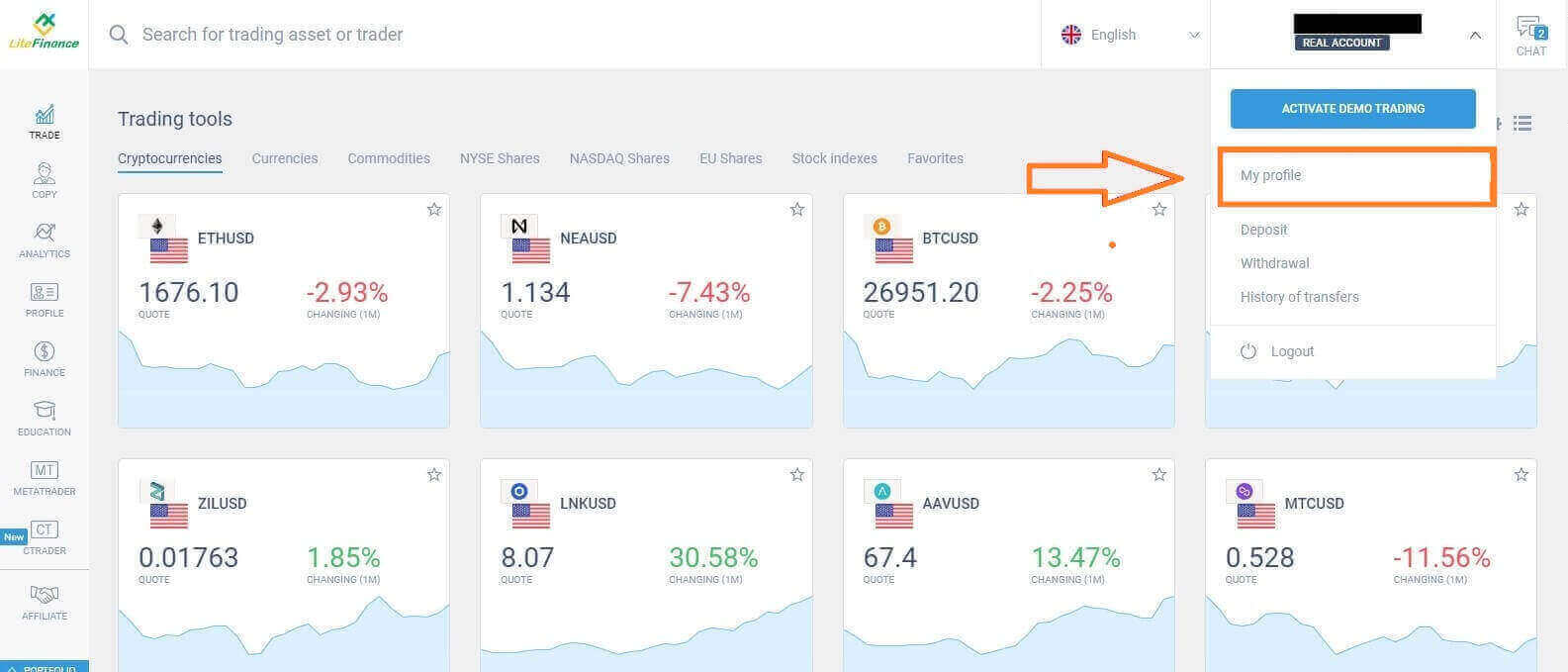 On the next page, click "Verification".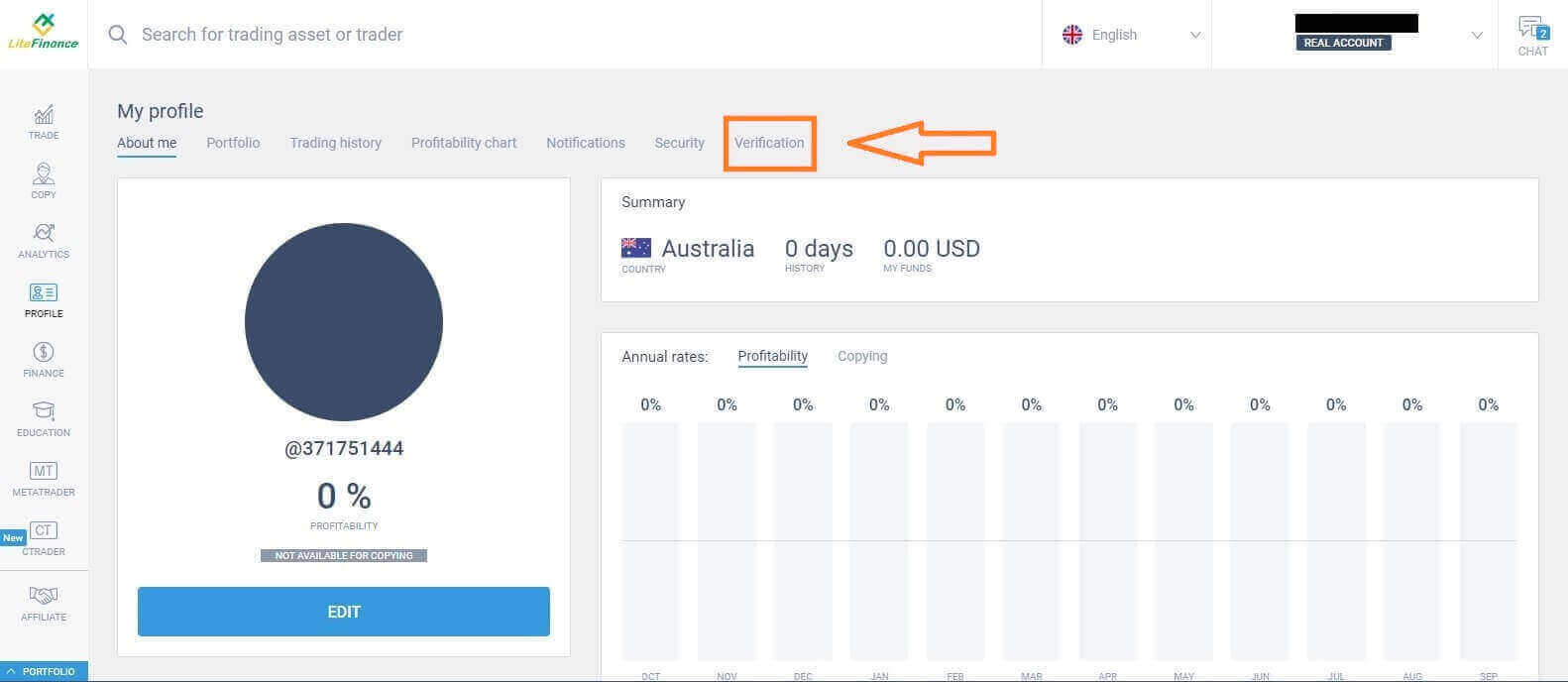
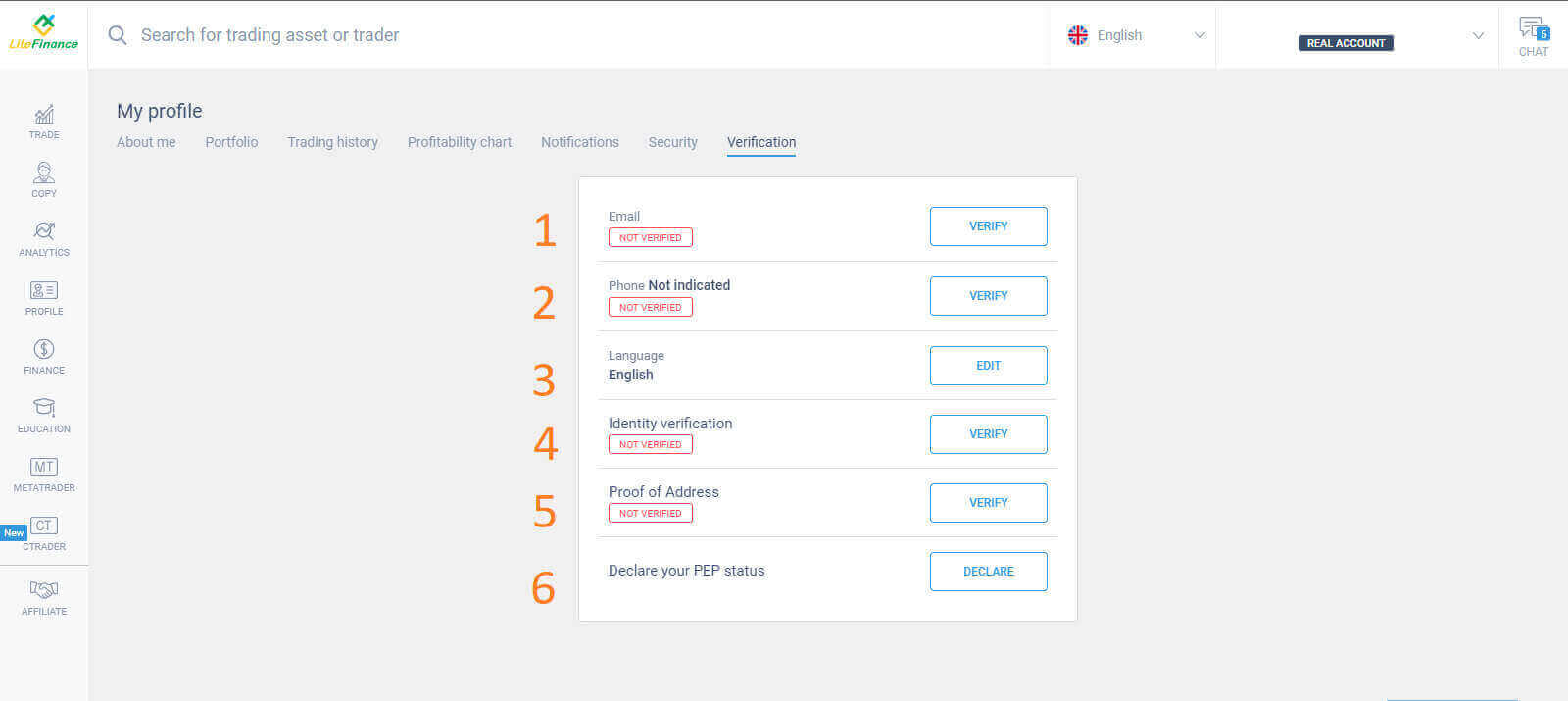
There will be a form on the screen for you to fill out to verify your information, such as:
- Email.
- Phone number.
- Language.
- Name, gender, and date of birth verification.
- Proof of Address (Country, region, city, address, and postcode).
- Your PEP status ( you just need to tick the box declaring youa PEP - Politically Exposed Person).
How to Create a trading account
Please choose the "CTRADER" icon on the left side of the screen.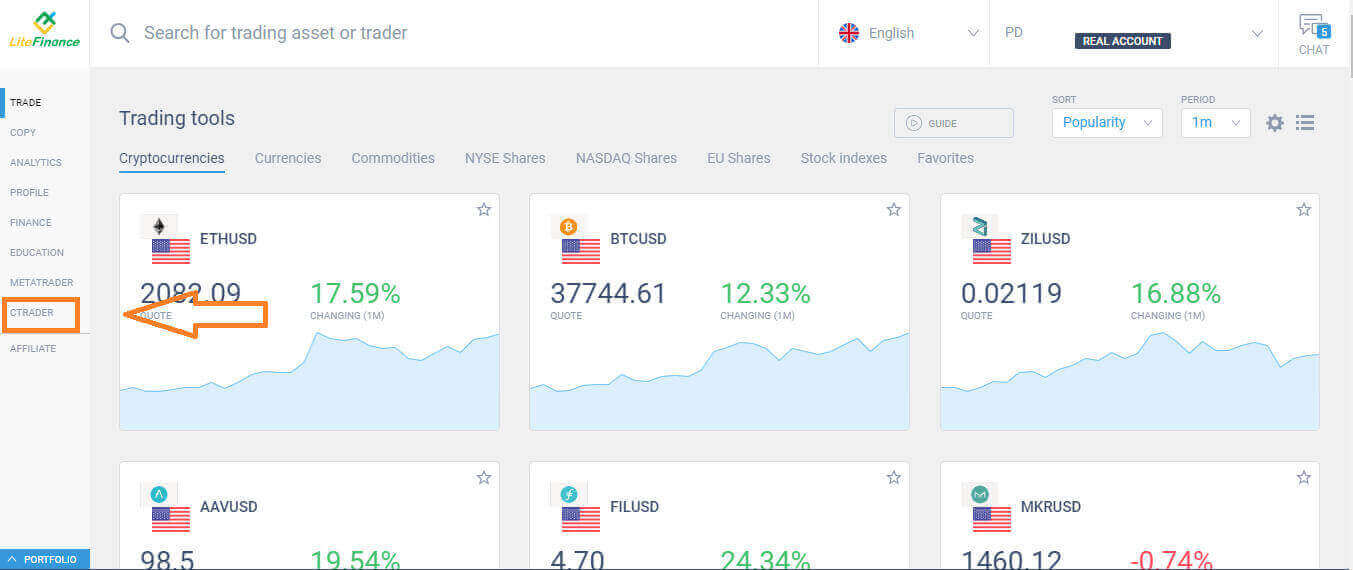 To proceed, please choose "OPEN ACCOUNT".
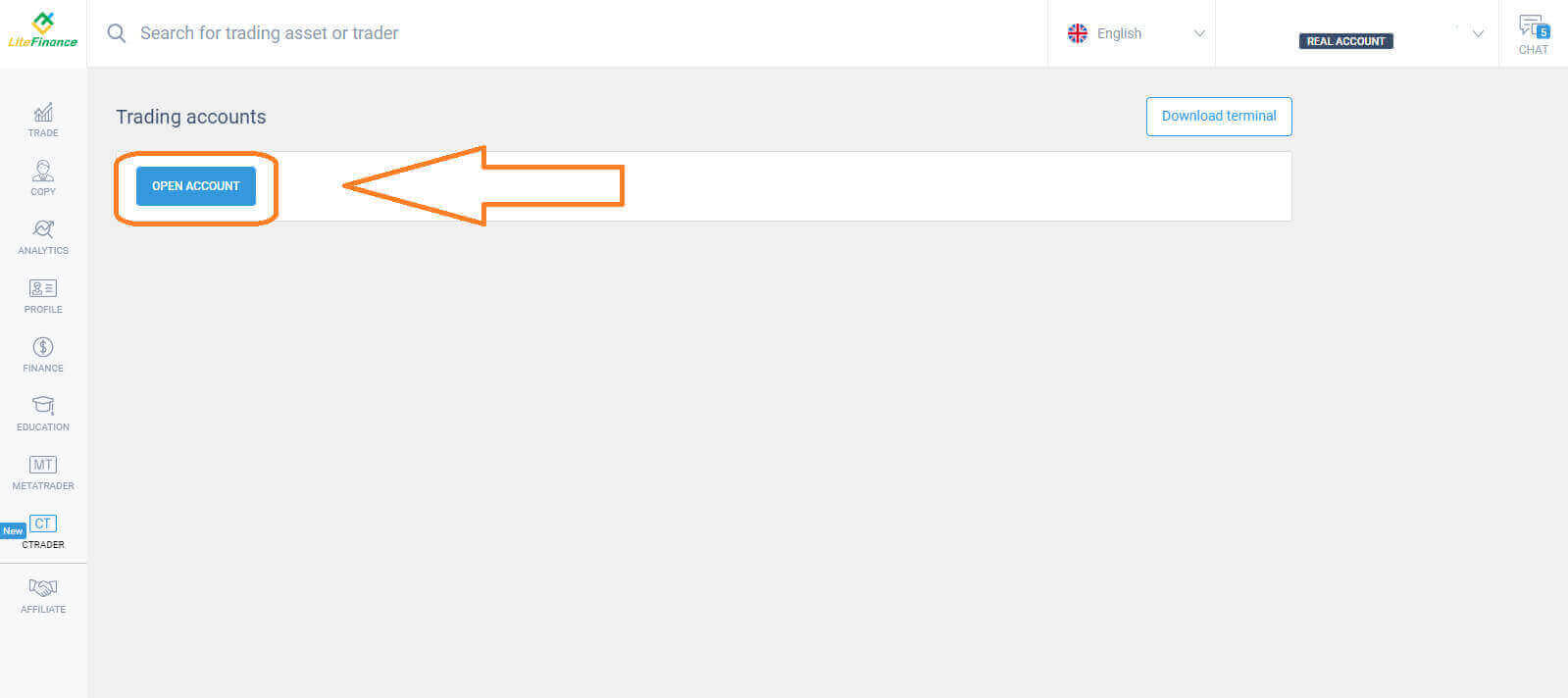 On the "Open Trading Account" form, select your leverage and currency, then choose "OPEN TRADING ACCOUNT".
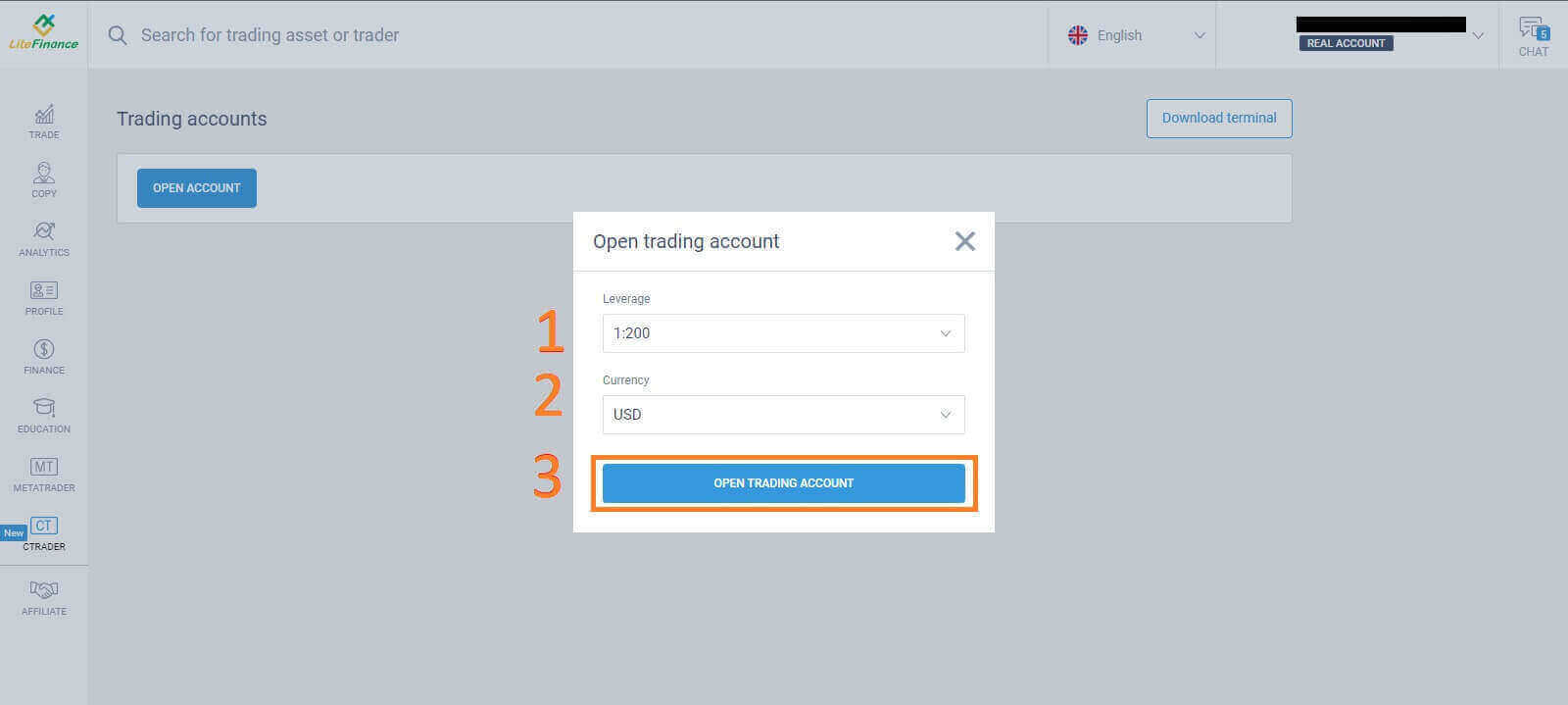 Congratulations! Your trading account has been created successfully.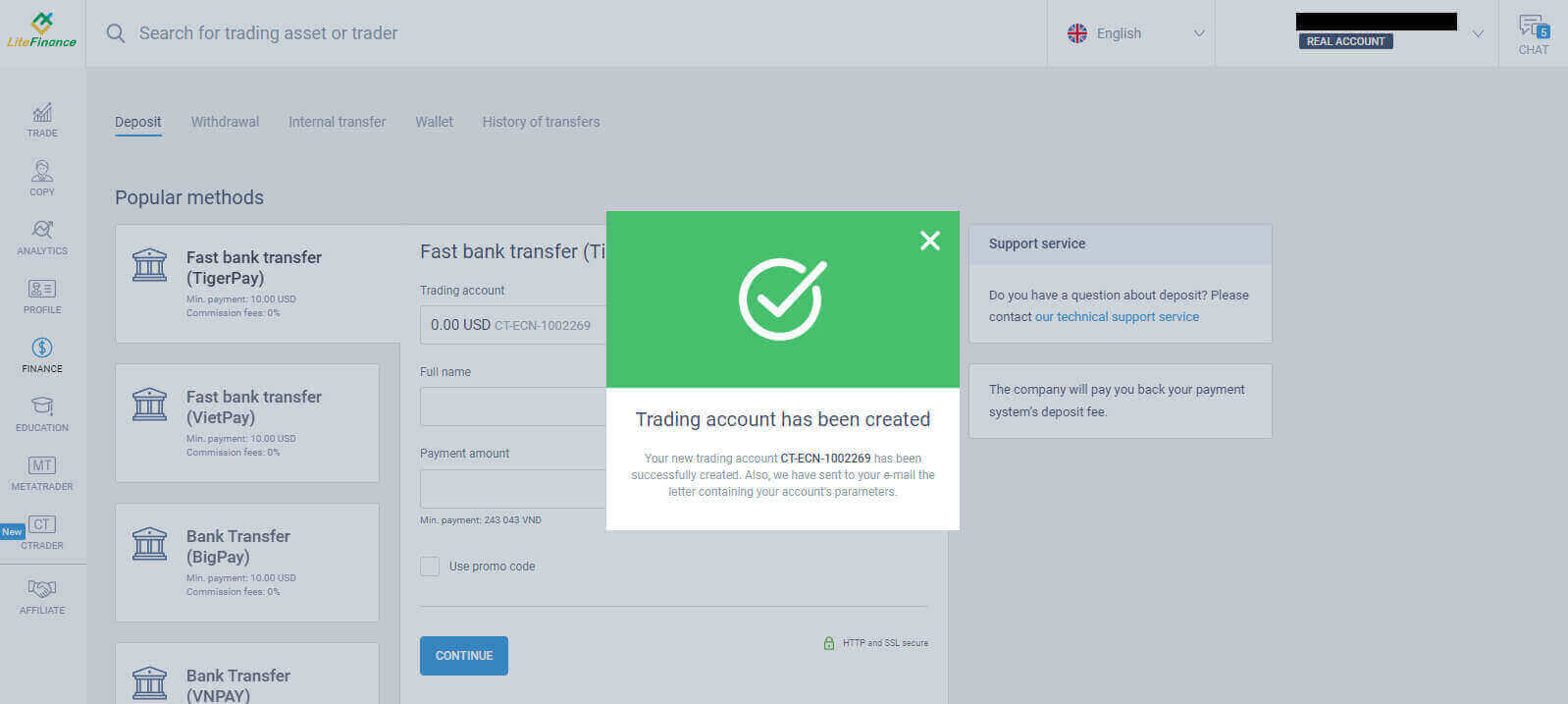
How to Open LiteFinance Account on the Mobile app
Set up and Open an Account
Install the LiteFinance Mobile Trading App from theApp Store as well as Google Play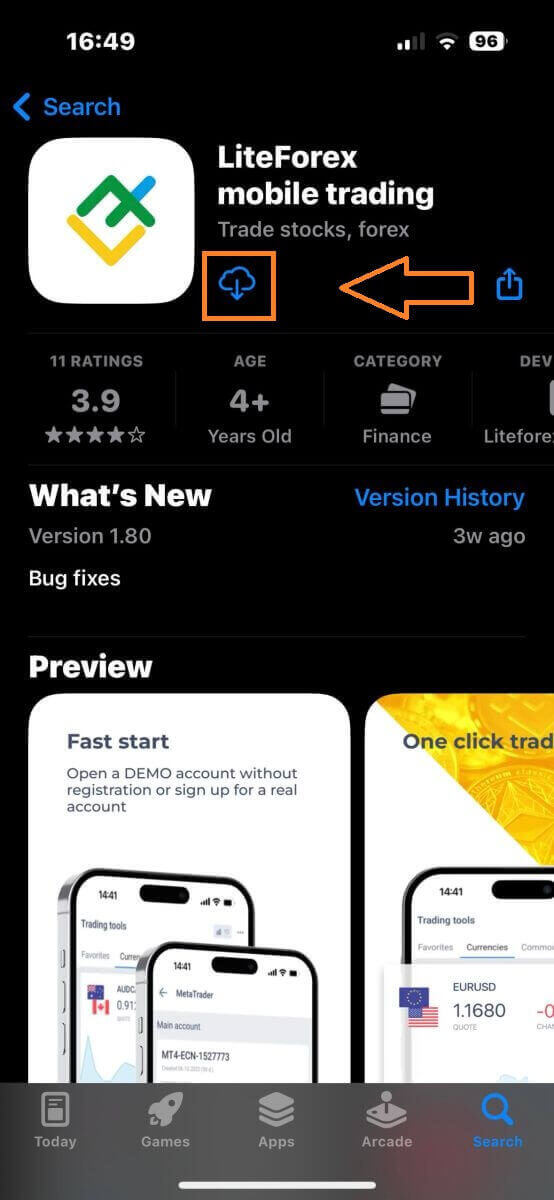
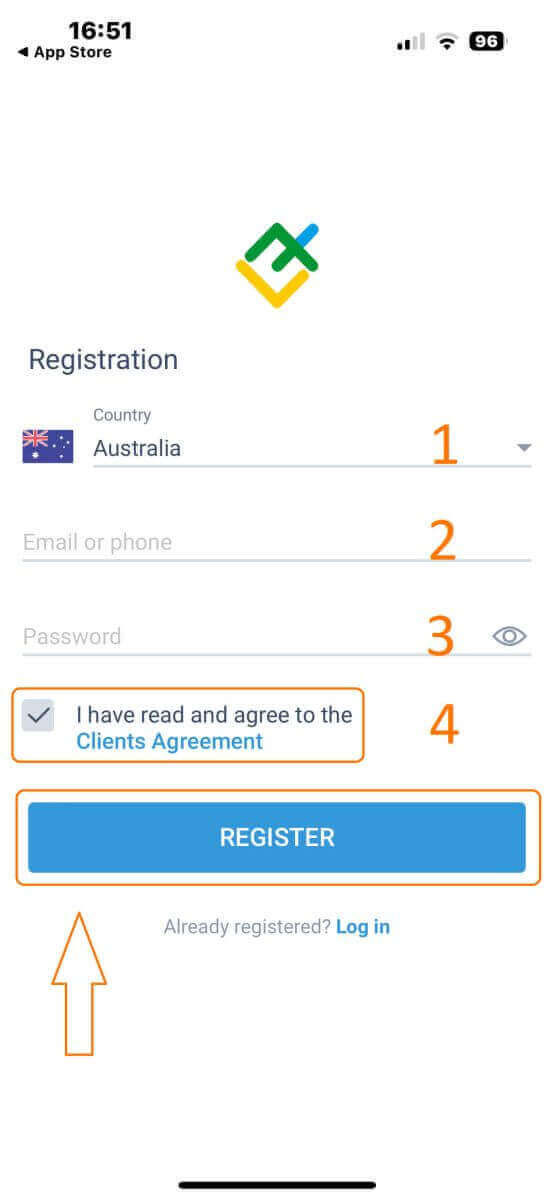
Run the LiteFinance Trading App on your mobile device, then select "Registration".
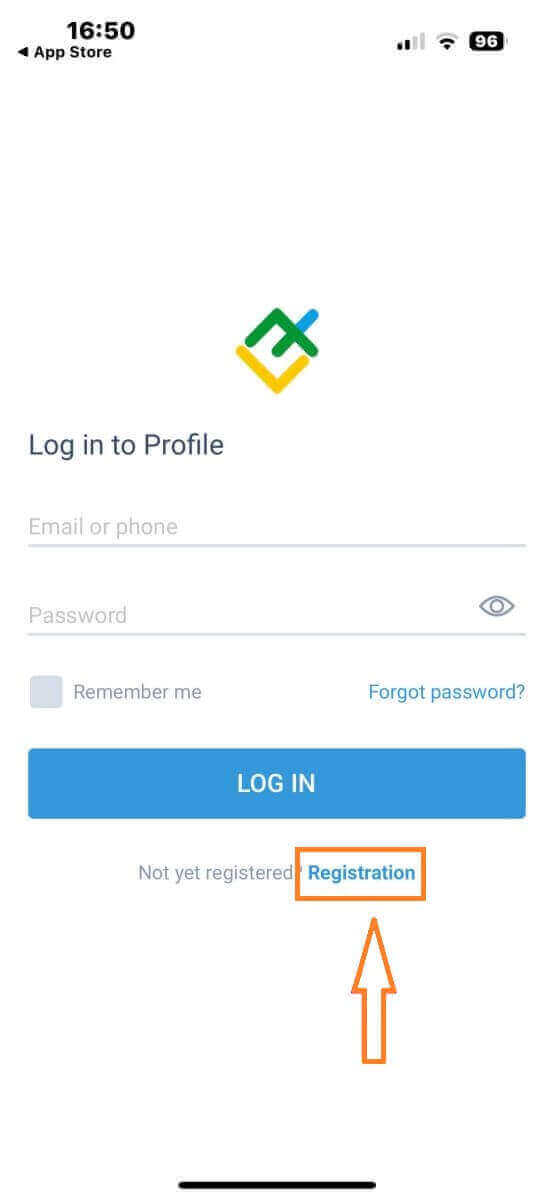
To proceed, you’ll need to complete the registration form by providing specific information:
- Select your country of residence.
- Provide your email address or phone number.
- Establish a secure password.
- Tick the box declaring youhave read and agree to theLiteFinance’s Clients Agreement.
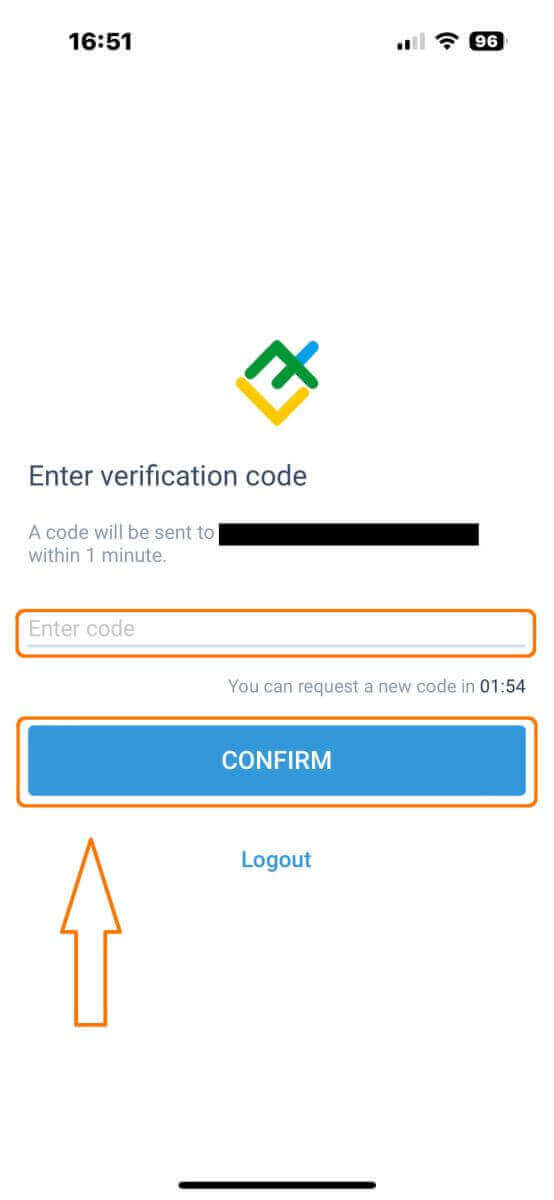
After one minute, you will receive a 6-digit verification code via phone or email. Check your inbox and input the code.
In addition, if you have not received the code within two minutes, touch "RESEND". Otherwise, choose "CONFIRM".
You can construct your own PIN number, which is a 6-digit code.This step is optional; however, you must complete it before accessing the trading interface.
Congratulations! You have successfully set up and are now ready to use the LiteFinance Mobile Trading App.
LiteFinance profile verification
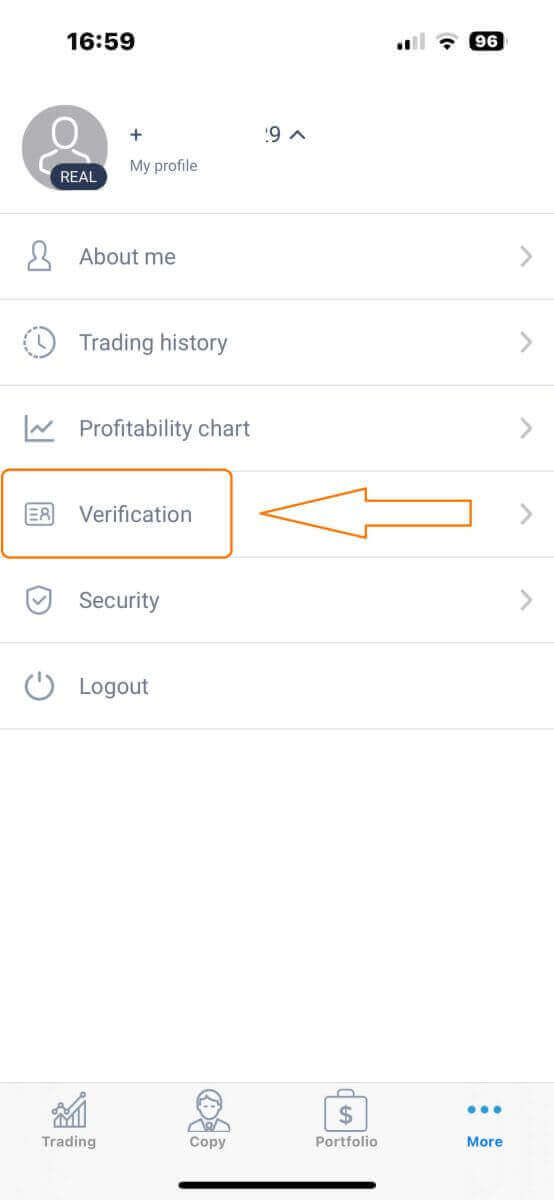
Tap "More" in the bottom right corner of the homepage.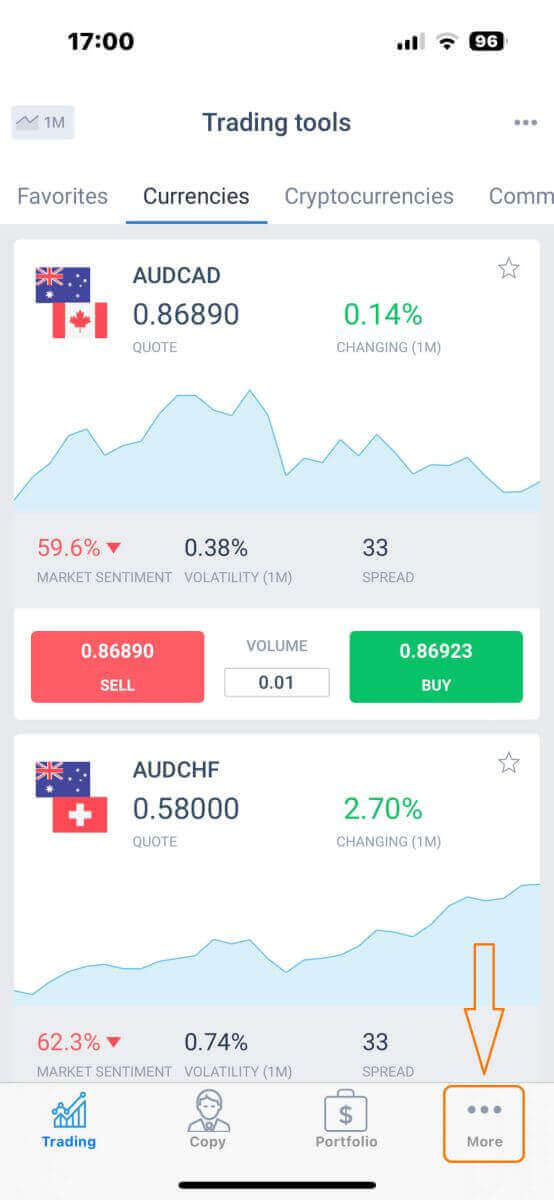
On the first tab, look next to your phone number/ email addressand click the dropdown arrow.
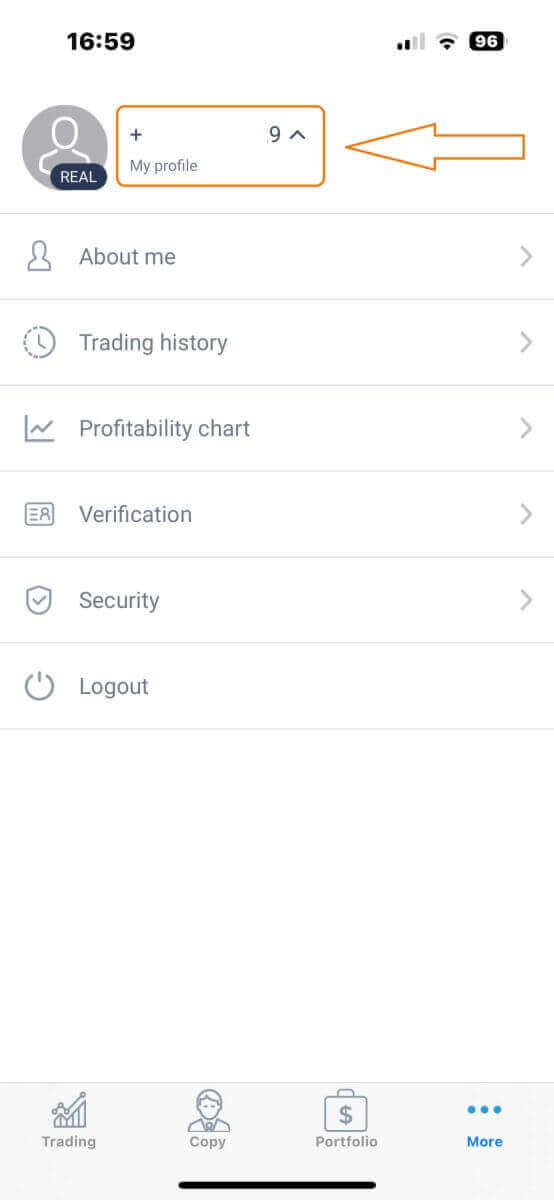
Choose "Verification".
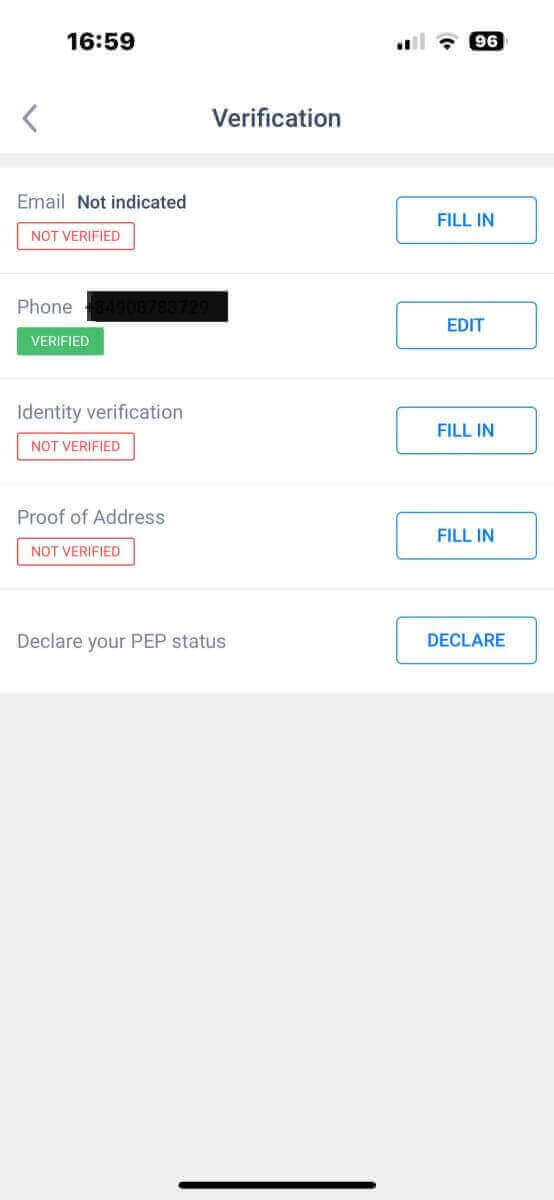
Please ensure that you fill out and authenticate all required details on the verification page:
- Email address.
- Phone number.
- Identity verification.
- Proof of Address.
- Declare your PEP status.
How to Create a new trading account
To access MetaTrader, return to the "More" screen and select its corresponding icon.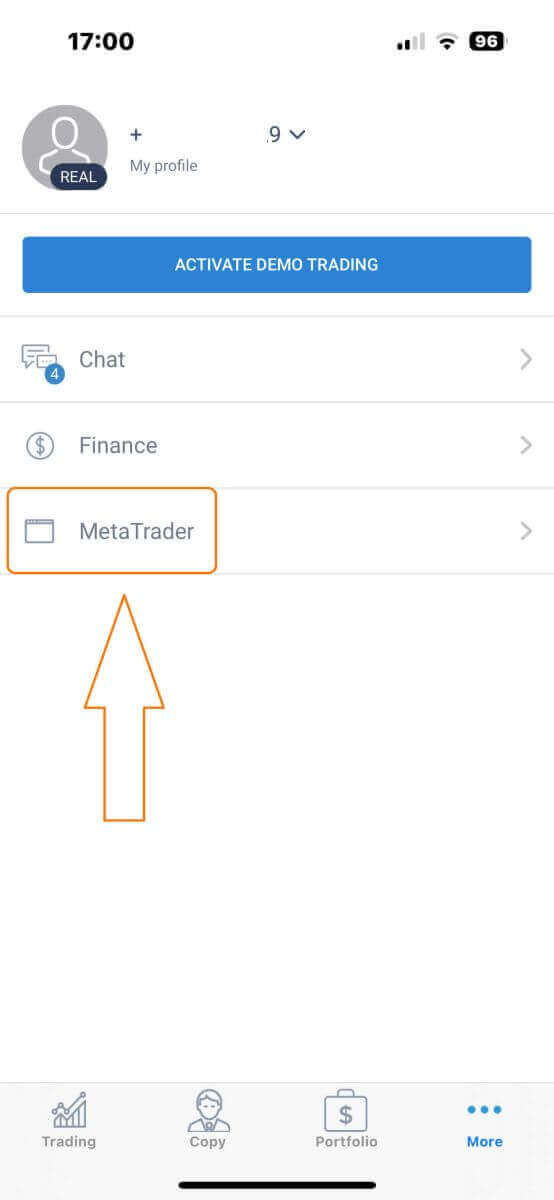
Please scroll down until you locate the "OPEN ACCOUNT" button, and then tap on it.
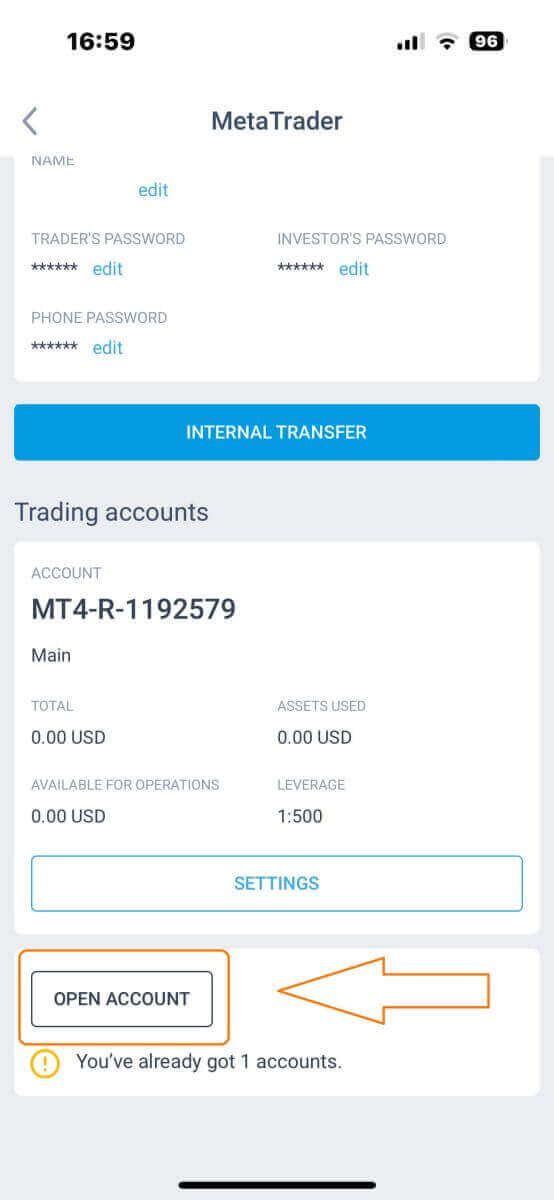
Please enter your account type, leverage, and currency in the "Open Trading Account"box and click "OPEN TRADING ACCOUNT" to complete.
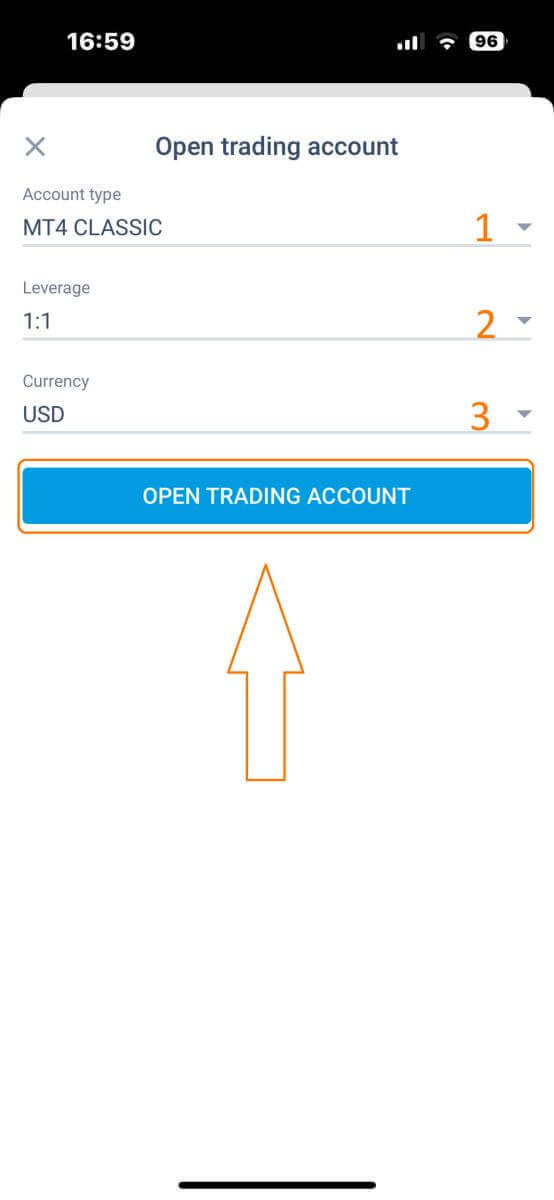
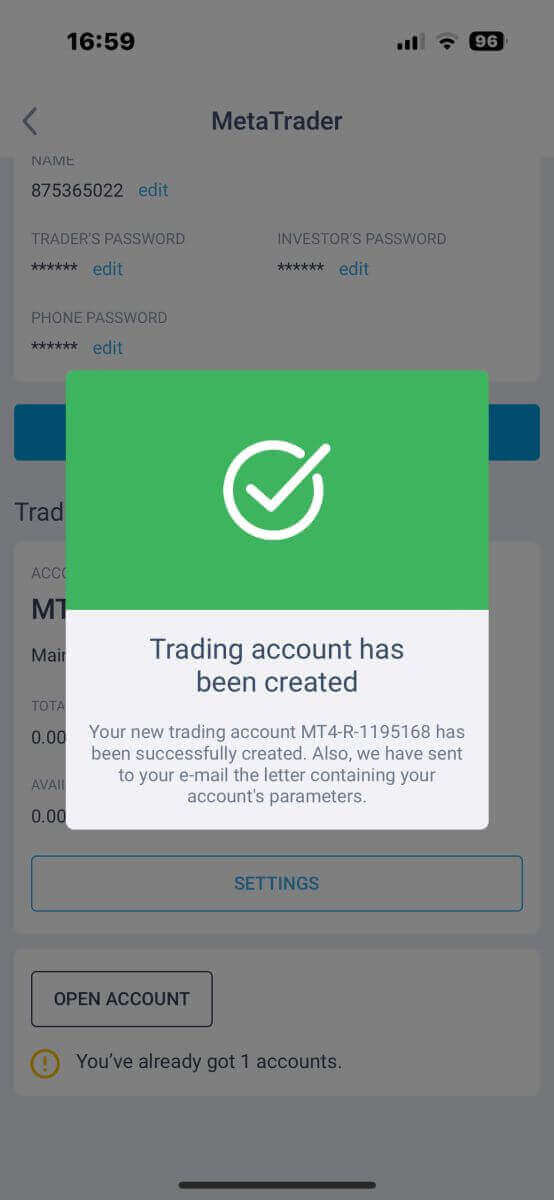
You have successfully created a trading account! Your new trading account will show up below and remember to set one of them to be your main account.
How to withdraw money from LiteFinance
How to Withdraw on the LiteFinance Web App
The initial step is to access the LiteFinance homepage using a registered account.
If you haven’t registered an account or are unsure about the login process, you can refer to the following post for guidance:How to Register Account on LiteFinance.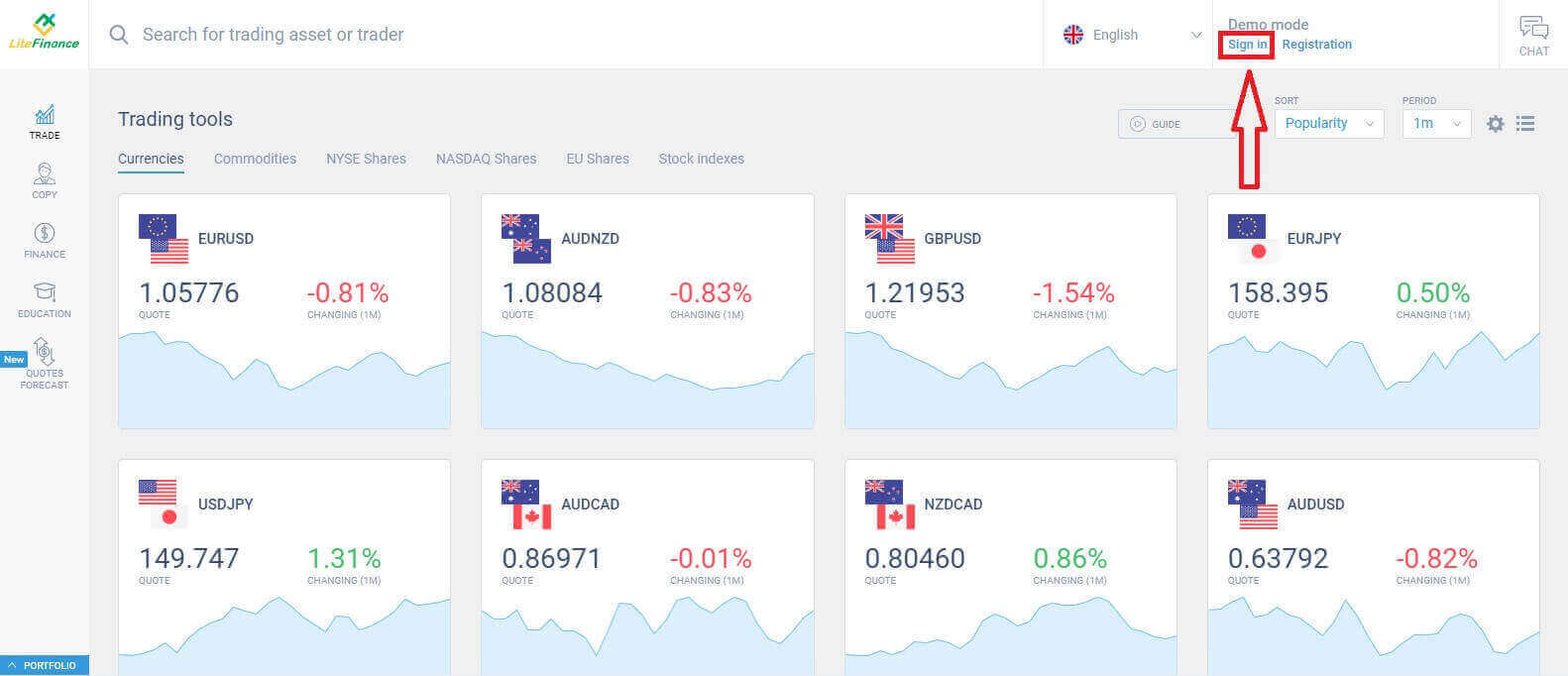
Once you’ve successfully logged in, navigate to the homepage and focus on the left-hand side of the screen. From there, click on the "FINANCE" symbol.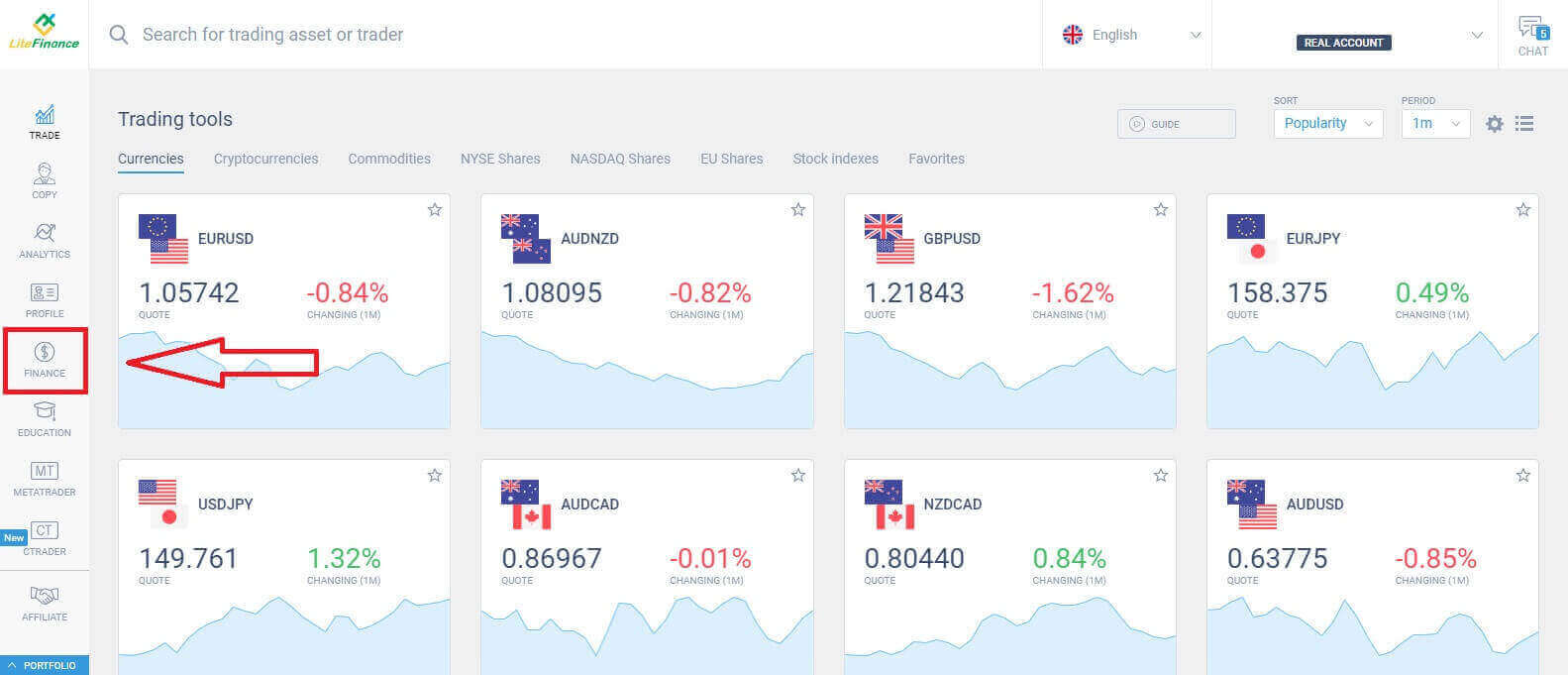
Choose "Withdrawal"to proceed to the withdrawal transaction.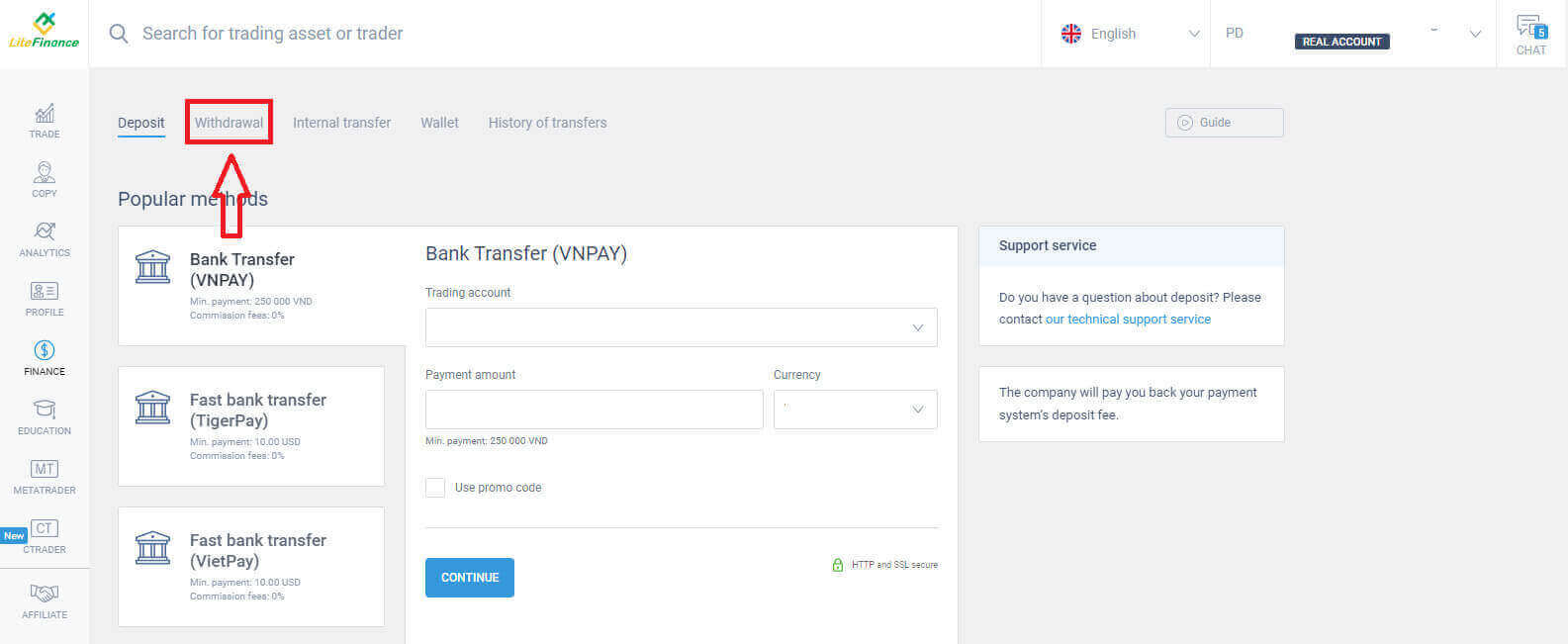
Within this interface, the system offers a diverse range of withdrawalchoices. Explore the list of alternative withdrawalmethods in the suggested methods section by scrolling down (availability may vary based on your country).
Take your time to evaluate and opt for the best method with your preferences!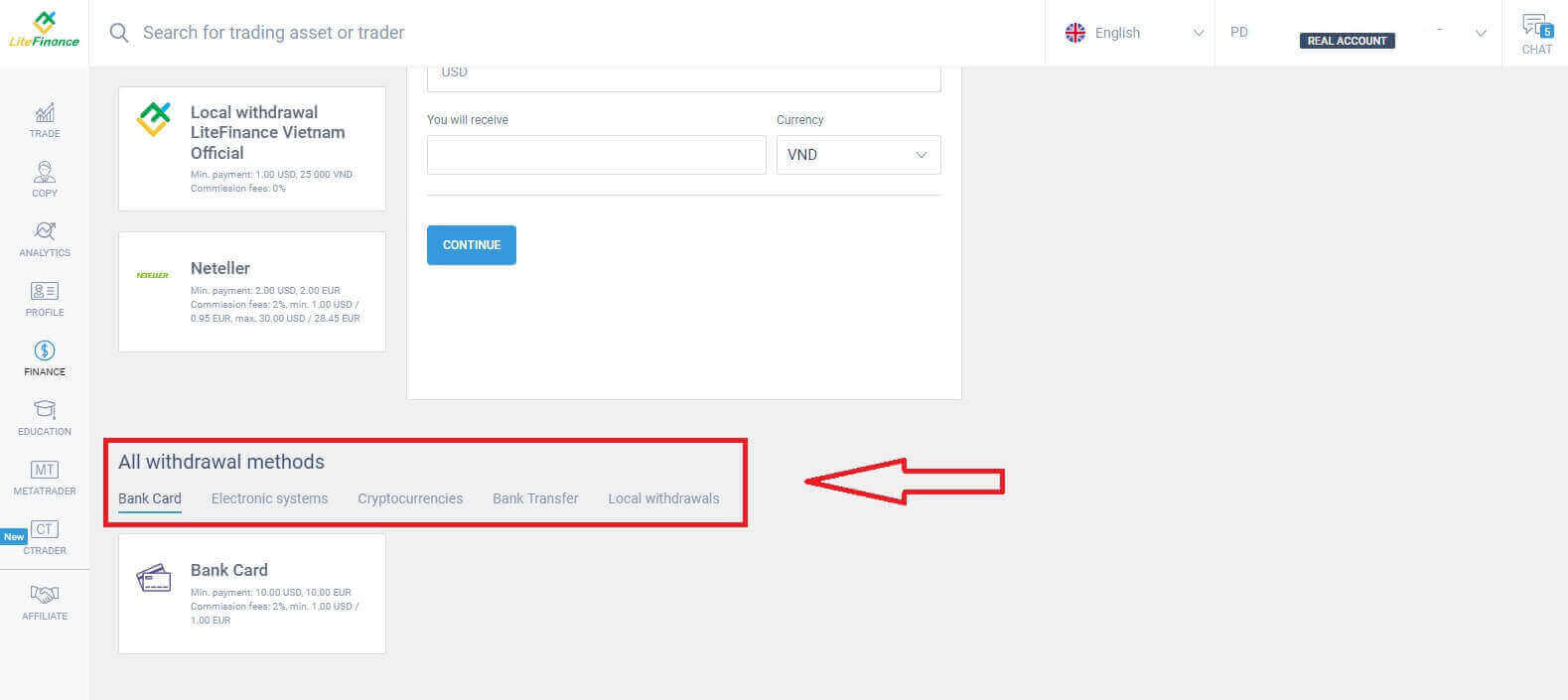
Bank Card
When opting for a bank card as a withdrawal method, it’s essential to take several crucial factors into account:- The card you intend to use for withdrawals must be depositedat least once to activate the wallet(Otherwise, please contact the customer support team by clicking on the text "client support team").
- To use this payment method, you need to have yourself verified.(If you haven’t verified your profile and bank card, see this post:How to Verify Account on LiteFinance).
With just a few simple steps below, you can proceed with your withdrawal:
- Select the trading account that is available for withdrawal.
- Choose the card to receive your money (if the card hasn’t been deposited at least once, select "ADD" to add the card).
- Enter the amount of money to withdraw at a minimum of 10 USD or its equivalent in other currencies(If you enter an amount higher than the current balance in your account, the display will show the most elevated amount available in the selected account).
- Select the general currency.
- Check the amount you will receive after deducting the commission fees which are at least 10 USD(2% and a minimum of 1.00USD/EUR).
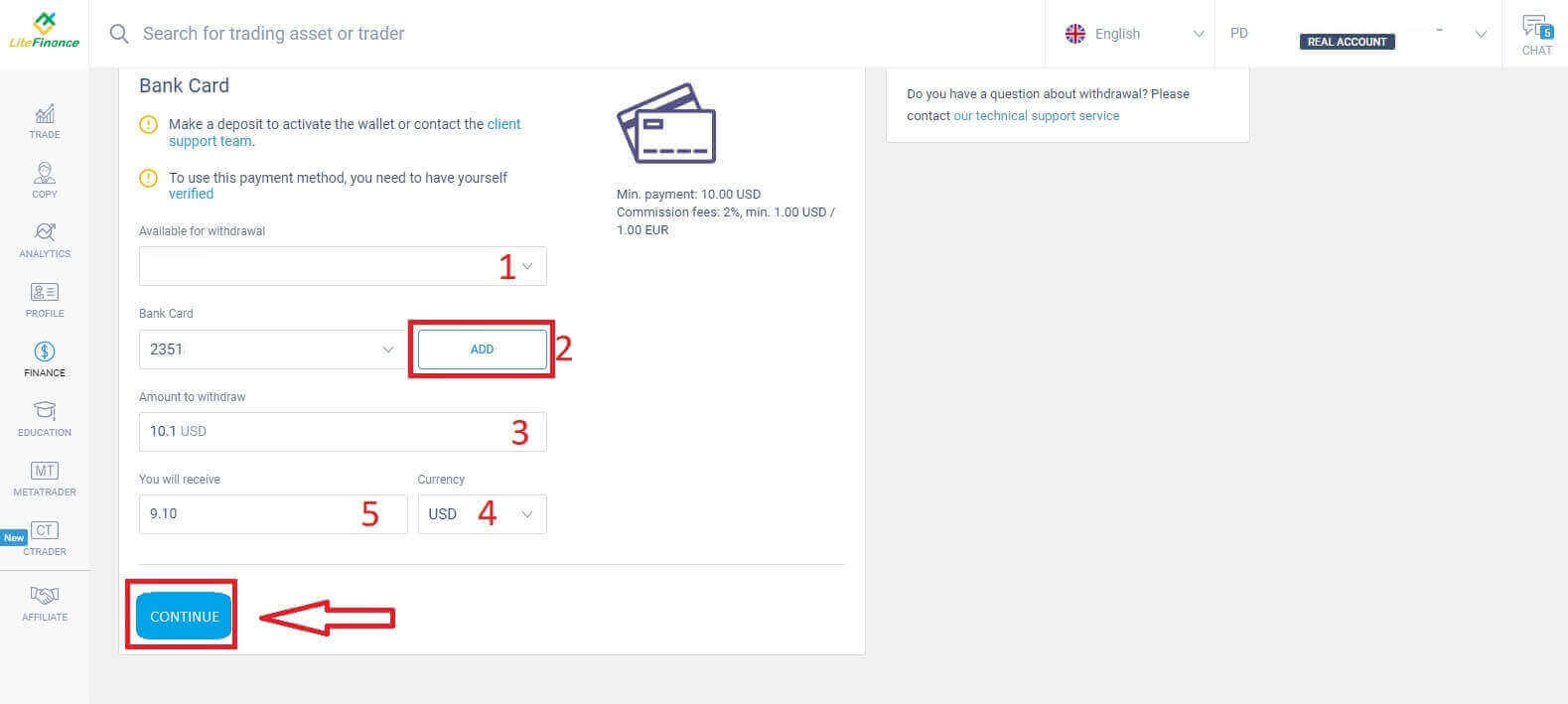
Once you’ve finished, choose "CONTINUE"to access the next interface where you will follow the instructions and complete the withdrawal.
Electronic Systems
Here are the available electronic systems for withdrawing funds in LiteFinance. Choose the one you prefer and proceed to the next step.There is alsoa tiny note: your wallet must be activated beforehand (by making at least one deposit) to enable withdrawals.
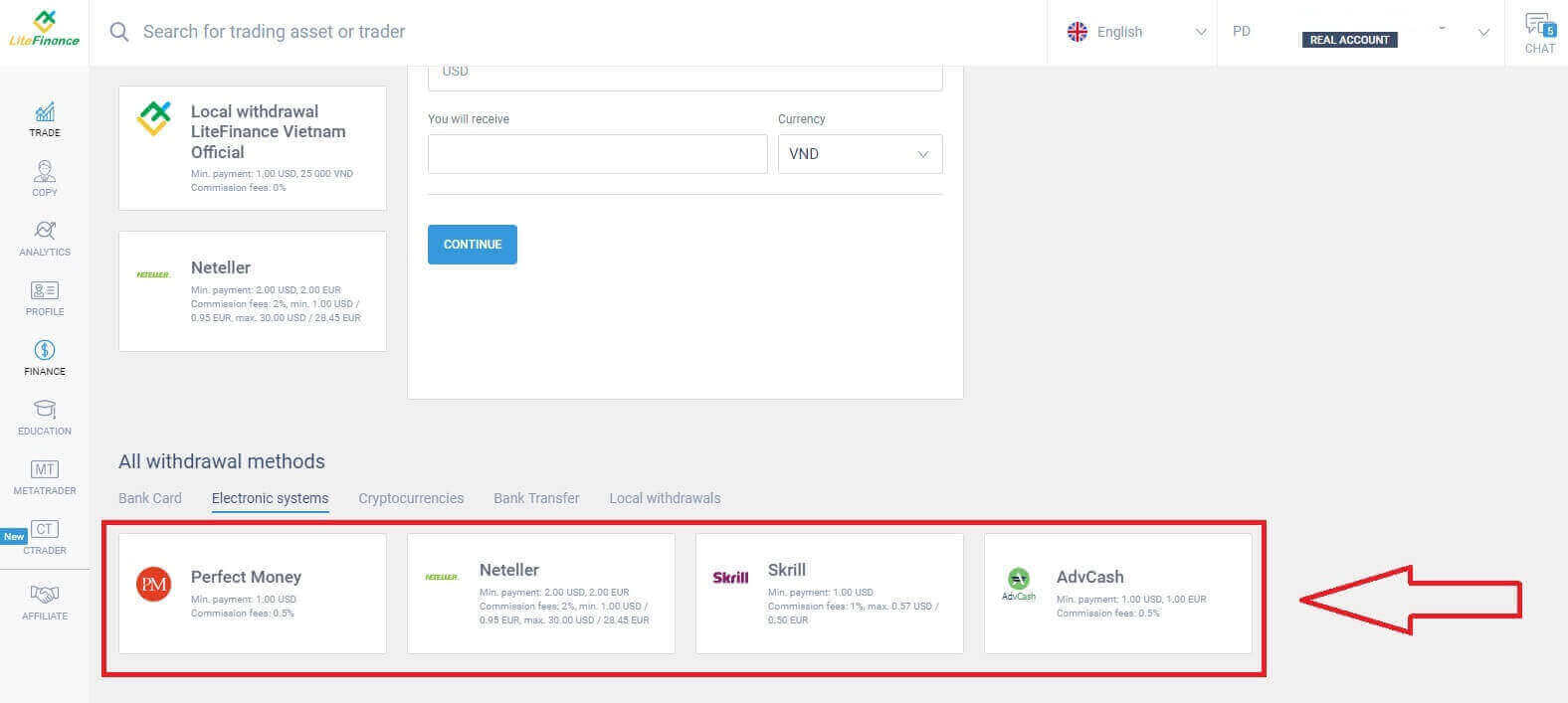
Here are some basic steps you need to follow to proceed with the withdrawal:
- Select the trading account that is available for withdrawal.
- Choose the walletto receive your money (if the wallethasn’t been deposited at least once, select "ADD" to add the wallet).
- Enter the amount of money to withdraw at a minimum of 1 USDor its equivalent in other currencies(If you enter an amount higher than the current balance in your account, the display will show the most elevated amount available in the selected account).
- Select the general currency.
- Check the amount you will receive after deducting the commission fees (0.5%).
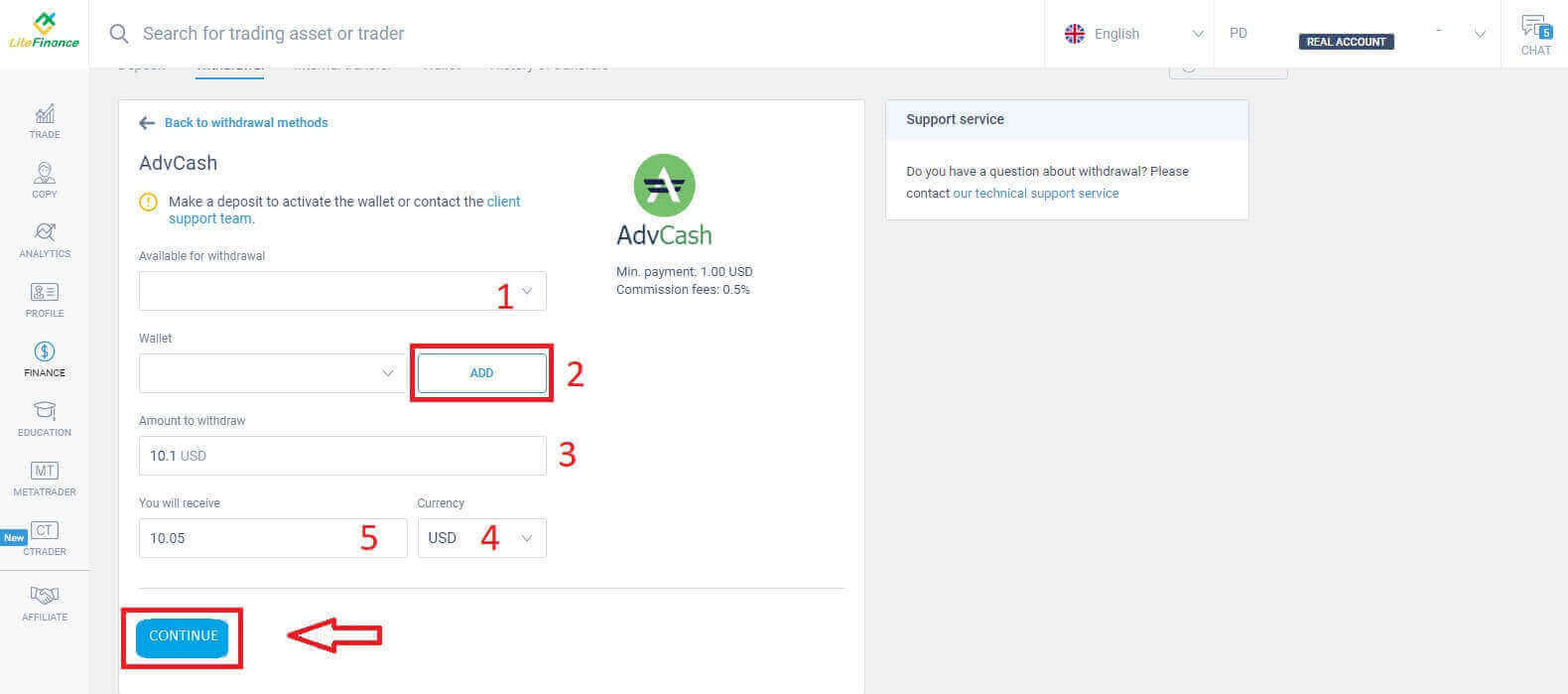
After completing these steps, select "CONTINUE".To finalize the withdrawal, follow the instructions on the next screen.
Cryptocurrencies
In this method, LiteFinance offers various options for cryptocurrency. Choose one of them according to your preference to initiate the withdrawal.Here are some small notes to keep in mind when using this method:
- Your wallet must be activated before (by making at least one deposit). Otherwise, please contact the customer support team by clicking on the text "client support team".
- To use this payment method, you need to have yourself verified.If you haven’t verified your profile and bank card, see this post:How to Verify Account on LiteFinance.
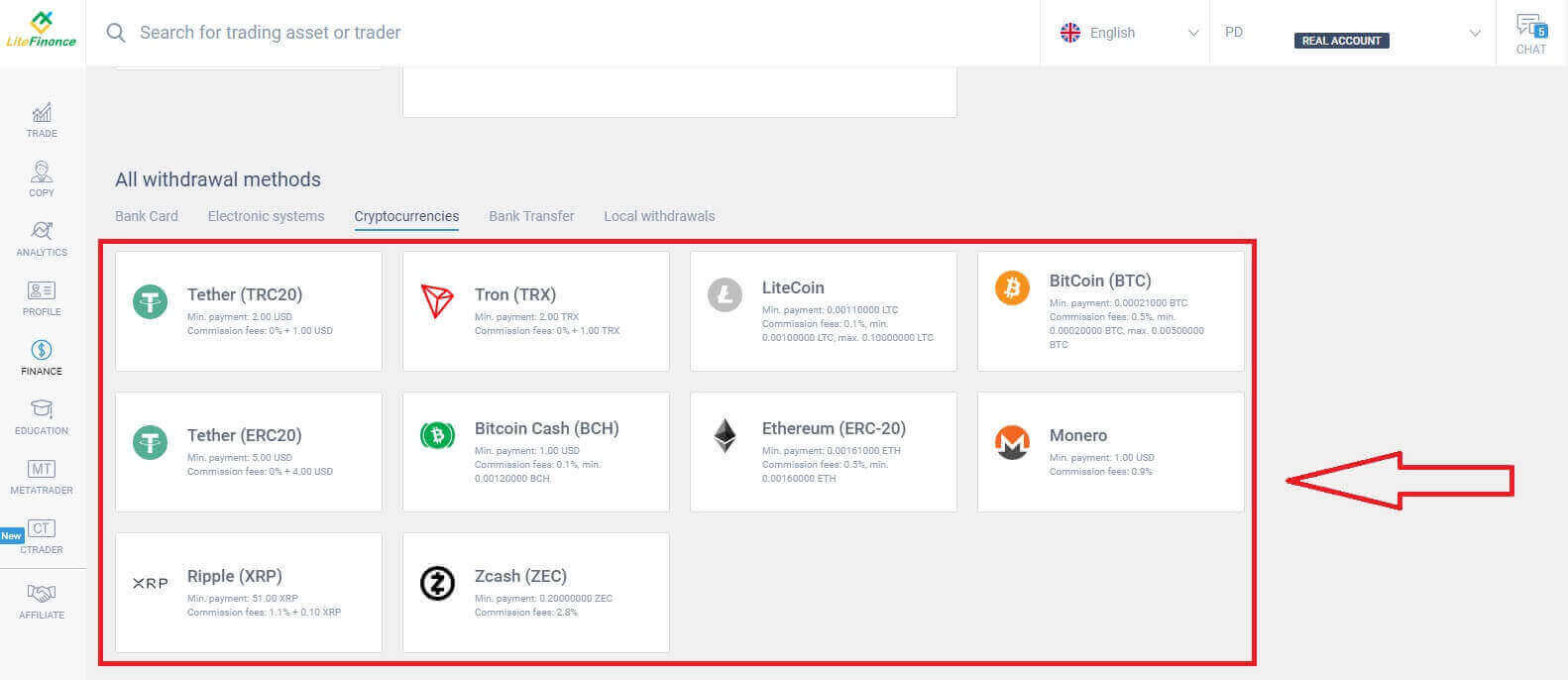
Here are the steps you need to take to begin the withdrawal:
- Select the trading account that is available for withdrawal.
- Choose the walletto receive your money (if the wallethasn’t been deposited at least once, select "ADD" to add the wallet).
- Enter the amount of money to withdraw at a minimum of 2USDor its equivalent in other currencies(If you enter an amount higher than the current balance in your account, the display will show the most elevated amount available in the selected account).
- Select the general currency.
- Check the amount you will receive after deducting the 1 USDcommission fee.
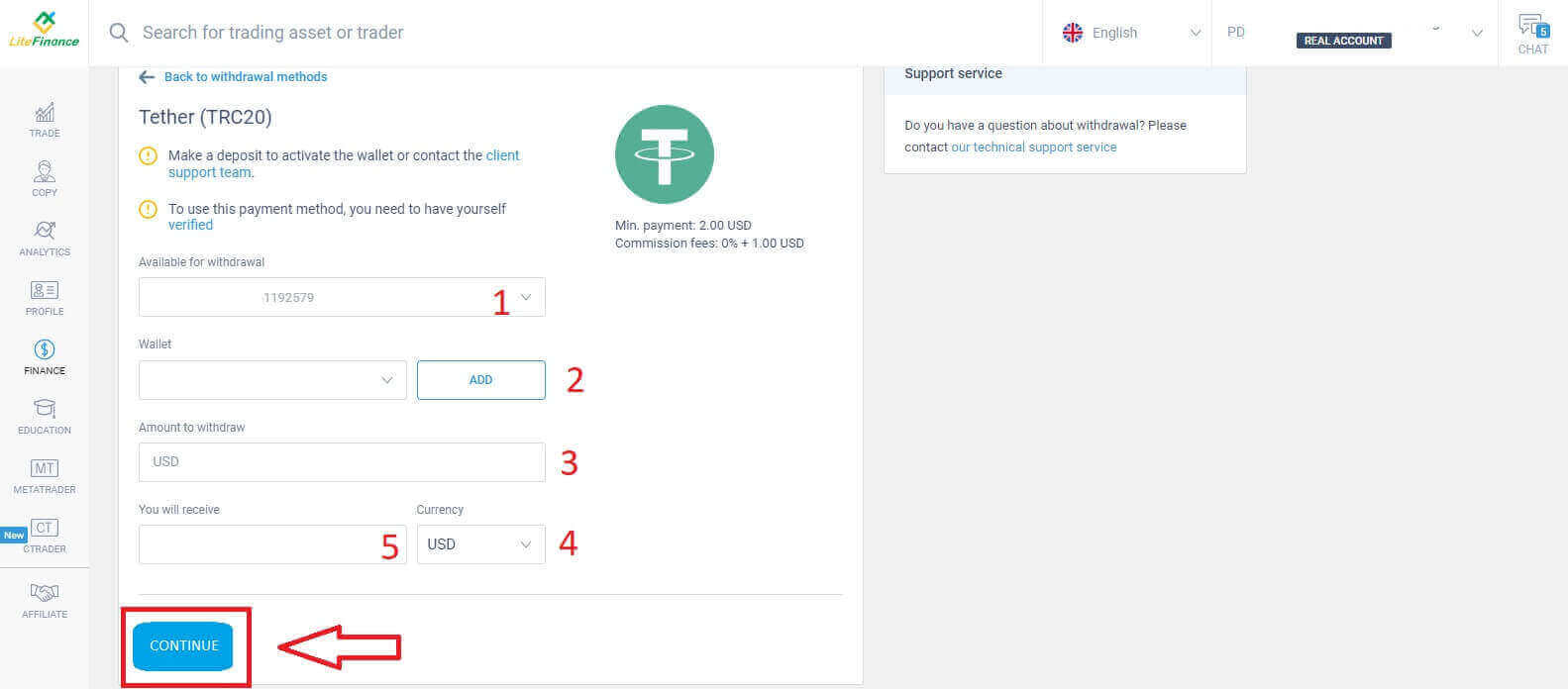
After finishing these actions, click on "CONTINUE". To complete the withdrawal, proceed with the guidance provided on the following screen.
Bank Transfer
For this method, you need to do a few things first, such as:- Select the trading account that is available for withdrawal.
- Select one of your bank accounts that was saved from the deposit process. Besides,you could also click "ADD" to add your preferred account.
- Enter the amount of money to withdraw at a minimum of 300,000 VND or its equivalent in other currencies(If you enter an amount higher than the current balance in your account, the display will show the most elevated amount available in the selected account).
- Select the general currency.
- Check the amount you will receive (This method is fee-free.).
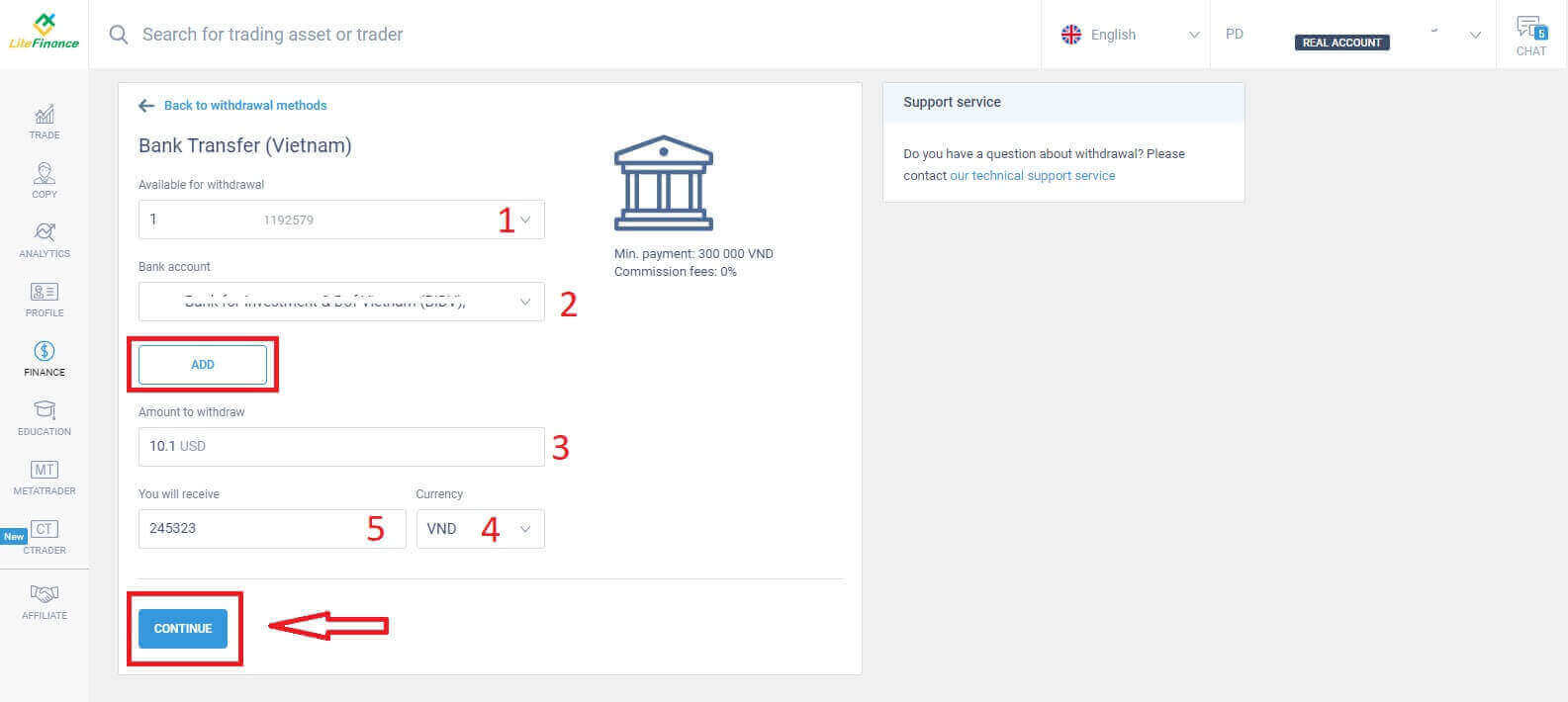
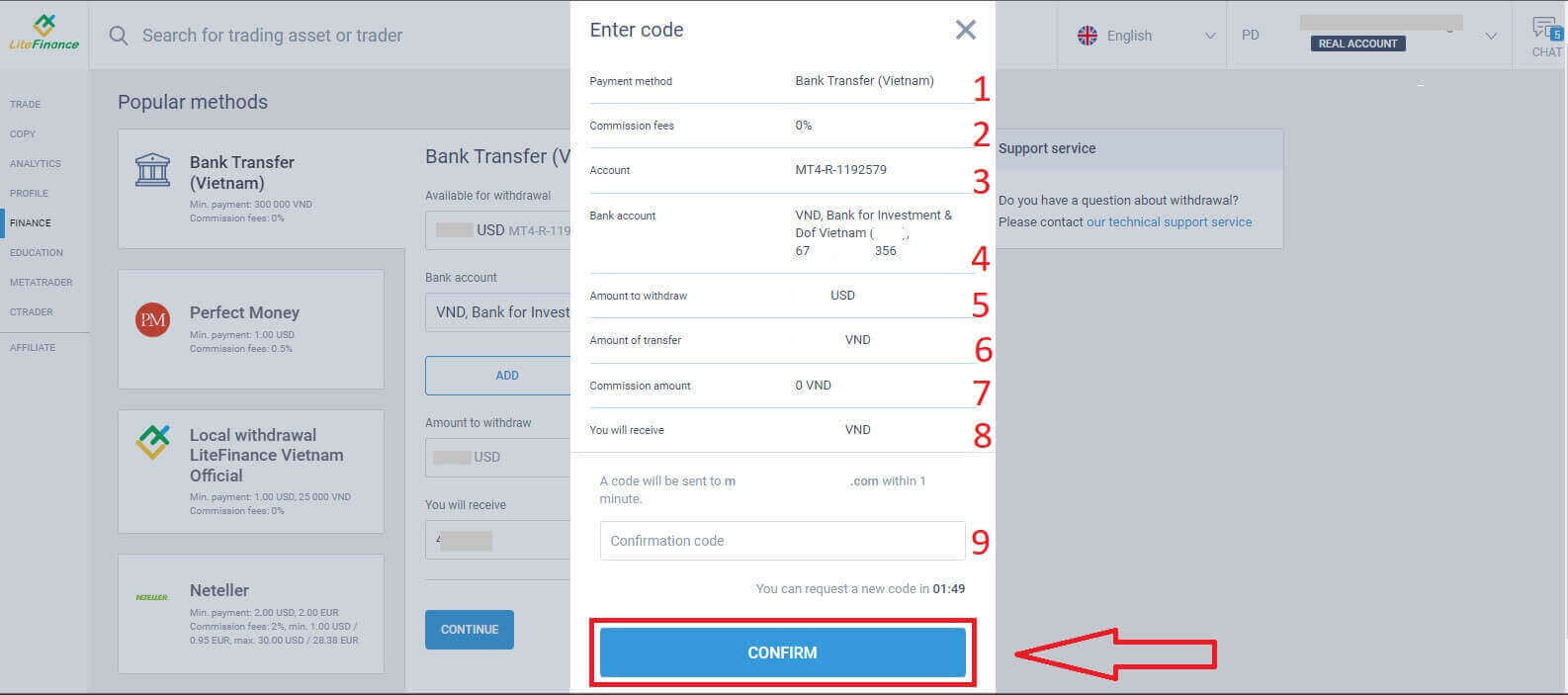
Immediately, a confirmation form will appear, carefully review the information in the form, including:
- The payment method.
- The commission fees ( may vary depending on the country).
- The chosen account.
- The bank account that you added.
- Enter the amount of money to withdraw at a minimum of 2USDor its equivalent in other currencies (If you enter an amount higher than the current balance in your account, the display will show the most elevated amount available in the selected account).
- The amount of transfer.
- The commission amount.
- The money you will receive.
- At this point, a confirmation code will be sent to your email or phone number within 1 minute. If you haven’t received the code, you can request to resend it every 2 minutes. After that, enter the code in the field (as shown below).
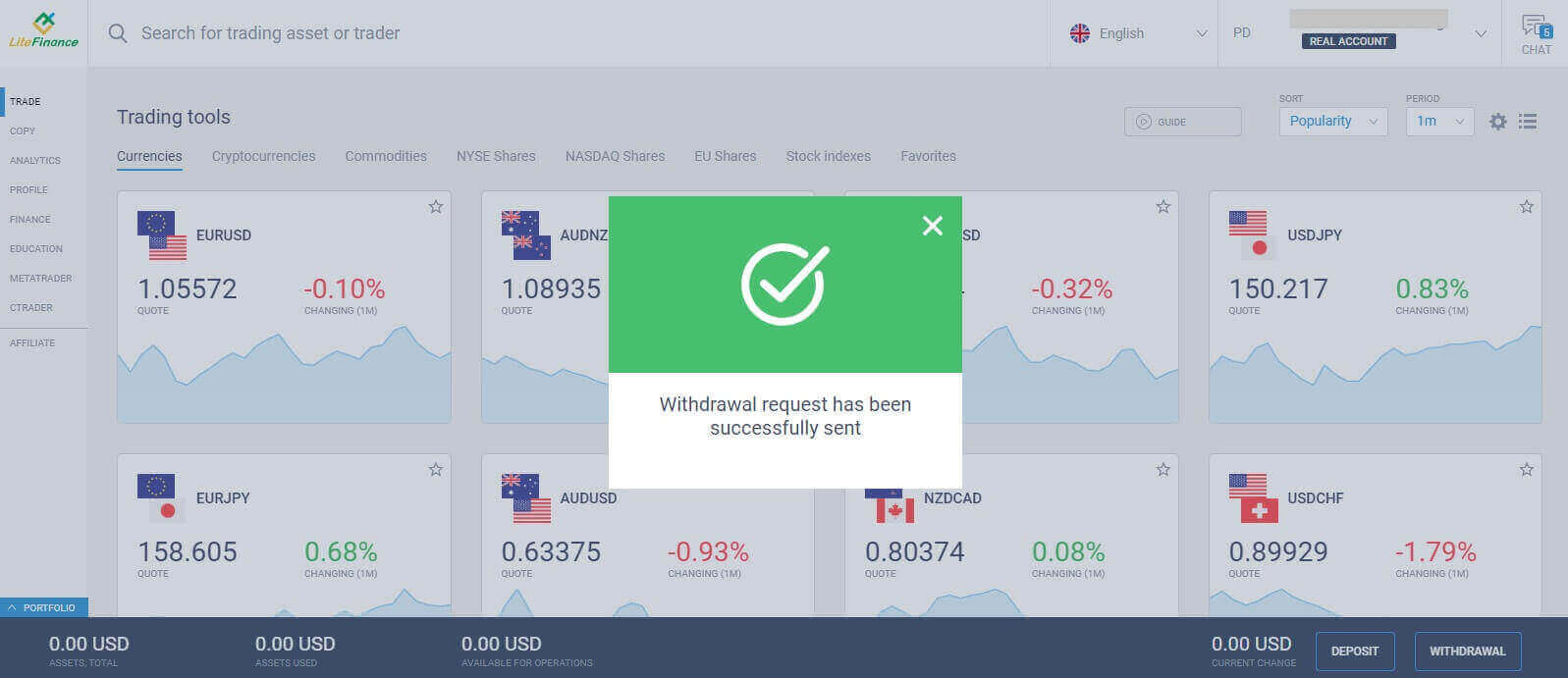
Congratulations, you have completed the withdrawal process. You will receive a successful notification and be redirected to the main screen. All that’s left to do is wait for the system to process, confirm, and then transfer the money to your selected bank account.
Local Withdrawal
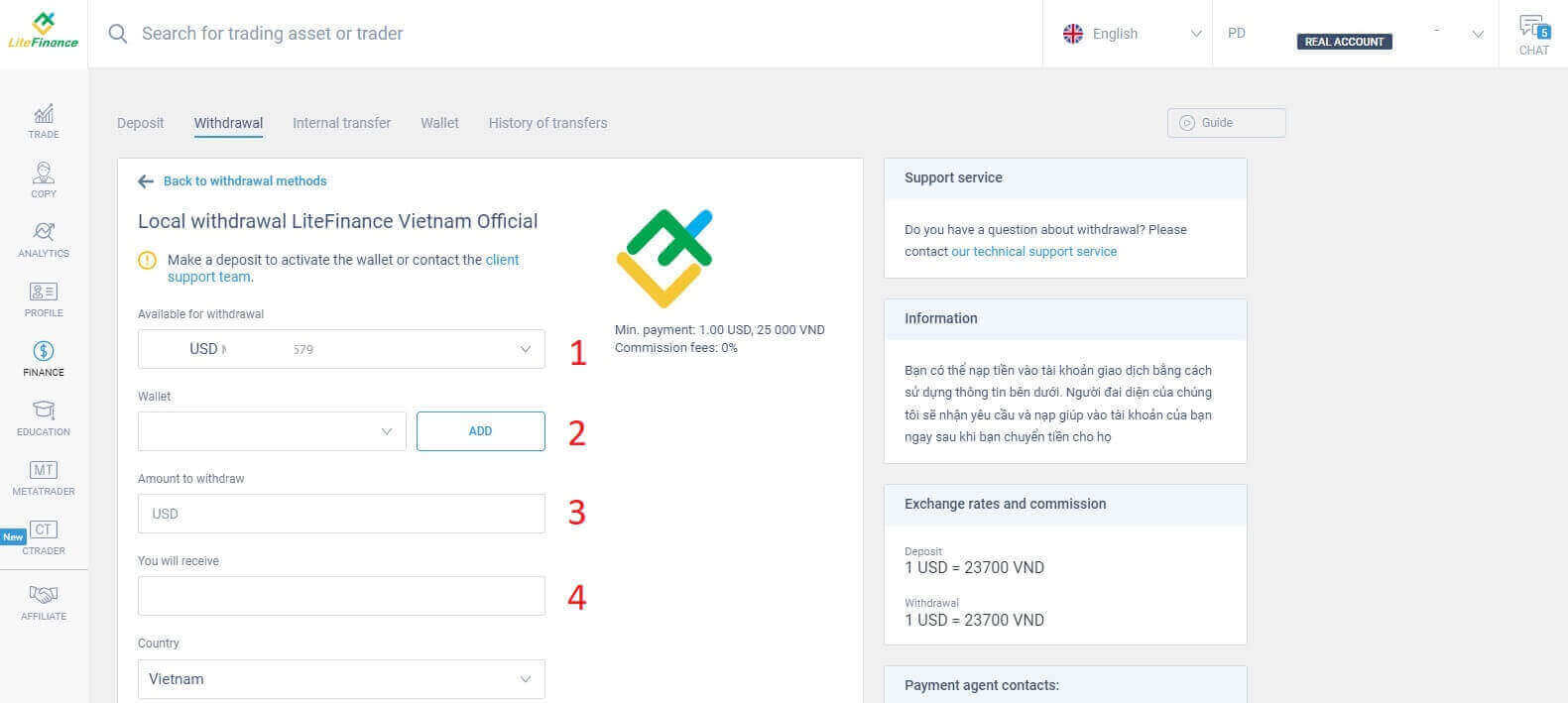
Similar to other methods, this method also requires you to provide some basic information such as:
- Select the trading account that is available for withdrawal.
- Choose the walletto receive your money (The walletyou intend to use for withdrawals must be depositedat least once to activate the wallet. Otherwise, please contact the customer support team by clicking on the text "client support team").
- Enter the amount of money to withdraw at a minimum of 1USDor its equivalent in other currencies (If you enter an amount higher than the current balance in your account, the display will show the most elevated amount available in the selected account).
- Check the amount you will receive (this method is fee-free).
- Your country of residence.
- The region.
- Postal code of your residence.
- The city you live in.
- Your address.
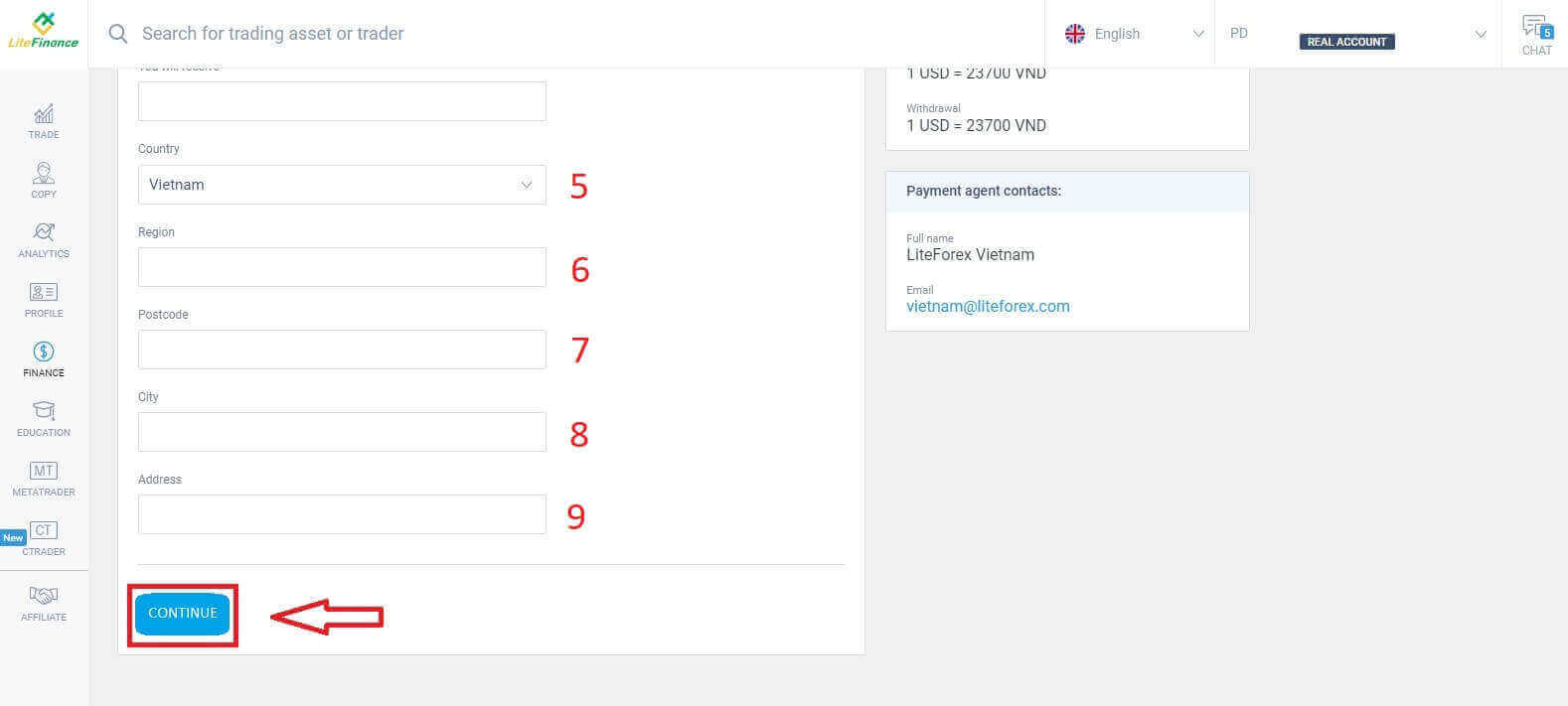
After completing the information, click on the "CONTINUE" button to continue. In this step, please follow the instructions on the screen to complete the withdrawal process.
How to Withdraw with the LiteFinance Mobile Trading App
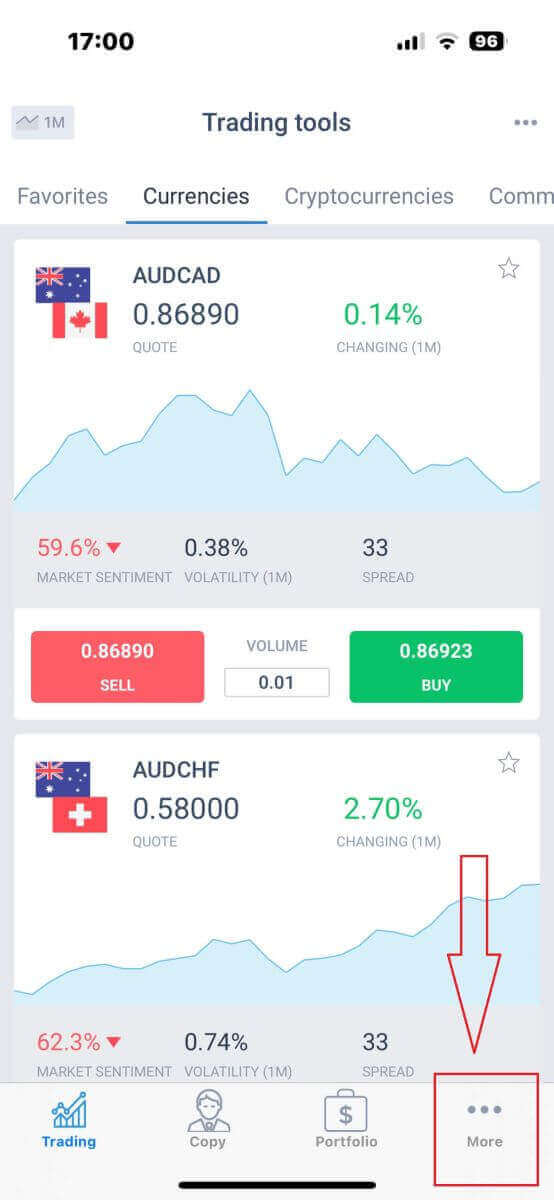
Launch the LiteFinance mobile application on your smartphone. Then sign in to your trading account by entering your registered email and password. If you don’t have a registered account or are unsure how to log in, refer to this guide: How to Register Account on LiteFinance.After successfully logging in, go to the "More" section.
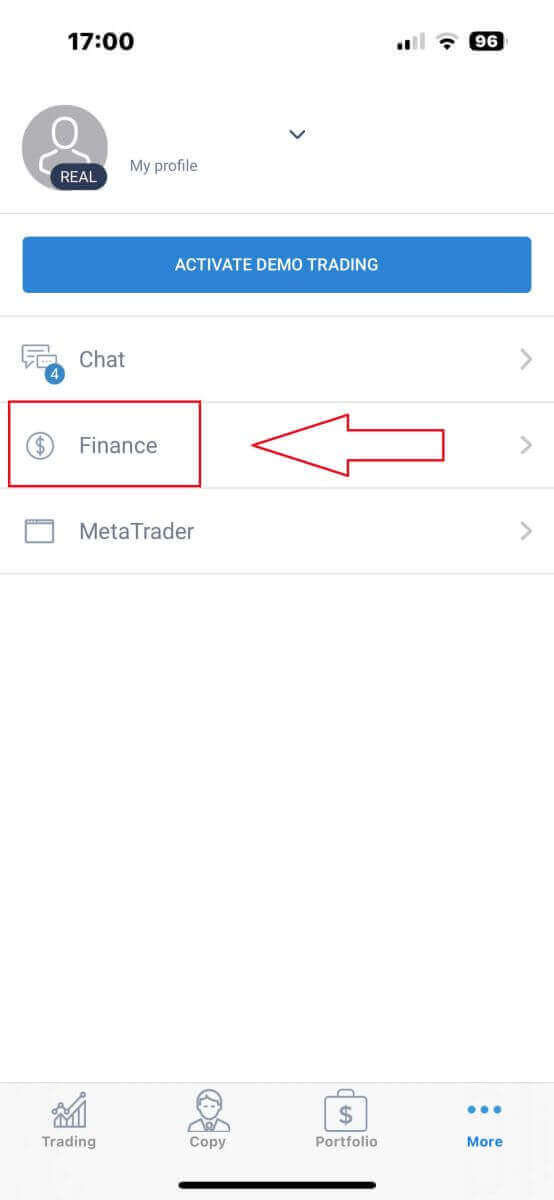
Locate the "Finance" category and select it. You can usually find it in the primary menu or on the dashboard.
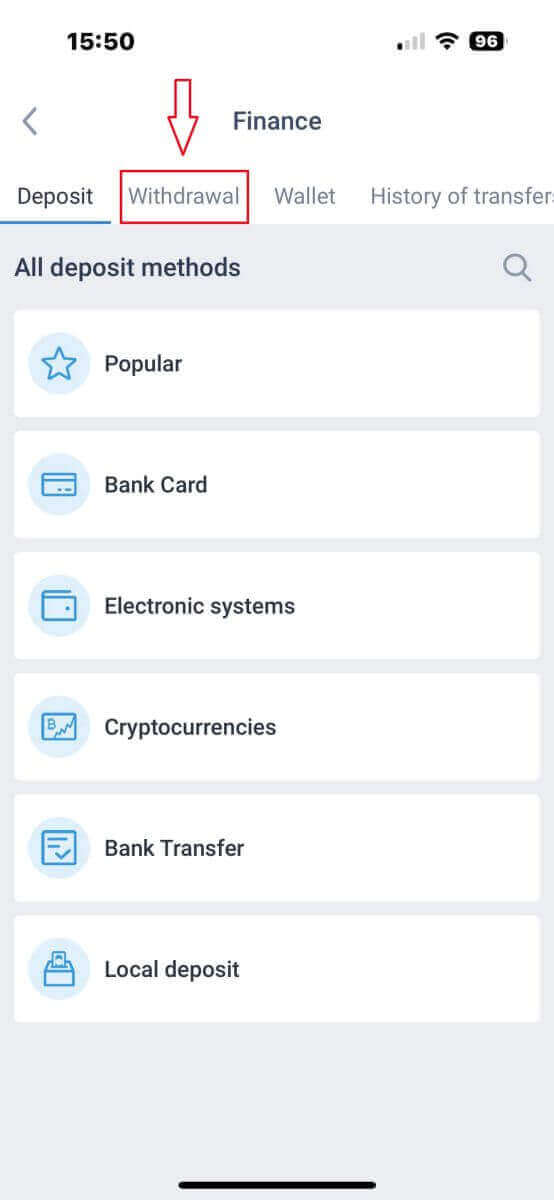
Choose "Withdrawal"to proceed to the withdrawal transaction.
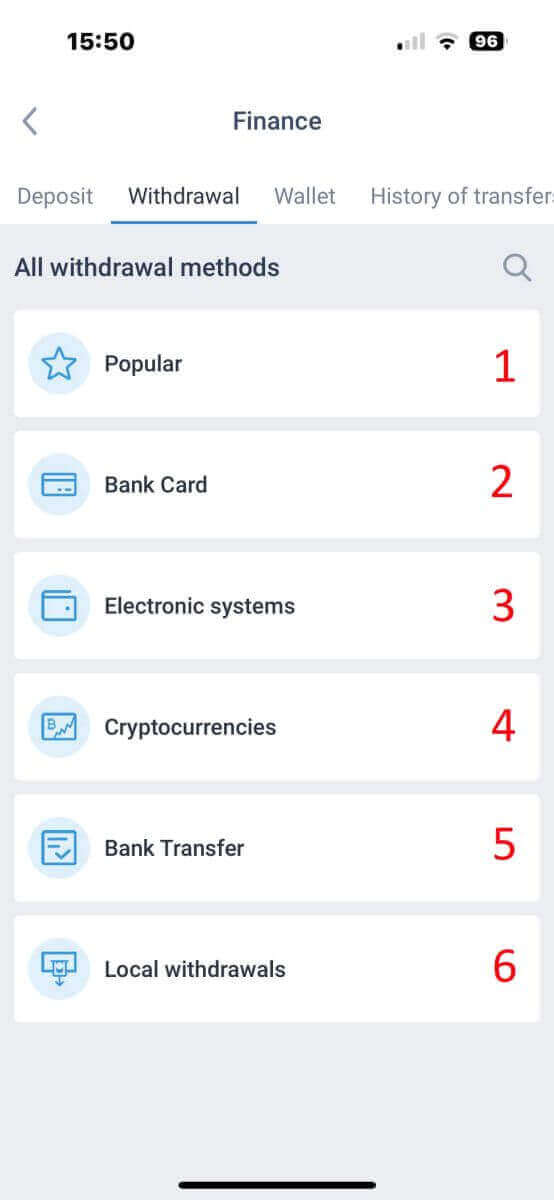
Within the withdrawal area, you’ll find a range of deposit options. Kindly select your preferred method and refer to the respective tutorial for each method below.
Bank Card
First, scroll down under the "All withdrawal method" section, then select "Bank Card".
To utilize this payment method, it’s essential to have your verification process completed. (If your profile and bank card haven’t been verified yet, refer to this guide: How to Login to LiteFinance).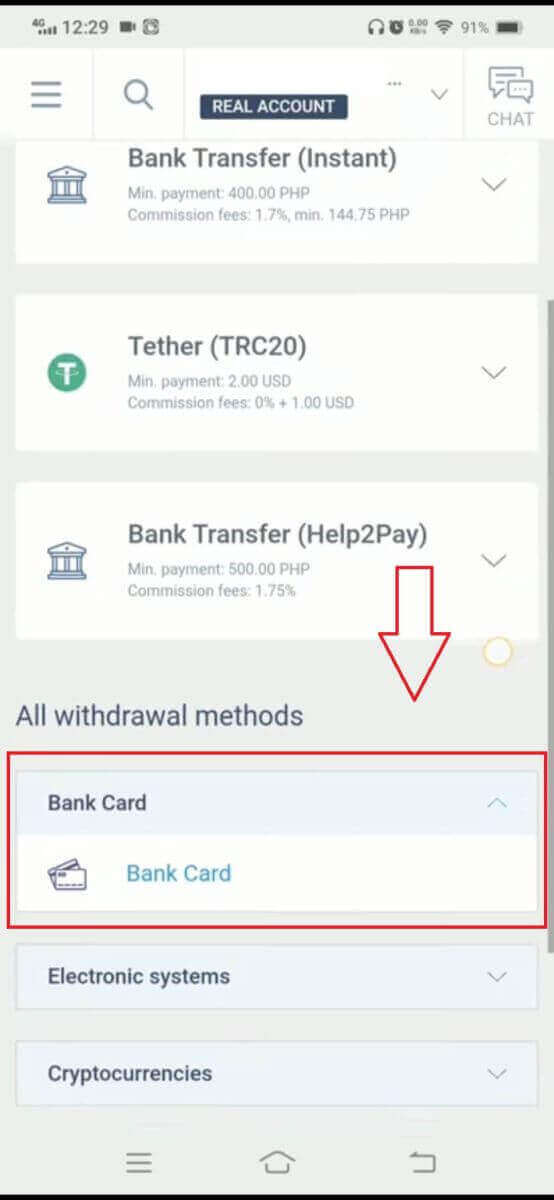
Next, fill in the information about your bank card and your transaction details to initiate the withdrawal process:
- Select the trading account that is available for withdrawal.
- Choose the card to receive your money (if the card hasn’t been deposited at least once, select"ADD"to add the card).
- Enter the amount of money to withdraw at a minimum of 10 USD or its equivalent in other currencies(If you enter an amount higher than the current balance in your account, the display will show the most elevated amount available in the selected account).
- Select the general currency.
- Check the amount you will receive after deducting the commission fees which are at least 10 USD(2% and a minimum of 1.00USD/EUR).
Cryptocurrencies
First, you need to select the available cryptocurrency in your country.
Please consider these important points when using this method:
- Ensure that your wallet is activated beforehand, which can be achieved by making at least one deposit. In case it isn’t activated, kindly reach out to our customer support team by clicking on the "client support team" link.
- To utilize this payment method, you must complete the verification process for yourself. If you haven’t already verified your profile and bank card, please refer to our guide on How to Verify Account on LiteFinance.
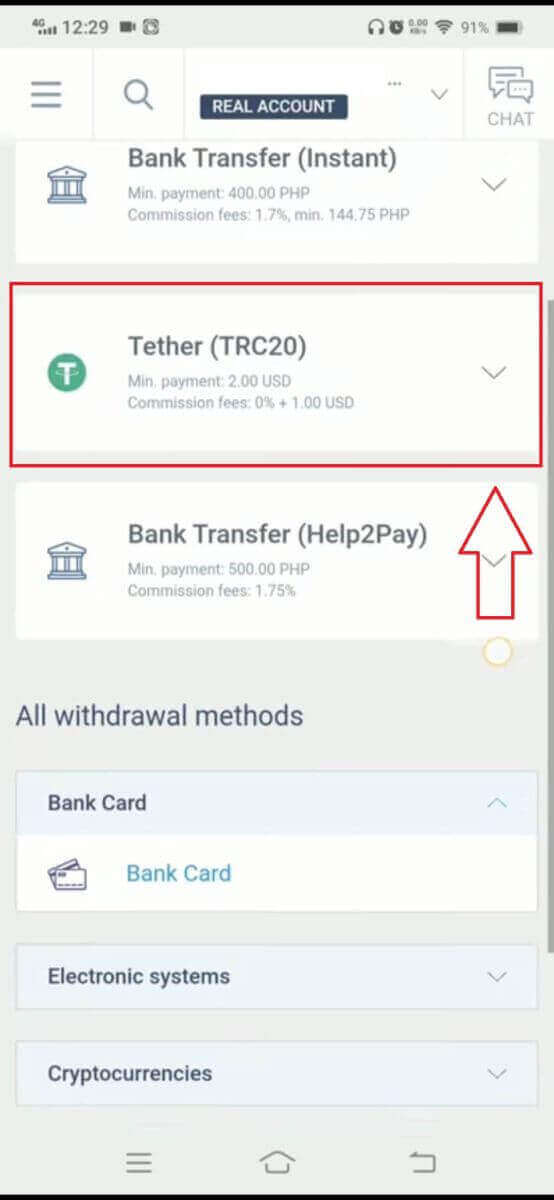
These are the required steps to initiate the withdrawal process:
Pick the trading account from which you wish to withdraw funds.
Select the wallet to receive your funds. If you haven’t added the wallet previously (by depositing at least once), click on "ADD" to include it.
Enter the withdrawal amount, which must be a minimum of 2 USDor equivalent in other currencies (If you input an amount higher than your current account balance, the system will display the maximum available amount in the chosen account).
Choose the preferred currency for the withdrawal.
Verify the final amount you will receive after the deduction of the 1 USD commission fee (may vary depending on country).
In the next step,please complete the remaining steps as instructed on the screen.
Bank Transfer
Firstly, please select the available bank transfer in your country.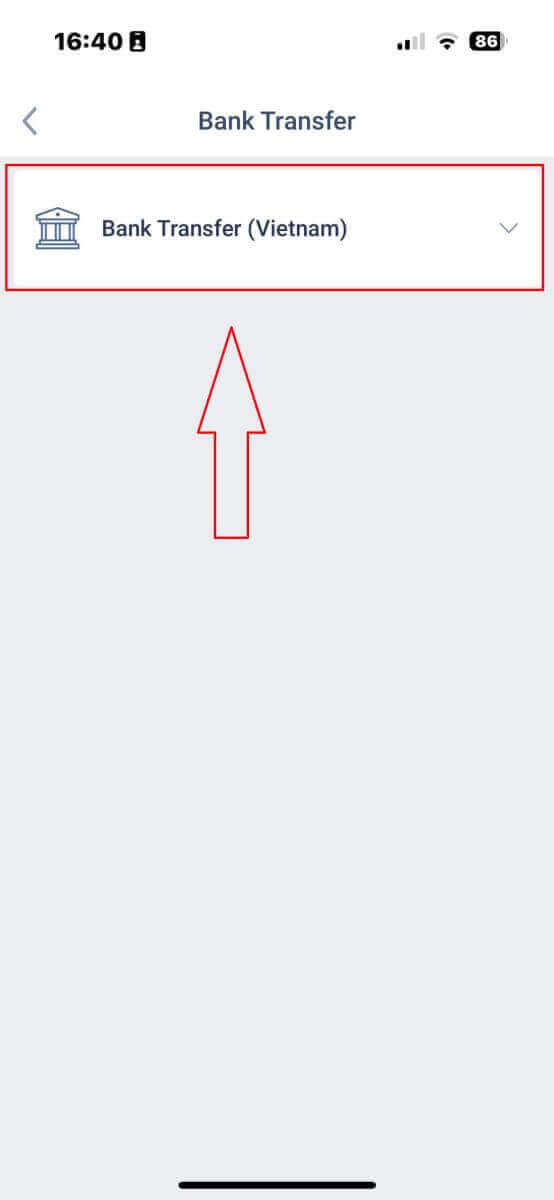
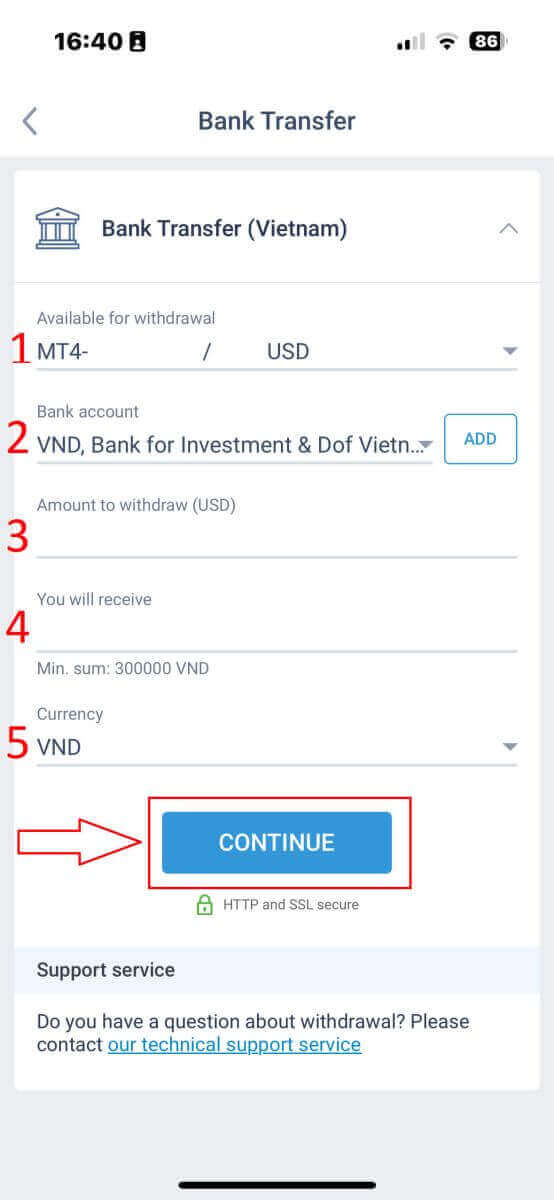
Next, you will be required to provide some information to proceed with the withdrawal process:
- Select the trading account that is available for withdrawal.
- Choose the bank account if its information was saved before. Otherwise,tap "ADD" to add the bank account that you wish to withdraw from other than saved accounts.
- Enter the money that you wish to withdraw at a minimum of 300000 VNDor its equivalent in other currencies (If you enter an amount higher than the current balance in your account, the display will show the most elevated amount available in the selected account).
- Check carefully the money that you will receive.
- Select the available currency to withdraw.
At this step, the system will display a QR code for you to confirm. If the confirmation is successful and all information is correct, the system will notify you that "Your withdrawal request has been successfully sent". From that moment until you receive the money, it may take several minutes to a few hours.
Local Withdrawal
After selecting the available local withdrawal method, you will need to fill out some information to begin the withdrawal:- The available account for withdrawal.
- The available wallet is saved from the deposit process. Additionally, you can also add the wallet you wish to withdraw by tapping on the "ADD" button.
- Enter the money that you wish to withdraw(If you enter an amount higher than the current balance in your account, the display will show the most elevated amount available in the selected account).
- The money that you will receive.
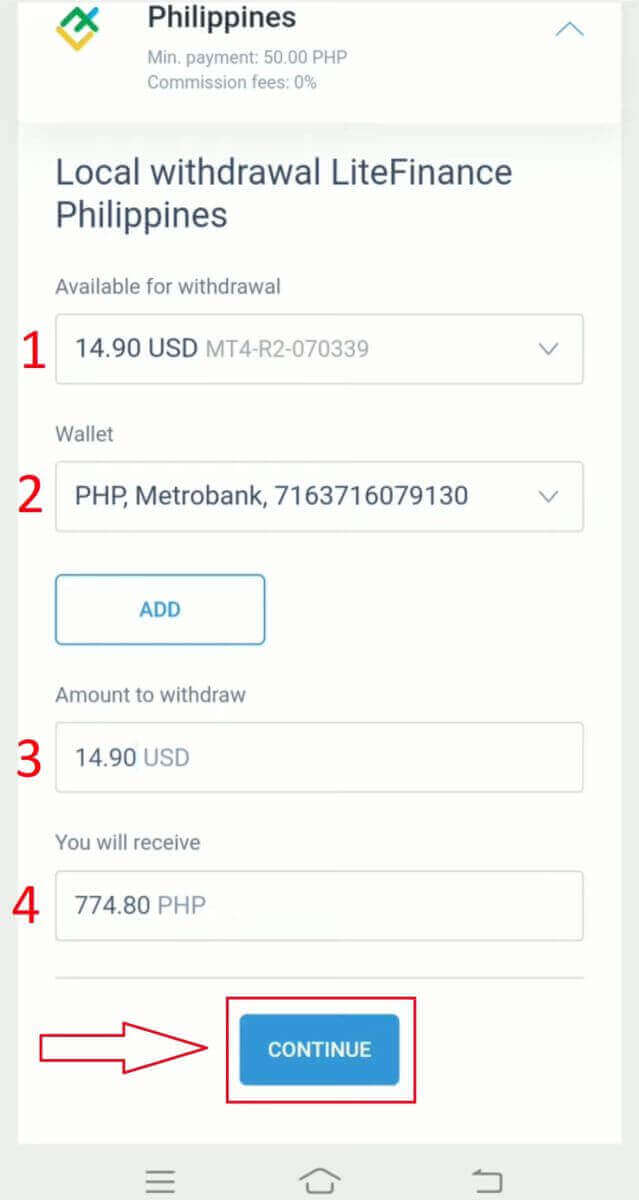
Finally, in this stage, the system will present a QR code for your verification. If the verification is successful, and all the provided details are accurate, the system will inform you that your withdrawal request has been sent successfully. The duration between this point and when you receive the funds can vary, ranging from a few minutes to a few hours.