LiteFinance Sign Up and Login: Create and Access Your Account

This page walks you through the Sign Up fields, required identity documents for verification, and the Login steps—password setup, recovery options, and optional two-factor authentication. You’ll learn the typical verification timeline, how to confirm email or phone codes, how to react if a login fails, and what to expect when switching from demo to a funded live account. Follow these practical steps to finish onboarding and secure consistent access to your trading platform.
How to Sign up for a LiteFinance
How to Sign up for a LiteFinance Account on the Web app
How to Sign up
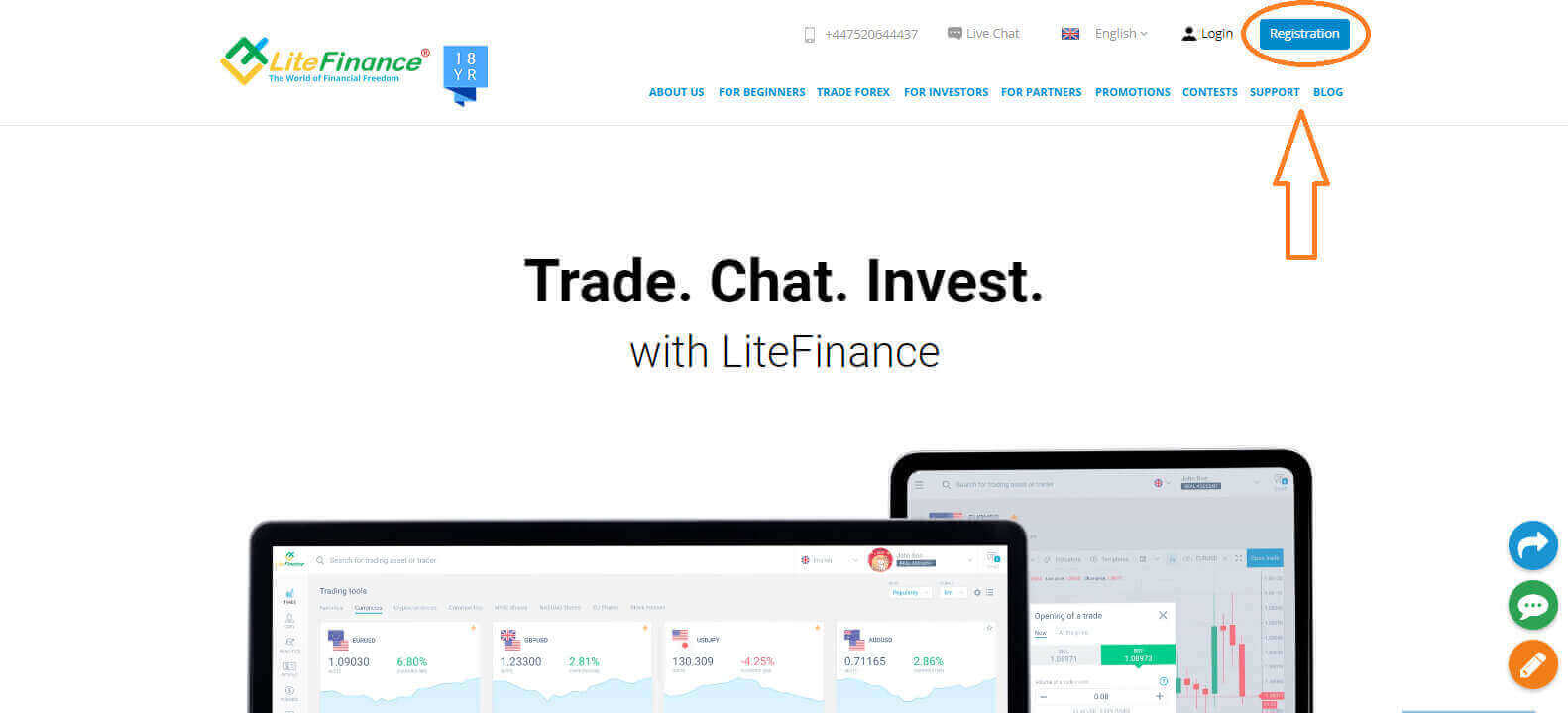
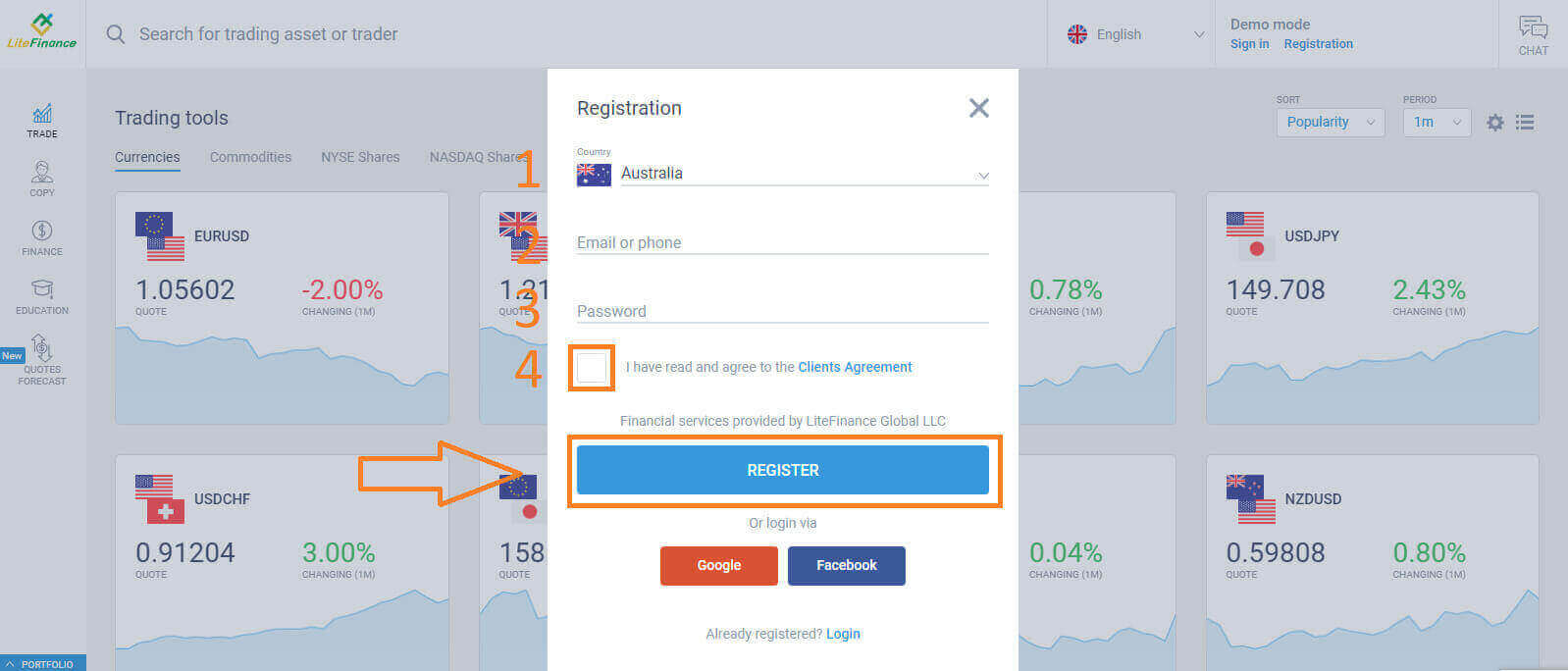
First, you’ll need to enter the LiteFinance homepage. After that, on the homepage, click the "Registration" button in the upper right corner of the screen.
At the registration page, please complete the following actions:
-
Choose your residence nation.
-
Enter your email address or phone number.
-
Create a strong and secure password.
-
Please select the checkbox indicating that you have read and agreed to LiteFinance’s Clients Agreement.
Please proceed to click on the "REGISTER" button.
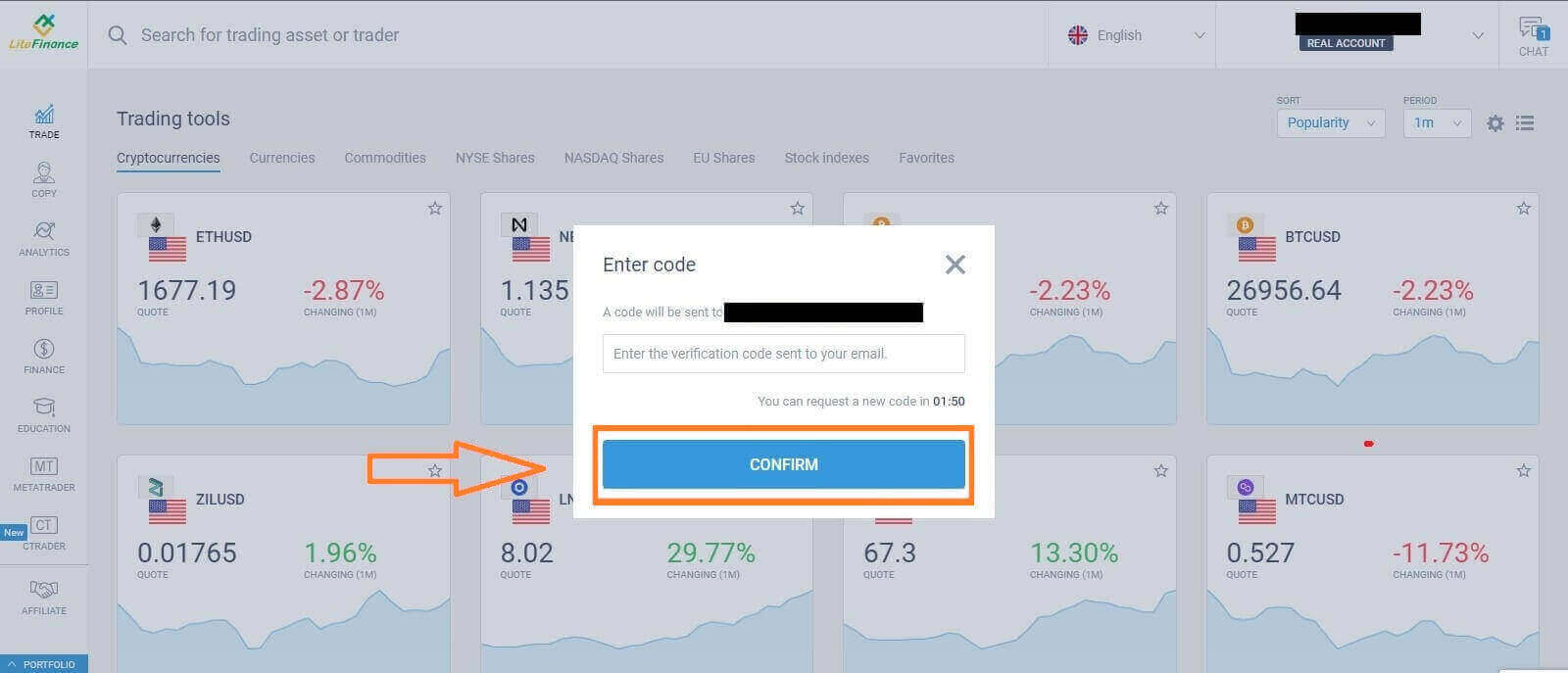
Within a minute, you will receive a verification code, please check your email/ phone number. Then fill in the "Enter code" form and click the "CONFIRM" button.
You can request a new code every 2 minutes if you haven’t received it.
Congratulations! You have successfully signed up for a new LiteFinance Account. You will now be directed to the LiteFinance Terminal.
LiteFinance profile verification
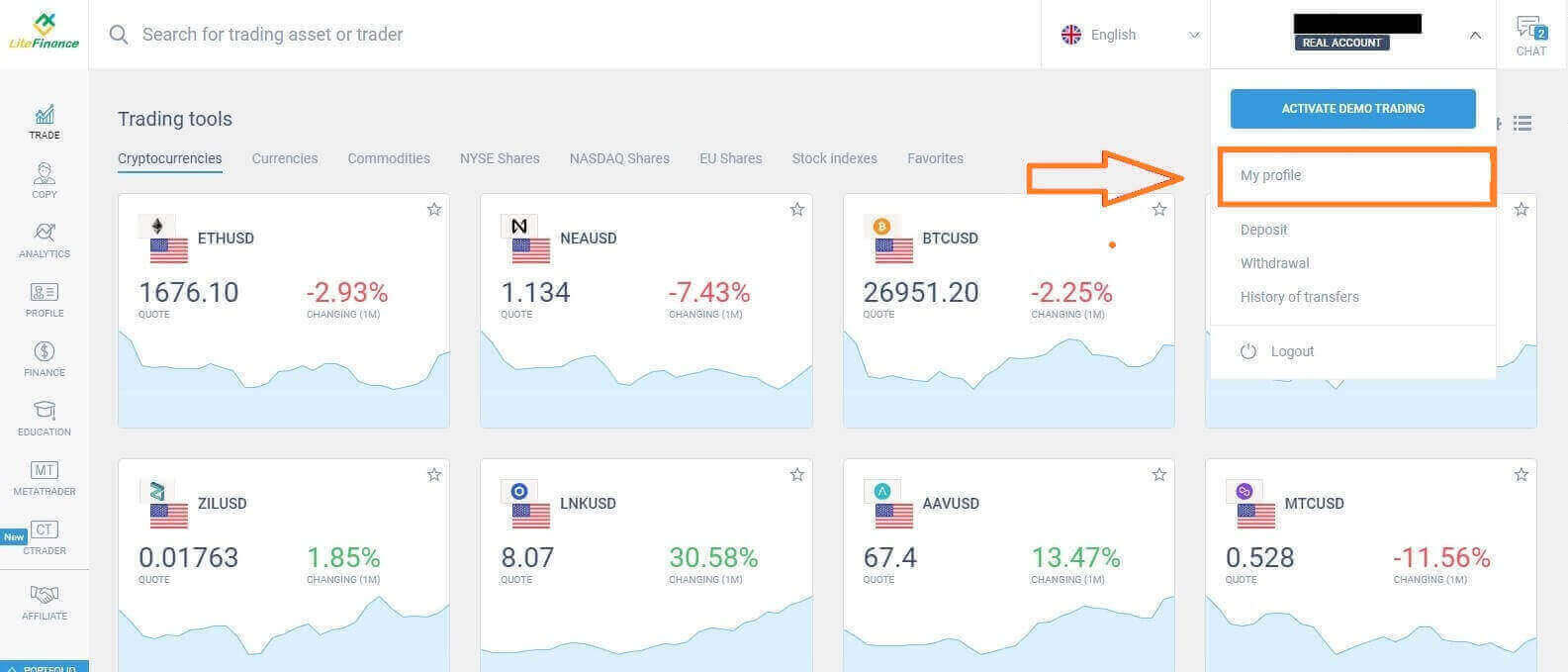
When you create a LiteFinance account, the user interface appears next to the chat box in the upper right corner. Move your mouse to "My profile" and click on it.
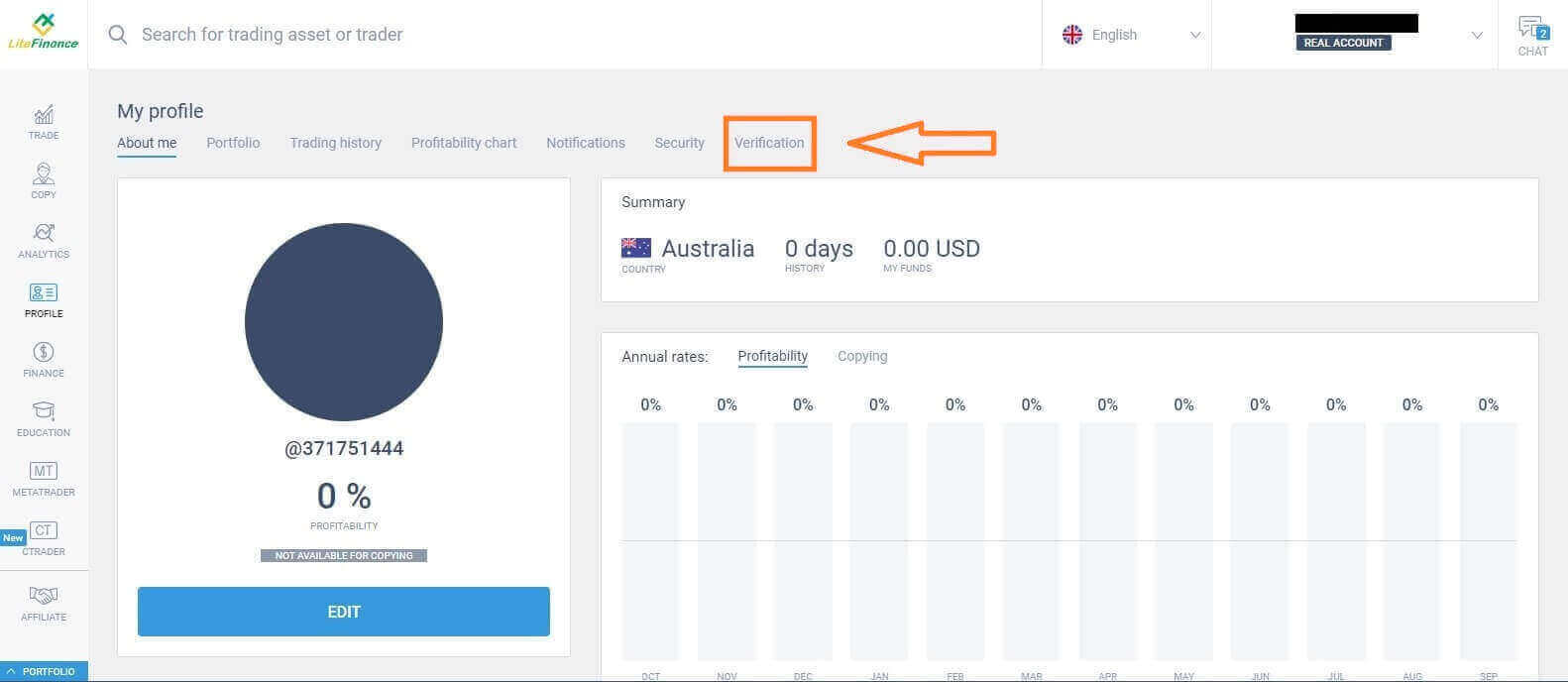
 On the next page, click "Verification".
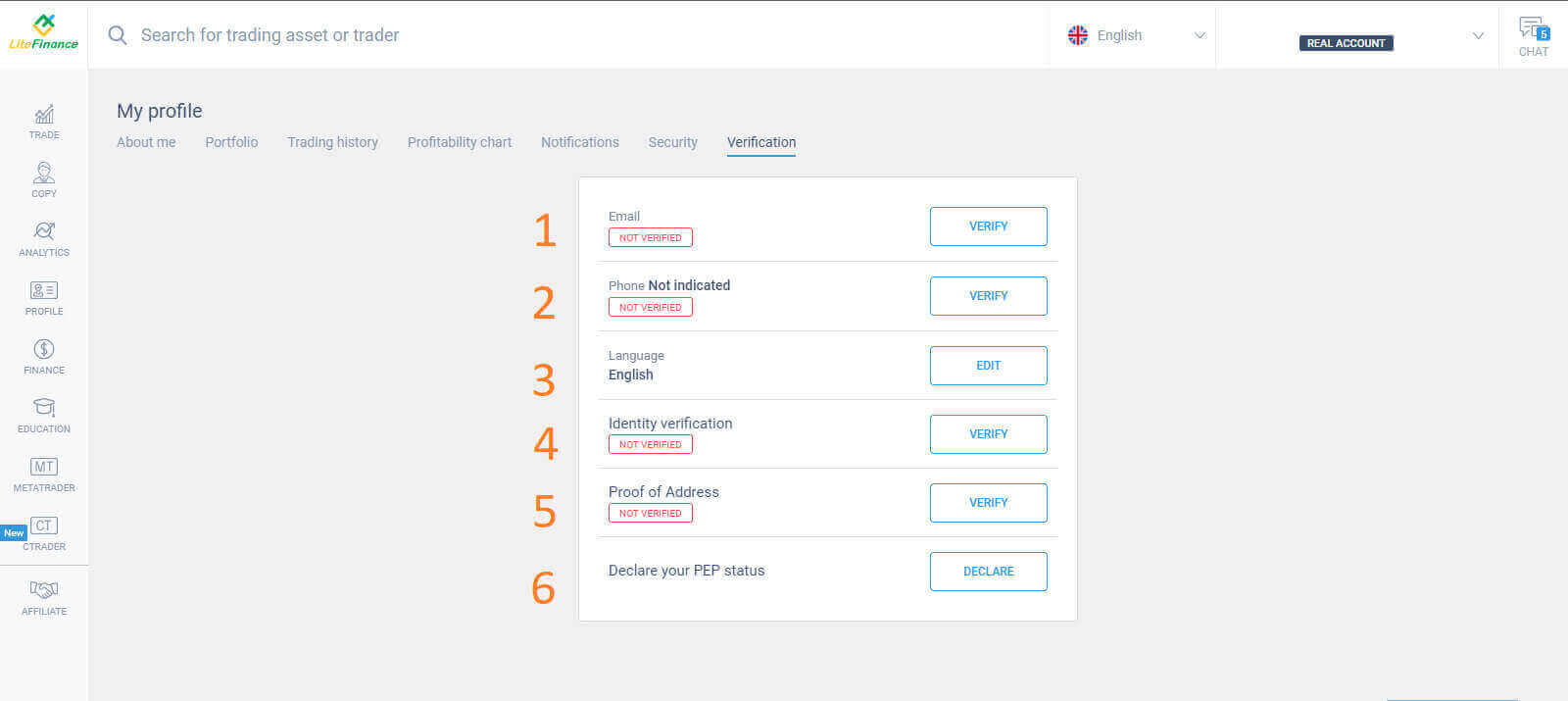
There will be a form on the screen for you to fill out to verify your information, such as:
-
Email.
-
Phone number.
-
Language.
-
Name, gender, and date of birth verification.
-
Proof of Address (Country, region, city, address, and postcode).
-
Your PEP status ( you just need to tick the box declaring you a PEP - Politically Exposed Person).
How to create a new trading account
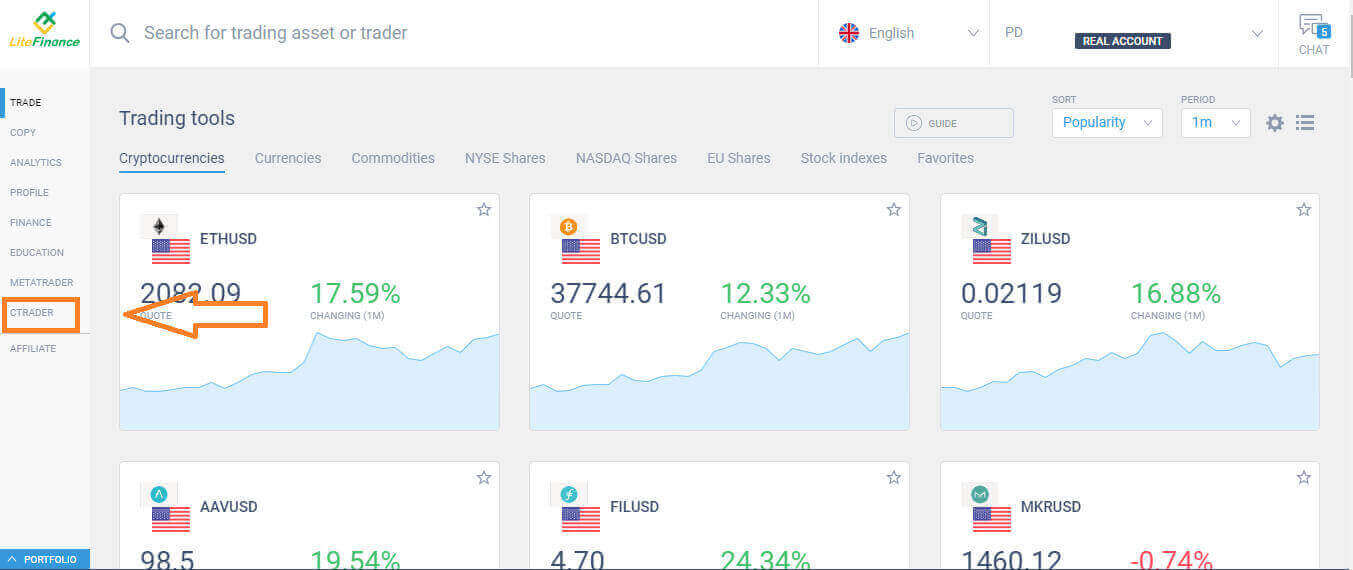
Please choose the "CTRADER" icon on the left side of the screen.
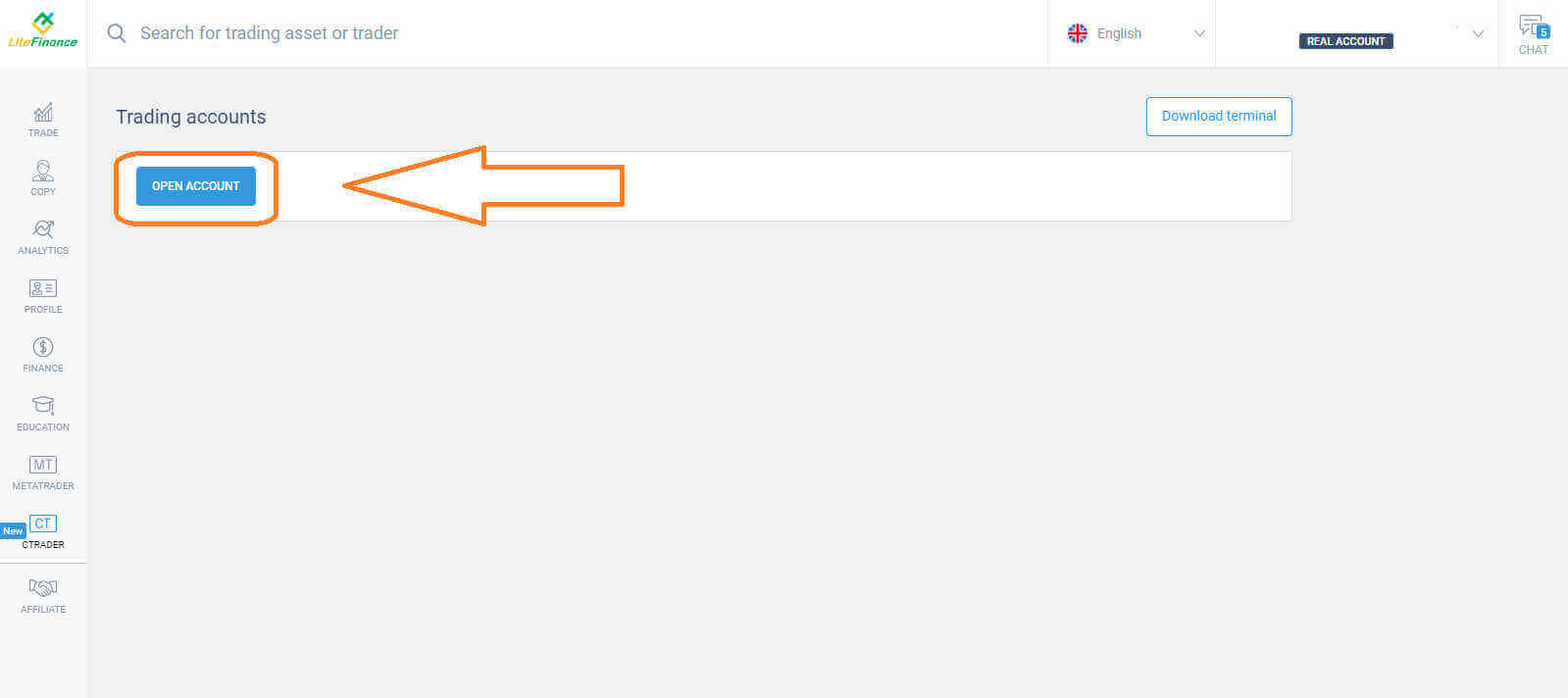
 To proceed, please choose "OPEN ACCOUNT".
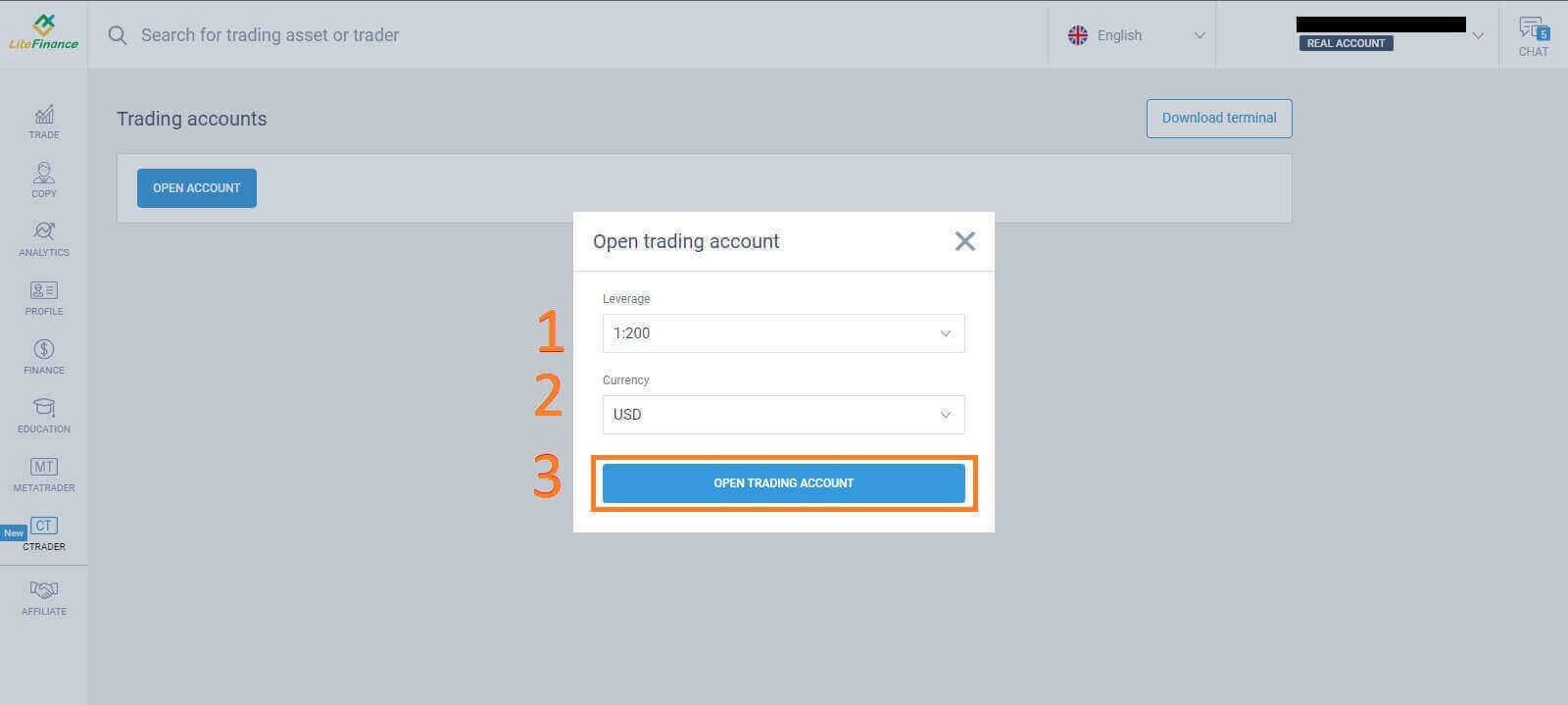
 On the "Open Trading Account" form, select your leverage and currency, then choose "OPEN TRADING ACCOUNT".
 Congratulations! Your trading account has been created successfully.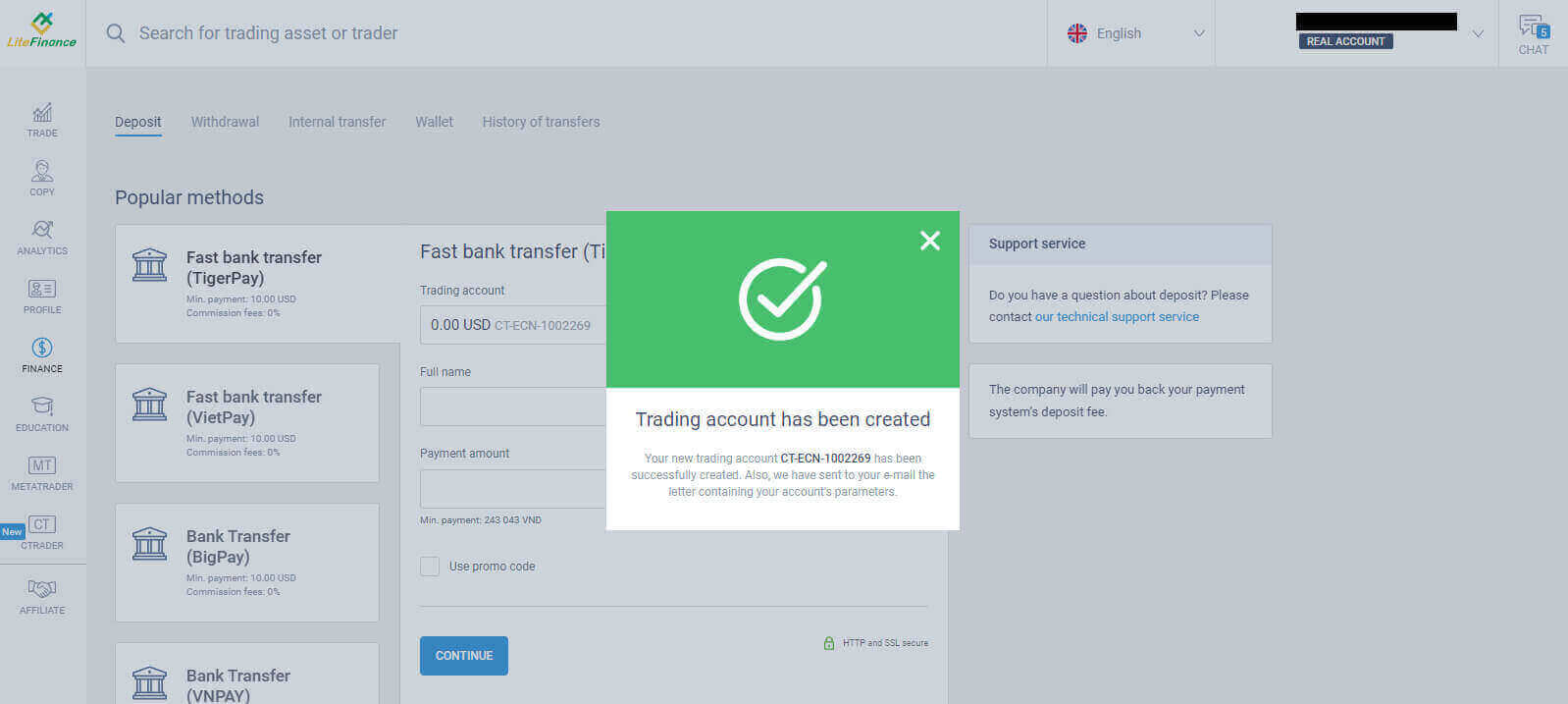
How to Sign up for a LiteFinance Account on the Mobile app
Set up and Sign up
Install the LiteFinance Mobile Trading App from the App Store as well as Google Play
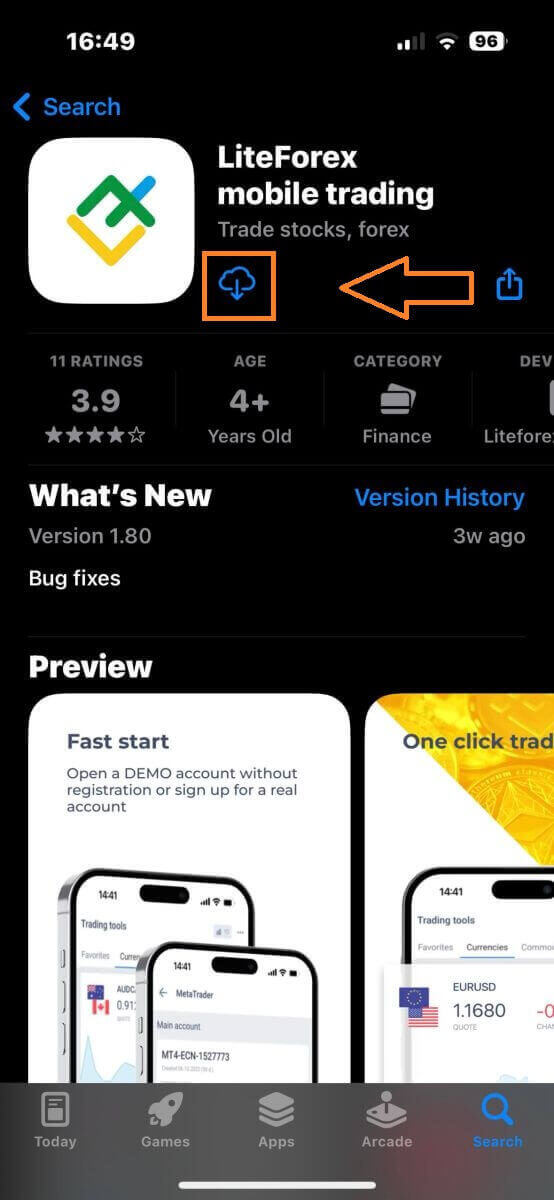
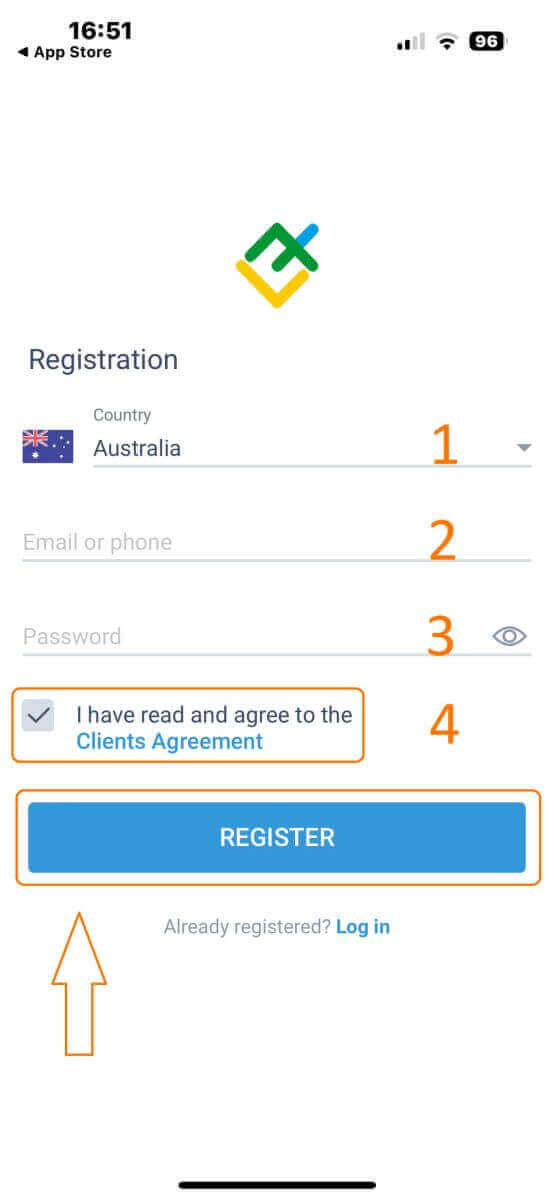
Run the LiteFinance Trading App on your mobile device, then select "Registration".
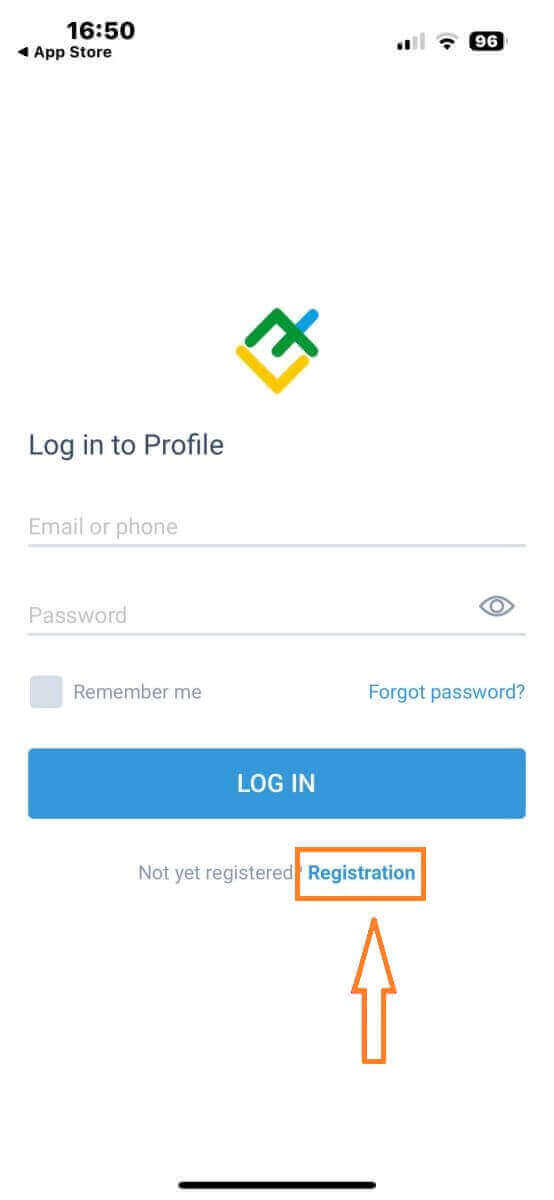
To proceed, you’ll need to complete the registration form by providing specific information:
-
Select your country of residence.
-
Provide your email address or phone number.
-
Establish a secure password.
-
Tick the box declaring you have read and agree to the LiteFinance’s Clients Agreement.
After completing all the required fields, kindly click the "REGISTER" button to continue.
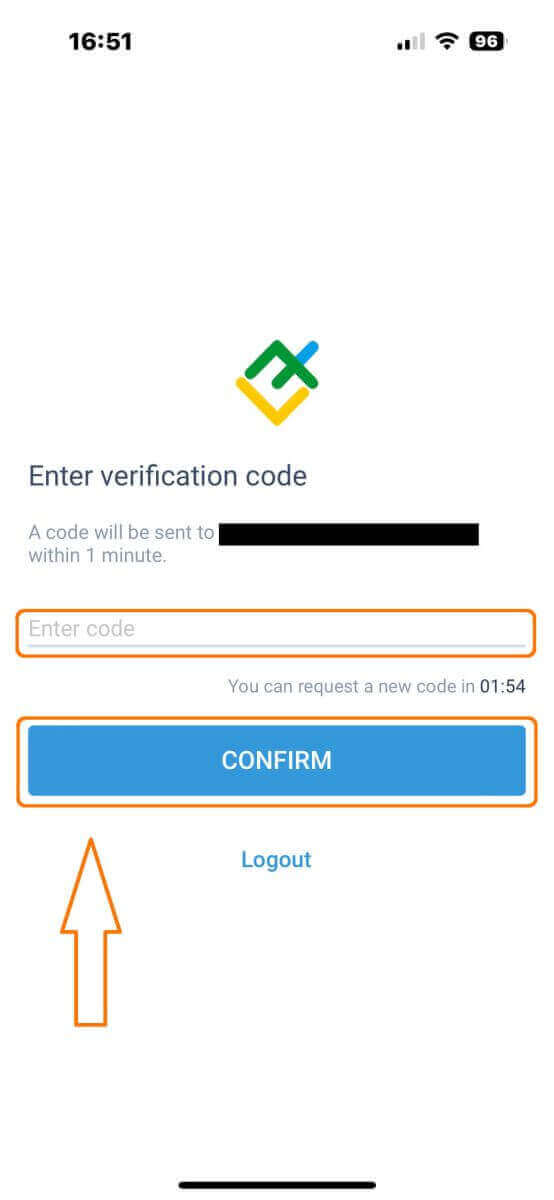
After one minute, you will receive a 6-digit verification code via phone or email. Check your inbox and input the code.
In addition, if you have not received the code within two minutes, touch "RESEND". Otherwise, choose "CONFIRM".
You can construct your own PIN number, which is a 6-digit code. This step is optional; however, you must complete it before accessing the trading interface.
Congratulations! You have successfully set up and are now ready to use the LiteFinance Mobile Trading App.
LiteFinance profile verification
Tap "More" in the bottom right corner of the homepage.
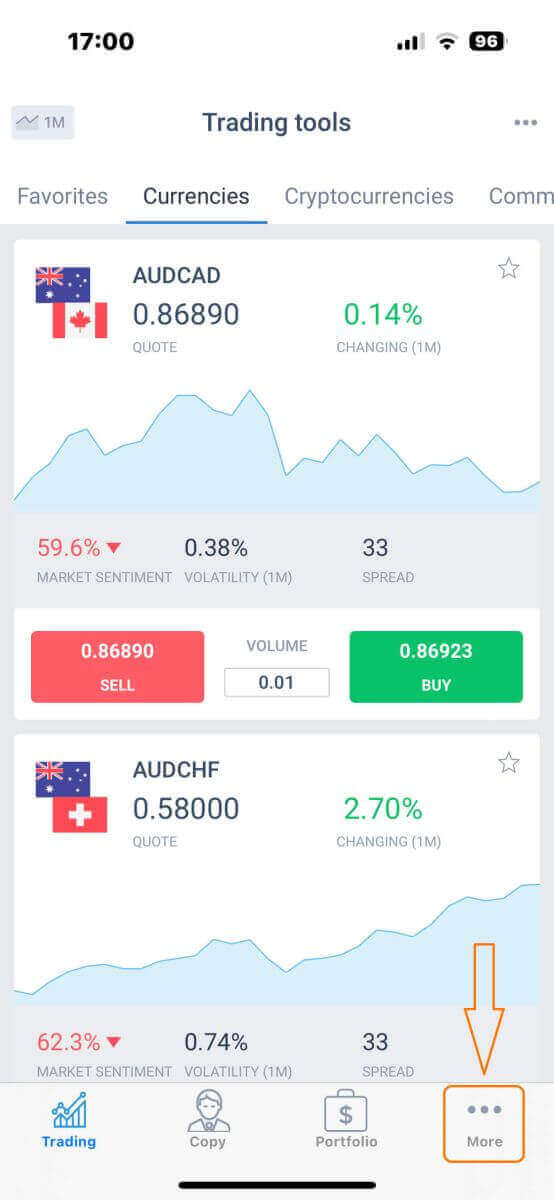
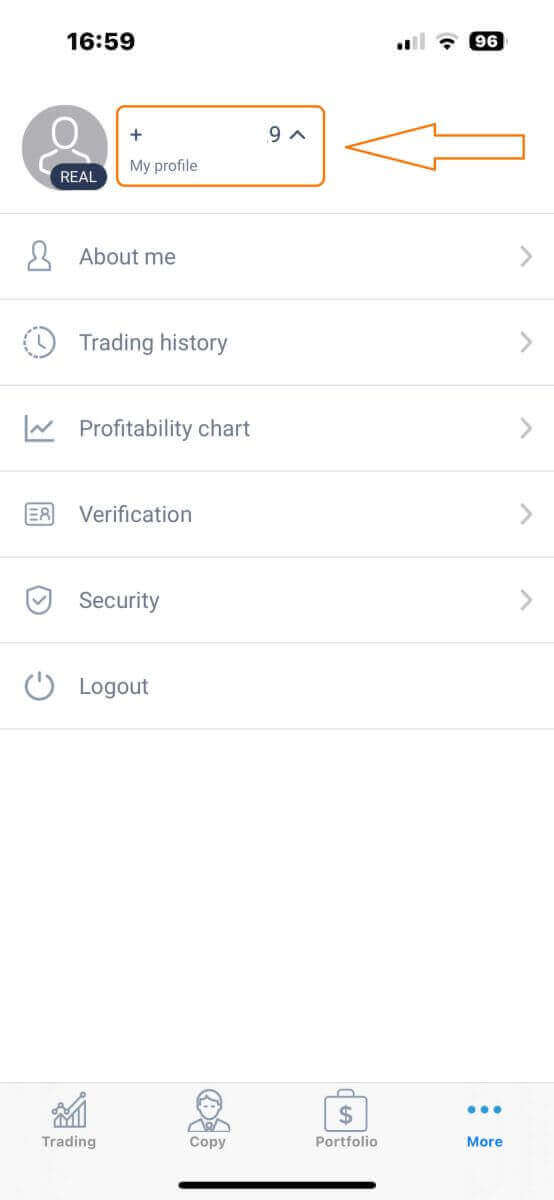
On the first tab, look next to your phone number/ email address and click the dropdown arrow.
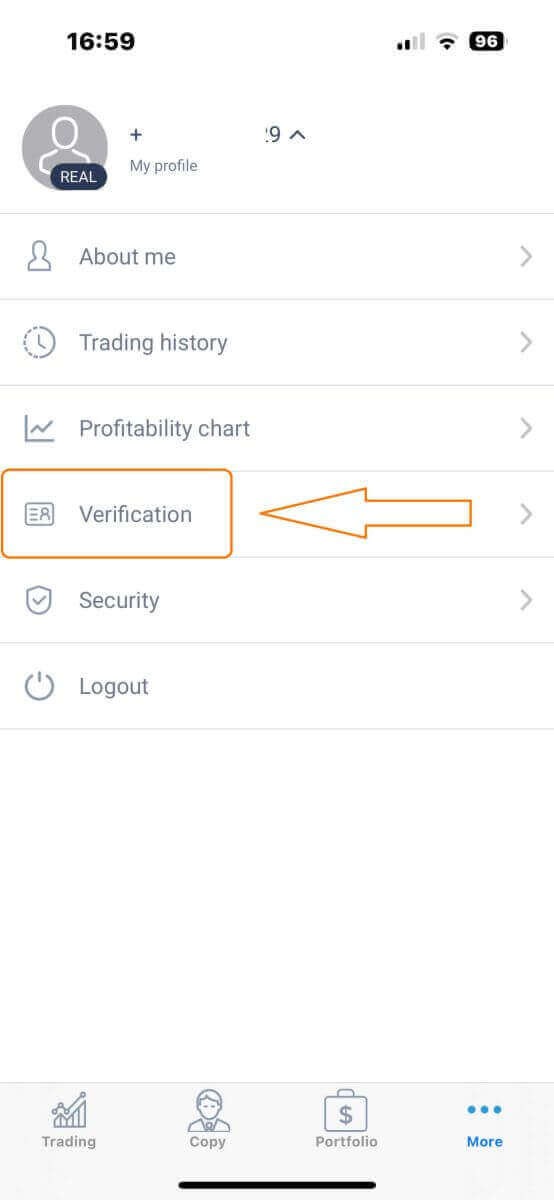
Choose "Verification".
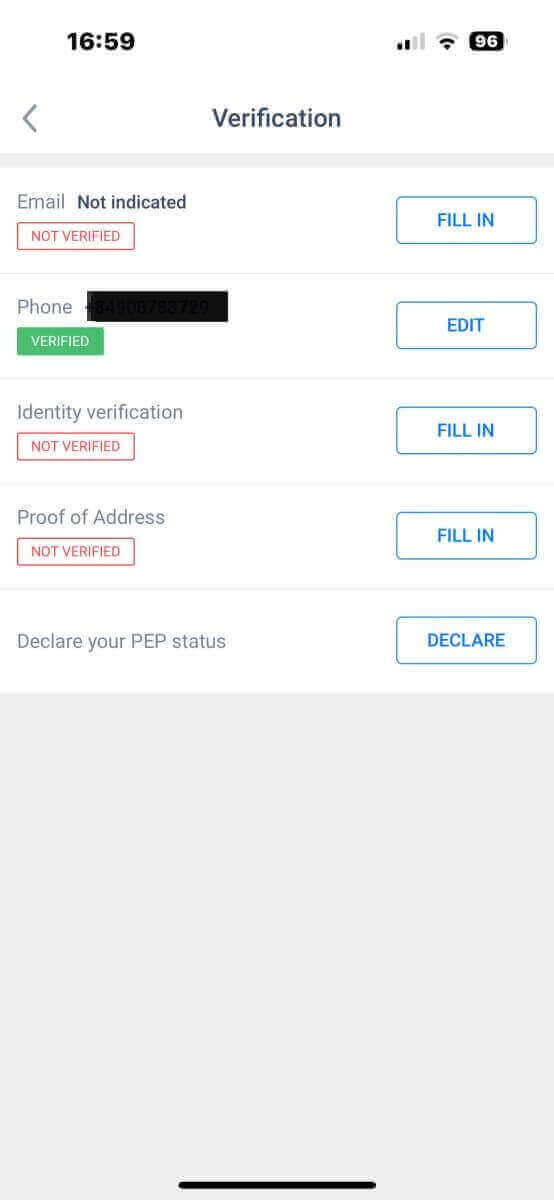
Please ensure that you fill out and authenticate all required details on the verification page:
-
Email address.
-
Phone number.
-
Identity verification.
-
Proof of Address.
-
Declare your PEP status.
How to create a new trading account
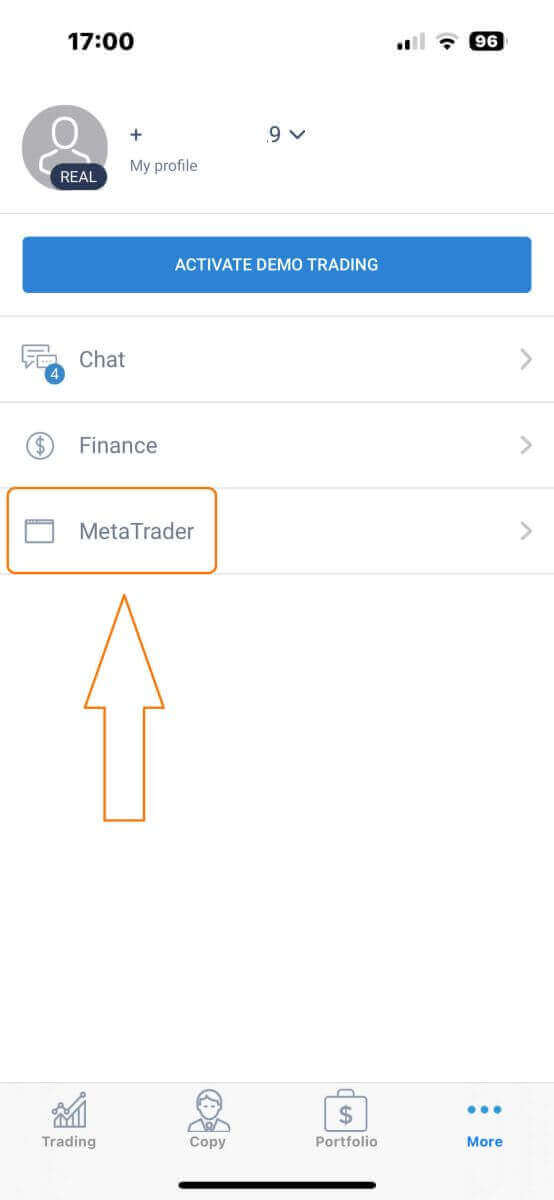
To access MetaTrader, return to the "More" screen and select its corresponding icon.
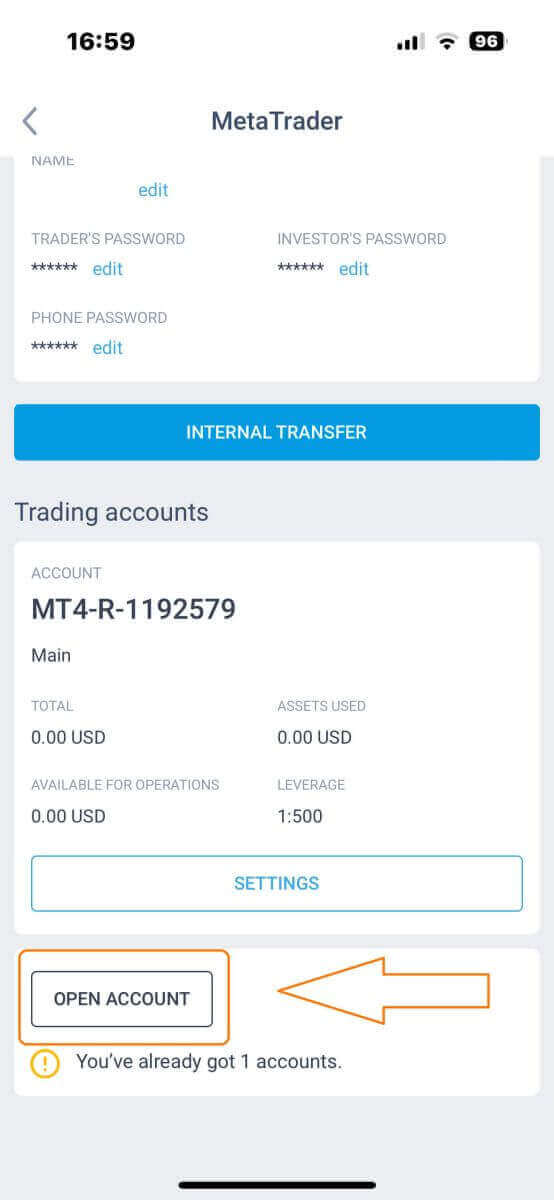
Please scroll down until you locate the "OPEN ACCOUNT" button, and then tap on it.
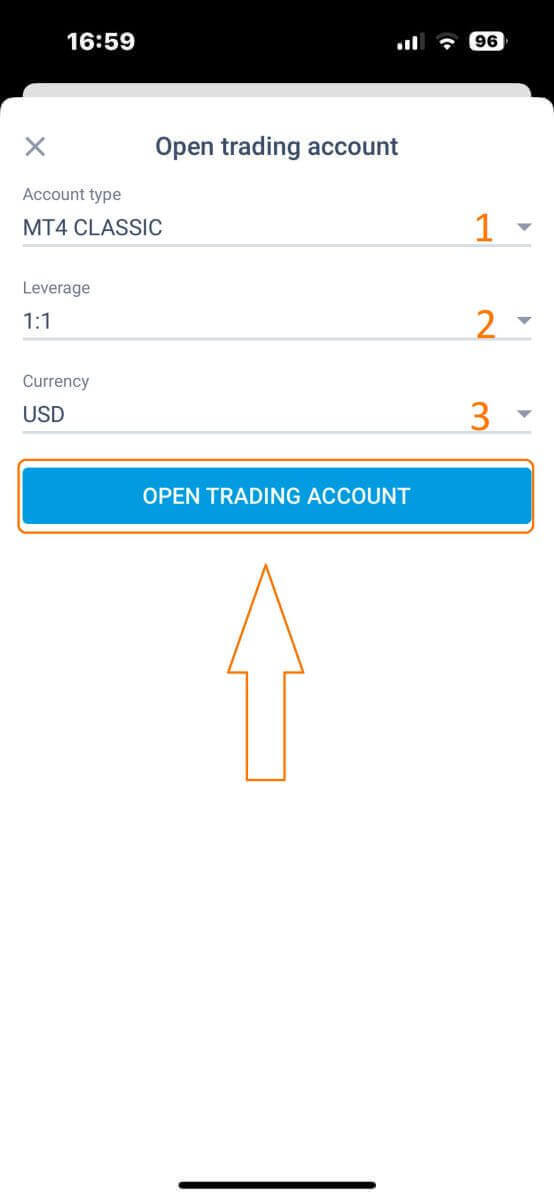
Please enter your account type, leverage, and currency in the "Open Trading Account" box and click "OPEN TRADING ACCOUNT" to complete.
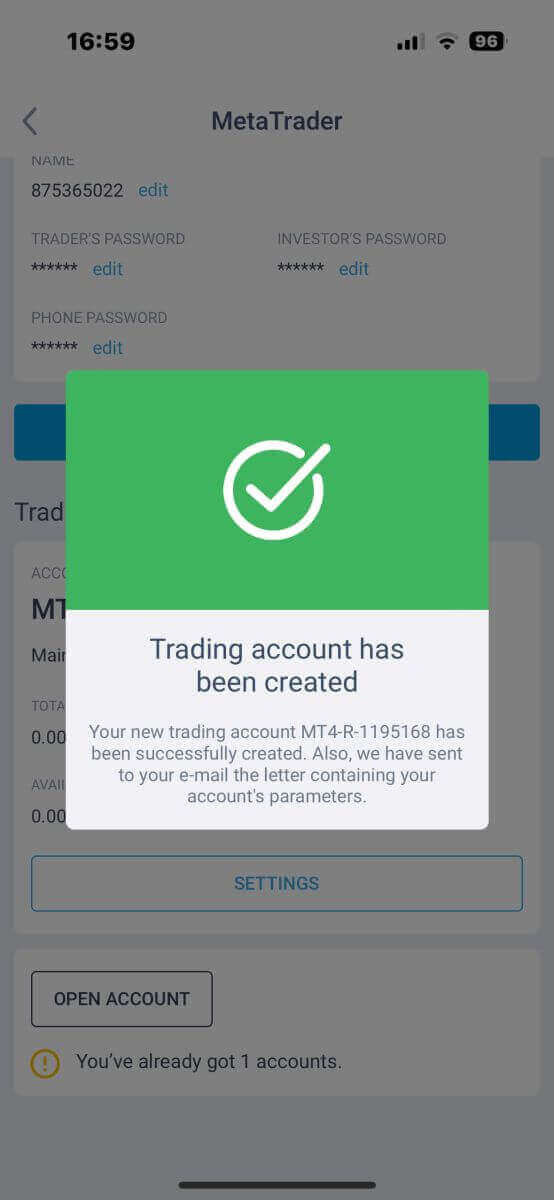
You have successfully created a trading account! Your new trading account will show up below and remember to set one of them to be your main account.
How to Login to LiteFinance
How to Login to LiteFinance on the Web app
How to Login to LiteFinance with a Signed-up Account
If you don’t have a signed-up account, watch this post: How to Register Account on LiteFinance.
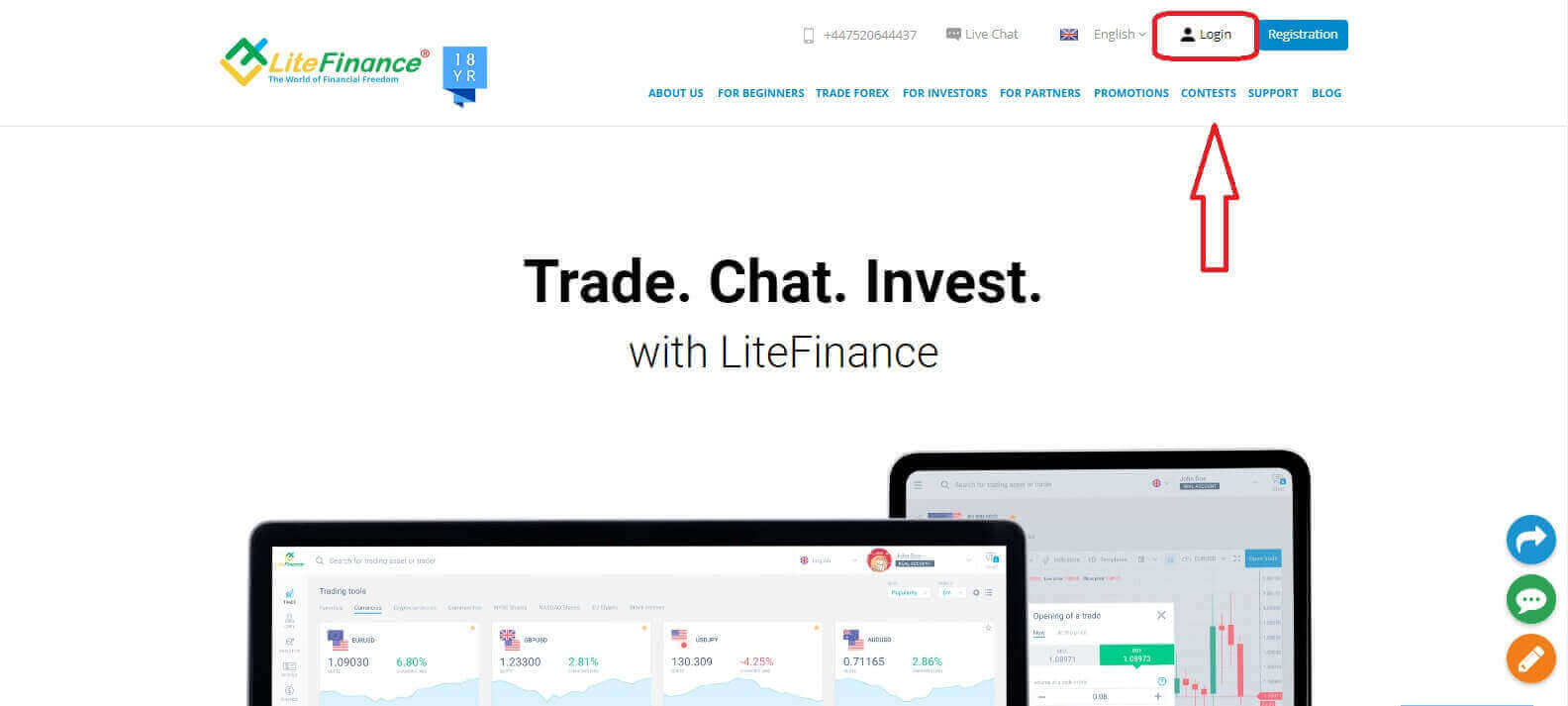
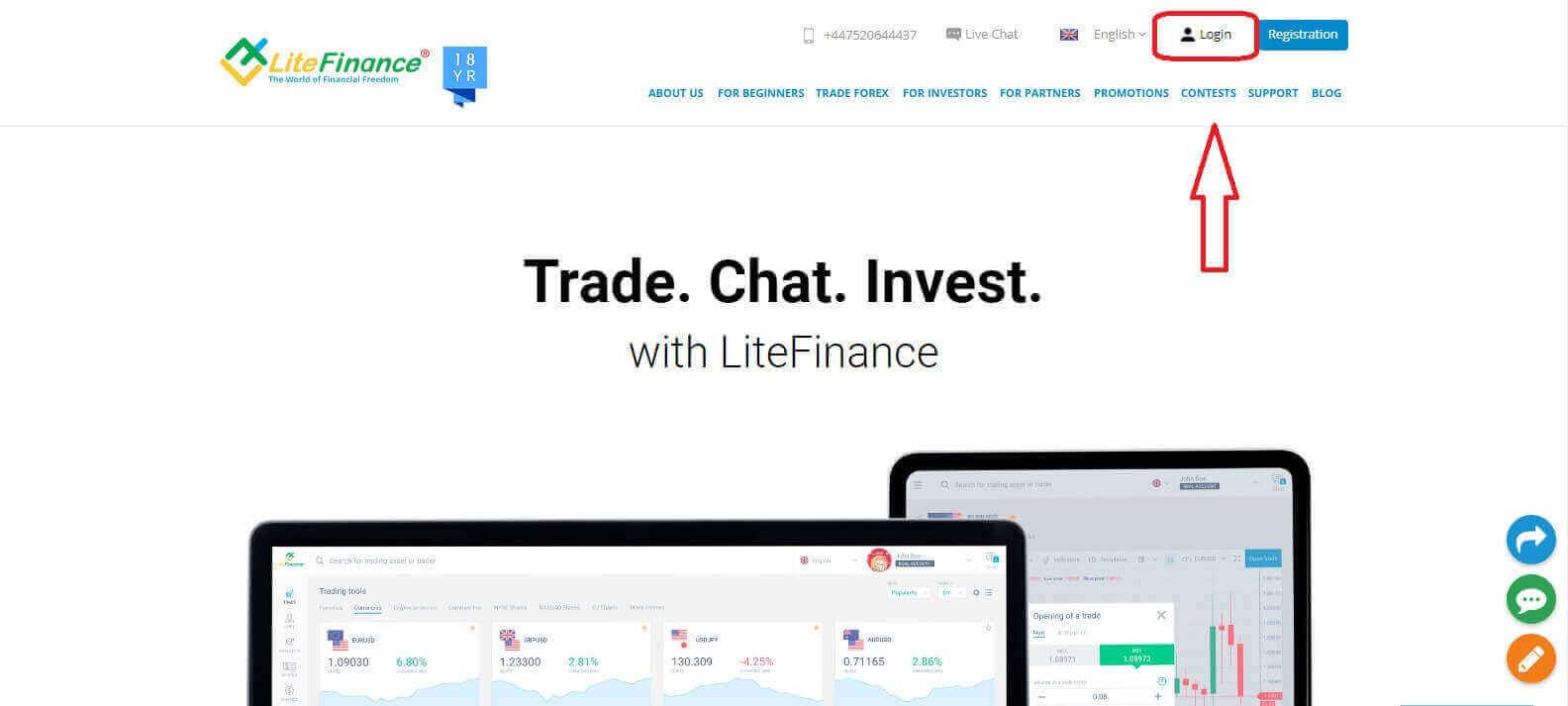
Visit the LiteFinance homepage and click on the "Login" button.
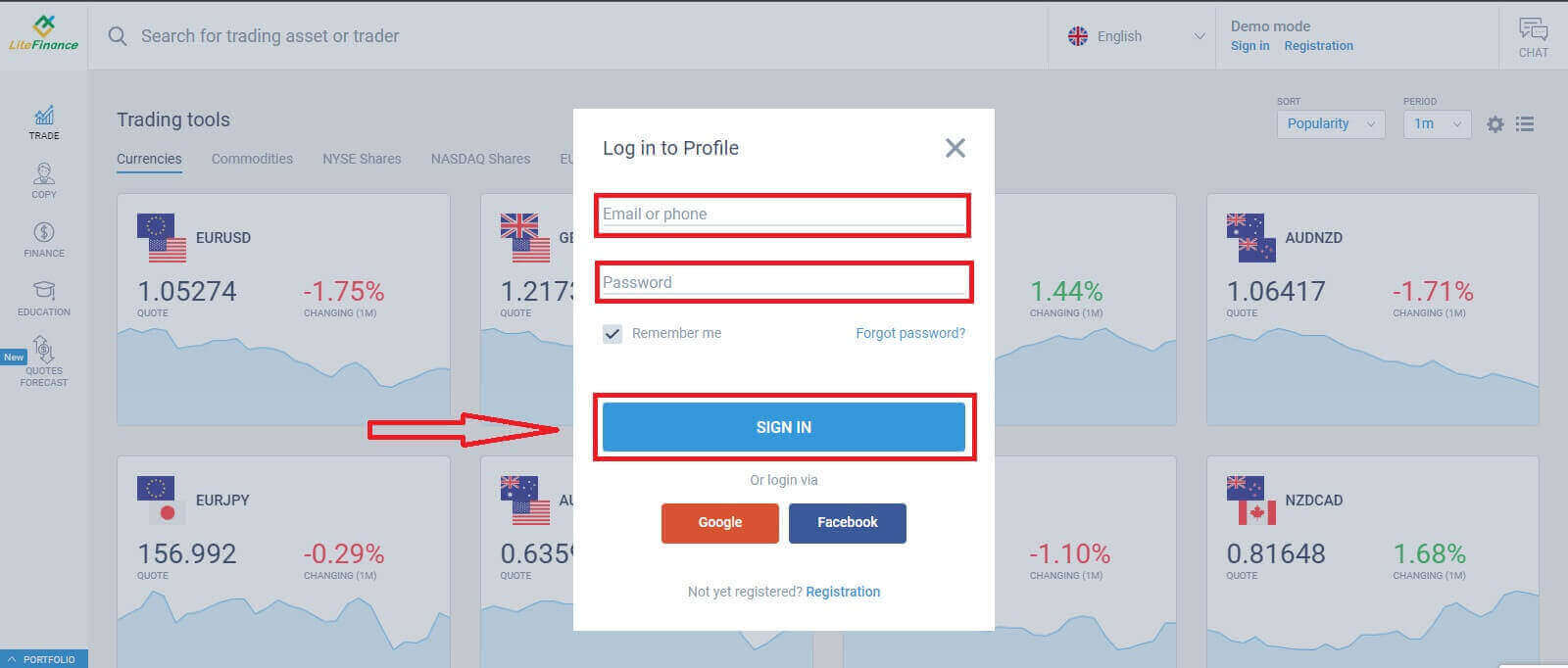
Click "SIGN IN" after entering your signed-up email address and password to access your account.
Login to LiteFinance via Google
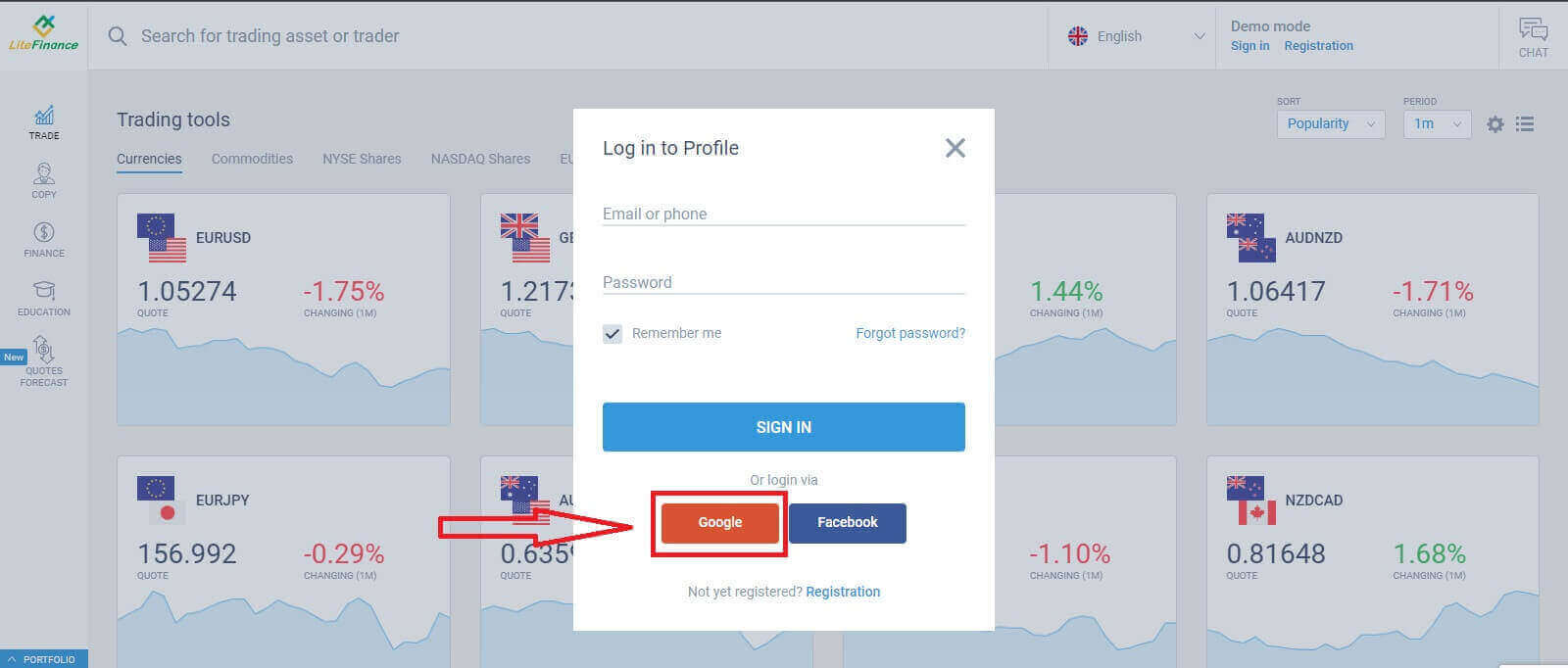
On the registration page, in the "Log in to Profile" form, choose the Google button.
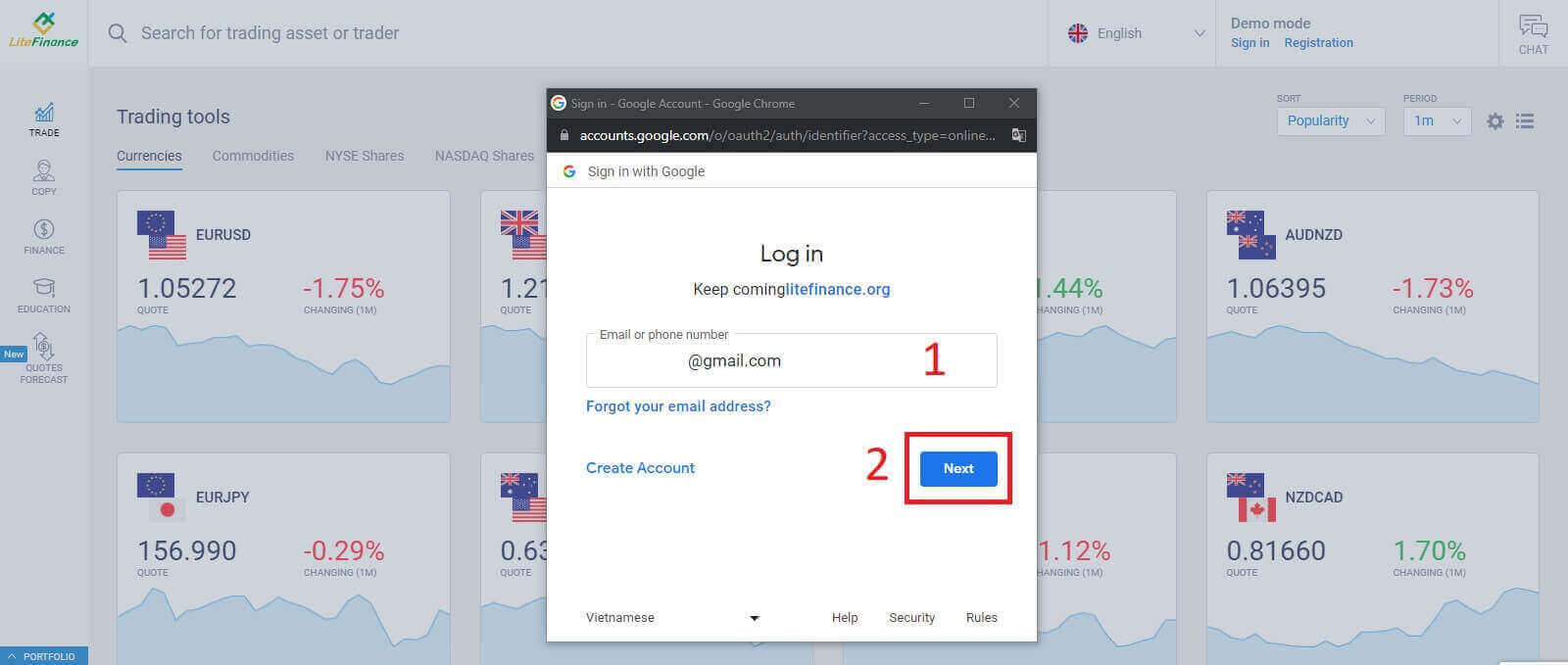
A new pop-up window will appear. On the first page, you need to enter your email address/ phone number then click "Next"
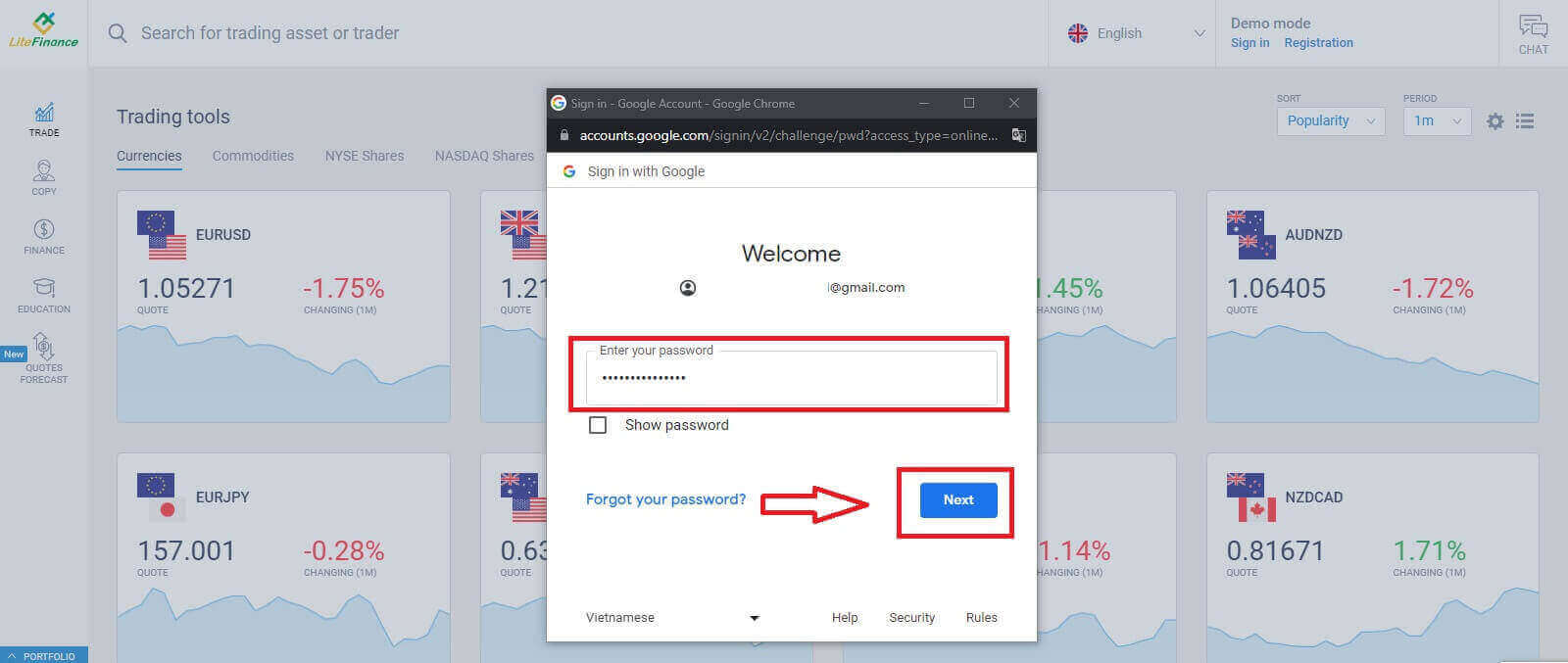
Enter your Google account’s password on the next page and click "Next".
Login to LiteFinance with Facebook
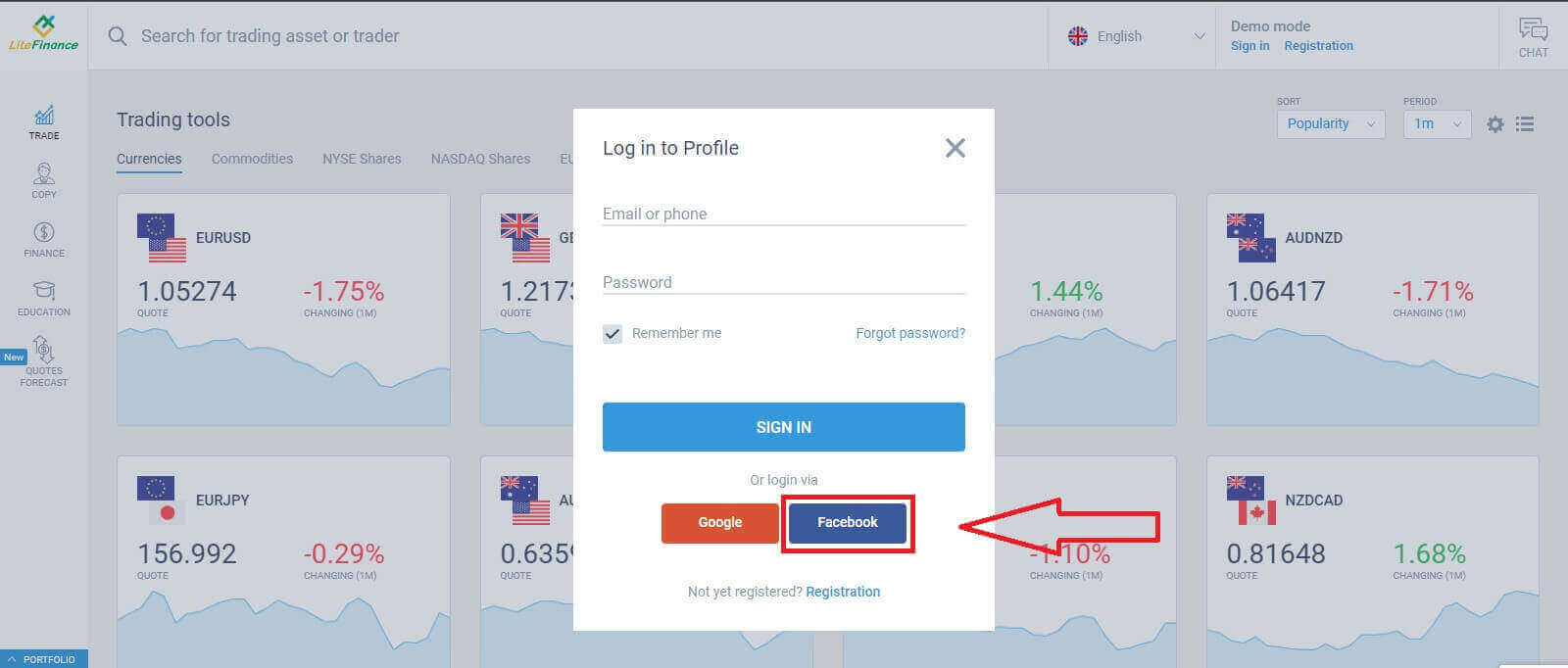
Select the Facebook button on the registration page’s "Log in to Profile" form.
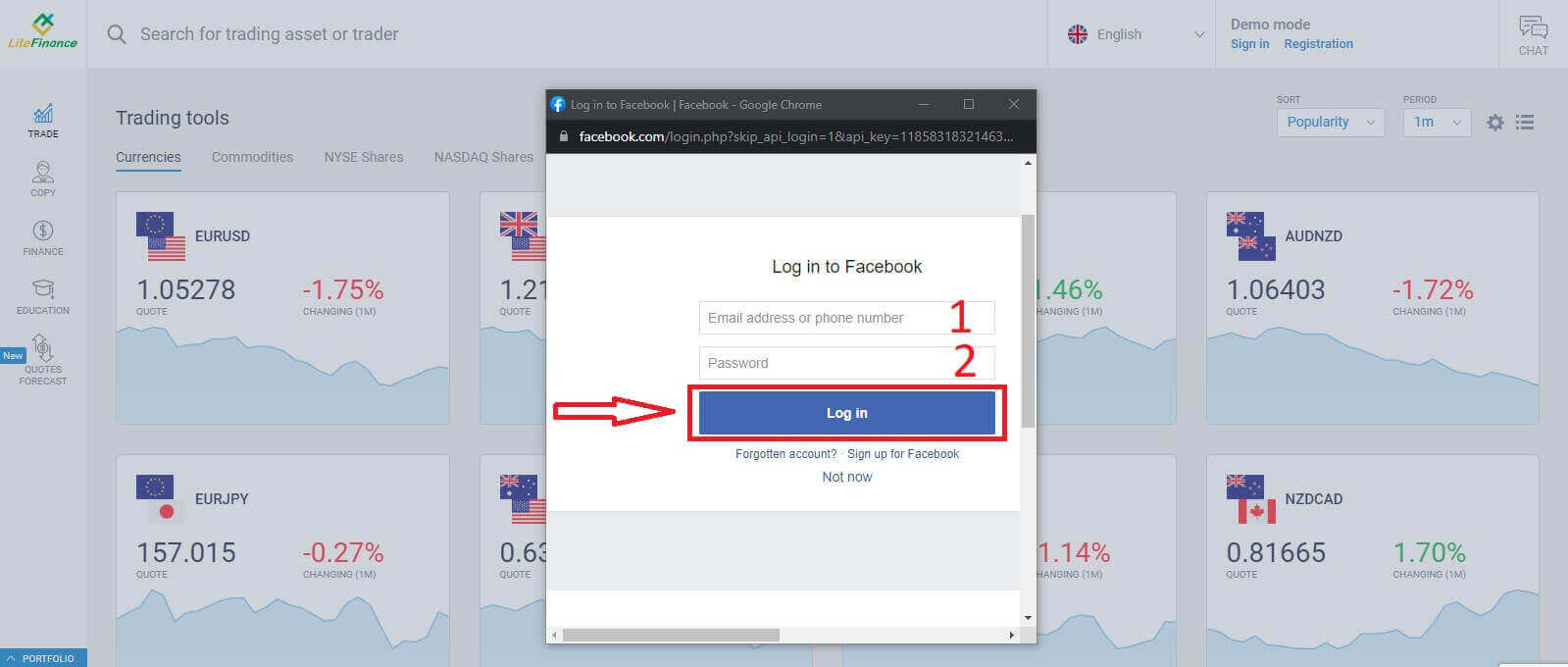
At the first pop-up window, enter your Facebook’s email address/ phone number and password. After that, click "Log in".
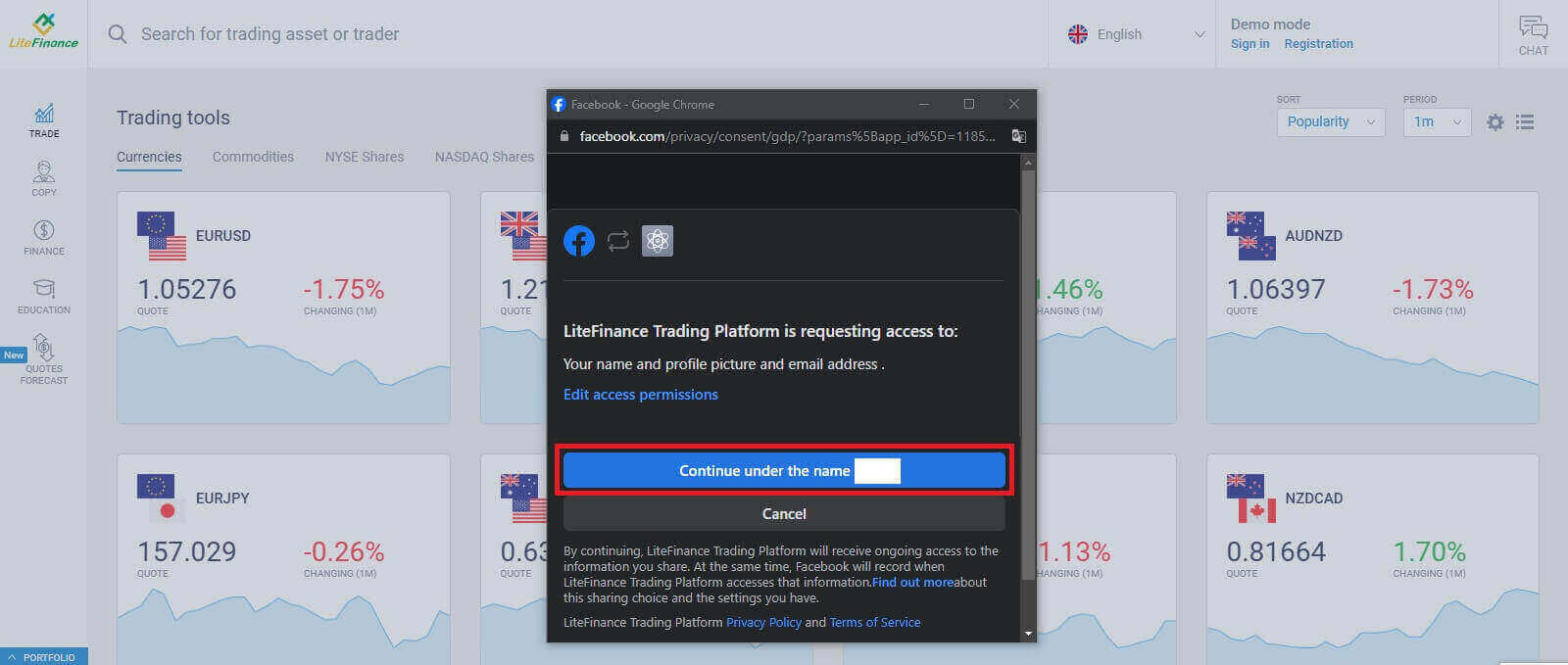
Choose the "Continue under the name..." button on the second one.
How to Recover your LiteFinance password
Access the LiteFinance homepage and click on the "Login" button.
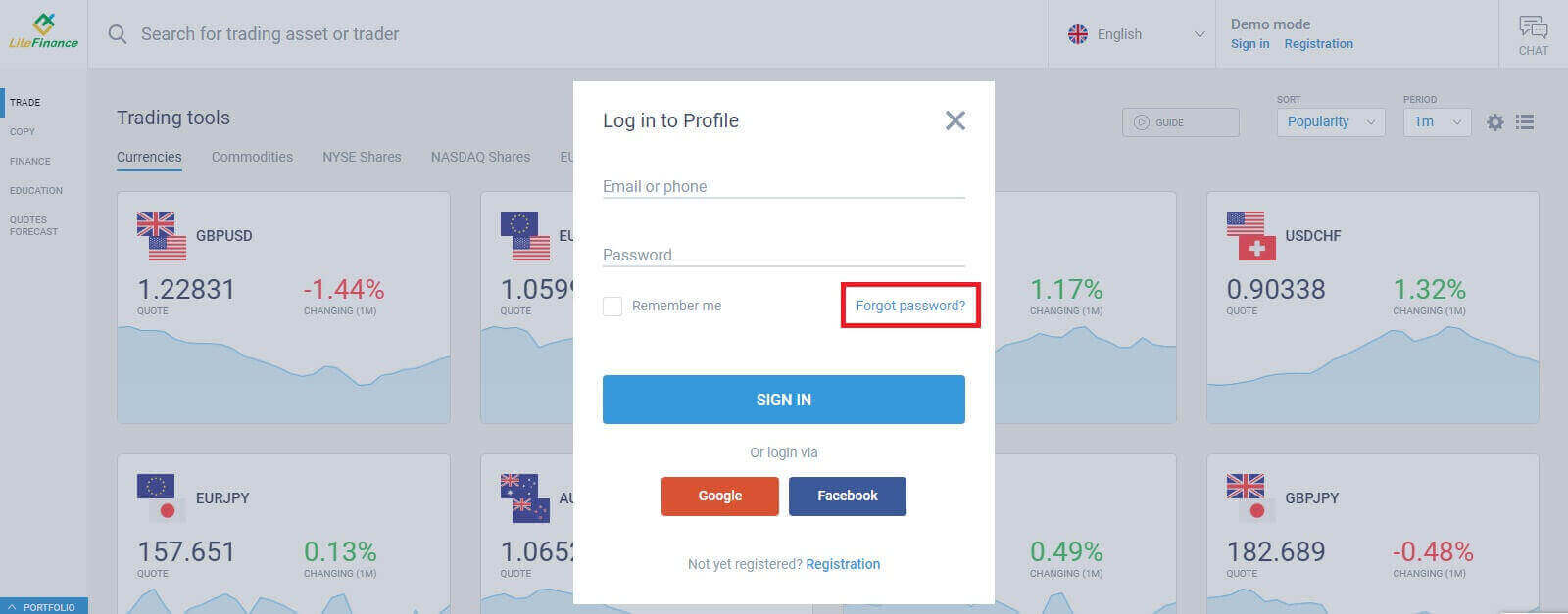
At the login page, choose "Forgot password".
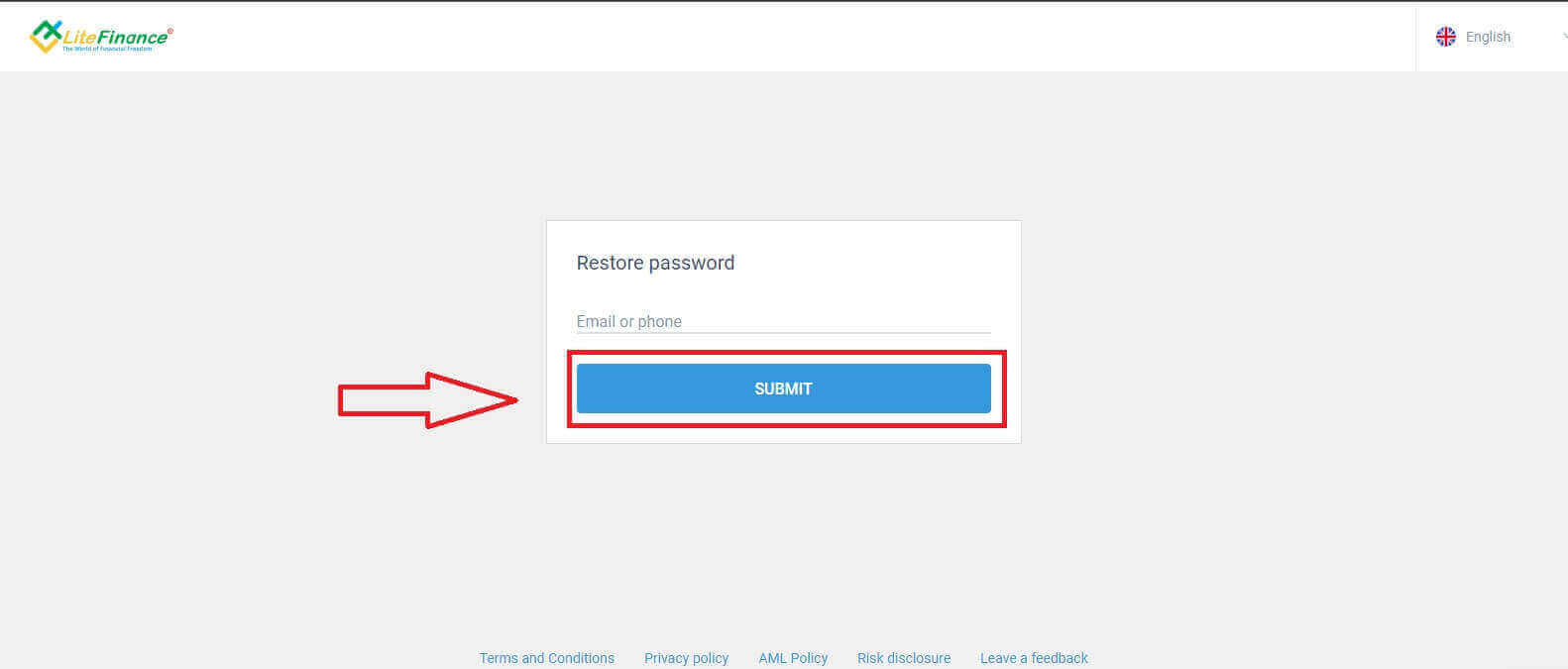
Enter the email/ phone number of the account that you want to reset the password in the form, then click "SUBMIT". Within a minute, you will receive an 8-digit verification code so please check your inbox carefully.
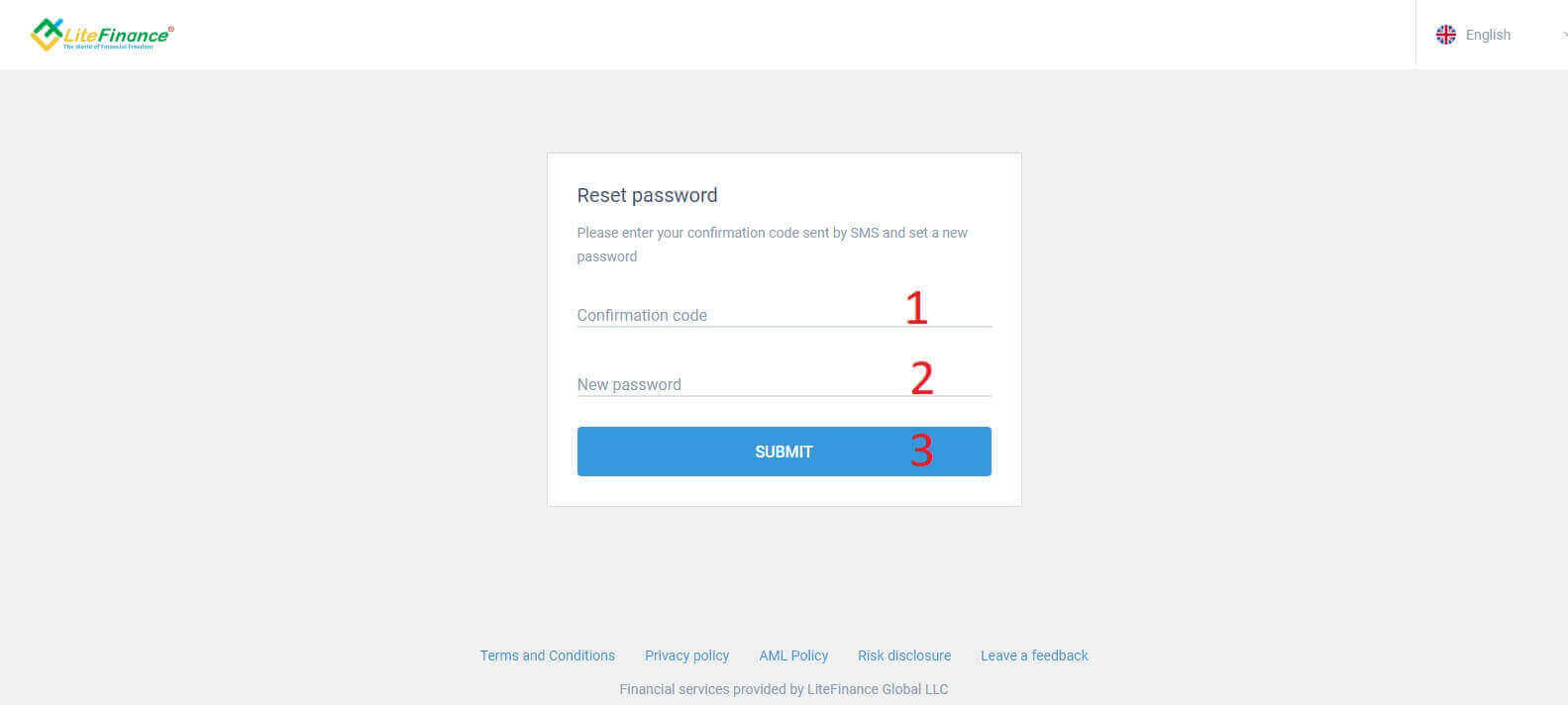
Finally, in the next form, you will need to fill in your verification code into the form and create a new password. To finish resetting your password, click "SUBMIT".
How to Login to LiteFinance on the LiteFinance Mobile app
Logining into LiteFinance Using a Signed-up Account
Currently, neither login via Google nor Facebook is available on the LiteFinance mobile trading app. If you don’t have a signed-up account, watch this post: How to Register Account on LiteFinance.
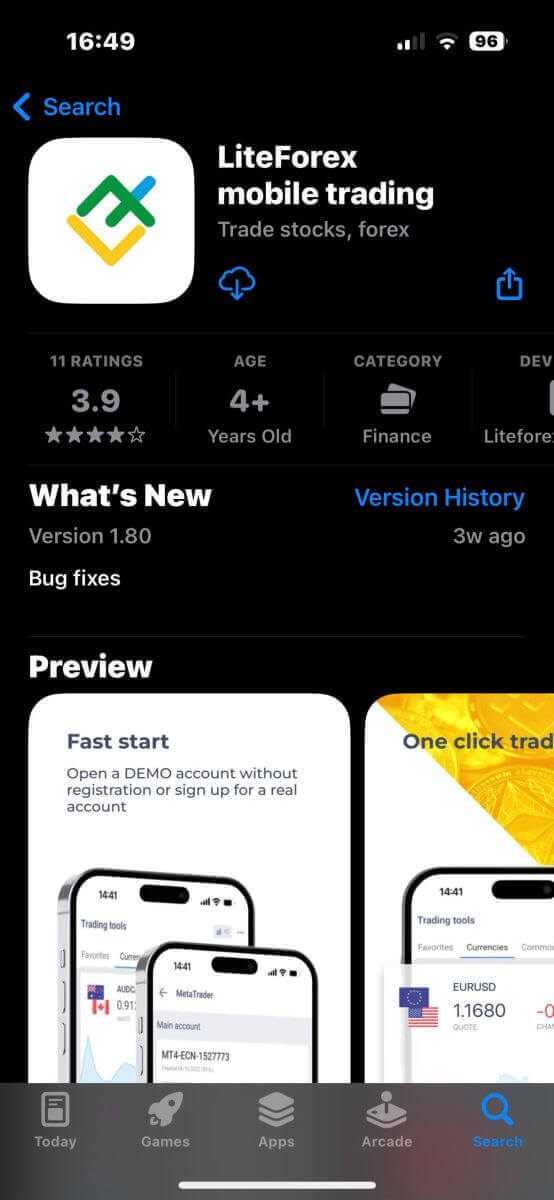
Install the LiteFinance mobile trading app on your phone.
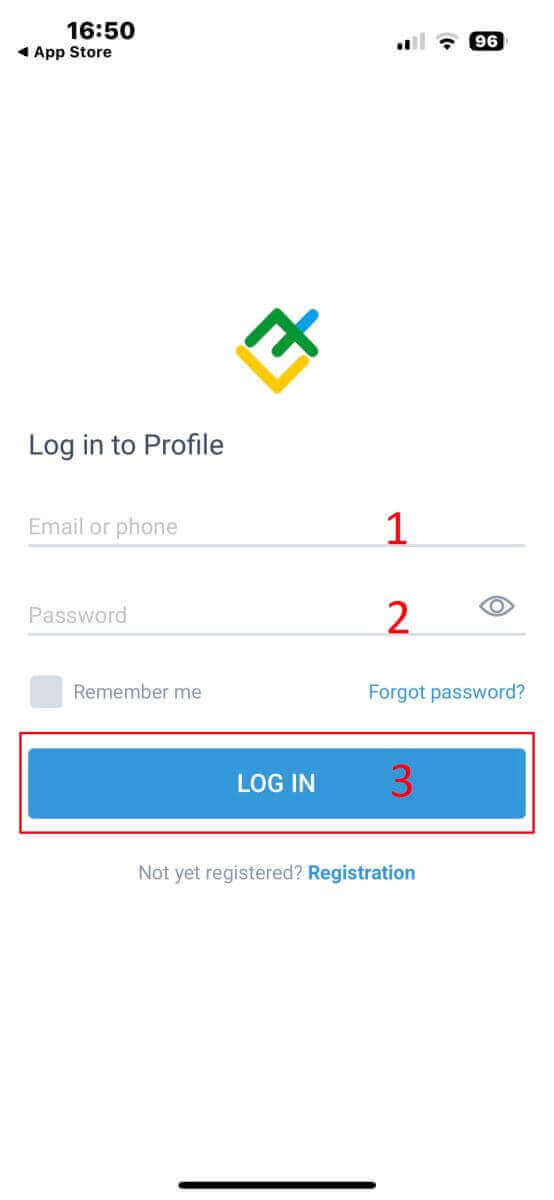
Open the LiteFinance mobile trading app, enter your signed-up account details, and then click "LOG IN" to continue.
How to recover your Lifinance password
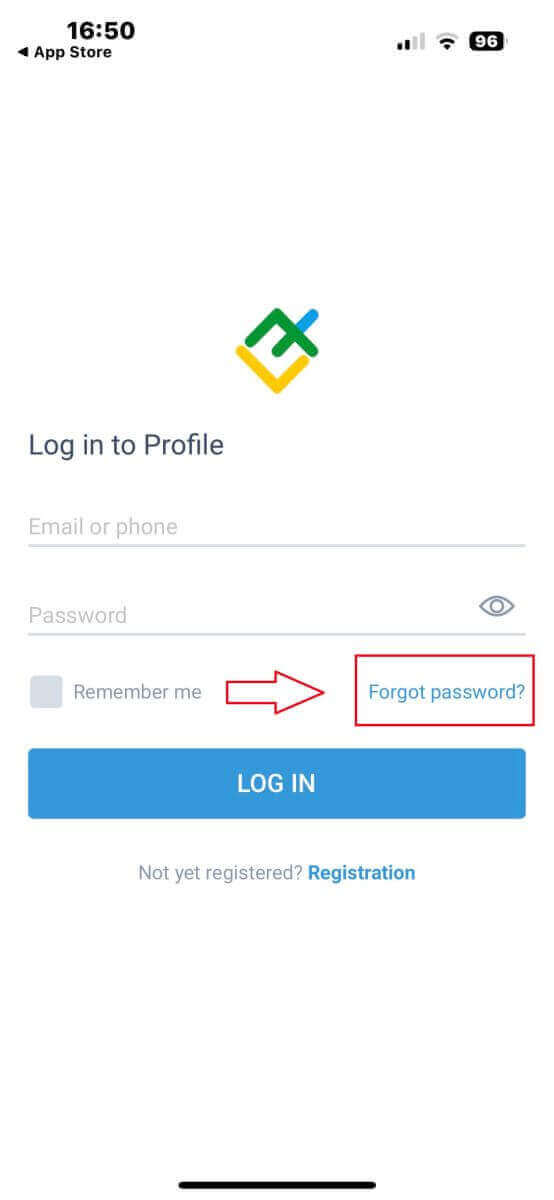
At the login interface of the app, choose "Forgot password".
Enter the email address/ phone number of the account that you would like to reset the password to and tap "SEND".
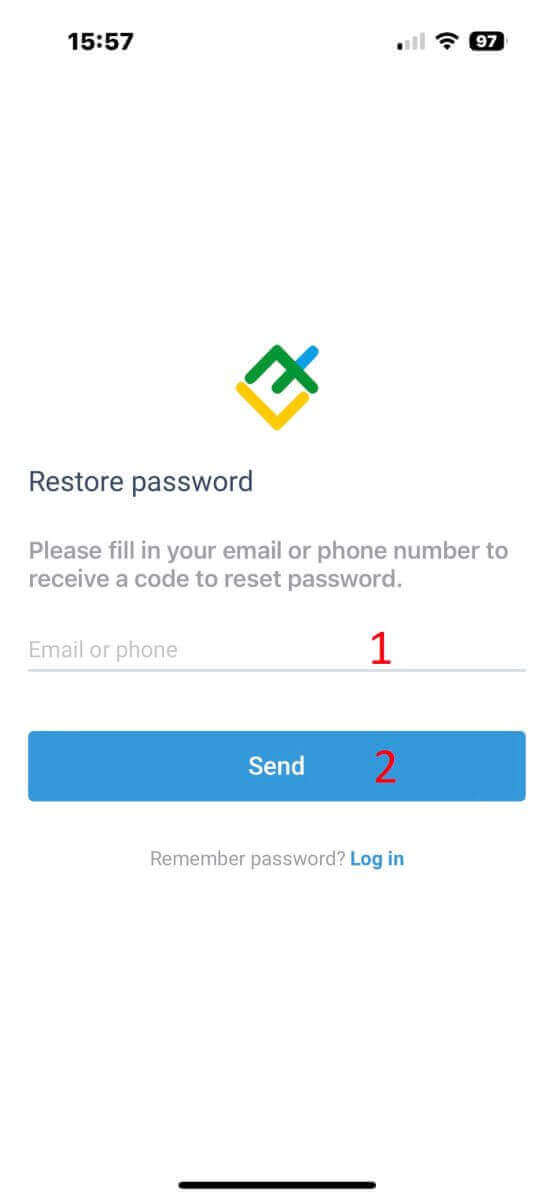
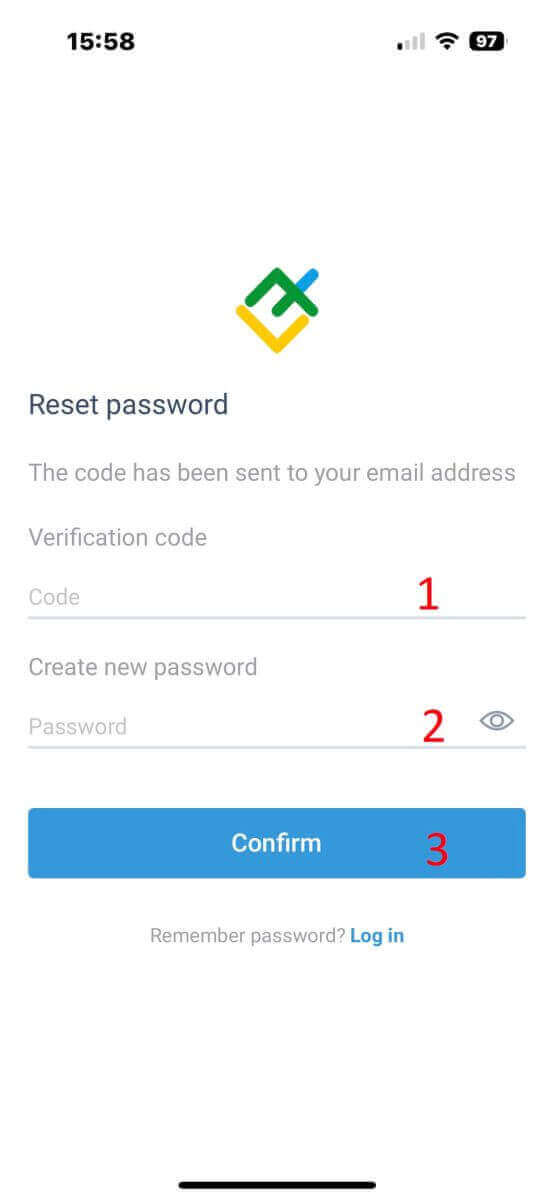
Within 1 minute, you will receive an 8-digit verification code. After that, enter the verification code, and your new password.
Click "Confirm" and you’ll successfully reset your password.