LiteFinance Demo Account
Writen By

Online Trading Platform Researcher and Guide Writer
Researches broker platforms and trading account Systems.
Want to practice trading strategies and learn the platform's order flow without risking real capital? Using a demo profile with virtual funds lets you test order types, chart tools, execution speed, and risk settings under realistic market prices. Treat it as a controlled sandbox to validate indicators, expert advisors, and trade management routines before considering live funds.
Below are concise, practical steps to create and configure a demo profile, choose between web, MetaTrader, or mobile terminals, set virtual balance and leverage, and troubleshoot common connection issues. The walkthrough highlights demo limitations you should expect and the verification and deposit steps that become relevant only when you decide to open a funded account.
Below are concise, practical steps to create and configure a demo profile, choose between web, MetaTrader, or mobile terminals, set virtual balance and leverage, and troubleshoot common connection issues. The walkthrough highlights demo limitations you should expect and the verification and deposit steps that become relevant only when you decide to open a funded account.
How to Open a Demo Account on the LiteFinance Web app
How to register an account
Firstly, you’ll need to access the LiteFinance main page and click "Registration".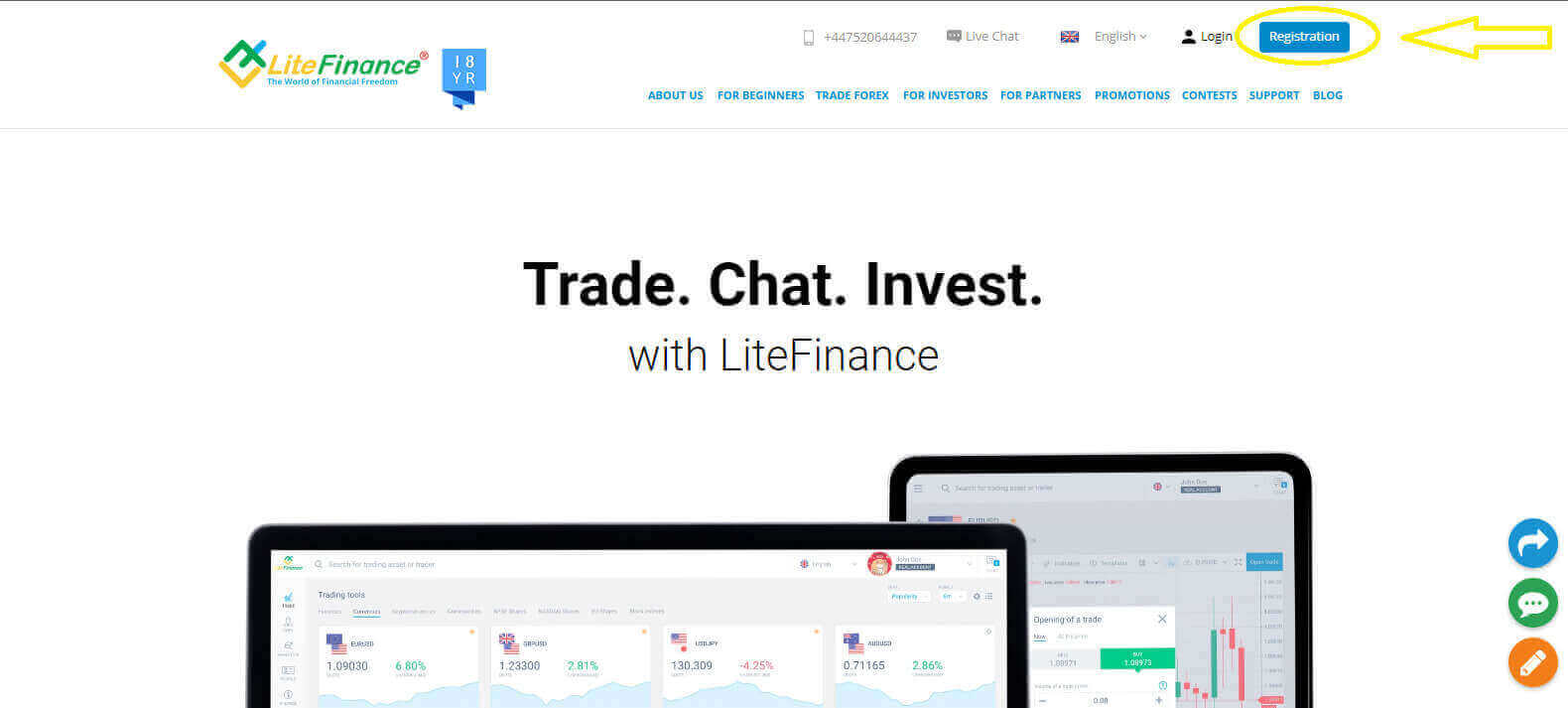
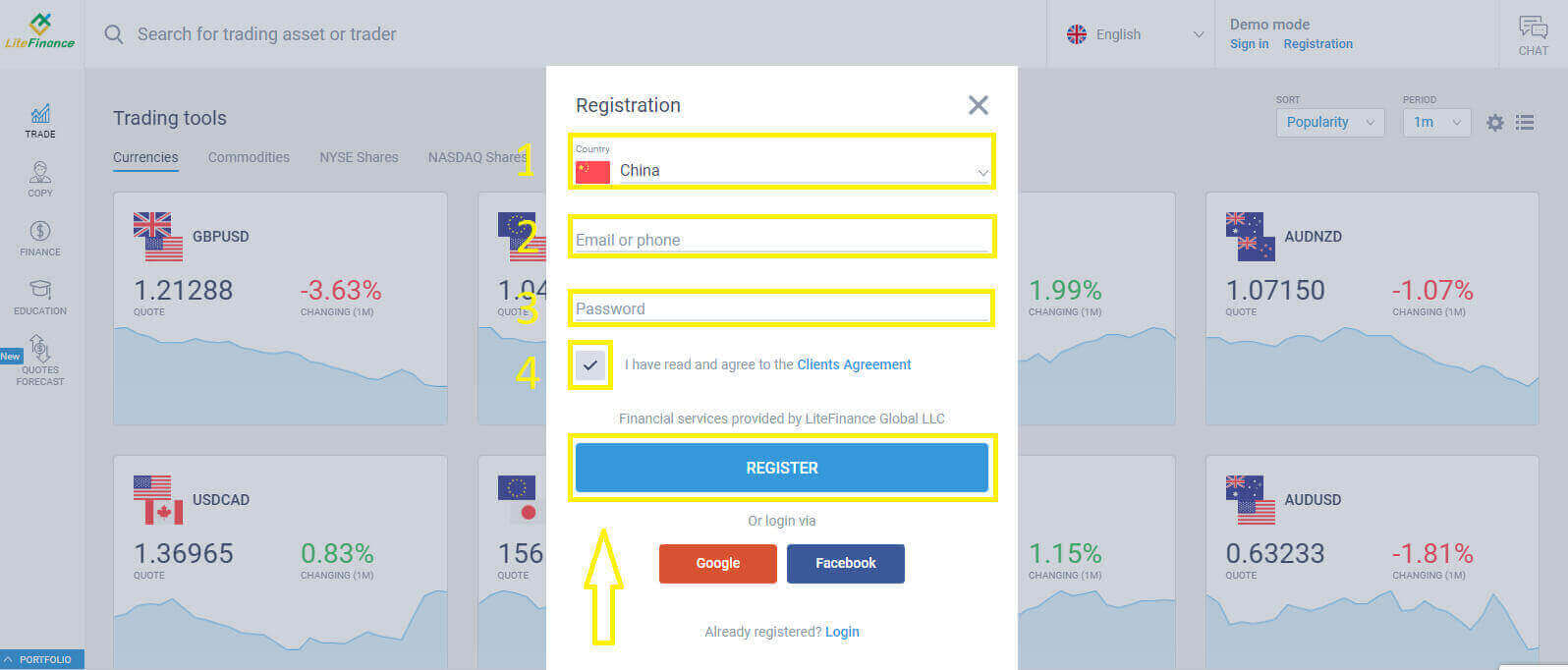
On the sign-up homepage, please enter the information requested below:
- Your country of residence.
- Your email address/ phone number.
- A secure password.
- Tick on the checkbox indicating that you have read and agreed to LiteFinance’s Client Agreement.
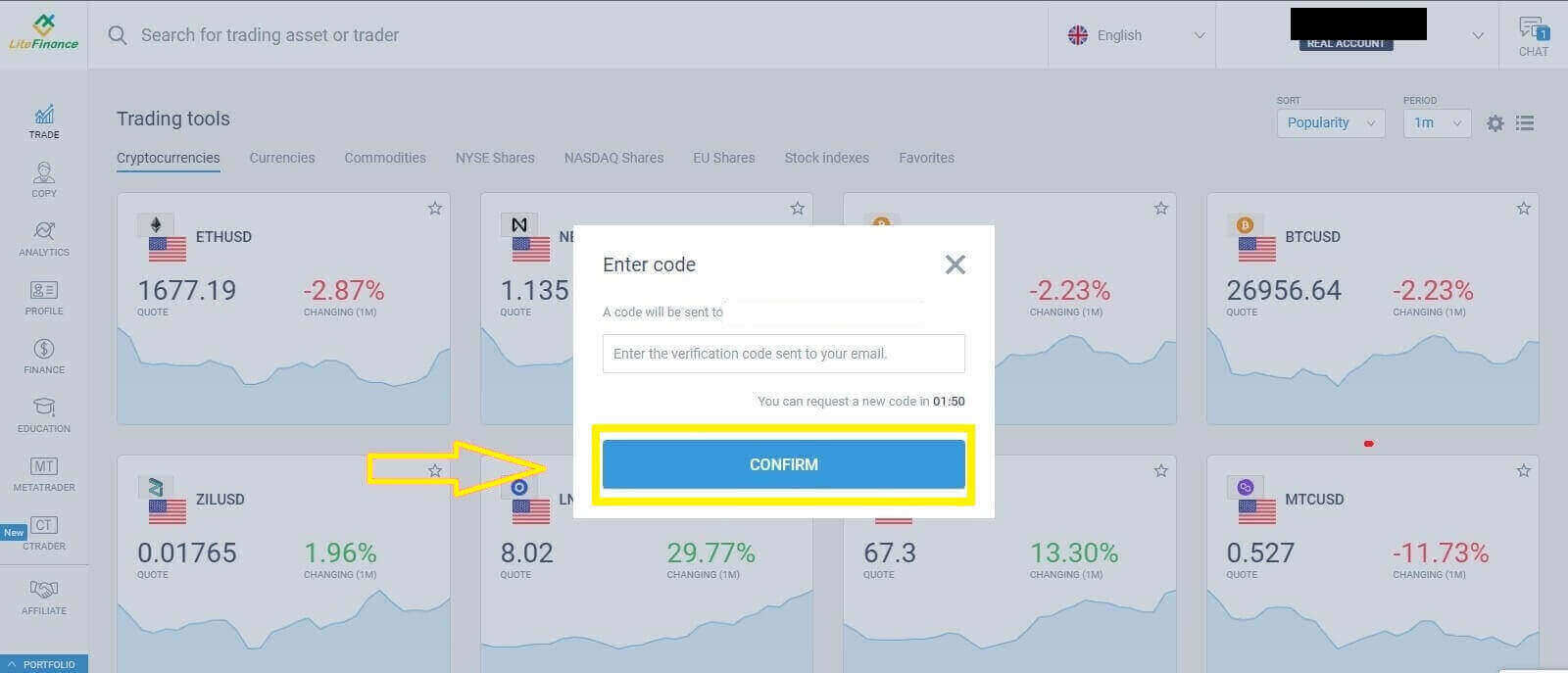
Please check your email or phone number as you will receive a verification code in a minute. When you have completed the "Enter code" form, press the "CONFIRM" button.
If you haven’t gotten a code after two minutes, you can ask to receive another one.
Well done! You’ve been successful in opening a brand-new LiteFinance Account. Your direction to the LiteFinance Terminal will now be given.
Verifying LiteFinance Profiles with the Web Application
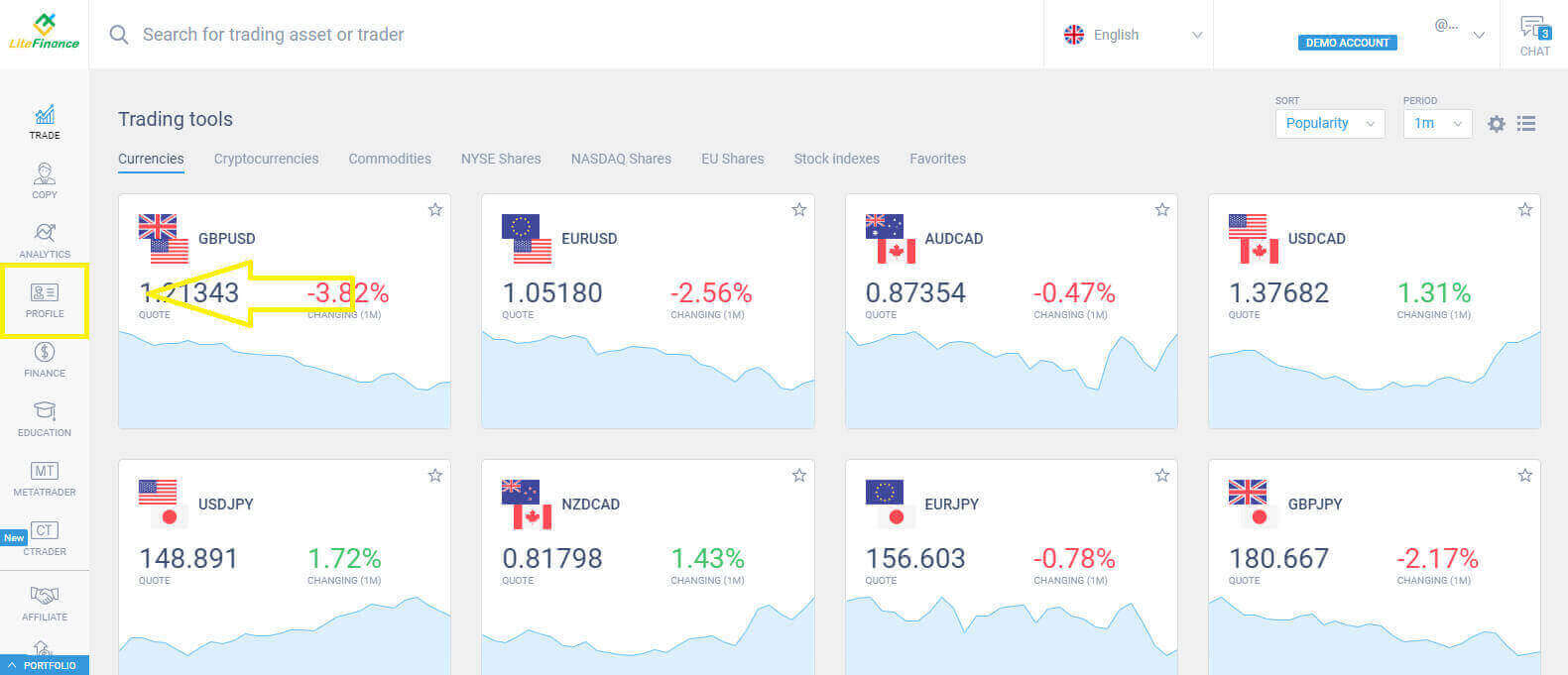
Select the "PROFILE" symbol on the left of the screen to access the verification homepage.
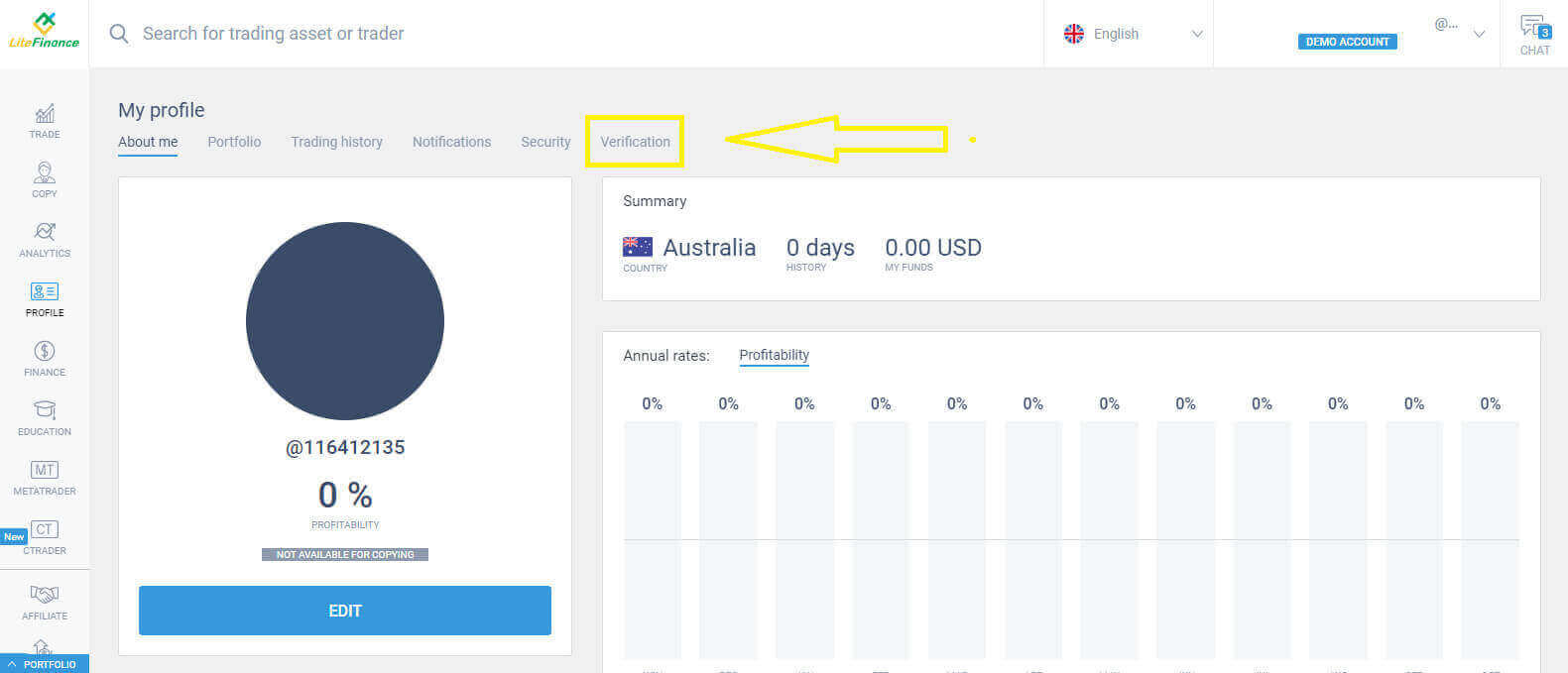
Click "Verification" on the open the verification form.
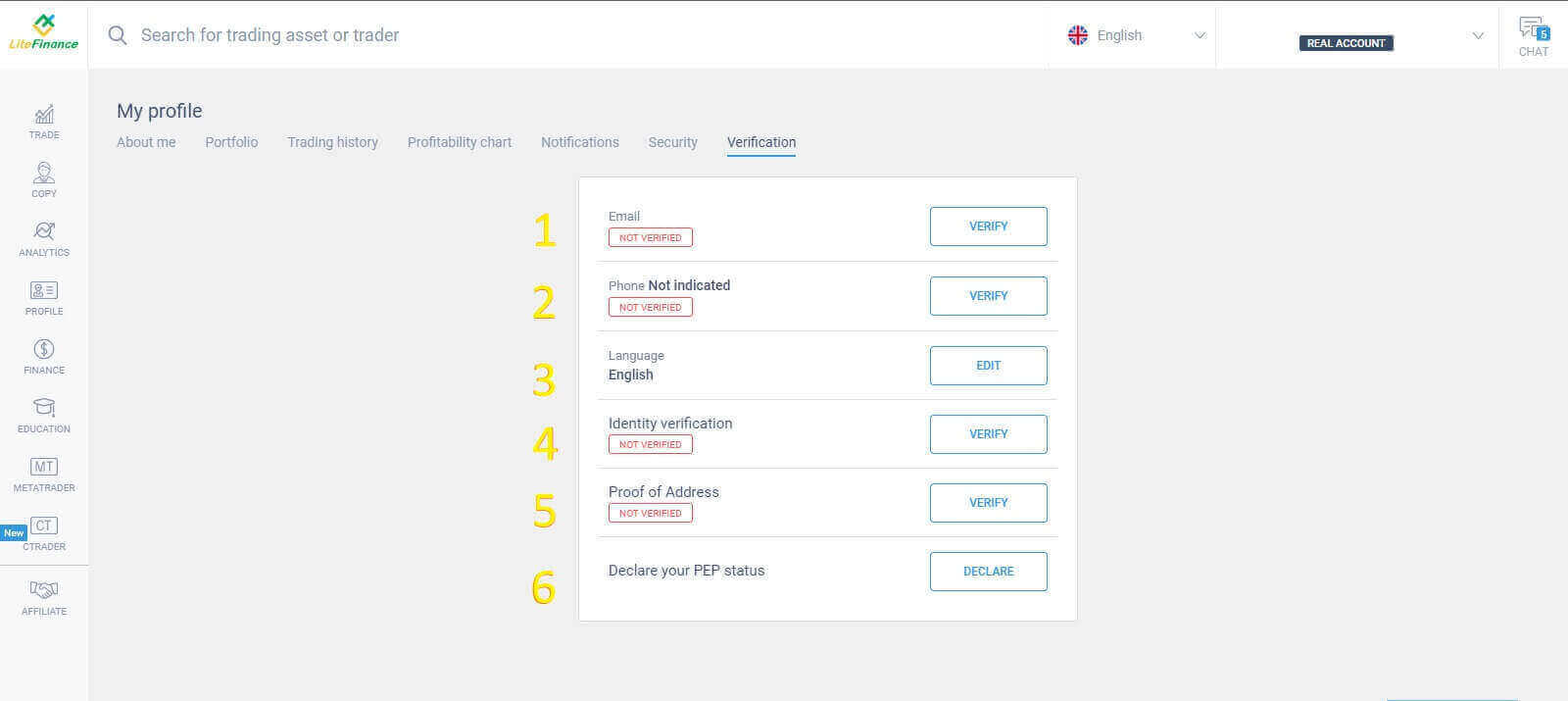
Now you’ll need to verify all the required information:
-
Email.
-
Phone number.
-
Language.
-
Name, gender, and date of birth verification.
-
Proof of Address (Country, region, city, address, and postcode).
-
Your PEP status ( you just need to tick the box declaring you a PEP - Politically Exposed Person).
How to create a new trading account
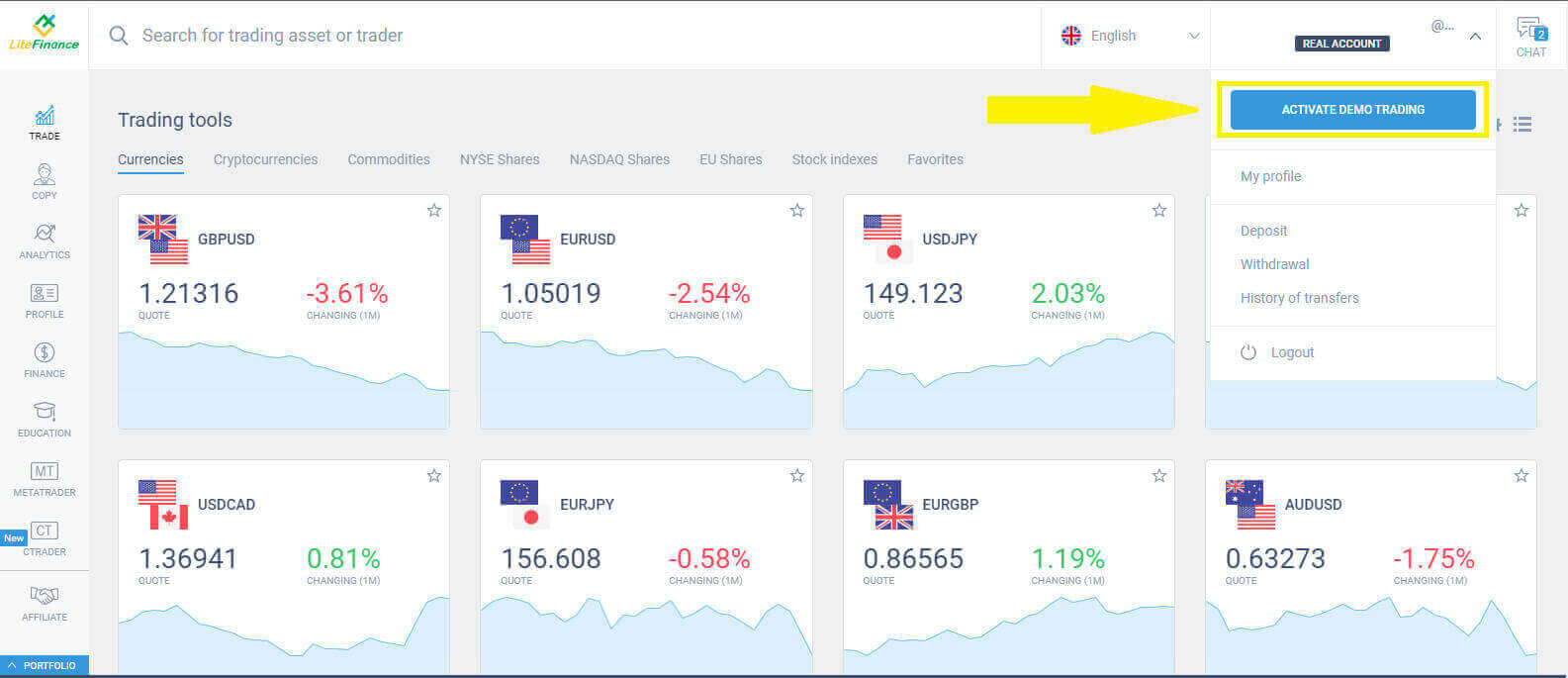
At the TRADE Terminal, drag the mouse and click the dropdown menu next to the chatbox in the upper right corner.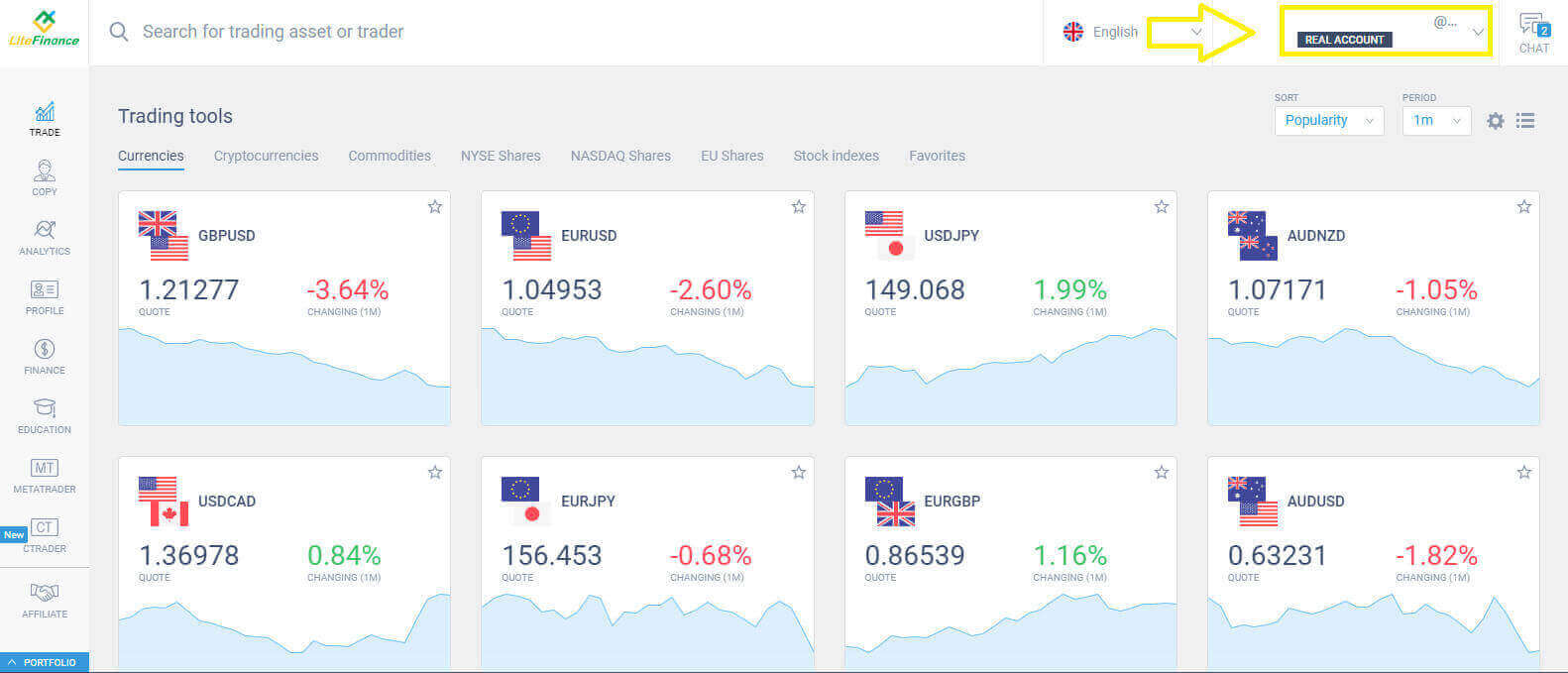
Choose the "ACTIVE DEMO TRADING" button to access the demo trading mode.
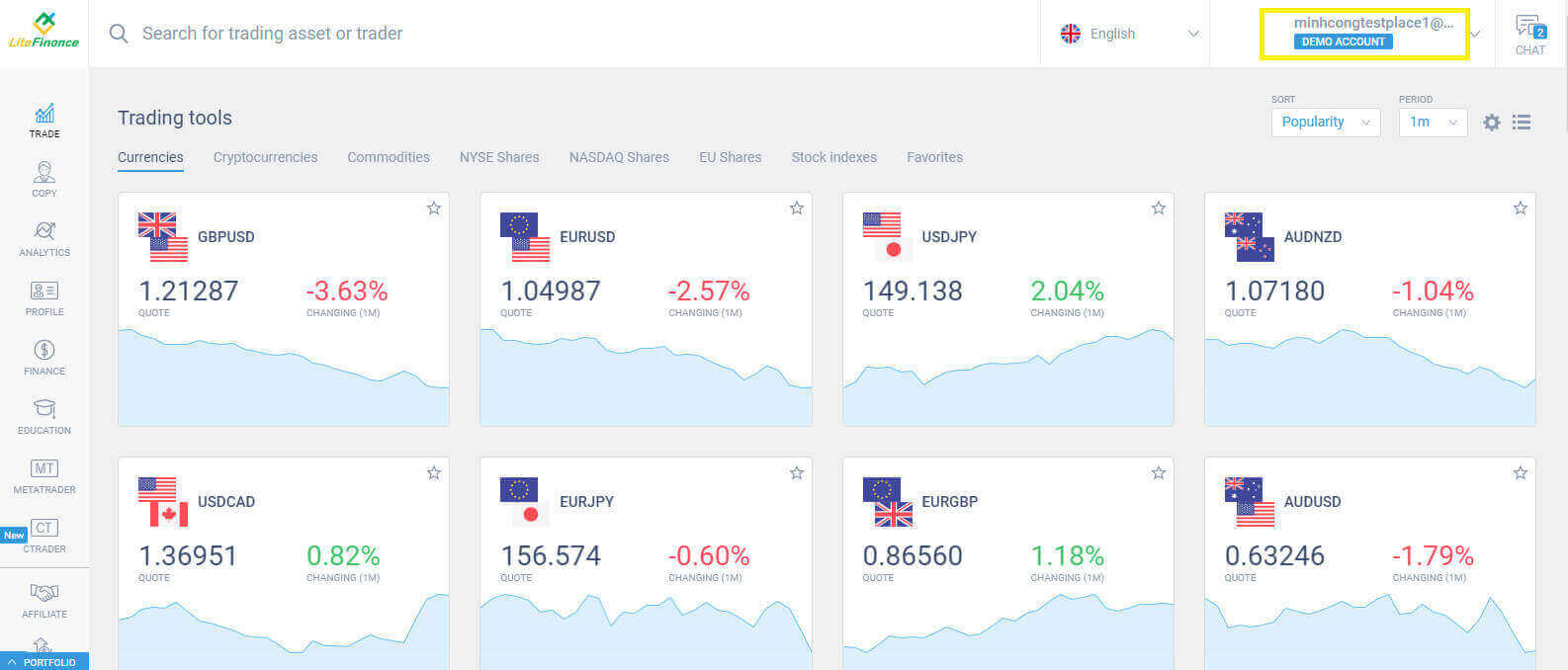
The signal of changing trading mode successfully is the line of text "REAL ACCOUNT" replaced by "DEMO ACCOUNT".
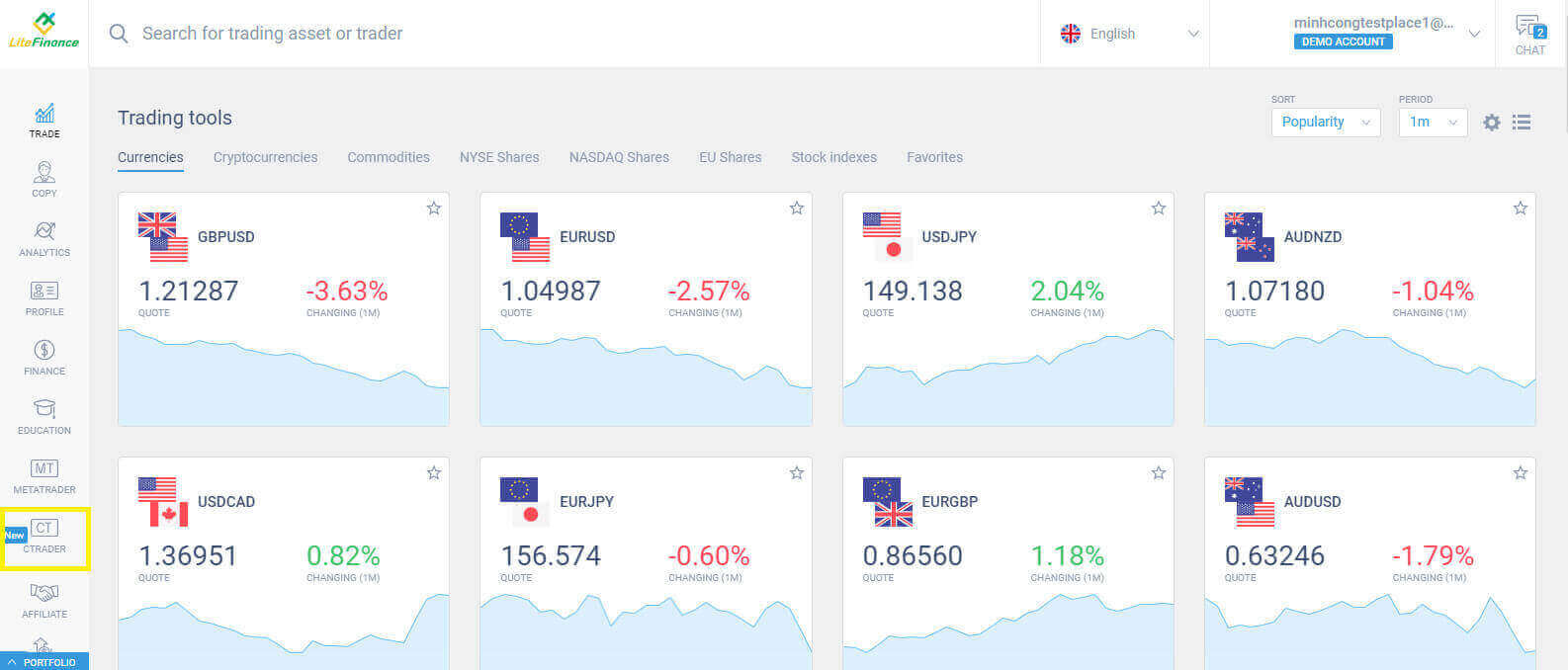
Continue to enter the next interface by choosing the "CTRADER" symbol on the left side of the screen.
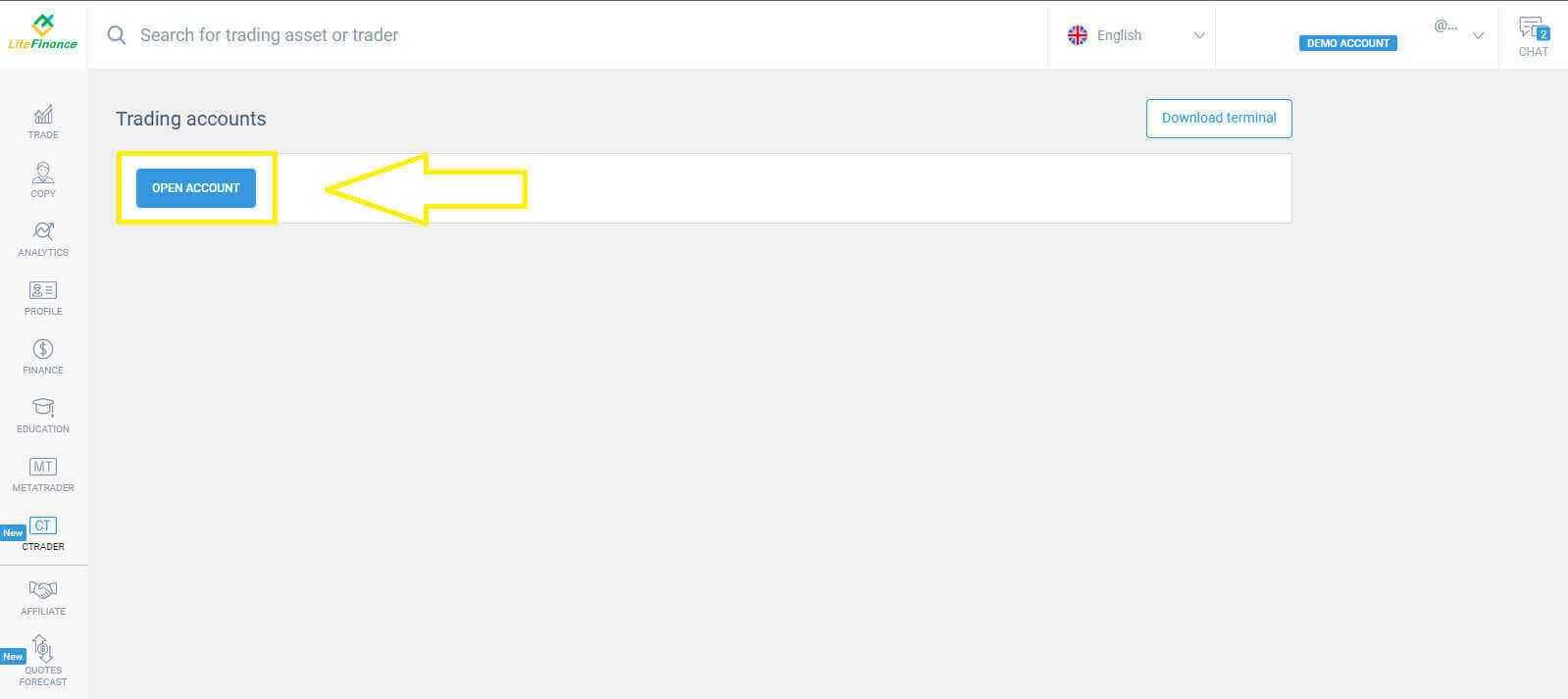
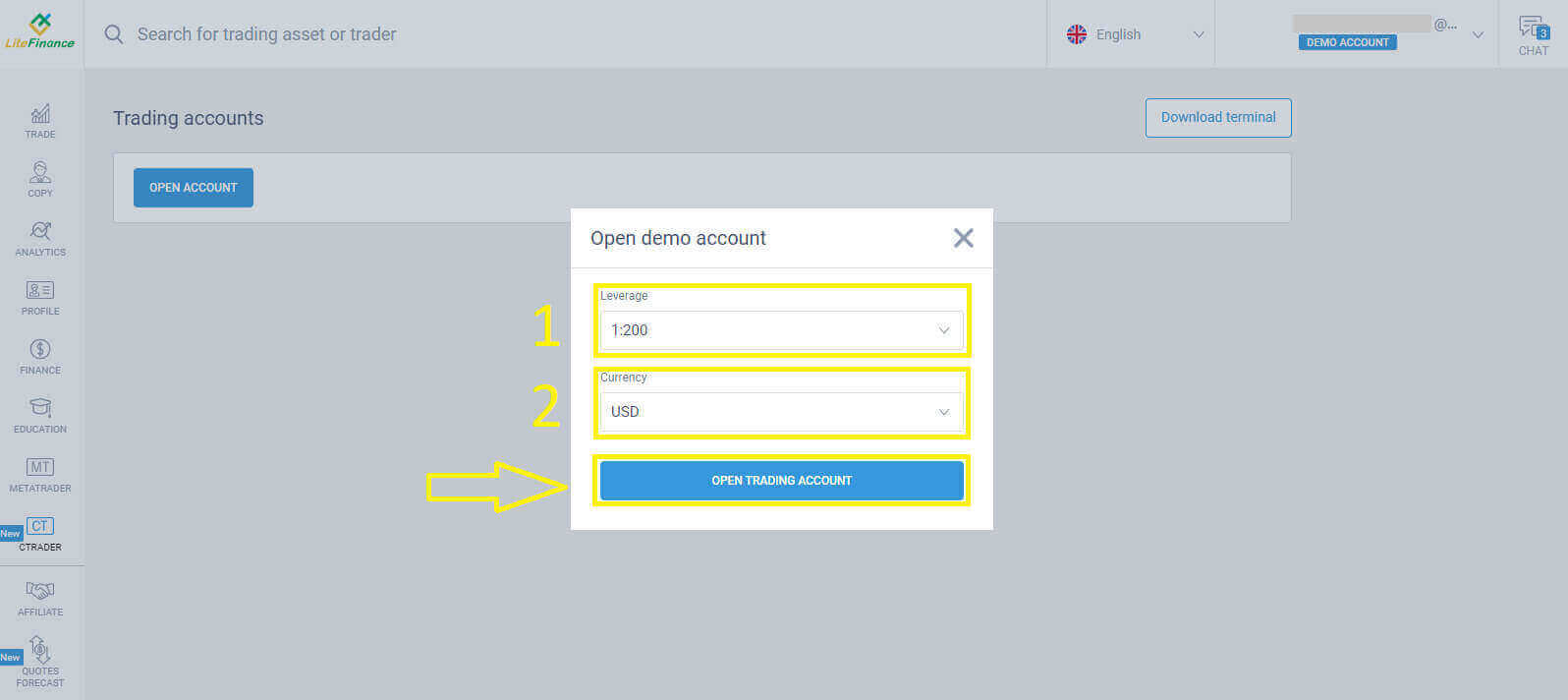
Click the "OPEN ACCOUNT" button to create your demo trading account.
Pick your leverage and currency on the "Open Trading Account" form, and finally click "OPEN TRADING ACCOUNT".
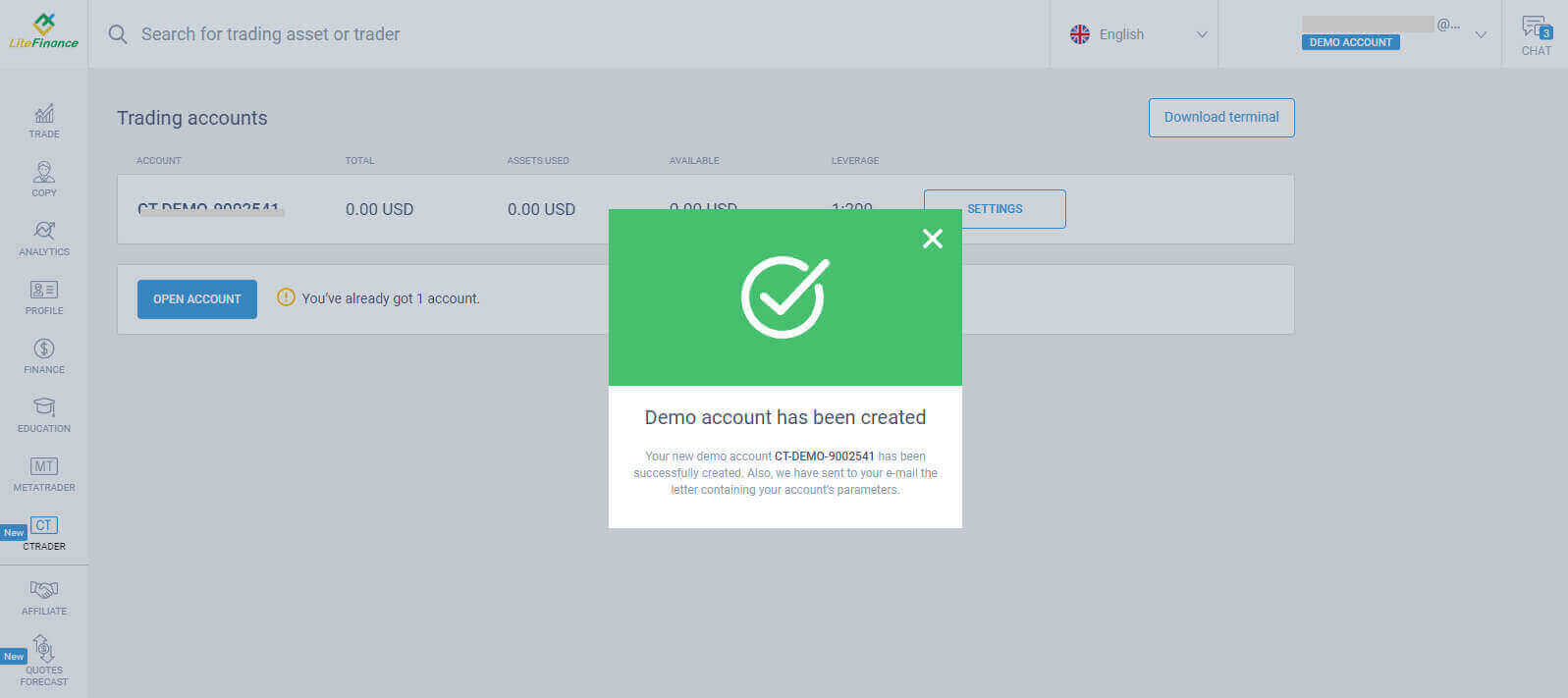
Congratulations on your achievement! Your demo trading account has been established successfully.
How to Open a LiteFinance Demo Account on the Liteinance Mobile App
Set up and Register an Account
Install the LiteFinance mobile trading app from the App Store or Google Play.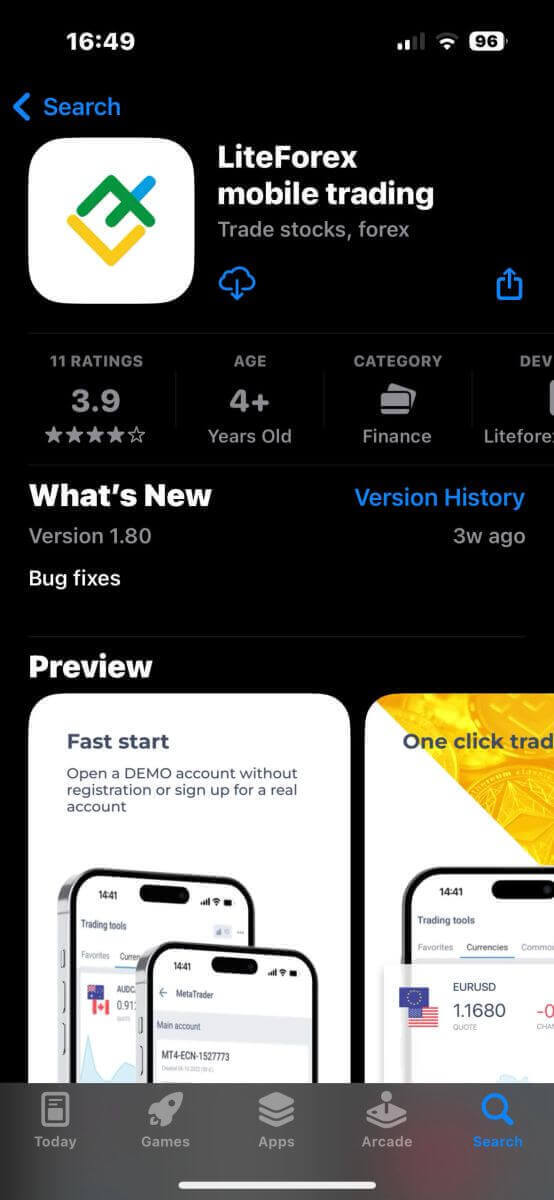
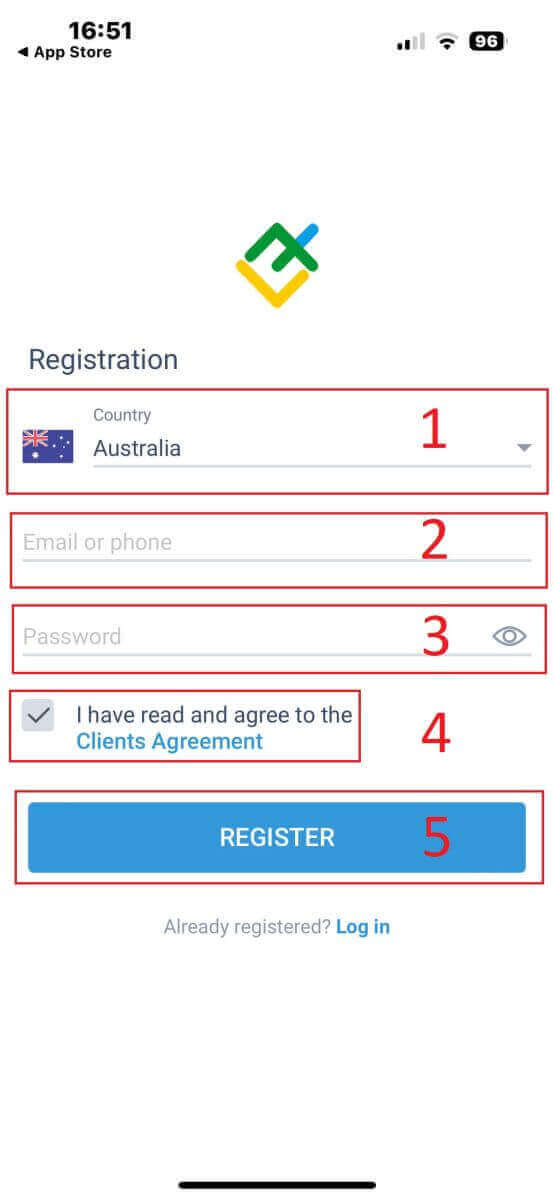
To register for LiteFinance trading, simply launch the app on your mobile device and click on the "Registration" option.
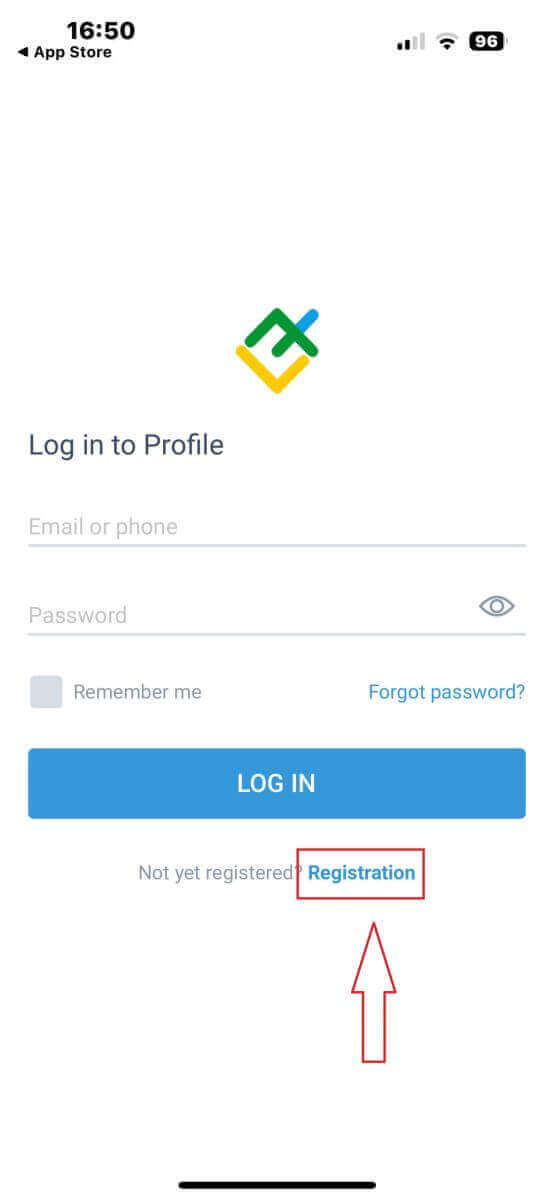
To continue, you must complete the registration form by providing the following details:
- Select your country of residence.
- Provide your email address or phone number.
- Establish a secure password.
- Tick the box declaring you have read and agree to the LiteFinance’s Clients Agreement.
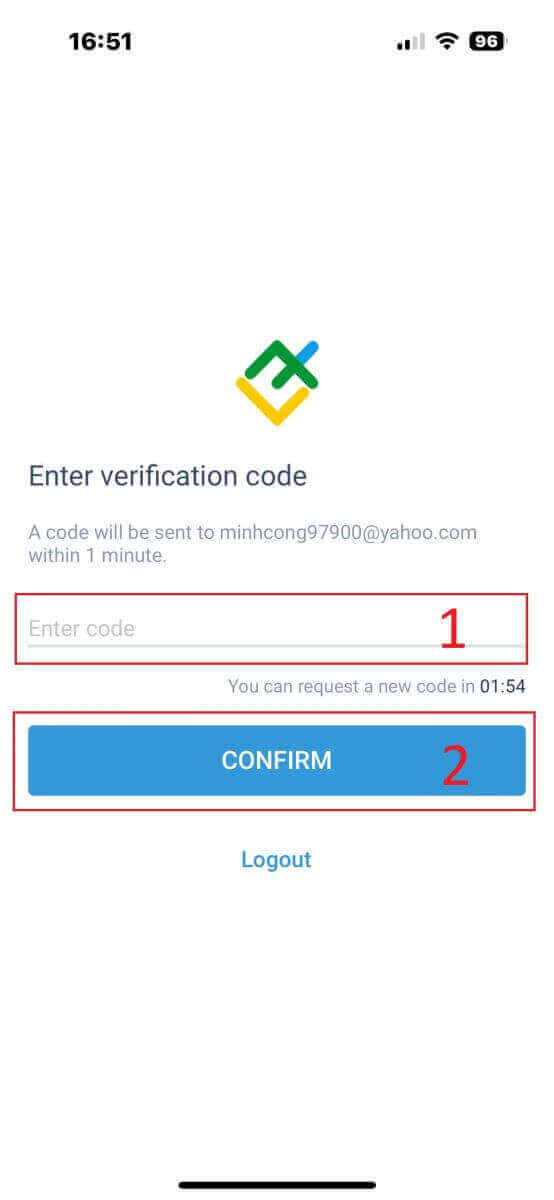
Within a minute, you’ll receive a 6-digit verification code via phone or email. Therefore, please check your inbox carefully and enter the code. Additionally, if you haven’t received it after 2 minutes, click "RESEND" to get another one. Finally, select "CONFIRM".
You can create your own 6-digit PIN number. Although this step is optional, it must be finished before you can access the trading interface.
Congratulations! You’ve finished setting up the LiteFinance mobile trading app and are now prepared to use it.
Verifying LiteFinance Profiles with the LiteFinance Mobile Trading App
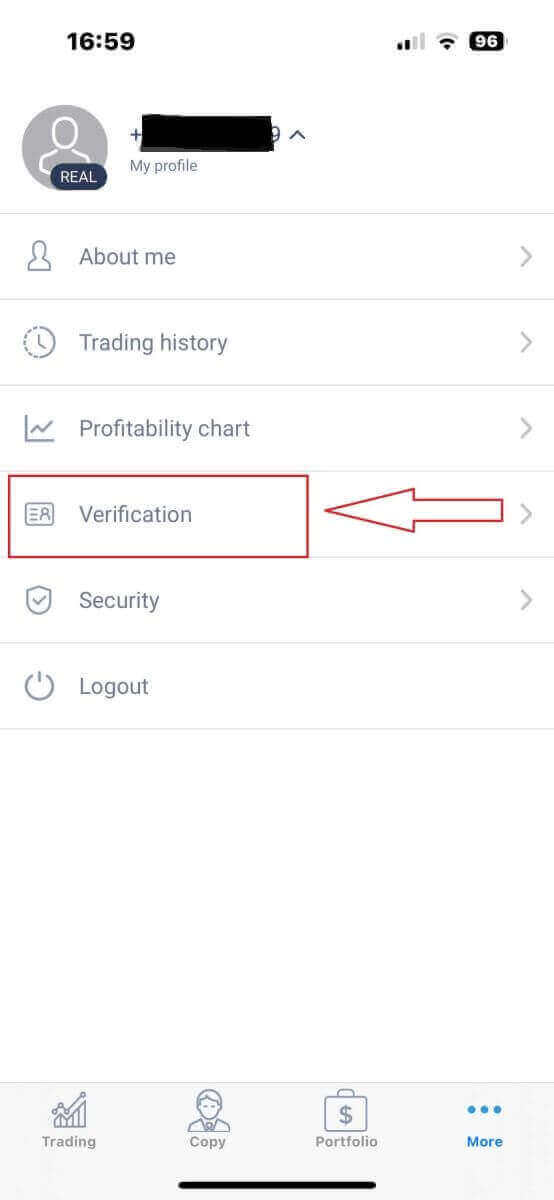
On the homepage, click "More" in the lower right corner.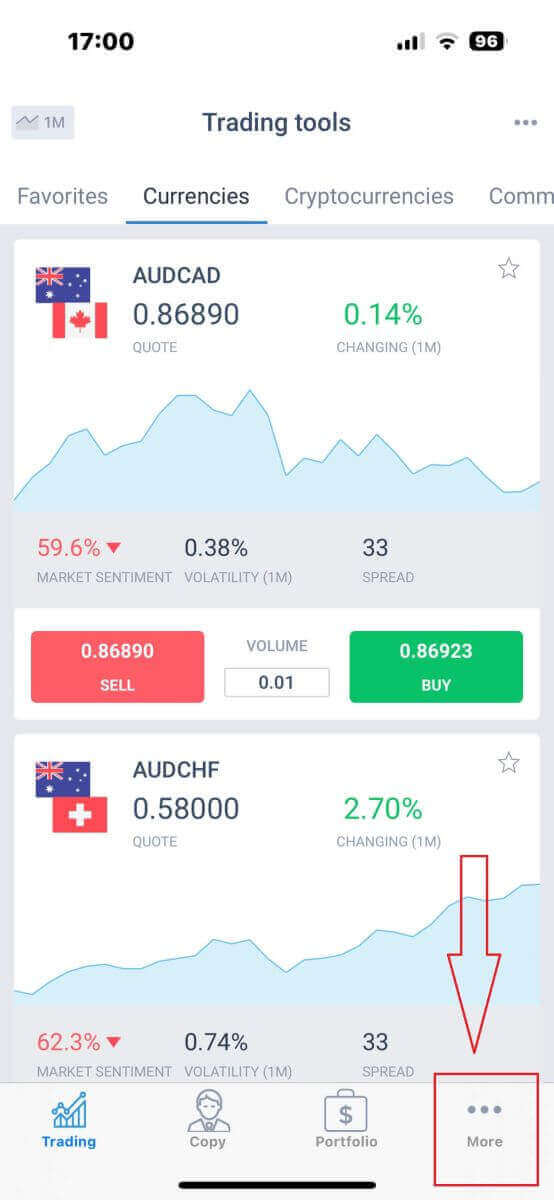
Look for and select the drop-down arrow next to your phone number or email address on the first tab.
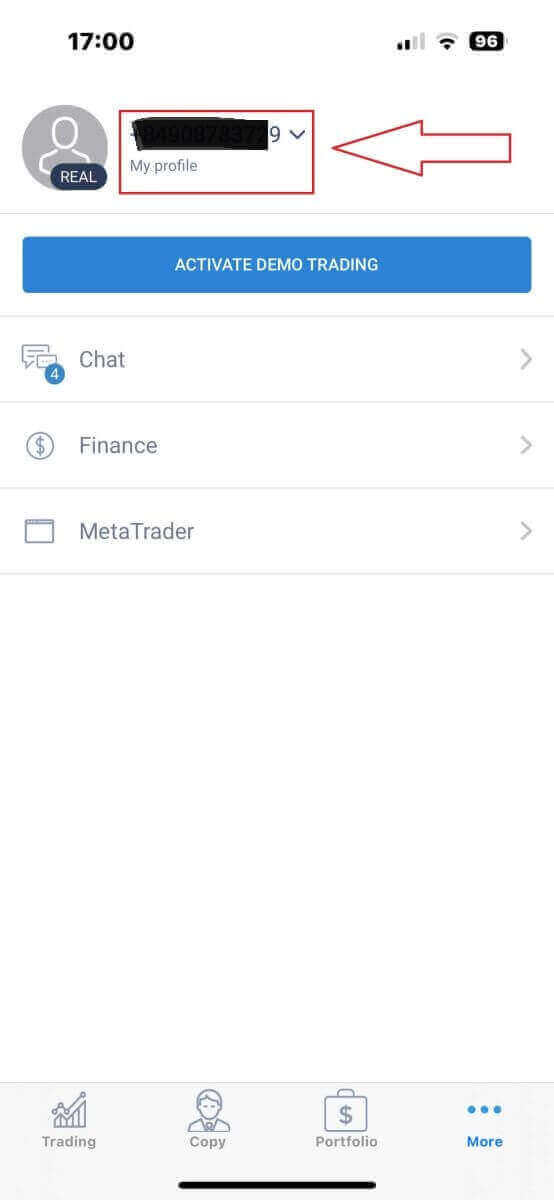
Select the "Verification" symbol to access the verification interface.
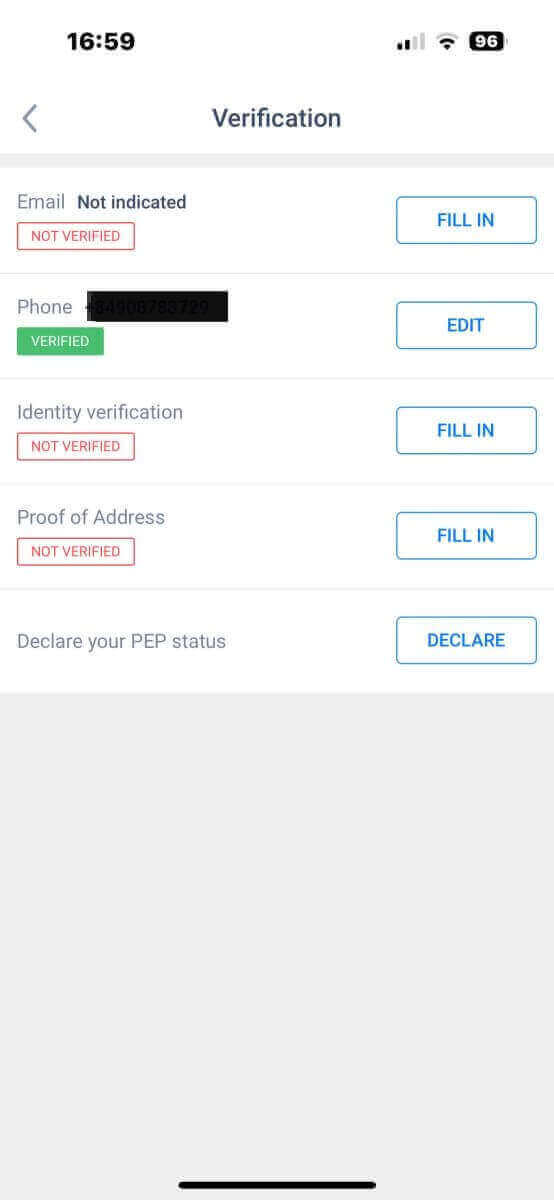
- Email address.
- Phone number.
- Identity verification.
- Proof of Address.
- Declare your PEP status.
How to create a new trading account
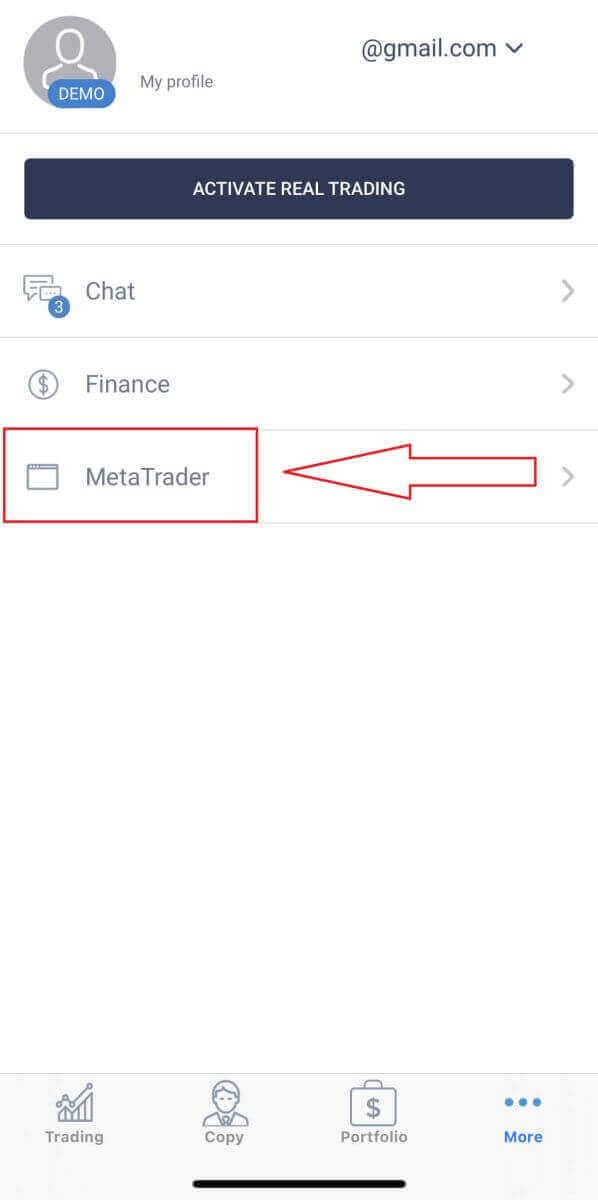
Access the "More" interface.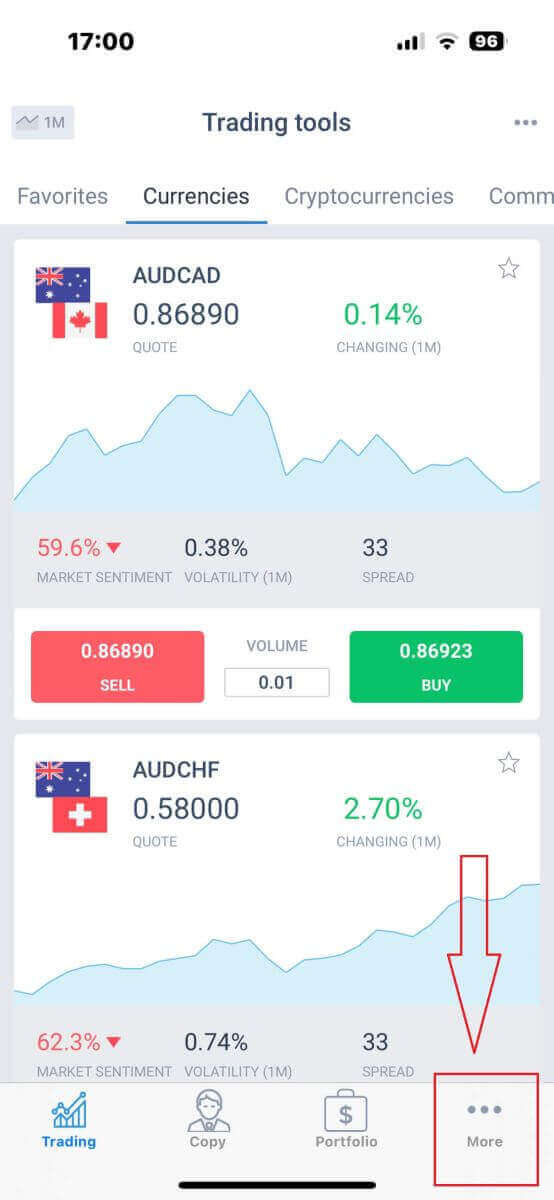
Select the "ACTIVE DEMO TRADING" button.
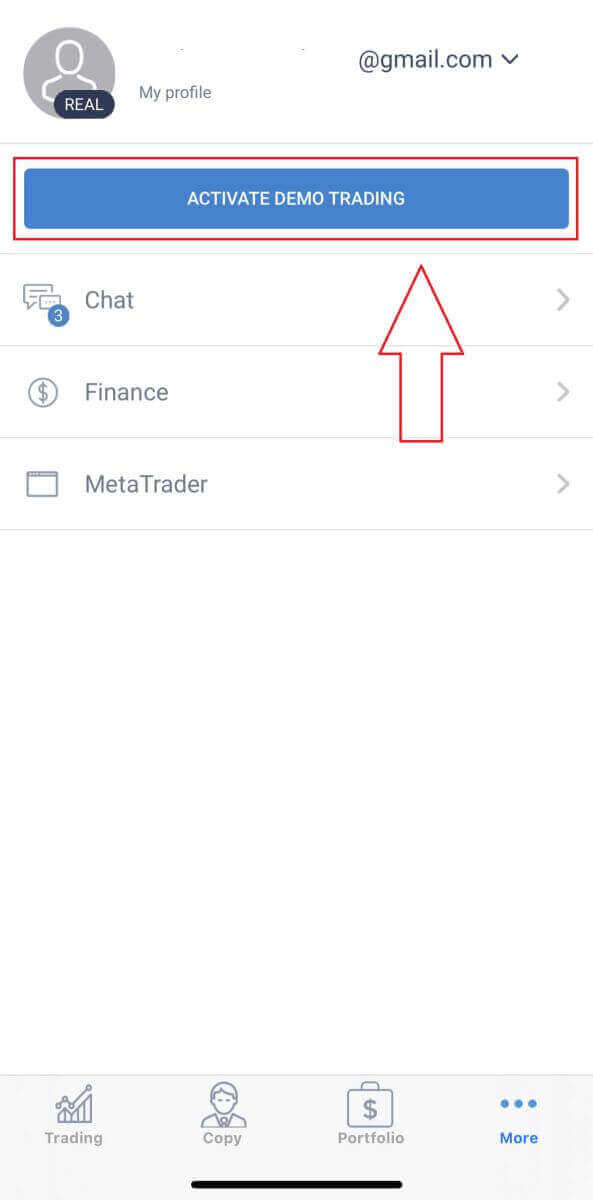
You’ve successfully accessed the demo trading mode. To proceed with creating a demo trading account, simply click on the "MetaTrader" symbol.
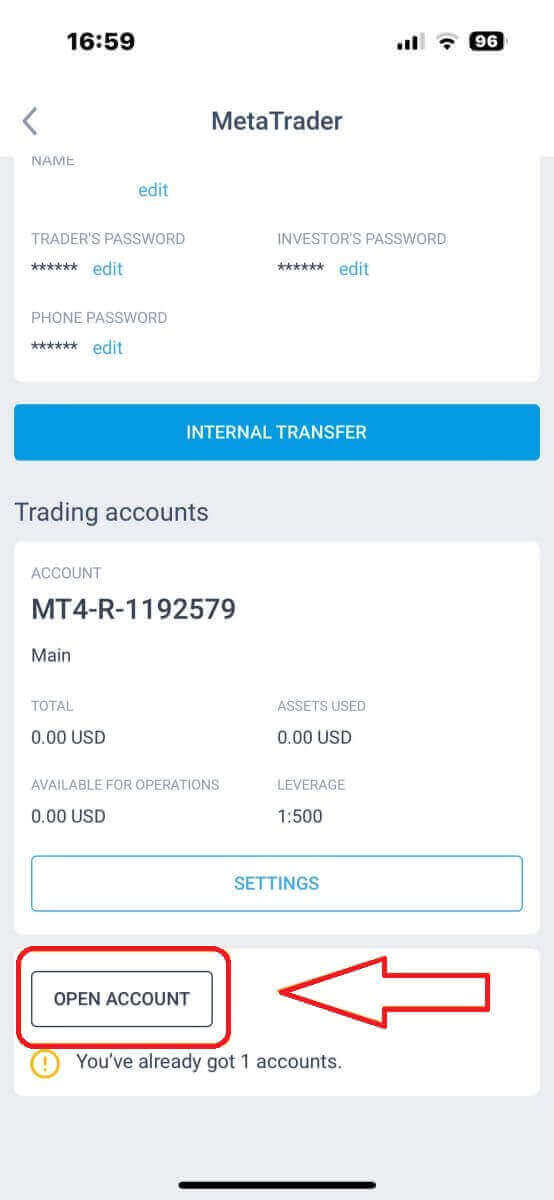
Scroll down until you see the "OPEN ACCOUNT" button, then tap it.
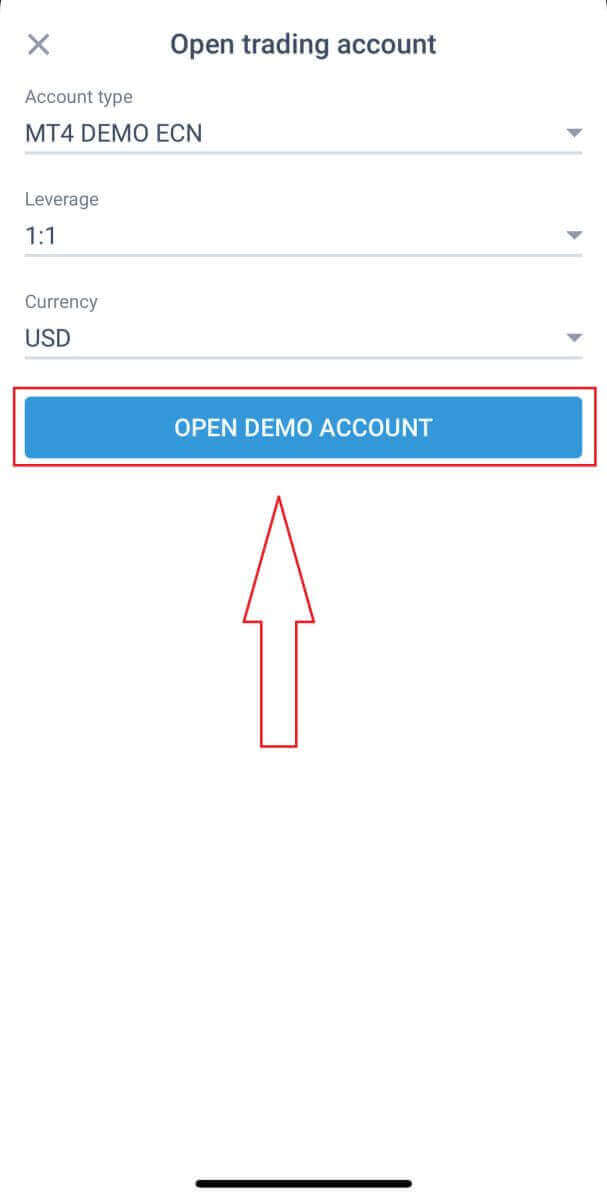
In the "Open Trading Account" box, enter your account type, leverage, and currency, and then click "OPEN DEMO ACCOUNT" to finish.
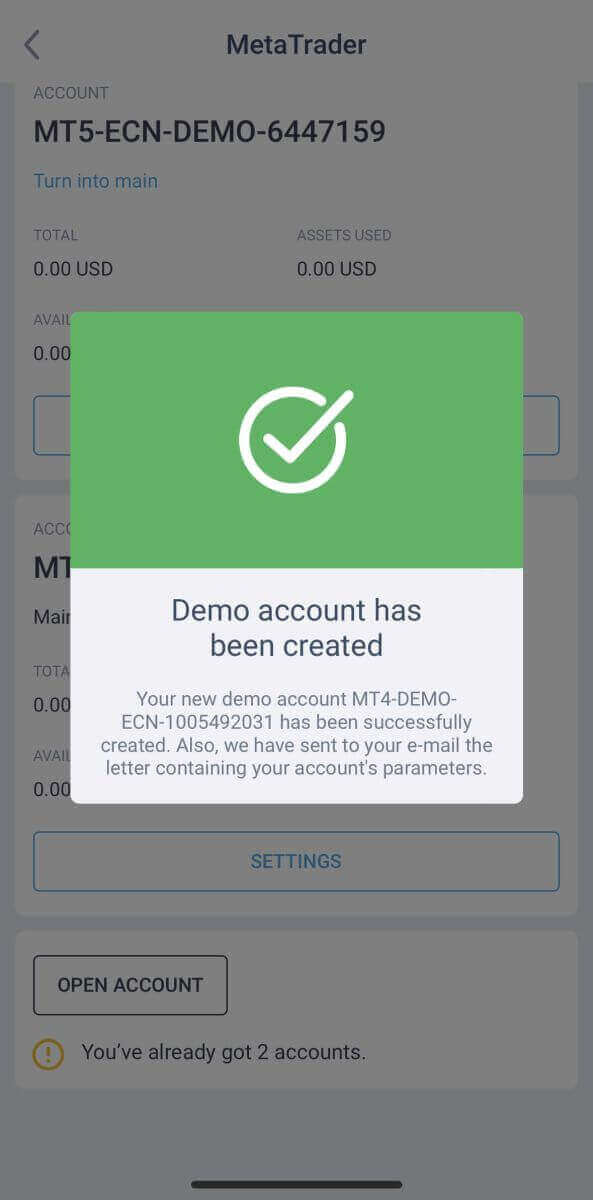
You have successfully created a demo account! Along with a demo account, a real account is also created for you upon registration.
What is the difference between a Real and a Demo Account?
The primary distinction lies in the use of actual funds for trading in Real accounts, whereas Demo accounts utilize virtual currency without any tangible value for trading. Aside from this, the market conditions for Demo accounts mirror those of Real accounts, offering an excellent environment for honing your trading strategies. Notably, Demo accounts are accessible for all account types except Standard Cent. To experience a Demo account firsthand, simply sign up and receive instant access to virtual funds (USD 10,000) for practice.Unlocking Practice Opportunities - The Power of a Demo Account
Demo accounts allow traders to gain hands-on experience in a risk-free environment, as they can trade with virtual money instead of real funds. This helps them understand the dynamics of the market, test different strategies, and build confidence before venturing into live trading with real money. To start exploring the features and functionalities of your demo account, you can now log in using the credentials provided. Feel free to experiment with different settings and options without any risk to your actual funds. Enjoy your trading experience! FAQs
Open the demo signup page, choose Demo account, pick a platform (web, MT4/MT5, or mobile), set your virtual balance, leverage and base currency, then register with an email and password. You’ll receive demo credentials instantly; log into the chosen terminal, load a chart, and place test orders. If you plan to run automated strategies, enable expert advisors in MT4/MT5 and check platform-specific setup notes.
No deposit is required and full identity verification is usually not needed for demo access. Email confirmation may be requested. Verification and a real deposit only become necessary when you switch to a live funded account to meet regulatory and withdrawal requirements.
Demo access works with LiteFinance web terminals, MetaTrader 4 and MetaTrader 5, and mobile apps. You can typically select demo account settings such as virtual balance, leverage, and base currency to mirror the live account type you intend to use.
First confirm you selected the correct demo server and entered credentials exactly. Check internet, disable VPN or firewall temporarily, and update or reinstall the platform. If balance is zero, use the dashboard or account settings to reset virtual funds or create a new demo instance. If errors persist, capture screenshots and contact support with server name and platform logs so they can investigate connection or provisioning issues.
Demo accounts usually remain available but may be closed after long inactivity or under platform retention rules; you can create a new demo at any time. To move to live trading you’ll need to register a real account, complete identity verification (ID and proof of address), and fund the account. Demo balances and trade history do not transfer to live accounts, though you can replicate platform settings and trading templates for continuity.