LiteFinance Sign In
Writen By

Online Trading Platform Researcher and Guide Writer
Researches broker platforms and trading account Systems.
Getting quick, reliable access to your trading account is essential when markets move. Traders often face login hurdles such as forgotten passwords, two-step authentication prompts, device‑specific session timeouts, or browser cookie and cache issues that prevent access. Before attempting a sign in, check which platform you use (web terminal, desktop MetaTrader, or mobile app), confirm your registered email or phone, and be aware that IP changes or blocked cookies can trigger additional security checks. Also note that logging in from a new country or using a VPN may prompt identity verification; if you sign in with a social or third‑party account, make sure those credentials are active.
This article outlines step‑by‑step LiteFinance sign in procedures, secure password recovery, and how to handle common errors across web and mobile apps. It also covers two‑factor authentication settings, session management, and quick troubleshooting tips to regain access without compromising account security. Follow these practical steps to reduce downtime, meet verification checkpoints, and keep your trading access protected.
This article outlines step‑by‑step LiteFinance sign in procedures, secure password recovery, and how to handle common errors across web and mobile apps. It also covers two‑factor authentication settings, session management, and quick troubleshooting tips to regain access without compromising account security. Follow these practical steps to reduce downtime, meet verification checkpoints, and keep your trading access protected.
How to Sign in to LiteFinance on the Web app
How to Sign in to LiteFinance with a Registered Account
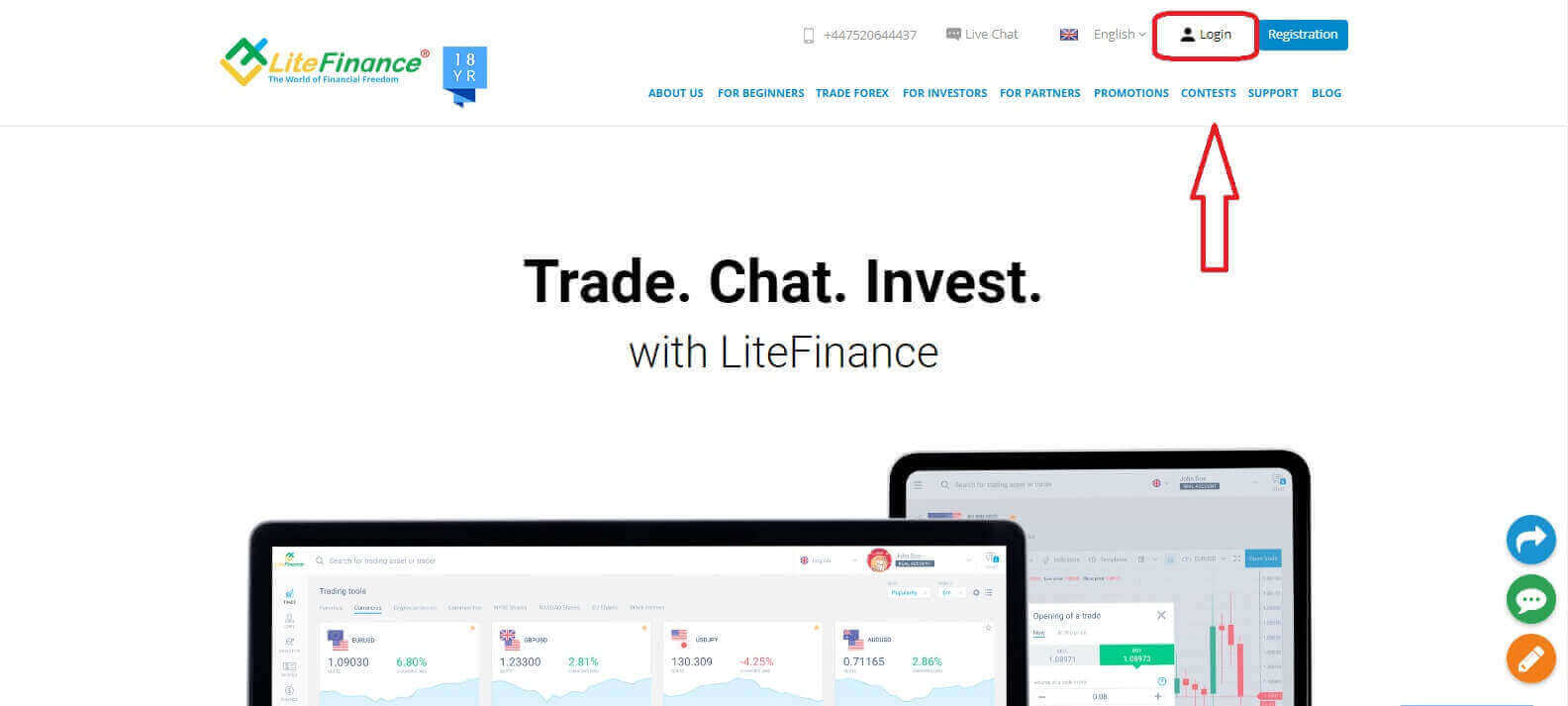
If you don’t have a registered account, watch this post: How to Register Account on LiteFinance.Visit the LiteFinance homepage and click on the "Login" button.
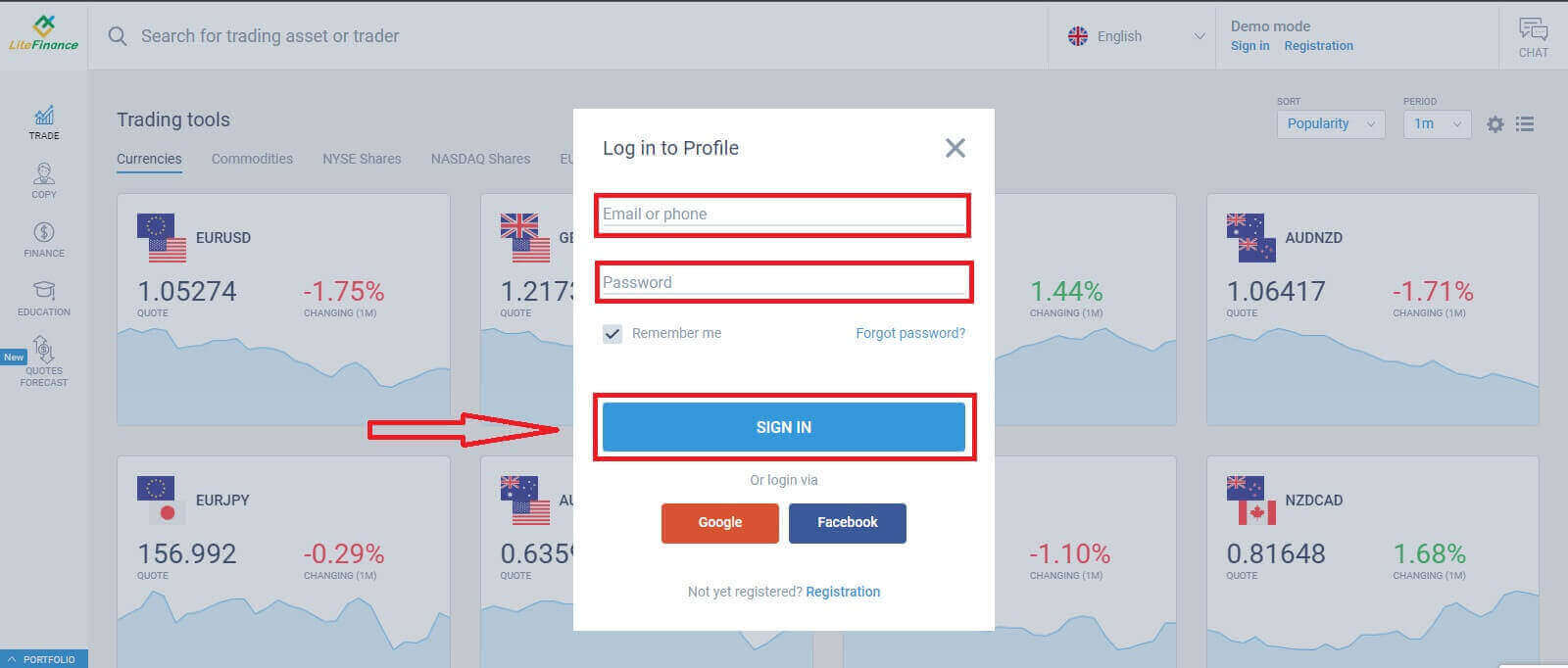
Click "SIGN IN" after entering your registered email address and password to access your account.
Sign in to LiteFinance via Google
On the registration page, in the "Log in to Profile" form, choose the Google button.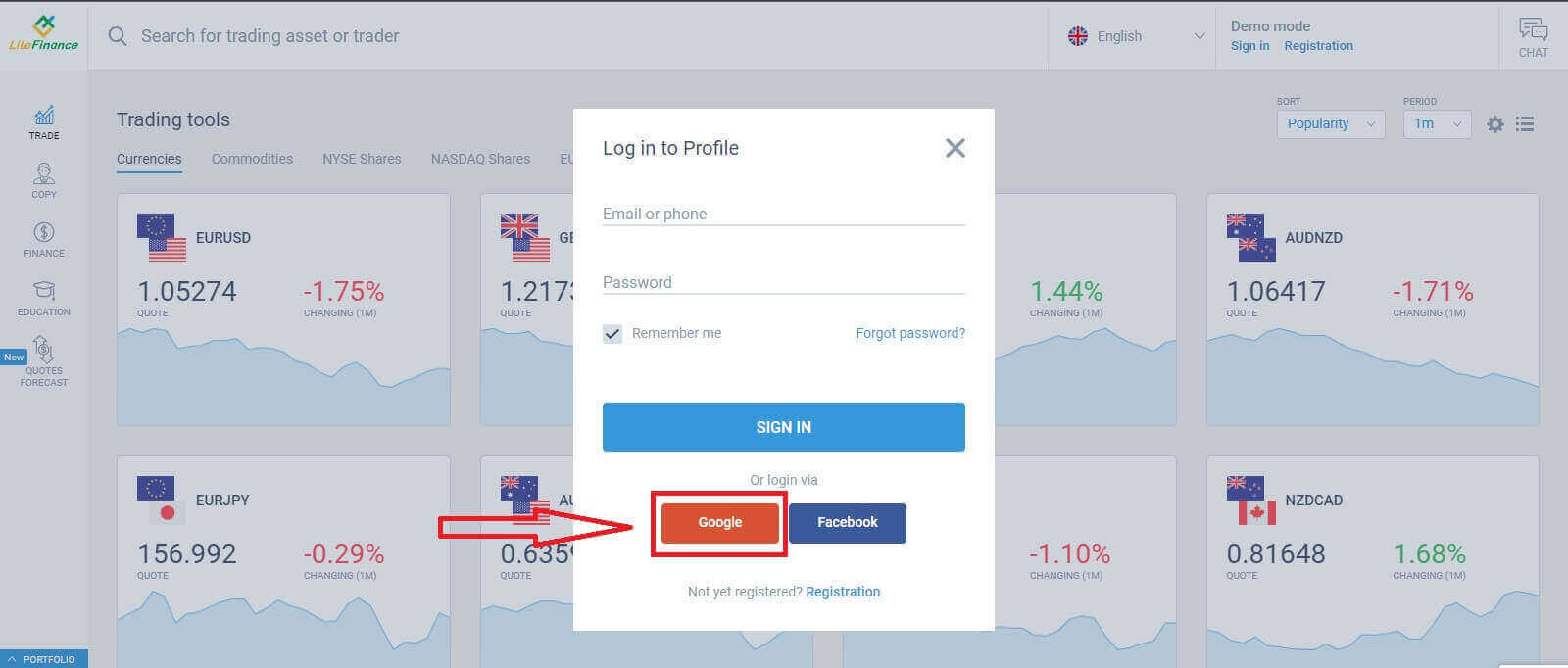
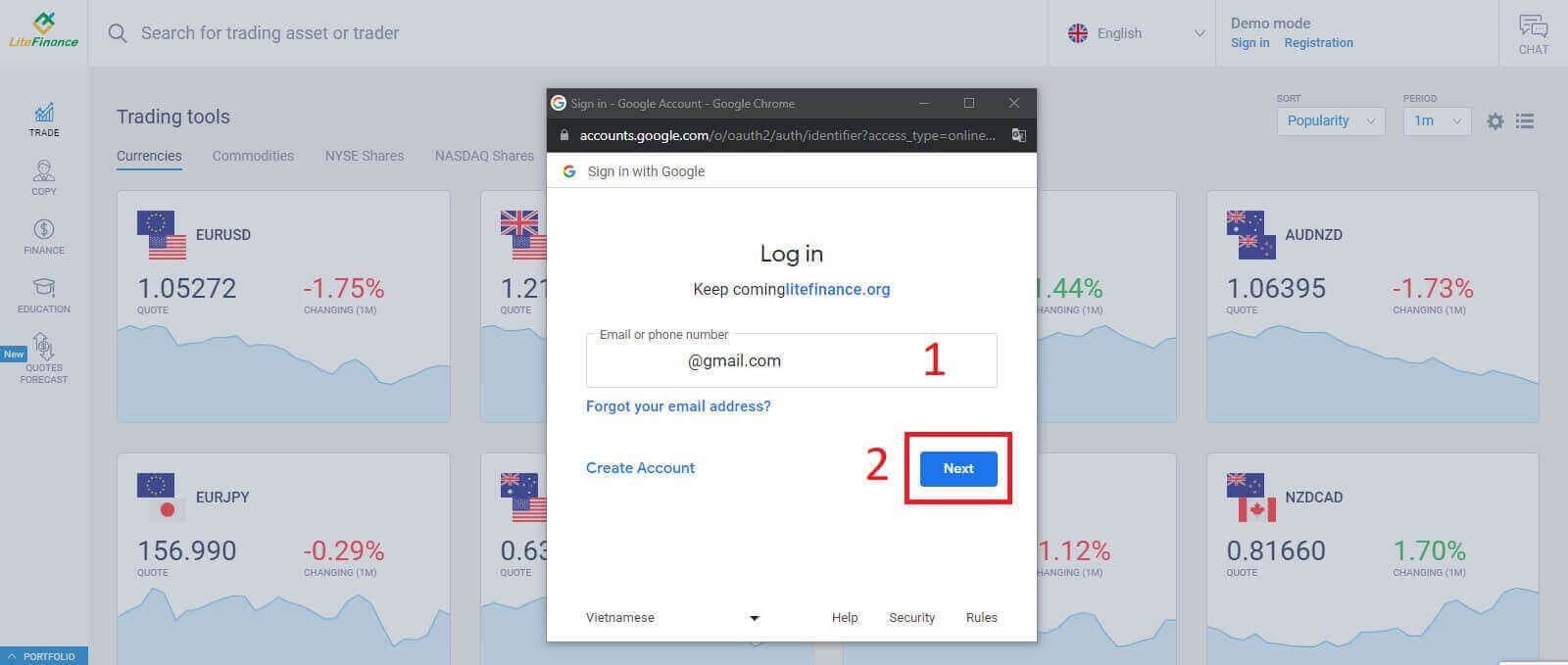
A new pop-up window will appear. On the first page, you need to enter your email address/ phone number then click "Next"
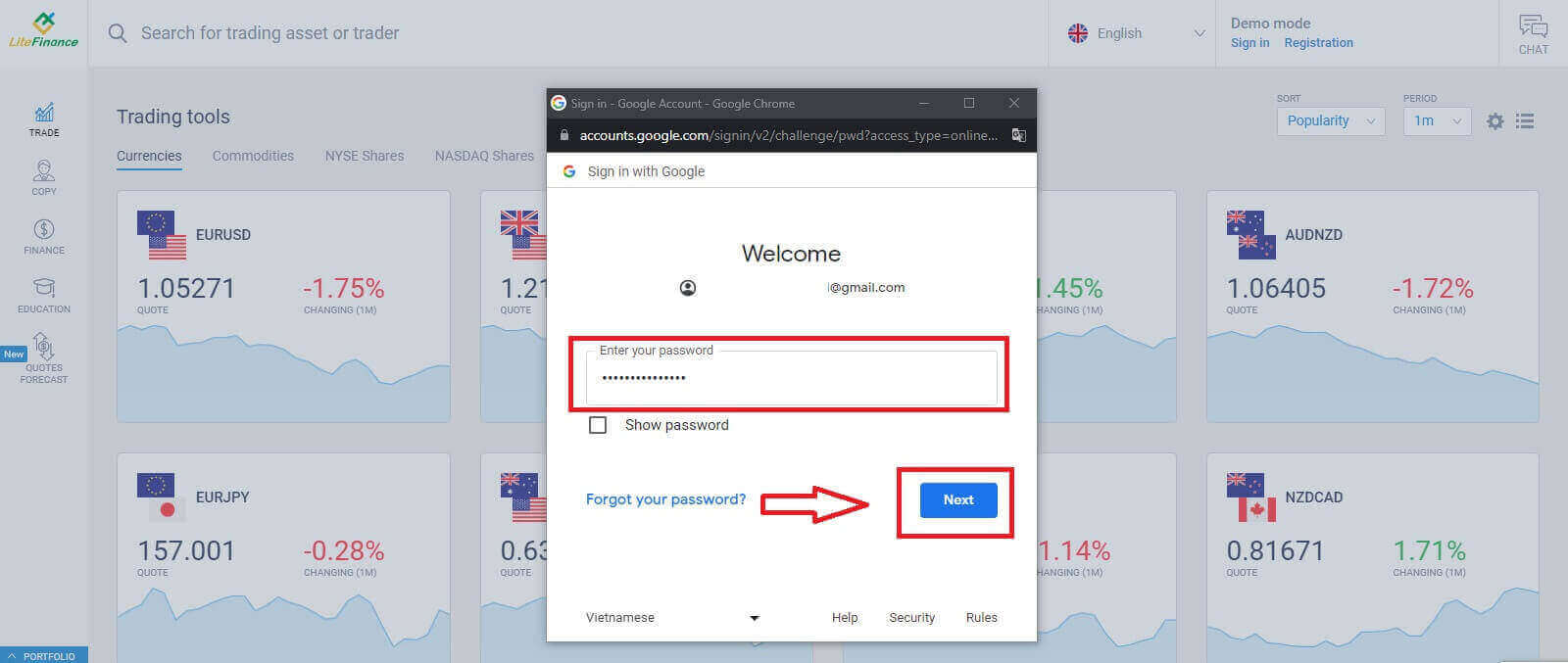
Enter your Google account’s password on the next page and click "Next".
Sign in to LiteFinance with Facebook
Select the Facebook button on the registration page’s "Log in to Profile" form.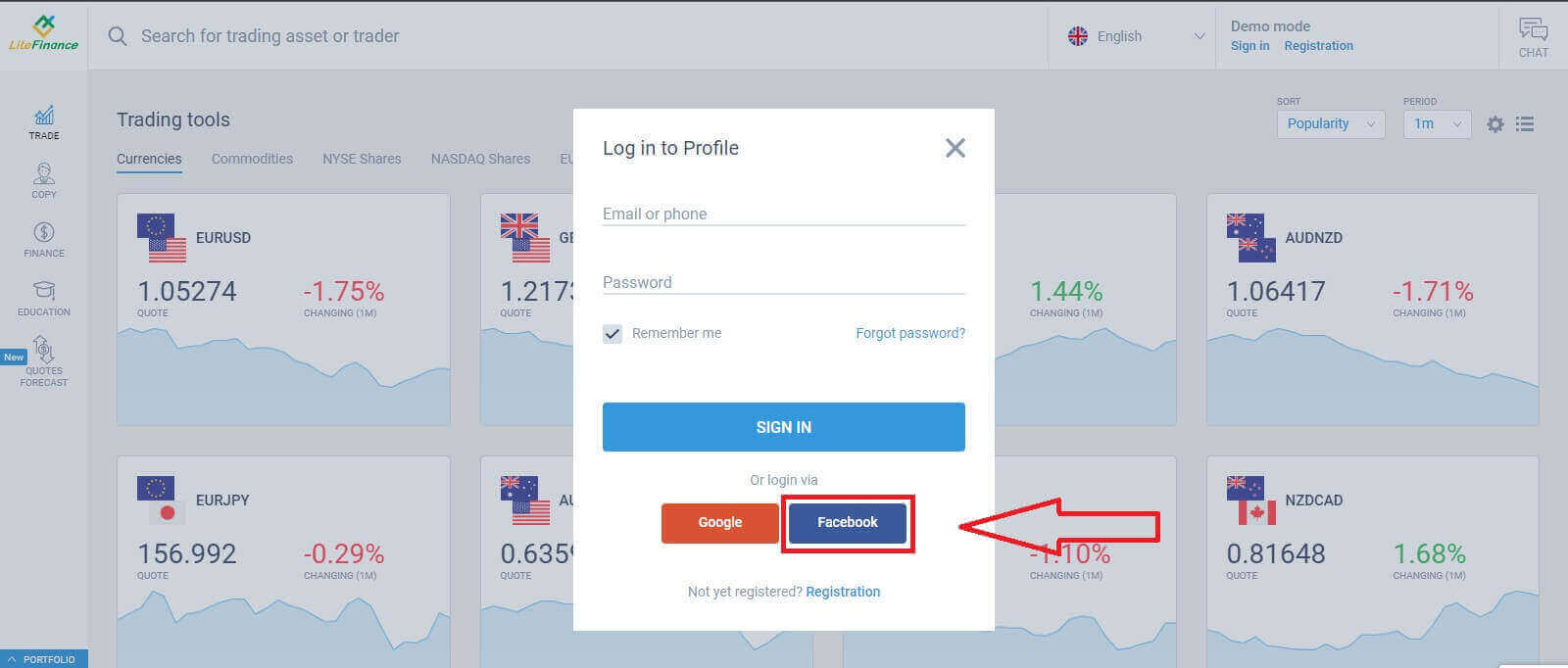
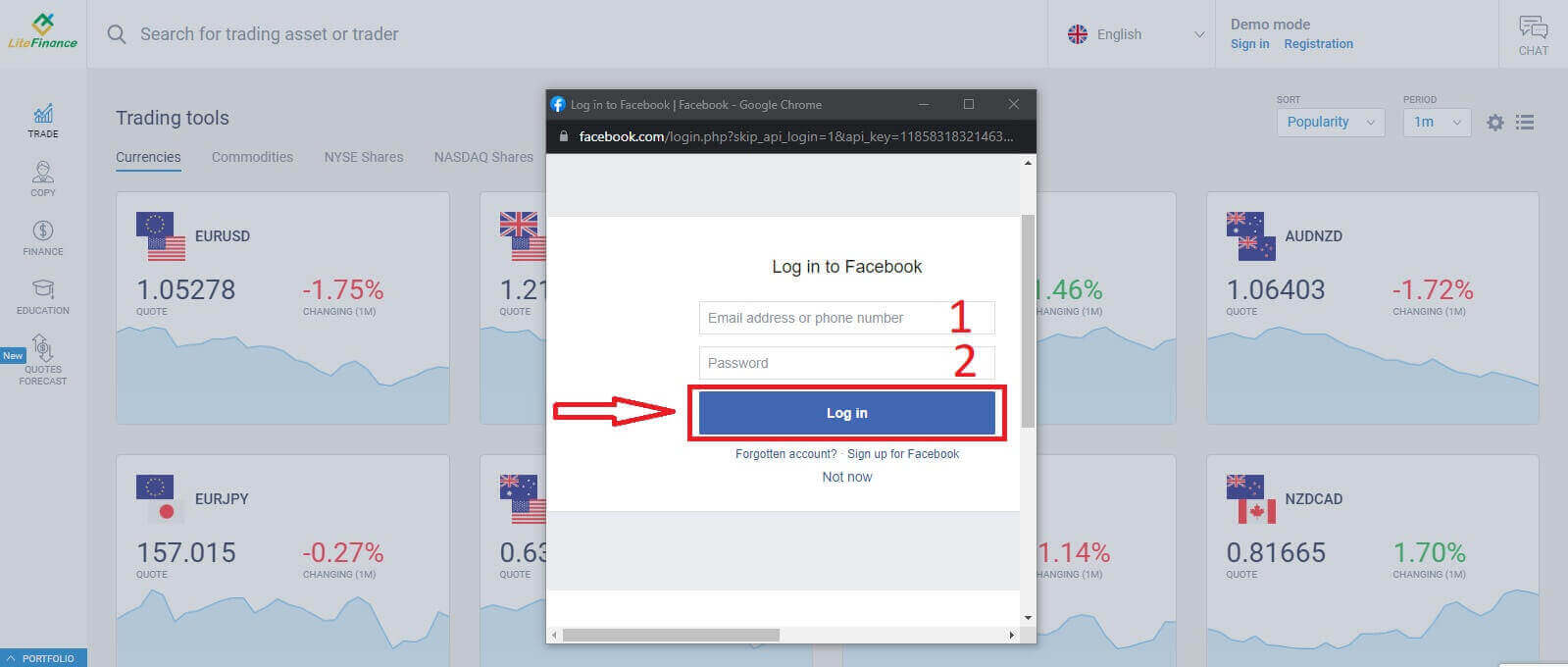
At the first pop-up window, enter your Facebook’s email address/ phone number and password. After that, click "Log in".
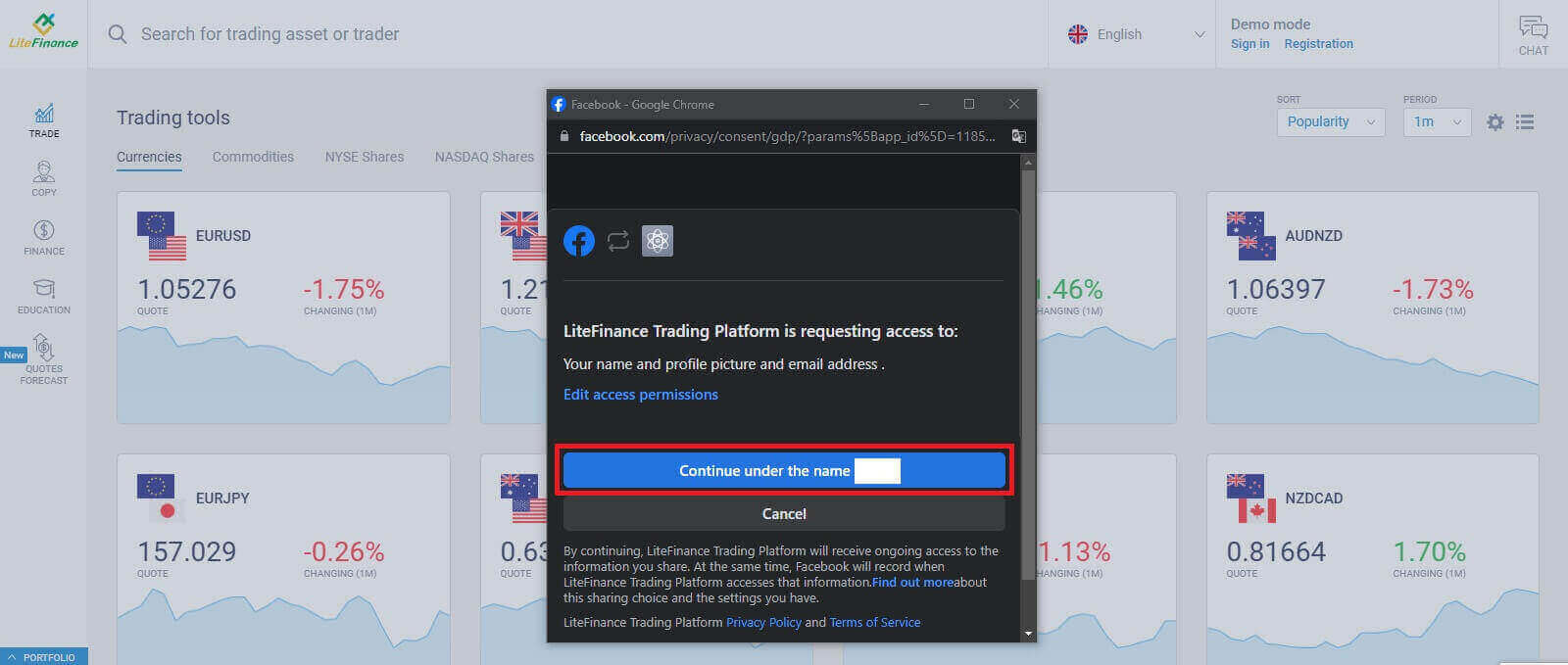
Choose the "Continue under the name..." button on the second one.
How to Recover your LiteFinance password
Access the LiteFinance homepage and click on the "Login" button.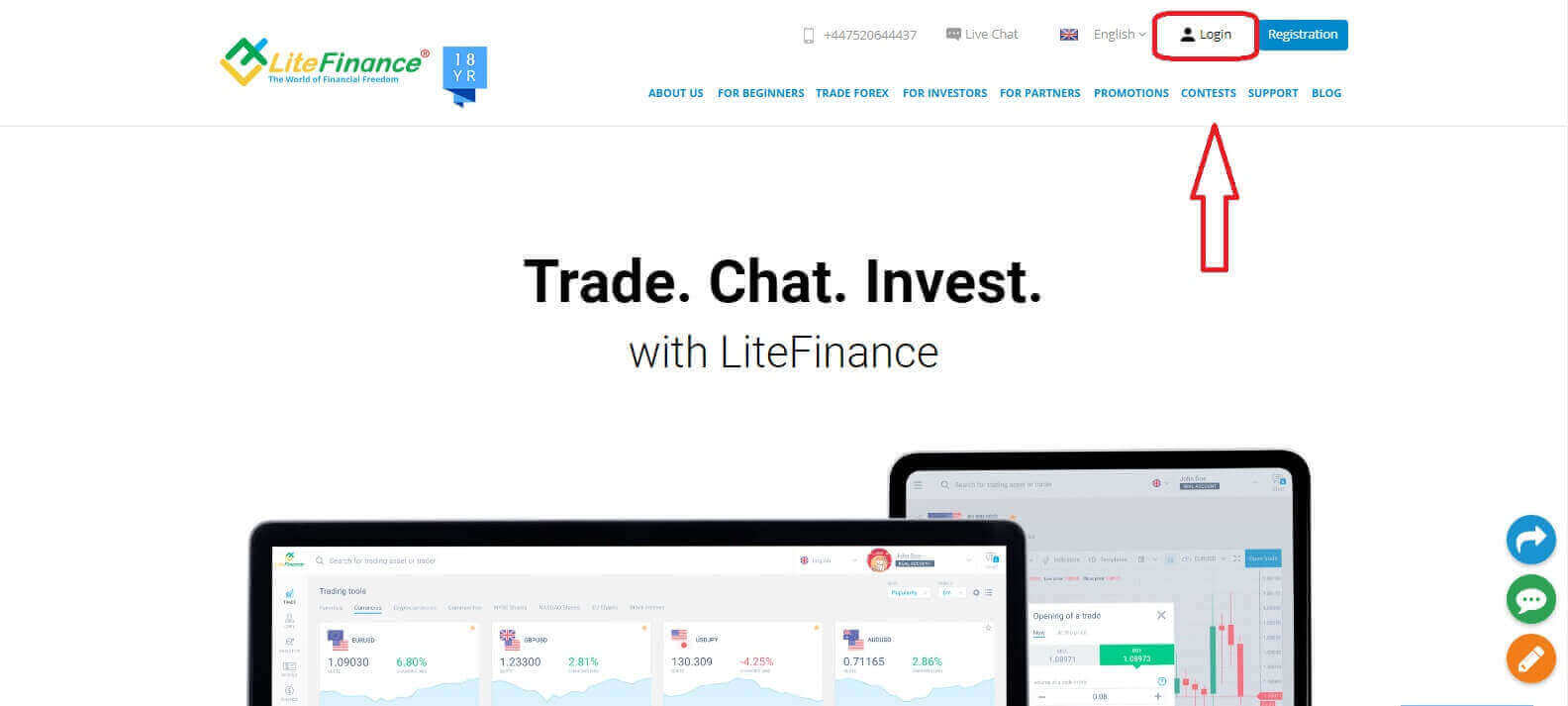
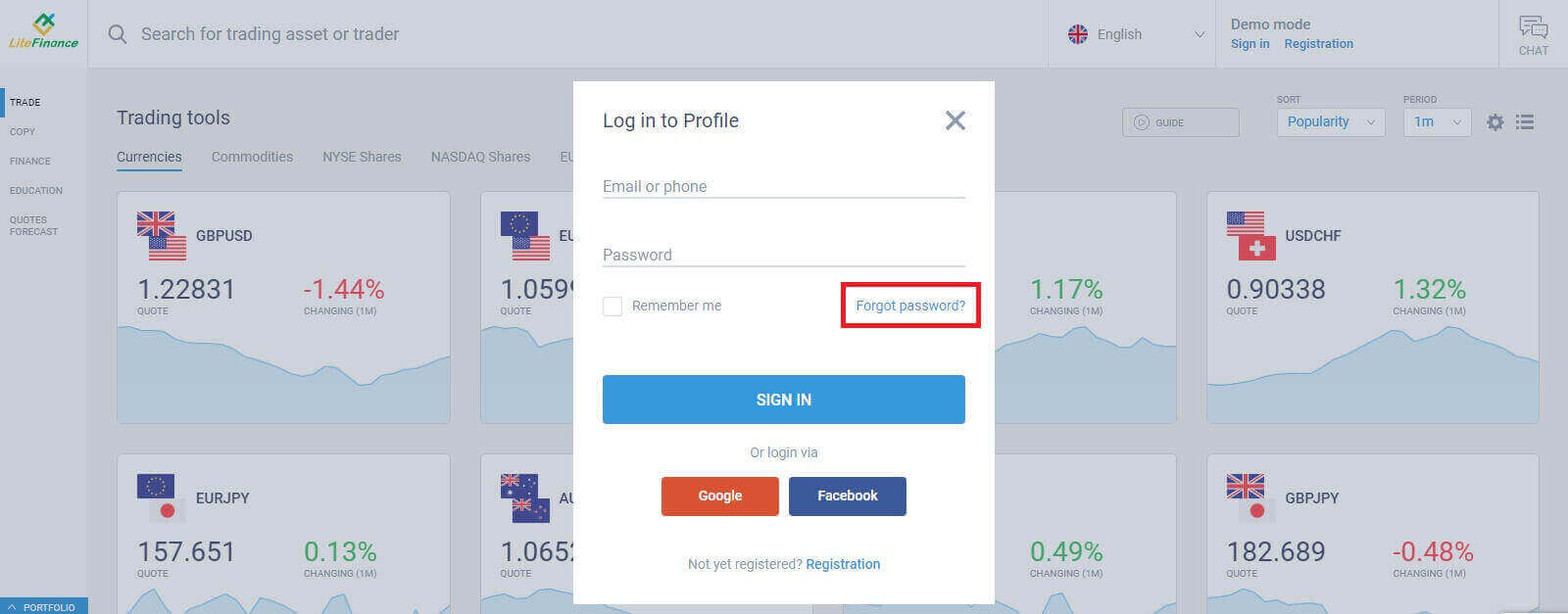
At the sign-in page, choose "Forgot password".
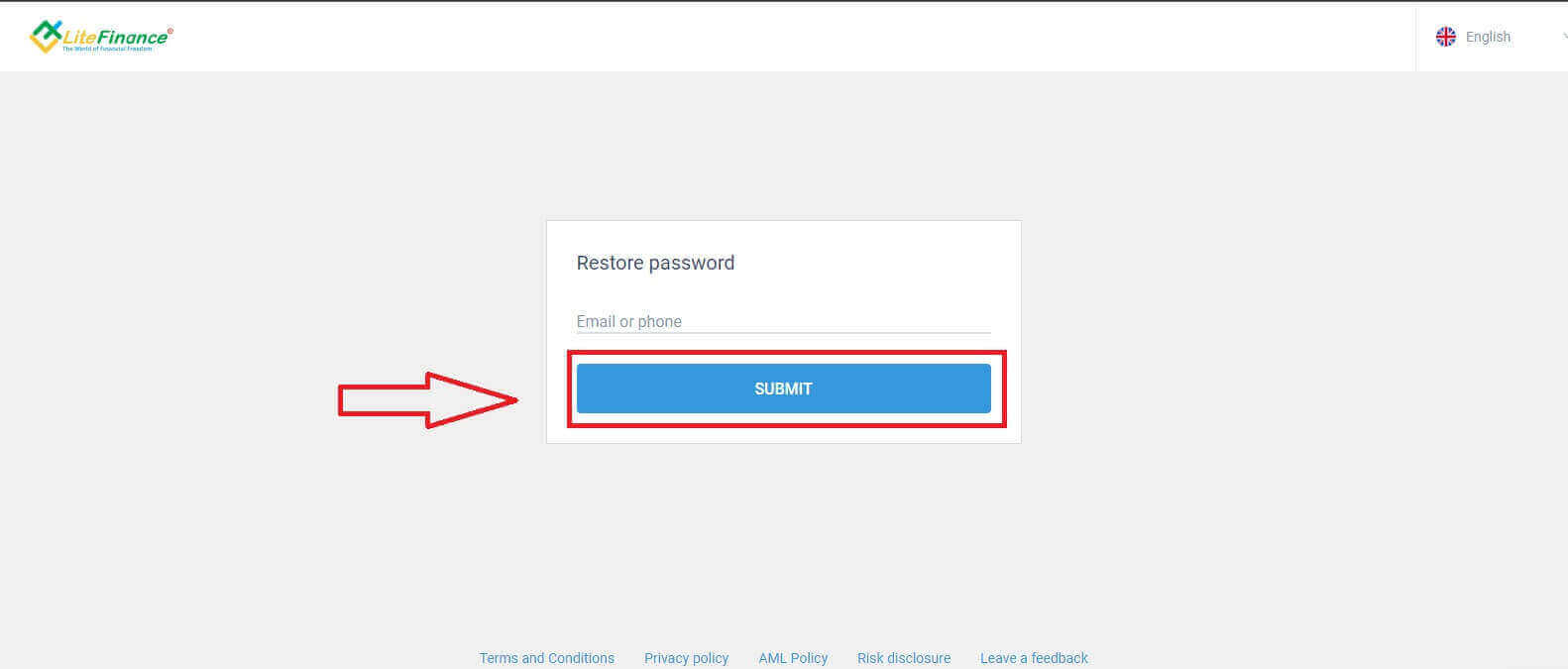
Enter the email/ phone number of the account that you want to reset the password in the form, then click "SUBMIT". Within a minute, you will receive an 8-digit verification code so please check your inbox carefully.
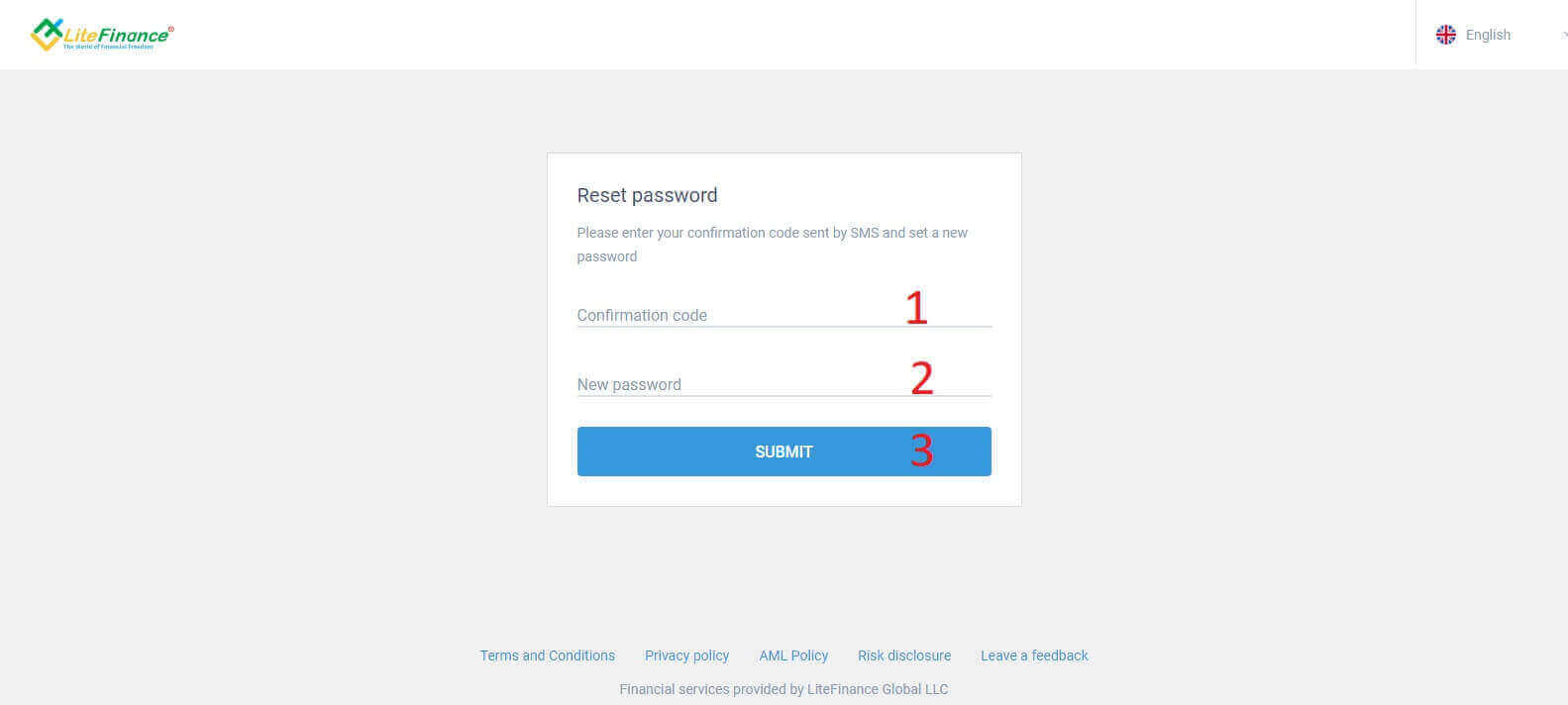
Finally, in the next form, you will need to fill in your verification code into the form and create a new password. To finish resetting your password, click "SUBMIT".
How to Sign in to LiteFinance on the Mobile app
Sign in to LiteFinance Using a Registered Account
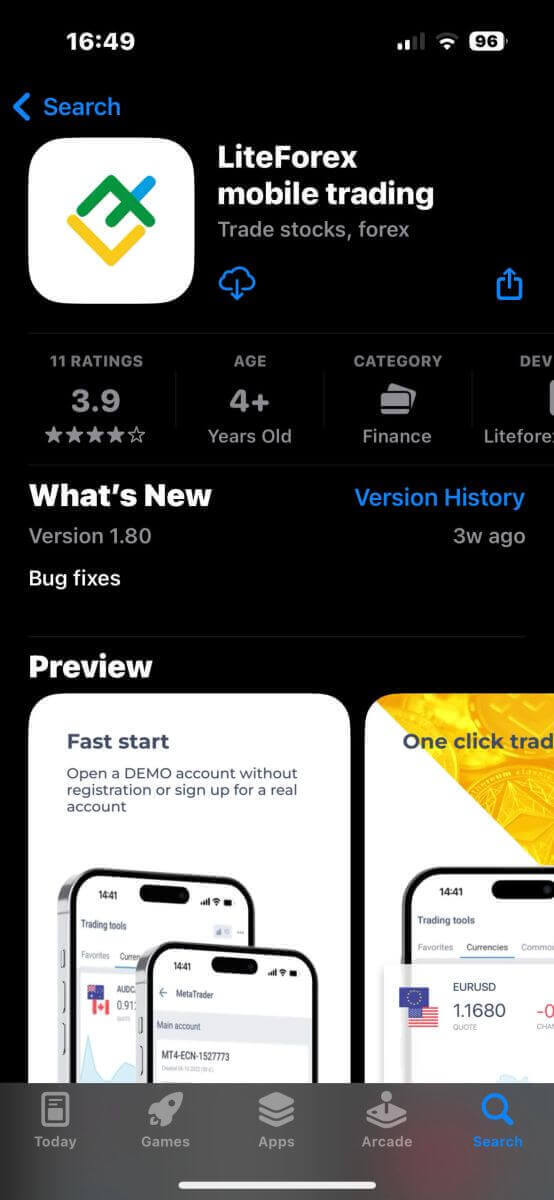
Currently, neither sign-in via Google nor Facebook is available on the LiteFinance mobile trading app. If you don’t have a registered account, watch this post: How to Register Account on LiteFinance.Install the LiteFinance mobile trading app on your phone.
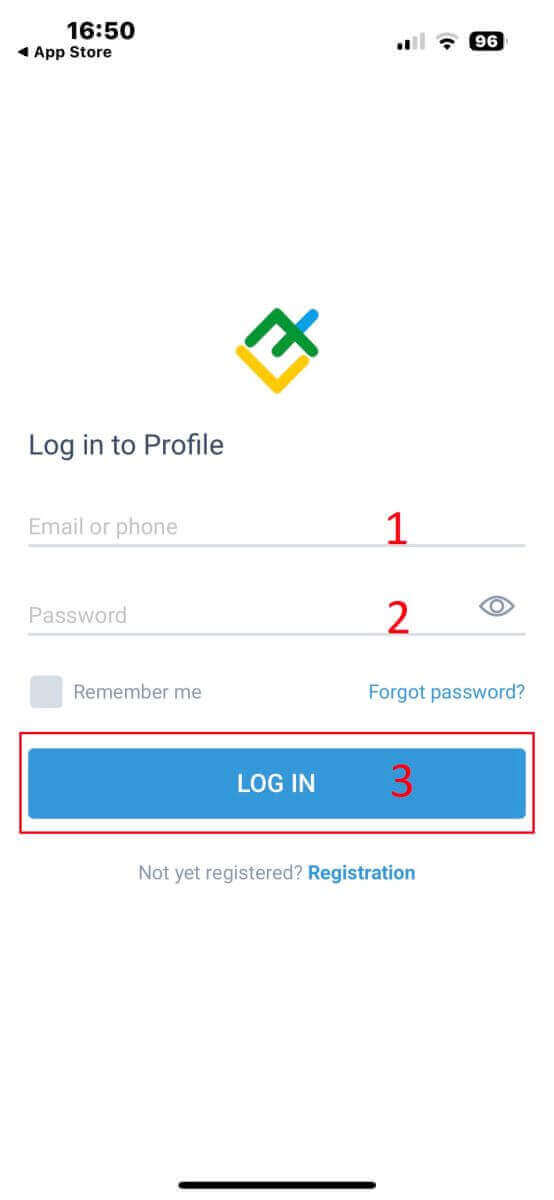
Open the LiteFinance mobile trading app, enter your registered account details, and then click "LOG IN" to continue.
How to recover your Lifinance password
At the sign-in interface of the app, choose "Forgot password".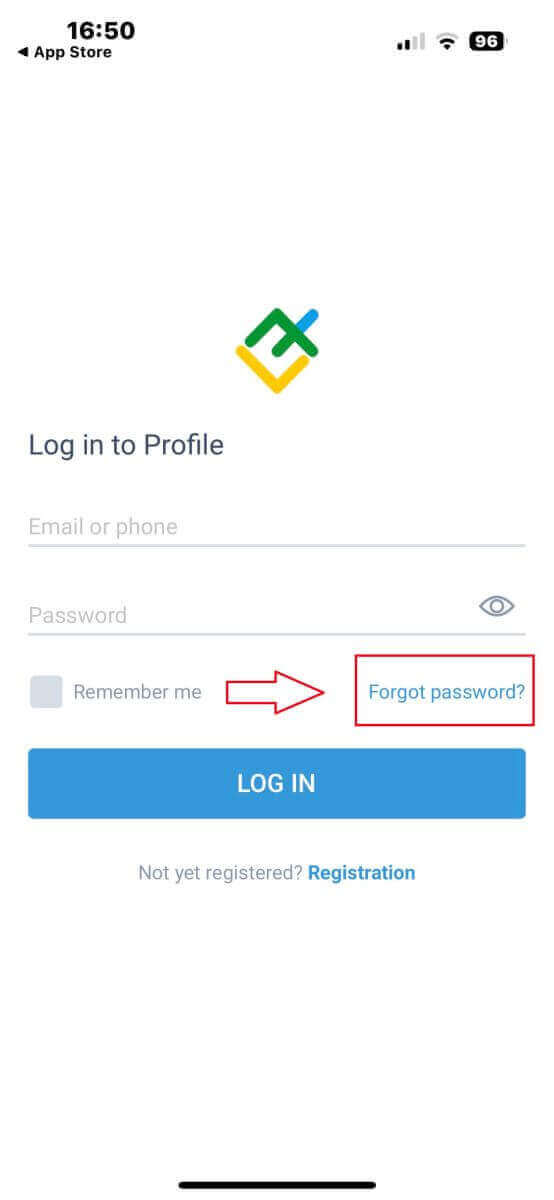
Enter the email address/ phone number of the account that you would like to reset the password to and tap "SEND".
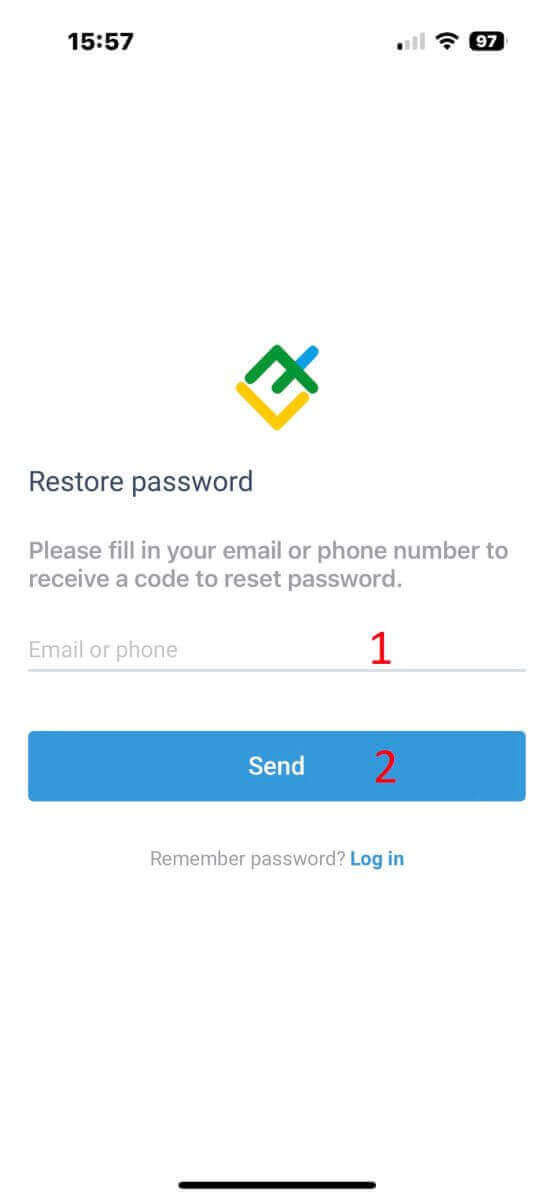
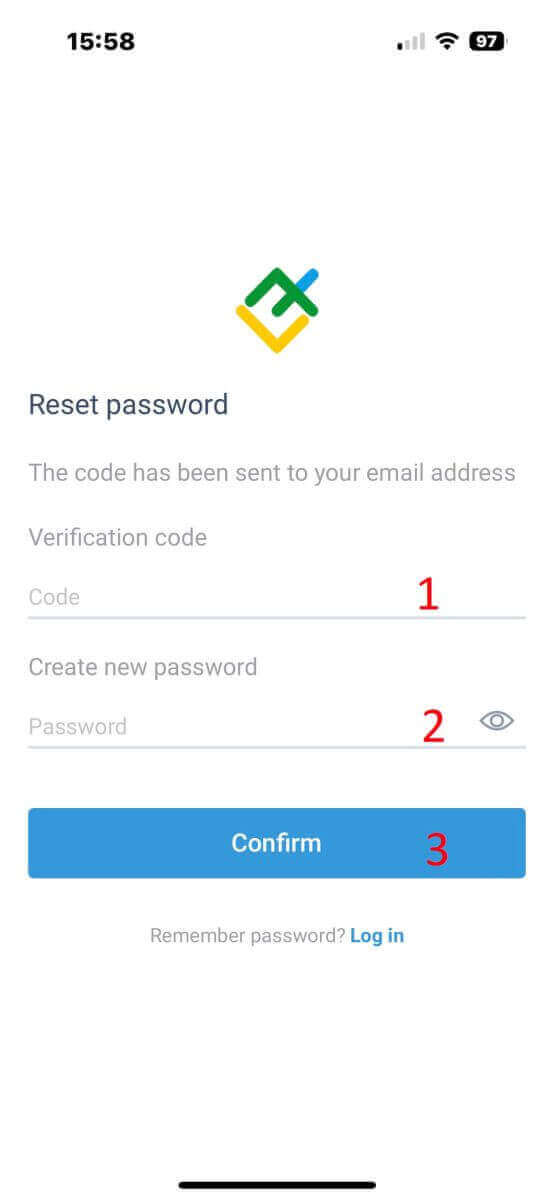
Within 1 minute, you will receive an 8-digit verification code. After that, enter the verification code, and your new password.
Click "Confirm" and you’ll successfully reset your password.
Seamless Access to Your Trading Journey on LiteFinance
In conclusion, accessing your LiteFinance account is a straightforward process that ensures a secure and convenient entry into the world of online trading. By following the steps outlined in this guide, you can easily sign in to your LiteFinance account, gaining swift access to a plethora of financial tools and market opportunities. LiteFinance stands as a user-friendly platform, committed to providing traders with a seamless experience and empowering them to make informed decisions in the dynamic world of finance. Welcome back to LiteFinance, where efficient sign-in procedures are just the beginning of your journey towards successful trading. FAQs
Confirm your registered email and finish any activation link, then open the LiteFinance web or mobile app, enter your email/username and password, and complete any prompted phone or email confirmation; if you didn’t receive activation, check spam and request a new confirmation code.
Verify you’re using the correct email or account ID and the exact password (passwords are case‑sensitive); try resetting the password, disable autofill, check Caps Lock, clear browser cache or try incognito, confirm you’re signing into the right account type (demo versus live), and if multiple failed attempts locked your account contact support to unlock it. Also try signing in from the mobile app or another device and check LiteFinance status pages for maintenance windows before contacting support.
Log in, open Account or Security settings, choose an authenticator option (Google Authenticator or SMS where available), follow the prompts to scan the QR code or register your phone, save backup/recovery codes in a secure location, and test the one‑time code; if you lose access to 2FA, contact LiteFinance support with ID verification to restore access. Do not share codes and enable device PIN or biometric lock on your phone.
You can usually sign in after registration, but access will be limited: trading, deposits, or withdrawals may be restricted until you submit ID and address documents and pass verification; some features like larger leverage or promotional eligibility require a completed KYC, so complete verification to unlock full account functions and avoid interruption. You may still log in to update profile details or contact support, but funding and cashout operations often remain blocked until the verification is approved.
Update the mobile app and clear its cache first; ensure your device clock/timezone are correct and network is stable. Disable aggressive battery or security apps that kill background sessions and avoid VPNs that change your IP. Sign out remotely from other devices in account settings, reinstall the app if issues persist, and re‑enter credentials and 2FA codes. If repeated expirations continue, capture screenshots and send device model, OS version and app logs to LiteFinance support so they can check server-side session policies.